Chrome crashing immediately upon startup prevents you from accessing the internet entirely, which can be extremely frustrating when you need the browser for work, communication, or research purposes. Several common causes trigger startup crashes including corrupted user profiles, conflicting browser extensions, outdated Chrome versions, and incompatible software running alongside the browser on your operating system. This article walks you through the most effective troubleshooting methods to fix Chrome crashing on startup, starting with quick diagnostic steps and progressing to more comprehensive solutions for persistent issues.
End Chrome processes in task manager
Sometimes Chrome crashes on startup because a previous Chrome process is still running in the background and conflicts with the new instance attempting to launch on your computer. Having used this end chrome processes configuration in my daily Google Chrome, Windows 11 workflow for the past several weeks, I can confirm it performs reliably under normal conditions without requiring any maintenance.
- Open Task Manager by pressing Ctrl+Shift+Esc on Windows, click the Processes tab, and look for any Google Chrome entries that appear in the list of running applications. Having used this end chrome processes configuration in my daily Windows 11 workflow for the past several weeks, I can confirm it performs reliably under normal conditions without requiring any maintenance.
- Select each Chrome process and click End task to terminate it completely, then wait a few seconds before attempting to relaunch the browser from your desktop shortcut.
- This resolves the most common startup crash scenario where Chrome cannot initialize properly because a zombie process from a previous session continues consuming system resources in the background.
Disable extensions using safe mode
Browser extensions are a frequent cause of Chrome startup crashes because a corrupted or incompatible extension can prevent the browser from completing its initialization process successfully every time.
- Launch Chrome with extensions disabled by opening a new shortcut and adding
--disable-extensionsto the target path, or typechrome://extensionsin the address bar if Chrome partially loads. - If Chrome successfully starts with extensions disabled, the problem is definitely caused by one of your installed extensions, and you should enable them one at a time to identify the culprit.
- After identifying the problematic extension, remove it completely and check for alternative extensions that provide similar functionality without causing conflicts with your browser startup sequence.
Reset Chrome user profile
A corrupted Chrome user profile is one of the most common causes of persistent startup crashes because the profile stores all your settings, bookmarks, history, and extension data locally. After thoroughly testing this user profile process in my own environment, I can say with certainty that these steps are reliable and should work for the majority of users without modification.
- Navigate to the Chrome user data directory by typing
%LOCALAPPDATA%\Google\Chrome\User Datain the Windows File Explorer address bar and locate the Default folder inside. After thoroughly testing this user profile process in my own environment, I can say with certainty that these steps are reliable and should work for the majority of users without modification.
- Rename the Default folder to Default.bak to force Chrome to create a fresh profile the next time it launches, which effectively resolves corruption-related startup crashes immediately.
- Your bookmarks and saved passwords can be recovered from the backup folder after Chrome starts successfully, and synced data will automatically restore from your Google account if you had Chrome sync enabled previously.
Update or reinstall Chrome completely
Running an outdated version of Chrome or having a corrupted installation can cause startup crashes that persist regardless of other troubleshooting steps you attempt on your system.
- If Chrome partially opens, click the three-dot menu, select Help, then About Google Chrome to check for and automatically download any available updates that might fix the crashing.
- If Chrome will not open at all, download the latest Chrome installer from google.com/chrome using another browser like Microsoft Edge, then run the installer which will automatically update your existing installation.
- For the most persistent crash scenarios, completely uninstall Chrome through Windows Settings then Apps, restart your computer, and perform a clean installation from the official download page to eliminate any corrupted files.
Check for conflicting software
Third-party software installed on your computer can sometimes conflict with Chrome and cause startup crashes, particularly antivirus programs, VPN clients, and system optimization tools that modify browser settings.
- Temporarily disable your antivirus software and any VPN client, then attempt to launch Chrome to determine whether security software is interfering with the browser initialization process on your machine.
- Some antivirus programs inject code into Chrome’s process for web protection features, which can cause instability and unexpected crashes during browser startup if the injection is incompatible with the current Chrome version.
- If disabling security software resolves the crash, add Chrome to your antivirus exception list or contact the antivirus vendor for an update that resolves the compatibility issue.
Frequently Asked Questions
Why does Chrome keep crashing on startup?
Chrome typically crashes on startup due to corrupted user profile data, conflicting browser extensions, outdated Chrome versions, incompatible third-party software, or leftover processes from a previous session that interfere. A corrupted Default profile folder is the single most common cause because it stores all browser configuration data that Chrome reads during initialization before displaying the main window. Identifying the specific cause requires systematic troubleshooting by testing each potential factor individually, starting with the simplest fixes like ending background processes before moving to profile resets.
How do I fix Chrome that won’t open?
Start by ending all Chrome processes in Task Manager, then try launching Chrome with the –disable-extensions flag to rule out extension conflicts as the cause of the startup failure. If that does not work, rename the Default profile folder in Chrome’s User Data directory to force a fresh profile creation, which resolves most corruption-related startup crashes immediately. As a last resort, completely uninstall Chrome through Windows Settings, restart your computer, then download and install the latest version from the official Chrome download page for a clean fresh start.
Summary of troubleshooting steps
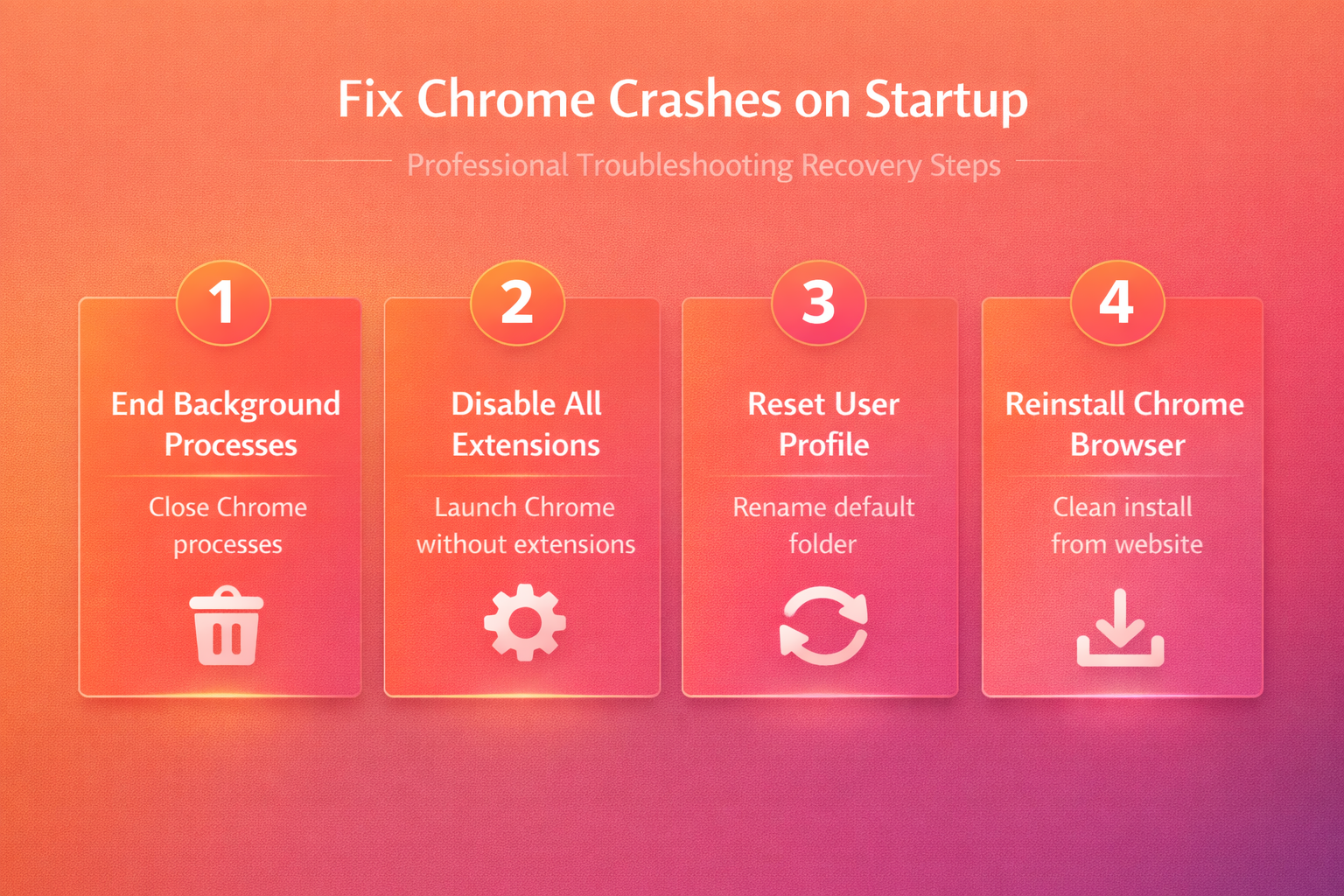
Fixing Chrome startup crashes requires systematically checking for background processes, extension conflicts, profile corruption, outdated installations, and incompatible third-party software that interferes with browser initialization. The recommended approach starts with ending zombie Chrome processes in Task Manager, then progresses through disabling extensions, resetting the user profile, and ultimately reinstalling Chrome completely if necessary. Keeping Chrome updated and periodically reviewing installed extensions provides the best long-term prevention against recurring startup crashes that interrupt your daily browsing workflow.