A Copilot prompt for annual review evaluation should be evidence-led. The safest result comes from providing role goals, measurable examples, and neutral feedback before asking Copilot to draft strengths, growth areas, and a final summary. The main mistake is asking for a finished answer before you define the source material and the review standard. A better workflow treats Copilot or another AI assistant as a drafting helper that needs constraints, evidence, and a human check.
This tutorial keeps the workflow practical for business users who need a repeatable prompt, not a long prompt-engineering framework. Use the steps as a compact checklist, then adapt the wording to your organization, privacy rules, and the Microsoft 365 apps you actually use.
Start with the source and the outcome
Before you write the prompt, decide what the output must help you do. A prompt for a short email, a meeting recap, a workbook analysis, or a resume section should not use the same structure. The source, audience, and review standard are different in each case.
Use this simple pattern: name the goal, paste or attach the source, add context, then define the output format. If the result needs to be shared with other people, ask for assumptions and uncertain items separately. That makes it easier to catch gaps before the draft becomes official.
Checks before you submit the prompt
- Remove private details that do not belong in the review document.
- Separate confirmed facts from impressions or manager notes.
- Ask for balanced language instead of inflated praise.
- Read the result for bias, missing context, and unsupported claims.
Write the prompt in controlled parts
Do not start with a vague request such as “make this better.” Give the assistant the exact role it should play, the source it can use, and the format you want back. If you need a table, say which columns should appear. If you need a short paragraph, say how long it should be and who will read it.
For Word and Microsoft 365 Copilot, the best prompt is usually a compact paragraph followed by constraints. Tell the assistant to avoid unsupported claims, to flag uncertainty, and to keep private details out of the final text. If the source material is incomplete, ask it to list missing information before it drafts.
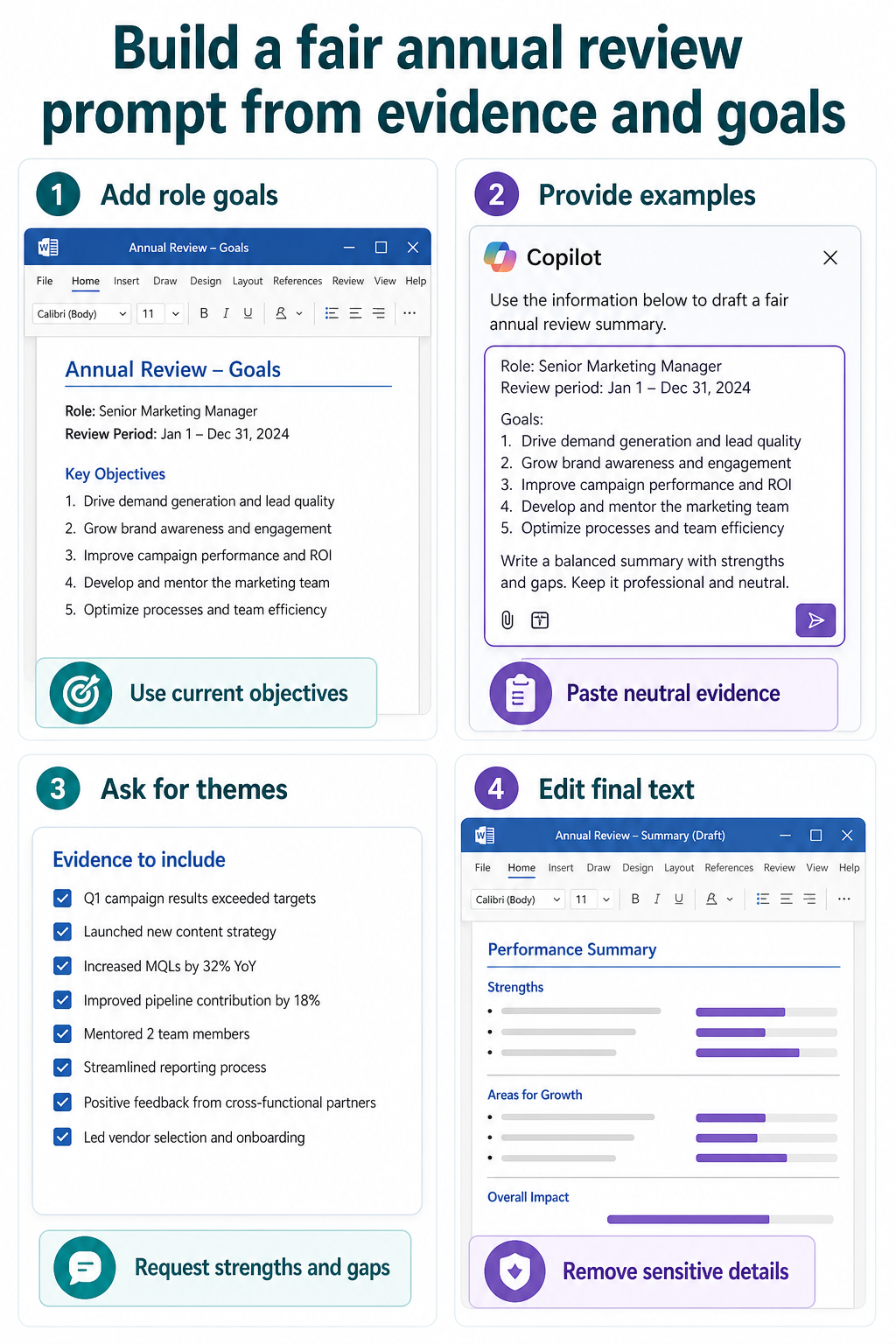
- Start with the review period, role scope, and current objectives.
- Paste concise evidence for achievements, blockers, and growth areas.
- Ask Copilot to group themes before writing final wording.
- Edit every sentence against the evidence before sharing it.
Prompt wording you can adapt
Use this wording as a starting point, then replace the bracketed parts with your real source material: “Act as a Microsoft 365 productivity assistant. Use only the information I provide from [source]. Create [output type] for [audience]. Include [required sections]. Mark anything uncertain instead of guessing. Keep the tone [tone] and do not add facts that are not in the source.”
That structure is intentionally plain. It tells the assistant what role to take, what source it can use, who will read the result, and how to handle uncertainty. For sensitive work, add one more sentence: “Before drafting, list any missing information or privacy concerns I should resolve.” This is especially useful for reviews, resumes, customer emails, meeting notes, and workbook summaries where polished wording can hide weak evidence.
If the result is close but not usable, ask for a targeted revision instead of starting over. For example, request a shorter version, a table with named columns, a friendlier tone, or a version that removes unsupported claims. This keeps the conversation grounded in the original source and makes the final review faster.
Review the result before you reuse it
AI output can sound complete even when it quietly fills in missing context. Read the result against the original source, not against how polished it sounds. Confirm names, dates, owners, formulas, settings, and commitments before copying the text into a shared document, message, workbook, or browser workflow.
If the first answer is too broad, do not rewrite the entire prompt from scratch. Add one correction at a time: “shorter,” “use a table,” “mark unclear owners,” “keep my tone,” or “show the source detail for each recommendation.” Small prompt repairs make it easier to see what changed.
After you confirm the main symptom, the broader workflow check is useful when the next decision depends on permissions, sync, or setup details.
If the same symptom points to account access rather than the current screen, a practical next step gives you a useful comparison point before you change more settings.
Useful answers
Can Copilot write the whole annual review?
It can help draft language, but the manager or employee still owns the judgment. Use Copilot to organize evidence and improve wording, not to invent performance conclusions.
What should I avoid pasting into the prompt?
Avoid sensitive HR data, medical details, protected personal information, and informal comments that should not become part of the review record.
Should I try the Excel web app too?
Yes. The web app is a useful control because it removes part of the local desktop app from the test. If the same account works on the web but not in the desktop app, focus on cache, updates, add-ins, or the local profile before changing tenant-wide settings.
What if the same setup works for another user?
That usually points to an account, license, permission, or profile difference rather than a broken feature for everyone. Compare the affected user’s role, mailbox or file access, app license, and client version before rebuilding the workflow.
When should I ask an administrator to check this?
Escalate when several users see the same symptom, when the setting is controlled by policy, or when the fix requires access you do not have. Give the administrator the affected account, client, time of the test, and the exact result from the web or desktop comparison.
A cleaner way to finish
The strongest prompt is specific, sourced, and easy to review. Give the assistant the business goal, the source material, the output shape, and the limits. Then verify the result like any other work product before you share it, send it, or use it to make a decision.