“Can I use Microsoft Copilot to analyze my monthly sales data and create new Excel files automatically?” This question reflects a common challenge faced by business professionals who need to process large datasets efficiently while maintaining accuracy in their reporting workflows.
Is Copilot embedded in Excel and what can it generate
Microsoft Copilot integration with Excel represents a significant advancement in data analysis capabilities for business users. The challenge lies in understanding how to leverage both embedded Copilot features within Excel and standalone Copilot for comprehensive data analysis workflows.
This tutorial will demonstrate how to analyze Excel data using Microsoft Copilot through multiple approaches, including the embedded Copilot in Excel feature and external Copilot integration. You will learn to generate new Excel spreadsheets, manipulate existing files, and create automated analysis workflows that enhance your data processing efficiency.
Note that to follow this guide, you will need an active Microsoft 365 subscription with Copilot access. We will use Excel desktop application, Microsoft Copilot web interface, and Power Automate for advanced automation scenarios.
Using Microsoft Copilot in Excel for data analysis
Microsoft Copilot offers multiple pathways for analyzing Excel data, ranging from embedded features within Excel to standalone file generation capabilities. The embedded Copilot in Excel provides real-time analysis suggestions while working directly within your spreadsheet environment.
Expert Tip: Copilot in Excel works best with well-structured data tables that include clear column headers and consistent data types throughout your dataset.
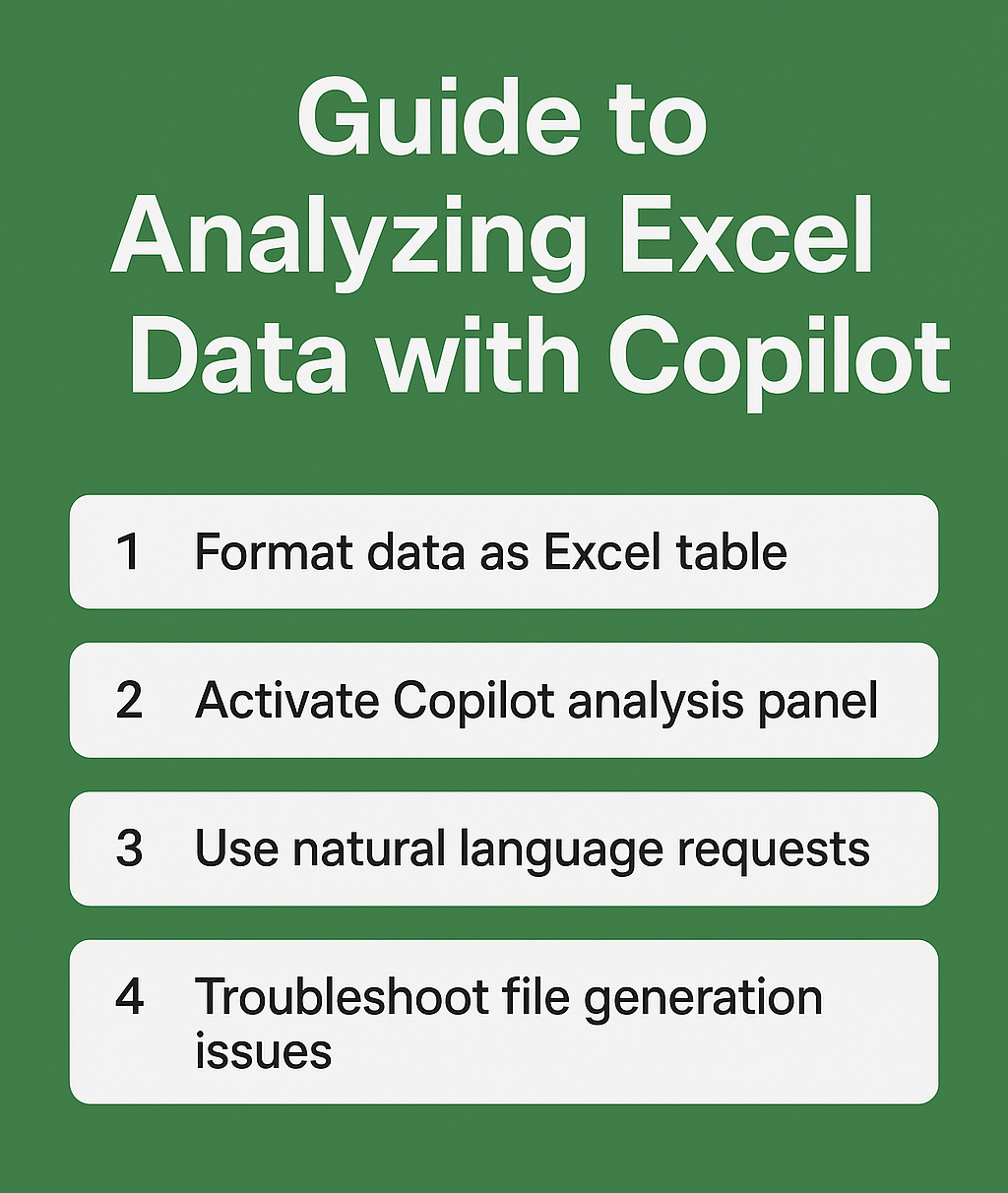
- Open your Excel file containing the data you want to analyze and ensure your data is formatted as a proper Excel table by selecting your data range and pressing Ctrl+T.
- Navigate to the Home ribbon and locate the Copilot button, which appears as a small icon in the top-right section of the Excel interface when Copilot is available.
- Click the Copilot button to activate the embedded analysis panel, which will appear on the right side of your Excel window displaying suggested analysis options.
- Type your analysis request in natural language, such as “Analyze sales trends by region” or “Find the top 10 customers by revenue” to receive automated insights.
- Review the generated analysis suggestions and click on any recommendation that matches your analytical needs to automatically apply formulas, create charts, or generate pivot tables.
- Use the “Ask Copilot” feature to request specific calculations by typing queries like “Calculate the average monthly growth rate” or “Show correlation between marketing spend and sales.”
Can Copilot generate Excel spreadsheets and files
Beyond embedded analysis, Microsoft Copilot can create entirely new Excel files through its web interface and integration capabilities. This functionality extends your analytical capabilities beyond existing spreadsheets to generate custom reports and data structures.
- Access Microsoft Copilot through your web browser by navigating to copilot.microsoft.com and signing in with your Microsoft 365 credentials that include Copilot access.
- Request Excel file creation by typing prompts such as “Create an Excel spreadsheet for tracking quarterly sales performance with columns for region, product, and revenue.”
- Specify your data requirements clearly, including desired columns, formulas, and formatting preferences to ensure the generated file meets your specific analytical needs.
- Download the generated Excel file directly from Copilot’s response, which typically provides both the file attachment and explanatory text about the spreadsheet’s structure and purpose.
- Upload existing data to Copilot by attaching your current Excel files and requesting analysis or transformation tasks like “Analyze this sales data and create a summary report.”
- Combine multiple data sources by uploading several Excel files and asking Copilot to merge, compare, or cross-reference information across different datasets for comprehensive analysis.
Copilot in Excel free options and limitations
Understanding the availability and limitations of Copilot features helps you plan your data analysis workflows effectively while considering subscription requirements and feature accessibility across different Microsoft 365 plans.
- Verify your Microsoft 365 subscription includes Copilot access by checking your account dashboard, as Copilot in Excel requires specific licensing beyond standard Office 365 subscriptions.
- Explore free Copilot capabilities through the web interface at copilot.microsoft.com, which offers limited Excel file generation and analysis features without requiring premium subscriptions.
- Utilize Excel’s built-in AI features like Ideas and Data Types, which provide automated insights and data enhancement capabilities available across most Microsoft 365 plans without additional Copilot licensing.
- Access Copilot integration through Microsoft Teams by uploading Excel files to team channels and using the Copilot app to request analysis and generate reports collaboratively.
- Leverage Power Automate connections to create workflows that automatically analyze Excel data using Copilot capabilities, extending functionality beyond direct Excel integration for routine analytical tasks.
Important Tip: Save your Copilot-generated analysis prompts and formulas as templates for future use, creating a library of proven analytical approaches for your specific business needs.
Can Copilot create Excel files troubleshooting
Common challenges arise when working with Microsoft Copilot for Excel data analysis, particularly around file generation, data formatting, and integration limitations that can impact your analytical workflows.
- File generation failures often occur when prompts lack sufficient detail about desired spreadsheet structure, requiring you to specify column names, data types, and formatting requirements explicitly in your requests.
- Data import errors frequently happen when uploading Excel files with merged cells, complex formatting, or non-standard table structures that Copilot cannot properly interpret for analysis purposes.
- Copilot access issues may arise from insufficient licensing permissions, requiring verification of your Microsoft 365 subscription tier and Copilot entitlements through your organization’s administrator or account dashboard.
- Analysis accuracy problems can result from poorly structured source data, making it essential to clean and organize your Excel tables before requesting Copilot analysis or file generation services. See our Copilot Excel data cleaning guide for details.