Many professionals struggle with accessing Microsoft Outlook quickly throughout their workday, often losing valuable time navigating through the Start menu or desktop shortcuts. Whether you’re managing multiple email accounts or need instant access to your calendar and contacts, having Outlook readily available on your Windows taskbar can significantly streamline your workflow and boost daily productivity.
Accessing Outlook from the Windows menu bar
Email communication remains central to business operations, yet many users find themselves clicking through multiple steps just to open their primary email application. This inefficiency becomes particularly noticeable during busy workdays when quick email checks and responses are essential for maintaining professional communication standards.
We will detail three reliable methods to pin Microsoft Outlook to your Windows taskbar, ensuring instant access to your email, calendar, and contacts. We’ll cover pinning the desktop application, creating taskbar shortcuts for Outlook Web App, and configuring Outlook notifications for seamless integration with your Windows environment.
To follow this post, you will need Microsoft Outlook installed on your Windows 10 or Windows 11 computer, or access to Outlook Web App through your Microsoft 365 subscription.
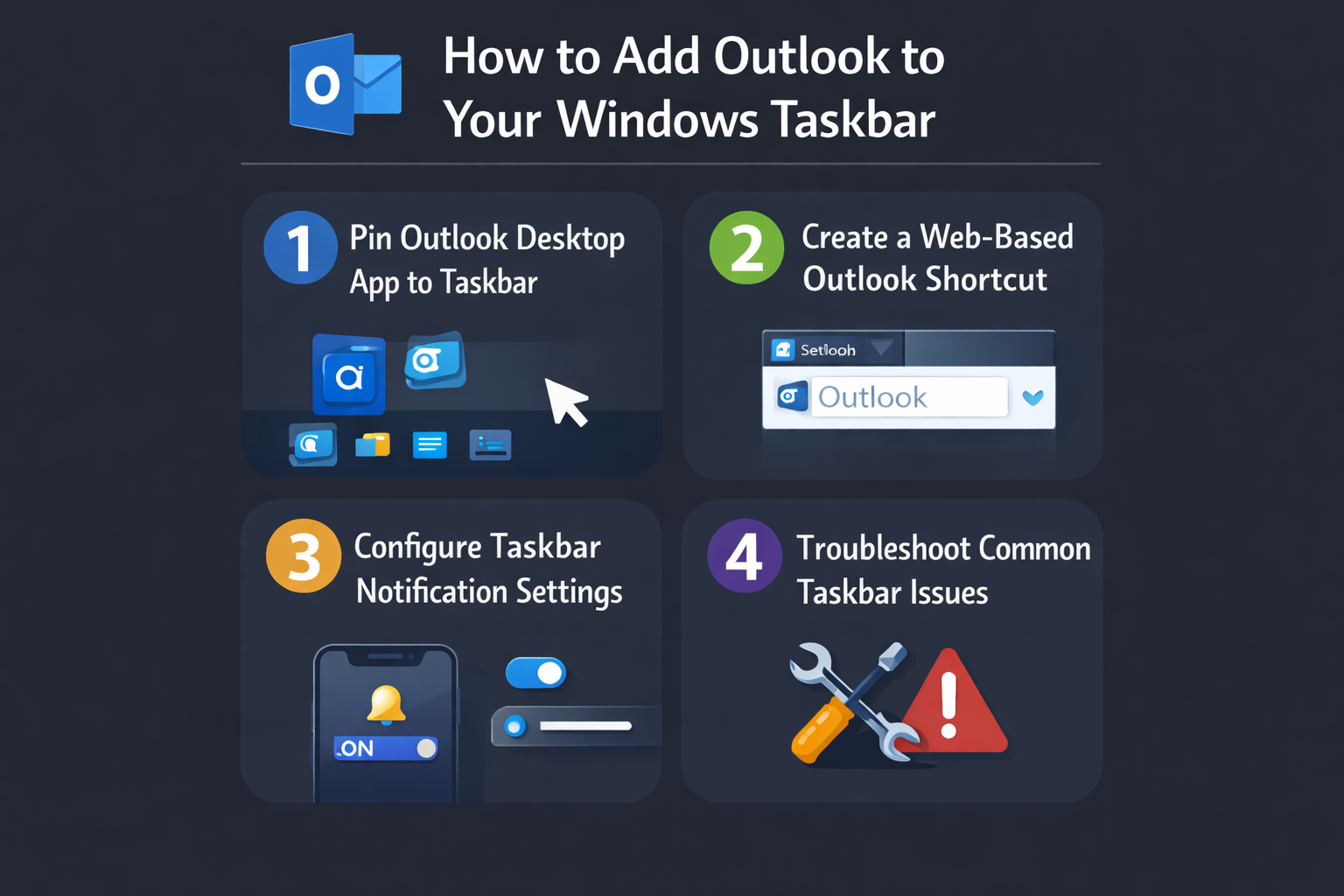
Pin desktop Outlook application to taskbar for easier access
The most straightforward method involves pinning the installed Microsoft Outlook desktop application directly to your Windows taskbar for immediate access.
- Open the Start menu by clicking the Windows button in the bottom-left corner of your screen or pressing the Windows key on your keyboard.
- Type “Outlook” in the search box and wait for the search results to display the Microsoft Outlook application icon.
- Right-click on the Microsoft Outlook application icon that appears in the search results to open the context menu with various options.
- Select “Pin to taskbar” from the context menu, which will immediately add the Outlook icon to your Windows taskbar for future access.
- Verify that the Outlook icon now appears on your taskbar by looking for the familiar envelope-style icon in your taskbar area.
- Click the newly pinned Outlook icon to launch the application and confirm that it opens correctly from the taskbar location.
Expert Tip: You can also pin Outlook to the taskbar by opening the application first, then right-clicking its taskbar icon and selecting “Pin to taskbar” while it’s running.
Alternative method using File Explorer
If the Start menu method doesn’t work or you prefer a different approach, you can locate the Outlook executable file directly through File Explorer.
- Open File Explorer by pressing Windows key + E or clicking the folder icon in your taskbar to navigate through your computer’s files.
- Navigate to the Microsoft Office installation directory, typically located at “C:\Program Files\Microsoft Office\root\Office16” for most installations.
- Scroll through the files until you find “OUTLOOK.EXE” which is the main executable file for the Microsoft Outlook application.
- Right-click on the OUTLOOK.EXE file to open the context menu and select “Pin to taskbar” from the available options.
- Close File Explorer and check your taskbar to confirm that the Outlook icon has been successfully added to the taskbar area.
Create web-based Outlook shortcut on taskbar
For users who prefer Outlook Web App or work primarily in browser-based environments, creating a dedicated web shortcut provides similar convenience to the desktop application.
- Open Microsoft Edge or your preferred web browser and navigate to outlook.live.com or outlook.office.com depending on your account type.
- Sign in to your Microsoft account or Office 365 account to access your Outlook Web App interface and verify everything loads correctly.
- Click the three-dot menu button in the top-right corner of your browser window to access the browser’s main menu options.
- Select “More tools” from the dropdown menu, then choose “Pin to taskbar” to create a dedicated shortcut for this specific website.
- Customize the shortcut name if desired, then confirm the action to add the web-based Outlook shortcut to your Windows taskbar.
- Test the new shortcut by clicking the pinned icon, which should open Outlook Web App directly in your default browser window.
Important Tip: Web-based shortcuts work best when you’re consistently connected to the internet and prefer the browser version of Outlook over the desktop application.
Configure taskbar notification settings
Once Outlook is pinned to your taskbar, optimizing notification settings ensures you receive timely email alerts without overwhelming interruptions.
- Right-click on the pinned Outlook icon in your taskbar and select “Properties” or access notification settings through Windows Settings menu.
- Navigate to System > Notifications & actions in Windows Settings to configure how Outlook notifications appear on your desktop environment.
- Locate Microsoft Outlook in the list of applications and click to expand the notification options for detailed customization settings.
- Enable or disable specific notification types such as new email alerts, calendar reminders, and meeting notifications based on your productivity preferences.
- Adjust the notification timing and display duration to ensure alerts appear long enough to be noticed but don’t interfere with other work.
Troubleshooting common taskbar integration issues
Several common problems can occur when attempting to add Outlook to your Windows taskbar, but most have straightforward solutions.
- If the “Pin to taskbar” option doesn’t appear when right-clicking Outlook, restart Windows Explorer by opening Task Manager, finding “Windows Explorer” under processes, and clicking “Restart” to refresh the system.
- When Outlook appears grayed out or unresponsive on the taskbar, check if another instance is already running by opening Task Manager and ending any existing Outlook processes before attempting to launch again.
- If clicking the taskbar icon opens a new Outlook window instead of bringing the existing one to front, disable the “Use Compatibility mode” setting in Outlook’s Properties menu under the Compatibility tab.
- For web-based shortcuts that fail to open properly, clear your browser cache and cookies, then recreate the taskbar shortcut using the same pinning process to ensure proper functionality.
Remember: Some group policy restrictions in corporate environments may prevent taskbar customization, so check with your IT administrator if these methods don’t work on your work computer.