Last checked: April 2026 | Tested on: Windows 11, Microsoft 365 Apps
Choosing between Microsoft Copilot and ChatGPT shapes how you handle email drafting, document creation, data analysis, and daily productivity tasks on Windows 11. ChatGPT is a standalone generative AI chatbot; Microsoft Copilot is a suite of AI tools integrated into Microsoft apps. Getting the right tool configured for your workflow from the start means faster results and fewer frustrating workarounds when deadlines are tight.
Microsoft Copilot vs ChatGPT: The Fundamental Comparison
Before you spend time setting either tool up, it helps to understand what each one is actually built to do. An important aspect of this comparison is the partnership between Microsoft and OpenAI, which was formed to accelerate AI breakthroughs and ensure those benefits are broadly shared. That shared foundation means there is meaningful overlap — but the differences that actually matter for a Windows 11 productivity workflow come down to ecosystem integration, pricing, context awareness, security posture, and how each tool handles your data.
Use Microsoft Copilot if you want AI integrated directly into Microsoft apps like Word, Excel, PowerPoint, Outlook, and Teams to support structured, in-the-flow work. Use ChatGPT if you want a standalone AI assistant designed for open-ended tasks such as writing, brainstorming, coding, and data analysis outside a single ecosystem. If you are deciding for a team or business, Copilot suits Microsoft-first organizations, while ChatGPT fits cross-platform, cross-tool teams.
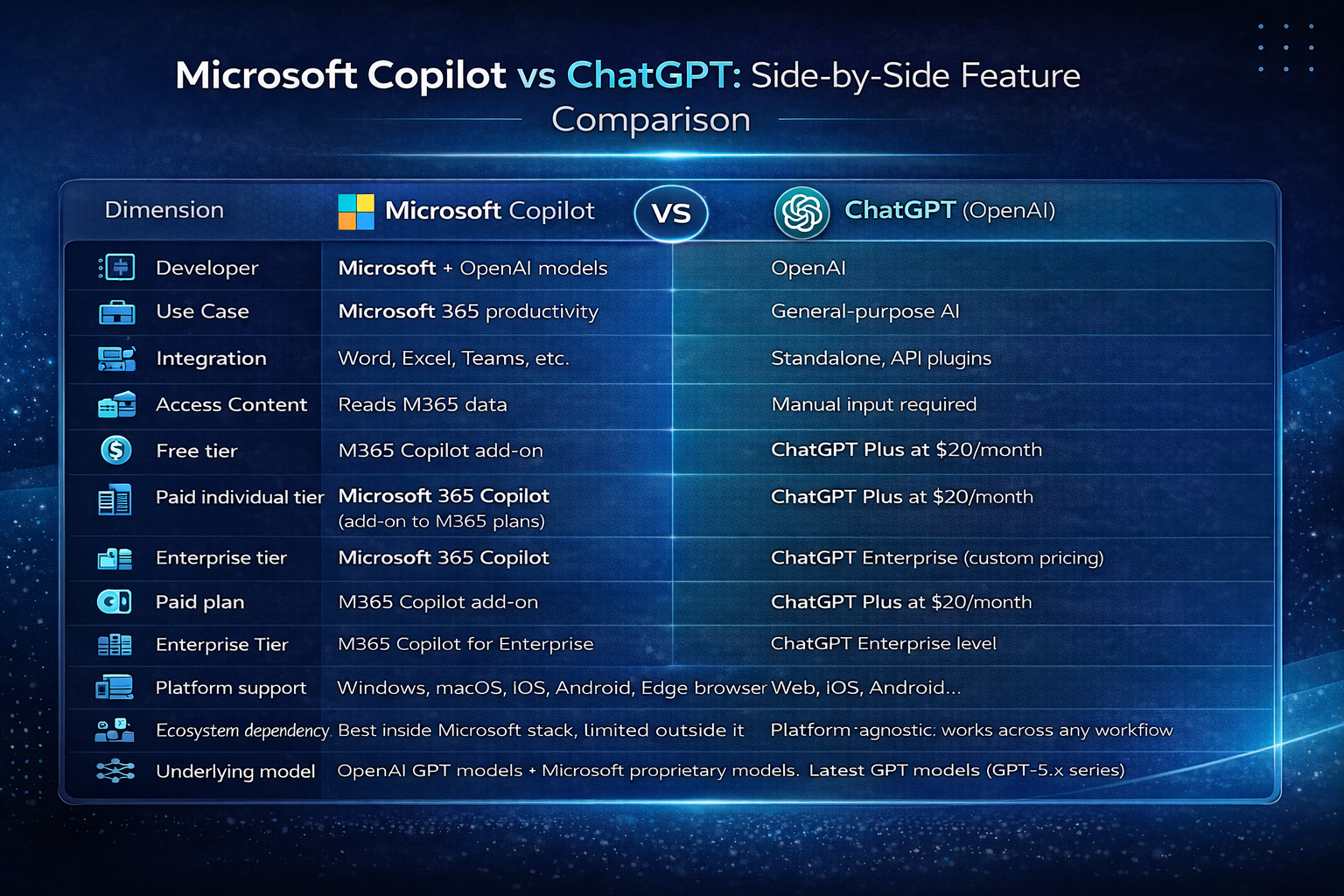
Side-by-Side Feature Table
| Dimension | Microsoft Copilot | ChatGPT (OpenAI) |
|---|---|---|
| Developer | Microsoft (powered by OpenAI models) | OpenAI |
| Primary use case | Productivity within Microsoft 365 ecosystem | General-purpose conversational AI |
| App integration | Word, Excel, PowerPoint, Outlook, Teams, Edge | Standalone interface; integrates via API/plugins |
| Context awareness | Reads your documents, emails, and meetings via Microsoft Graph | Requires you to manually paste or upload content |
| Free tier | Available via Windows, Edge, and mobile apps | Available via web and mobile apps |
| Paid individual tier | Microsoft 365 Copilot (add-on to M365 plans) | ChatGPT Plus at $20/month |
| Enterprise tier | Microsoft 365 Copilot for Enterprise | ChatGPT Enterprise (custom pricing) |
| Image generation | Available on free tier via Designer | Available on Plus tier via built-in image model |
| Web search | On by default, always grounded in real-time data | Available; must be enabled manually |
| Coding assistance | Via GitHub Copilot (separate product) | Built into ChatGPT interface with code interpreter |
| Security & compliance | Enterprise Data Protection via Microsoft 365 | Data encryption; enterprise controls on paid tiers |
| Platform availability | Windows, macOS, iOS, Android, Edge browser | Web, iOS, Android, Windows, macOS apps |
| Ecosystem dependency | Best inside Microsoft stack; limited outside it | Platform-agnostic; works across any workflow |
| Underlying model | OpenAI GPT models + Microsoft proprietary models | Latest GPT models (GPT-5.x series) |
If you want one clear recommendation:
Copilot is optimized for Microsoft 365 and built to integrate with apps like Outlook, Word, Excel, and Teams. It securely uses organizational data through Microsoft Graph, ensuring compliance, privacy, and copyright protection. Copilot excels at productivity tasks like summarizing Outlook emails, generating reports from your own data, and analyzing that data — all while maintaining enterprise-grade security. ChatGPT, on the other hand, is a standalone engine built as a general-purpose conversational AI from OpenAI that relies on user-provided context. It excels at tasks like brainstorming, coding help, and answering complex questions — however, it is not inherently tied to enterprise systems.
For the Windows 11 knowledge worker specifically: if you live inside Microsoft 365 all day, Copilot is the smarter default. If your work spans platforms, requires creative flexibility, or involves coding outside the Microsoft stack, ChatGPT earns its place every time.
Configure Microsoft Copilot and ChatGPT on Windows 11
Set Up Microsoft Copilot
On Windows 11, Copilot is accessible directly from the taskbar. Click the Copilot icon or press Win + C to open the side panel. Sign in with your Microsoft account to unlock personalized responses grounded in your Microsoft 365 data.
Microsoft designed Copilot specifically to enhance productivity within Microsoft 365 apps like Word, Excel, Outlook, and Teams. Embedded directly into the tools you use every day, Copilot helps write emails, generate reports, analyze spreadsheets, summarize meetings, and more.
If you have a Microsoft 365 Business Standard or higher subscription, navigate to Microsoft 365 Admin Center ? Settings ? Copilot to enable it for your organization. Once activated, the Copilot icon appears inside Word, Excel, PowerPoint, Outlook, and Teams. In Word, click Home ? Copilot to draft or rewrite content inline. In Excel, the Copilot pane opens on the right and can analyze data trends from your spreadsheet without you writing a single formula.
Copilot Chat is available at no additional cost to all Microsoft Entra ID users with an eligible Microsoft 365 subscription, and has rolled out inside Word, Excel, PowerPoint, and OneNote. If you need the full suite of Copilot features across Teams and Outlook, you will need the paid Microsoft 365 Copilot add-on license.
Set Up ChatGPT on Windows 11
Navigate to the ChatGPT website and sign in with your Google, Microsoft, or Apple account. ChatGPT prompts you to select a usage context during first login — pick the option closest to your daily workflow since this shapes default response behavior across all future conversations.
Open Settings from the sidebar menu, then select Personalization. The Custom Instructions field accepts two blocks of text: one describing your background and one defining how ChatGPT should respond. Fill both fields with specific details rather than generic descriptions. A prompt like “I work in financial analysis and need concise, data-driven summaries” produces dramatically better results than leaving these fields blank.
Enable Memory under the same settings panel if you want ChatGPT to retain context across separate conversations. This feature stores facts you share over time and applies them to future chats automatically. Disable it if you share the account with others or regularly handle sensitive information that should not persist between sessions.
ChatGPT Plus is $20/month and includes all the core features discussed here. ChatGPT Pro is $200/month and includes unlimited access to almost all of ChatGPT’s most advanced features as well as additional reasoning modes.
Verify Both Platforms Are Working
Test each platform with an identical prompt to establish a baseline comparison. Send something task-specific like “Summarize the key risks in a software project and suggest mitigations” to both Copilot and ChatGPT. Compare the output length, formatting style, and relevance of each response before deciding which tool to use for which task.
Copilot, true to its Microsoft DNA, blends into apps like Word and Edge, offering rewrites, recaps, and helpful nudges right when you need them. ChatGPT is where you go to think out loud — whether brainstorming ideas, drafting long-form content, or working through complex technical questions.
If either platform fails to respond, check your browser extensions. Ad blockers and privacy extensions occasionally interfere with the WebSocket connections both services rely on for response streaming. Temporarily disabling extensions isolates the issue in seconds. Clearing your browser cache and restarting resolves most session-related connectivity errors on Windows 11.
Troubleshooting Common Issues
Copilot Not Appearing in Microsoft 365 Apps
If the Copilot button is missing inside Word, Excel, or Outlook, the most common cause is an ineligible or unlicensed Microsoft 365 plan. Verify your subscription in the Microsoft 365 Admin Center under Billing ? Licenses. Copilot requires a Microsoft 365 Business Standard, Business Premium, or Enterprise E3/E5 plan with the Copilot add-on applied to your user account.
If the license is confirmed but the button still does not appear, sign out of Microsoft 365 entirely, restart the application, and sign back in. License changes can take up to 24 hours to propagate across Microsoft’s servers. If the issue persists after that window, check that your organization’s admin has enabled Copilot under Microsoft 365 Admin Center ? Settings ? Copilot.
ChatGPT Not Responding on Windows 11
If ChatGPT responses stop loading or return blank outputs, your browser’s memory allocation is likely constrained. Close unnecessary tabs — ChatGPT’s streaming interface consumes more browser memory than static web pages. Restarting the browser entirely clears memory leaks that accumulate during long sessions with multiple conversation threads open.
Network-related failures display a connection error banner. Switch to a different network or disable your VPN to test whether a corporate firewall is blocking ChatGPT’s API endpoints. Corporate networks sometimes restrict the WebSocket connections that ChatGPT requires for real-time response streaming. Connecting through a mobile hotspot confirms whether the network is the actual bottleneck.
Security Concerns on Both Platforms
Copilot is built with Microsoft’s enterprise-grade security and compliance frameworks. It adheres to the same data governance and user permissions already in place in Microsoft 365, making it a safer choice for sensitive business environments. Microsoft emphasizes Copilot’s built-in security features including Azure Information Protection and admin controls.
OpenAI stresses end-to-end encryption and data non-use in training for ChatGPT. Regardless of which platform you choose, never paste confidential contracts, personal data, or credentials into any AI chat interface that is not governed by an enterprise data protection agreement.