You open your browser to chat with Claude AI, but the page won’t load. The spinner keeps spinning, or you see a blank white screen where the interface should be. Most Claude loading problems come down to browser settings, network configuration, or temporary server hiccups that are surprisingly easy to fix.
Fix Claude browser compatibility issues
Claude works best in updated browsers, but older versions and certain settings can block the application from loading properly. Browser loading problems affect many web applications, not just AI chatbots.
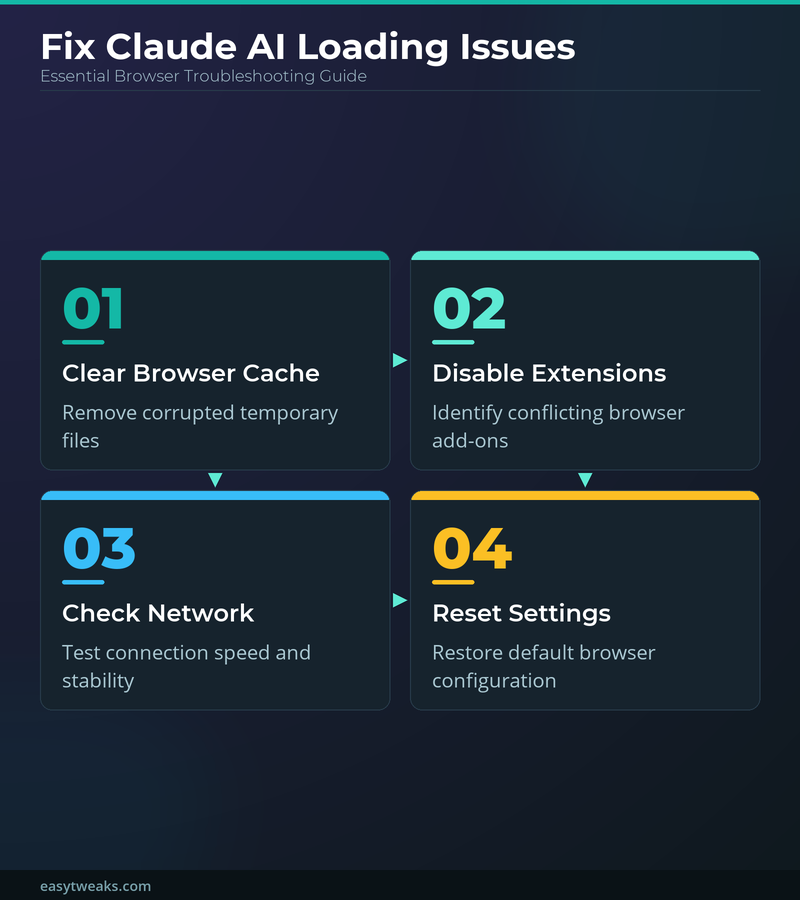
Clear browser cache and cookies
Stale cache files are the most common cause of Claude loading failures. Your browser stores temporary files to speed up websites, but these can become corrupted over time.
Open your browser settings and navigate to Privacy & Security >> Clear browsing data. Select All time as the time range, then check both Cookies and other site data and Cached images and files. Click Clear data and restart your browser completely.
This forces your browser to download fresh files from Anthropic’s servers instead of using potentially corrupted local copies. The delete browsing data process takes about 30 seconds but solves loading issues in most cases.
Disable browser extensions temporarily
Ad blockers and privacy extensions can interfere with Claude’s interface scripts. Extensions like uBlock Origin or Privacy Badger sometimes block legitimate JavaScript files that Claude needs to function.
Click your browser’s extensions button (usually a puzzle piece icon) and toggle off all extensions temporarily. Refresh the Claude page to see if it loads correctly. If Claude works with extensions disabled, re-enable them one by one to identify which extension causes the conflict.
Once you find the problematic extension, add claude.ai to its whitelist or exception list. Most ad blockers have an option to disable blocking on specific domains.
Switch to a supported browser
Claude runs on Chrome, Firefox, Safari, and Edge, but works most reliably on Chrome or Firefox with the latest updates. Internet Explorer and older mobile browsers don’t support the modern JavaScript features Claude requires.
If you’re using an uncommon browser or an outdated version, try opening Claude in Chrome or Firefox instead. This browser compatibility troubleshooting approach works for many web applications that have similar loading problems. Download the latest version from the official browser website, not from third-party sources that might bundle unwanted software.
Resolve Claude network connection problems
Network issues can prevent Claude from establishing a secure connection to Anthropic’s servers, causing the page to hang during loading.
Check your internet connection speed
Claude requires a stable internet connection to stream responses in real-time. Slow or unstable connections can cause the application to timeout during startup.
Run a speed test at speedtest.net to verify your connection is working properly. You need at least 5 Mbps download speed for Claude to function smoothly. If your speed is significantly lower than what you’re paying for, restart your modem and router by unplugging them for 30 seconds.
Wi-Fi connections can be unstable due to interference or distance from the router. Try connecting via Ethernet cable if possible, or move closer to your router to improve signal strength.
Disable VPN or proxy temporarily
VPNs and proxy servers can route your traffic through servers that Anthropic blocks for security reasons. Some VPN exit points are flagged as high-risk and aren’t allowed to access Claude.
• Disconnect your VPN client completely and refresh the Claude page
• If using a corporate network, ask your IT department about proxy settings
• Try connecting from a different network (mobile hotspot) to isolate the issue
If Claude works without the VPN, try connecting to a different VPN server location. Servers in major US or European cities typically have better access to Anthropic’s services.
Reset network settings on Windows
Windows network stack problems can prevent browsers from establishing secure connections to Claude’s servers. This happens after system updates or when network drivers become corrupted.
Open Command Prompt as administrator and run these commands in order: ipconfig /flushdns, netsh winsock reset, and netsh int ip reset. Restart your computer after running all three commands.
These commands clear your DNS cache, reset Windows networking components, and refresh your IP configuration. The process fixes most network-related loading issues but requires a restart to take effect.
Troubleshoot server and account issues
Sometimes the problem isn’t on your end – Anthropic’s servers might be experiencing high load or temporary outages.
Check Anthropic’s server status
Claude occasionally goes offline for maintenance or experiences high traffic that slows down loading times. Before troubleshooting your local setup, verify that Anthropic’s servers are running normally.
Visit status.anthropic.com or check Anthropic’s official Twitter account for service announcements. If there’s a known outage, you’ll need to wait for Anthropic to resolve it on their end.
You can also try claude.ai/new to bypass cached pages and connect directly to the latest version of the service.
Try incognito or private browsing mode
Private browsing mode disables extensions, clears temporary cookies, and uses default settings that can help identify whether the problem is with your browser profile or a system-wide issue.
Open an incognito window in Chrome (Ctrl+Shift+N) or private window in Firefox (Ctrl+Shift+P). Navigate to claude.ai and try to load the application. If Claude works in private mode, the issue is likely with your regular browser profile or an extension conflict.
This test helps narrow down whether you need to fix browser settings or if there’s a deeper system problem affecting all your internet connections.
Sign out and back into your account
Corrupted authentication tokens can prevent Claude from loading your chat interface properly. Your browser might show the login page but fail to establish a working session with Anthropic’s servers.
Click your profile icon in the top right corner of the Claude interface and select Sign out. Clear your browser cookies for claude.ai, then sign back in with your email address. This generates fresh authentication tokens and clears any session conflicts.
If you can’t see the profile menu because the page won’t load, clear all cookies for claude.ai through your browser settings, then visit the site again to start with a clean session.
Common questions answered
Why does Claude work on my phone but not my computer?
Different browsers and network settings between devices can cause this. Your computer might have extensions blocking Claude, outdated browser cache, or corporate firewall restrictions that don’t affect mobile data.
How long do Claude server outages typically last?
Most Claude outages are resolved within 15-30 minutes. Major incidents affecting all users rarely last more than 2 hours. Check status.anthropic.com for real-time updates during service disruptions.
Can antivirus software block Claude from loading?
Yes, overly aggressive antivirus programs sometimes block AI chatbots as a security precaution. Add claude.ai to your antivirus whitelist or temporarily disable real-time protection to test if this is the cause.
Most Claude loading issues resolve quickly once you identify the root cause. Browser cache problems are the most common culprit, followed by network configuration conflicts and extension interference. Start with clearing your cache and cookies, then work through network troubleshooting if the simple fixes don’t help.