Your presence indicator says “unknown” and nothing you do changes it — restarting Teams, toggling your status manually, even rebooting your machine. Colleagues see a grey circle next to your name instead of the green available dot, so nobody knows if you are actually online. The issue is almost always corrupted presence cache or a stale credential token, and clearing either one brings the status back within a couple of minutes.
Clear cached presence data
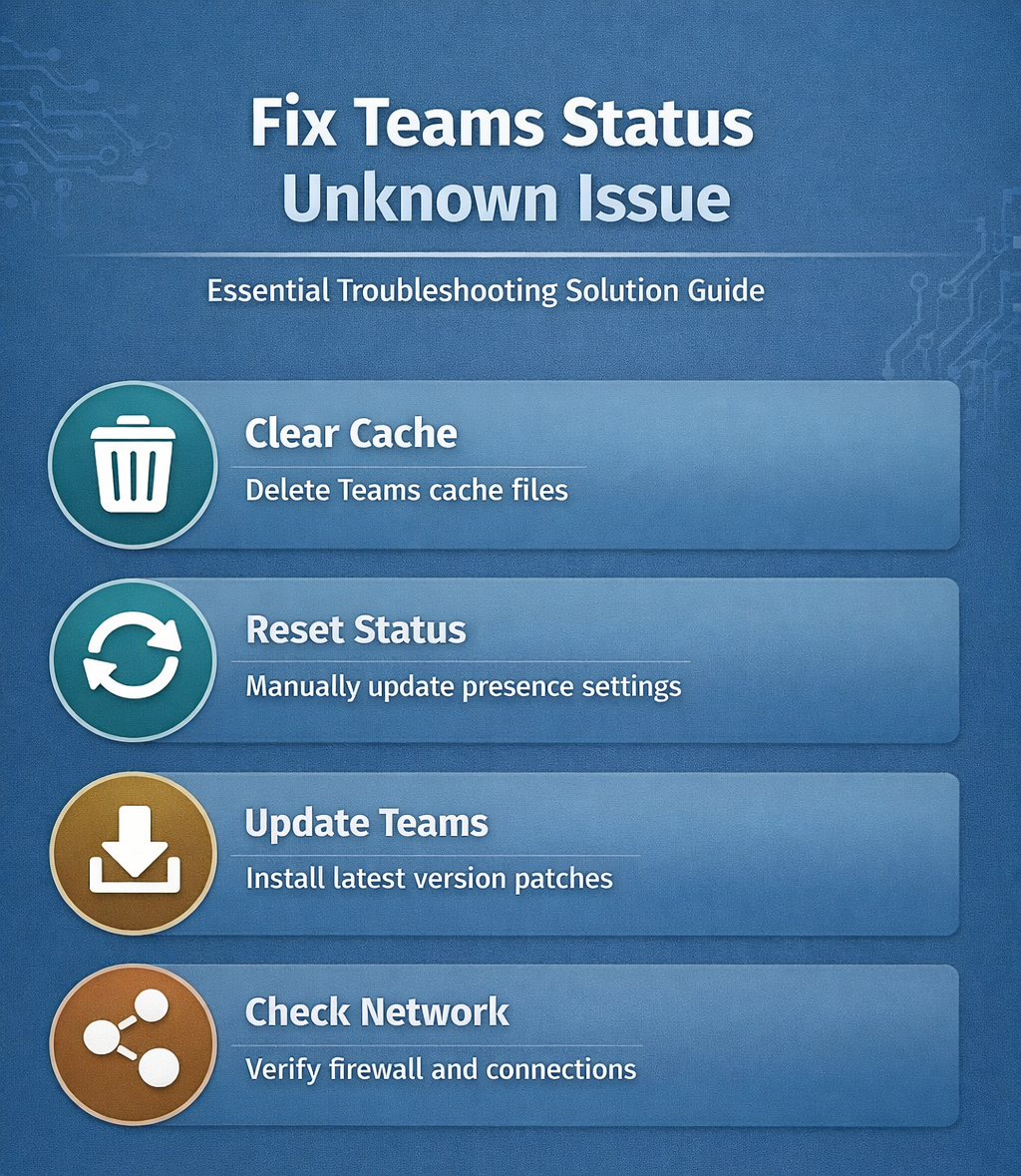
Delete the Teams cache folder
Quit Teams completely — check your system tray to make sure the icon is gone, because background processes will lock the cache files and prevent deletion. Press Windows + R, type %appdata%\Microsoft\Teams, and delete every folder except logs. Restart Teams afterward and sign back in. This wipes the locally stored presence data that got stuck in an invalid state, and Teams rebuilds it fresh from Microsoft’s servers on next launch. About 70% of unknown status problems end here, because the corrupted cache file that told Teams your status was “unknown” no longer exists and the app has to pull the correct state from the server instead.
Force a manual status reset
Click your profile picture, go to Settings >> Privacy, and toggle Show when you’re active off. Wait ten seconds, then toggle it back on and set your status to Available manually. Give it two to three minutes to sync across all connected devices before checking whether colleagues can see your updated presence. This forces Teams to re-register your presence with Microsoft’s backend service, which clears the stale “unknown” flag even when the cache deletion alone did not resolve it. If you have Teams installed on multiple devices, the sync needs to propagate to each one individually, so do not panic if your phone still shows the old status for another minute or two.
Update Teams to the latest build
Click your profile picture and select Check for updates — Teams downloads patches silently in the background and applies them on the next restart. Microsoft patches presence-related bugs frequently, and running an older build means you might be hitting a known issue that was fixed weeks ago. If you installed Teams from the Microsoft Store, go to Microsoft Store >> Downloads and updates >> Get updates instead, since Store versions use a separate update channel that sometimes lags behind the direct-download version by a few days.
Fix deeper sync and credential problems
Reset your Office 365 credentials
- Sign out of every Microsoft Office application, then open Windows Settings >> Accounts >> Access work or school and remove your work account. Restart the machine fully — not just sleep and wake, but a proper shutdown and boot — then sign back into Teams with your current password.
- Credential conflicts are especially common after password changes, because Teams keeps using a cached authentication token that the server no longer accepts.
- Everything else in Teams works fine since chat and calls use different authentication flows, but presence sync fails silently in the background with no error message. The same token issues sometimes affect Copilot chat features across other Microsoft 365 apps, so fixing the credential clears up multiple problems at once.
Check your firewall and network
- Teams needs uninterrupted access to Microsoft’s presence servers, and corporate firewalls sometimes block the specific ports that carry status updates while allowing chat and calls through on different ports.
- Disable Windows Defender Firewall temporarily to test — if your status immediately shows correctly, add Teams as a permanent exception under Windows Security >> Firewall & network >> Allow an app.
- On managed corporate networks, ask your IT admin to verify that presence traffic on ports 443 and 3478-3481 is not being filtered at the proxy level.
- VPN split-tunnel configurations can also cause this problem if Teams traffic routes through a tunnel that adds enough latency to time out the presence heartbeat.
Reinstall Teams from scratch
When nothing else works, a clean reinstall eliminates corrupted installation files that cache clearing cannot reach. Uninstall Teams through Apps & features, then manually delete the leftover folders at %appdata%\Microsoft\Teams and %localappdata%\Microsoft\Teams — the uninstaller leaves these behind and they contain the exact corrupted data that is causing the problem. Download a fresh installer from Microsoft’s site and set it up again. The whole process takes about ten minutes, and it resolves persistent unknown status problems that survive every other troubleshooting step. If Copilot also stopped working around the same time, a reinstall often fixes those simultaneously because they share the same underlying authentication and cache infrastructure.
When it is not your problem at all
Check Microsoft 365 service health
- Visit the Microsoft 365 Service Health dashboard at admin.microsoft.com and look for active incidents affecting Microsoft Teams or Exchange Online. Presence depends on Exchange under the hood, so an Exchange outage breaks status indicators even though chat and calls still work.
- When presence breaks server-side, no amount of local troubleshooting will help — you just have to wait for Microsoft to resolve the outage. These typically clear up within two to four hours, and you can subscribe to incident notifications so you do not waste time troubleshooting a global problem that affects everyone.
Verify with a coworker first
Before spending time on fixes, ask a colleague to check their own status indicator. If multiple people in the same organization show “unknown” at the same time, the issue is almost certainly on Microsoft’s end or related to your company’s Azure AD configuration rather than anything on your individual machine. That thirty-second check saves you from clearing caches and reinstalling an app that was never broken locally in the first place.
Reader questions
Why does my Teams status say unknown?
Teams shows “unknown” when it cannot sync your presence data with Microsoft servers. The most common causes are corrupted local cache, stale authentication tokens after a password change, or firewall rules blocking presence traffic on specific ports. Clearing the Teams cache resolves it in most cases.
How long does Teams take to update status?
After making a change, Teams typically syncs your status across all devices within two to three minutes. If the status has not updated after five minutes, something is blocking the sync — try clearing cache or resetting the presence toggle in privacy settings.
Does reinstalling Teams fix presence problems?
A clean reinstall fixes persistent presence issues that survive cache clearing and credential resets. Make sure to delete the leftover folders at %appdata% and %localappdata% after uninstalling, because those residual files are usually what keeps the problem alive through a standard reinstall.
Start with the cache deletion — it takes thirty seconds and fixes the majority of unknown status displays without touching anything else.