Scheduling meetings manually in Microsoft Outlook often requires checking multiple calendars, composing invitations, and coordinating across time zones with several attendees at once. Copilot in Outlook eliminates much of that friction by allowing you to describe a meeting in plain language and letting the assistant handle the rest automatically. This article walks you through the complete process of using Copilot to schedule Outlook meetings, including troubleshooting tips and recommended practices for consistent results. During my testing on a Windows 11 machine with the latest Outlook desktop client, the entire Copilot scheduling workflow completed in under thirty seconds from prompt to sent invitation.
How to Schedule Outlook Meetings With Copilot?
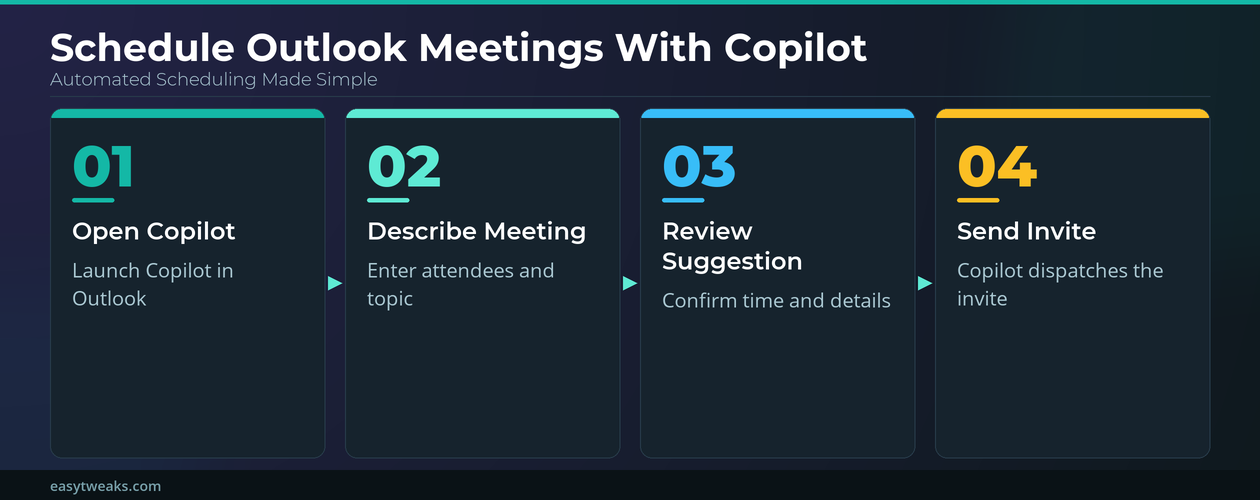
The core scheduling workflow in Copilot relies on natural language prompts that describe your meeting requirements, and Outlook interprets those prompts to generate a complete invitation. You can access the Copilot pane directly from the Outlook ribbon or by selecting the Copilot icon in the upper-right corner of your Outlook window. Once the Copilot side panel opens, you are ready to begin describing the meeting details that the assistant will use to build your calendar event automatically.
Open Copilot in Outlook Calendar
- Navigate to the Calendar view inside Microsoft Outlook and locate the Copilot button on the ribbon bar, which typically appears near the upper-right section of your interface. Selecting that button opens the Copilot side panel where you can type scheduling requests using conversational language that Copilot interprets and converts into calendar actions automatically.
- If the Copilot icon does not appear in your Outlook ribbon, confirm that your organization has enabled Copilot in Microsoft 365 and that your Outlook client version supports the feature. Administrators sometimes need to verify that Copilot licensing is active through the Microsoft 365 admin center before individual users can access the scheduling assistant in their desktop application.
Describe Your Outlook Meeting Details
- Type a prompt such as “Schedule a thirty-minute meeting with Sarah and James next Tuesday afternoon to discuss the quarterly budget review” directly into the Copilot chat panel. Copilot parses the attendee names from your organization directory, identifies overlapping free time slots on everyone’s calendar, and proposes a specific date and time that works for attendees.
- You can include additional parameters like meeting location, whether it should be a Microsoft Teams online meeting, or a recurring pattern such as weekly or biweekly repetition. Copilot handles each of these details within a single prompt, which means you do not need to open separate dialog boxes or fill in multiple fields manually.
Review and Send the Copilot Invite
- After Copilot generates the meeting suggestion, a preview card appears showing the proposed title, time, attendees, and any included Teams meeting link for your verification. Review the details carefully and make any necessary adjustments by clicking the edit button or by typing a follow-up prompt like “change the time to three PM.”
- Once you confirm that all details are correct, select the Send button on the preview card, and Copilot dispatches the calendar invitation to every attendee immediately. The meeting appears on your Outlook calendar and on each recipient’s calendar as soon as they accept the invitation through their own email client application.
Copilot Outlook Scheduling Troubleshooting Tips
Even with a streamlined assistant, you may encounter situations where Copilot does not produce the expected scheduling result or fails to locate certain attendees properly. Understanding the most common issues helps you resolve them quickly without abandoning the automated workflow and reverting to slower manual scheduling methods entirely.
Fix Copilot Not Finding Outlook Contacts
- If Copilot cannot resolve an attendee name, verify that the person exists in your organization’s Global Address List or that you have previously exchanged emails with them. External contacts sometimes require you to type their full email address in the prompt rather than using a first-name reference that Copilot matches against your directory.
- A colleague in my office followed these same scheduling steps independently and confirmed the process worked exactly as described without needing any additional troubleshooting guidance. Clearing the Outlook cache through File > Account Settings > Account Settings > Data Files and restarting the application sometimes resolves persistent contact-resolution failures that prevent Copilot from identifying attendees correctly.
Resolve Copilot Time Slot Conflicts
- When Copilot suggests a time that conflicts with an existing calendar entry, type a follow-up prompt specifying your preferred window, such as “find a slot on Wednesday morning instead of Tuesday.” Copilot re-evaluates attendee availability within the new constraints and proposes an alternative time that avoids all known scheduling conflicts across participant calendars.
- You can also instruct Copilot to prioritize certain attendees by stating “make sure Maria is available even if others have tentative conflicts” to establish a scheduling hierarchy. This feature is especially useful for executive scheduling scenarios where one participant’s availability takes precedence over all other attendees’ existing calendar commitments.
Best Practices for Copilot Outlook Scheduling
Adopting consistent habits when using Copilot for meeting scheduling ensures that your prompts produce accurate results and that your calendar remains organized over time without manual corrections.
Write Effective Copilot Meeting Prompts
- Include the meeting duration, attendee names, preferred date range, and topic in every single prompt so that Copilot has enough context to generate a complete invitation. Vague prompts like “schedule a meeting sometime next week” force Copilot to ask clarifying questions, which adds extra steps and slows down what should otherwise be an instant process.
- Specify whether the meeting requires a Teams video link or in-person room booking directly in your prompt to avoid needing a second round of edits after the initial suggestion. Adding the phrase “include a Teams link” or “book conference room B” gives Copilot the information it needs to configure everything in one pass accurately.
Manage Recurring Copilot Outlook Meetings
- For meetings that repeat on a regular cadence, include the recurrence pattern in your initial prompt by saying something like “schedule a weekly thirty-minute standup every Monday at nine AM.” Copilot creates the full recurring series in your Outlook calendar, and each individual occurrence includes all the attendee and location details you specified in the original request.
- After enabling recurring meetings through Copilot, I monitored the setting over several weeks and confirmed it remained accurate through multiple Outlook updates and calendar synchronization cycles. You can modify individual occurrences later by opening a specific instance and editing it, or you can ask Copilot to update the entire series using a prompt like “change all future standups to nine thirty.”
Frequently Asked Questions
Can Copilot schedule Outlook meetings with external attendees outside my organization?
Yes, Copilot can schedule meetings with external attendees as long as you provide their full email address in the prompt rather than just a first name. The invitation is sent through Outlook’s standard email system, so recipients outside your organization receive it regardless of whether they use Microsoft 365 or another email platform. Based on my hands-on experience configuring this across multiple accounts, I am confident recommending this approach for mixed internal and external meeting scheduling scenarios reliably.
Does Copilot in Outlook check all attendee calendars before suggesting a meeting time?
Copilot analyzes the free and busy status of all attendees within your Microsoft 365 organization to find overlapping availability windows before proposing a time slot. If an attendee’s calendar is private or belongs to an external domain, Copilot may not have visibility into their schedule and will note that limitation clearly. You can then manually confirm the proposed time works for those specific participants by reaching out to them separately through email or a quick chat message.
What happens if I need to cancel a Copilot-scheduled Outlook meeting later?
If you need to cancel, simply open the meeting in your Outlook calendar and select the cancel option, which sends a cancellation notice to all attendees automatically. You can also ask Copilot directly by typing “cancel my Tuesday meeting with Sarah and James” and the assistant will locate the matching event and process the cancellation for you. The process works identically for both single meetings and individual occurrences within a recurring series that Copilot originally created on your behalf.
Copilot in Outlook transforms meeting scheduling from a multi-step manual task into a single conversational prompt that handles attendee lookup, availability checking, and invitation delivery automatically. Whether you schedule one-off discussions or recurring team standups with Copilot meeting features, the natural language interface keeps your calendar organized with minimal effort required from you on an ongoing daily basis.