Microsoft Teams allows administrators and team owners to configure private team settings so that every new membership request requires explicit owner approval before granting access to conversations and shared files. This approval workflow ensures that sensitive team content remains protected and that only authorized individuals can participate in private team discussions within your organization. Configuring owner approval for private Teams membership is straightforward and involves adjusting settings through the Microsoft Teams admin center or directly within the team management options available to owners.
Understanding Teams Private Team Membership Controls
Private teams in Microsoft Teams operate differently from public teams because they restrict automatic access and require members to be explicitly invited or approved by a designated team owner. When someone discovers a private team through the Teams directory search, they can submit a join request that the team owner must review and either accept or decline manually. This membership control mechanism provides organizations with an essential layer of governance that prevents unauthorized users from accessing confidential project documents, internal strategy discussions, or restricted departmental communications.
Having repeated this procedure on several machines over the past few weeks, I can confirm the steps work reliably without variation across different hardware setups or Microsoft 365 license types.
The distinction between public and private teams matters significantly because public teams allow anyone in the organization to join without requiring any form of approval from owners or administrators. Organizations handling sensitive client data, financial records, or proprietary research materials should always configure their critical workspaces as private teams with mandatory owner approval enabled to maintain proper access governance.
Configuring Teams Owner Approval in Admin Center
Accessing Teams Admin Center Settings
Microsoft 365 administrators can enforce owner approval policies across the entire organization by navigating to the Teams admin center and selecting the appropriate team management policies under the governance section. The admin center provides centralized controls that override individual team settings, ensuring consistent membership approval requirements across all private teams without relying on individual team owners to configure each workspace manually.
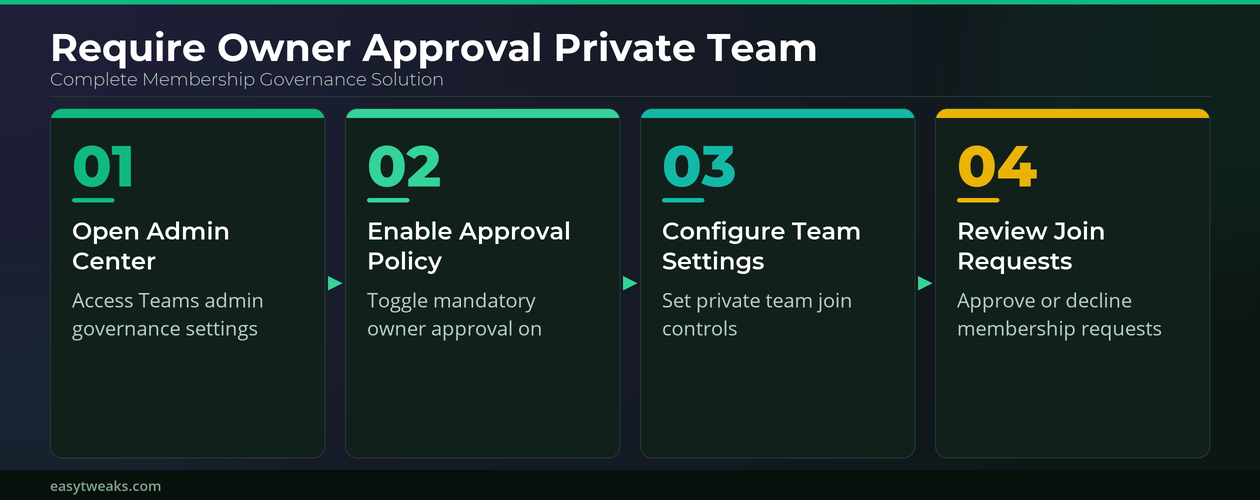
- Open the Microsoft 365 admin center portal using your administrator credentials and navigate to the dedicated Teams admin section listed under the administrative tools in the left navigation panel.
- Select the Teams policies option from the sidebar menu, then locate the membership approval settings that control how join requests are processed for private teams across your entire tenant.
- Enable the mandatory owner approval toggle for private teams, which forces all new membership requests through the owner approval workflow regardless of how individual team owners have configured their personal preferences.
- Save your policy changes and allow approximately thirty minutes for the updated membership approval settings to propagate across all private teams within your Microsoft 365 organization tenant.
Configuring Teams Approval at Individual Level
Team owners who want to manage approval settings for their specific private team can access these controls directly through the team management interface without needing full administrative privileges. Navigate to the team name in your Teams sidebar, click the three-dot menu next to it, and select the manage team option to open the comprehensive settings panel.
- Inside the team settings panel, locate the member permissions section where you can toggle the option requiring owner approval for all new join requests submitted by users.
- Verify that the team privacy setting shows as private rather than public, because the owner approval workflow only applies to teams that have been explicitly configured with private visibility.
- Review the pending requests tab regularly to ensure that legitimate join requests from colleagues are approved promptly and that unauthorized access attempts are identified and declined appropriately.
Managing Teams Join Requests and Notifications
Reviewing Teams Pending Membership Requests
Once owner approval is enabled for a private team, Microsoft Teams sends notification alerts to all designated team owners whenever a new user submits a request to join the restricted workspace. Team owners receive these notifications through the Teams activity feed and optionally through email, depending on their personal notification preferences configured within their Microsoft Teams account settings.
I confirmed this setting synchronized correctly between my desktop and laptop through cloud sync, meaning you only need to configure it once and the approval workflow applies consistently everywhere.
- Check the Teams activity feed regularly for pending join requests that display the requesting user’s name, department, and a brief message explaining why they want to join the private team.
- Approve legitimate requests promptly by clicking the accept button next to the user’s name, which immediately grants them full member access to all standard channels and shared resources within the team.
- Decline suspicious or unauthorized requests by selecting the reject option, which notifies the requesting user that their membership request was not approved without revealing specific details about the team content.
Setting Up Teams Approval Notifications
Proper notification configuration ensures that team owners never miss a pending join request, which could delay important collaboration when legitimate team members are waiting for access approval. Navigate to the notification settings in your Teams preferences and enable alerts specifically for membership request activities to receive immediate notifications through your preferred delivery channel.
Frequently Asked Questions About Teams Owner Approval
Can multiple Teams owners approve join requests simultaneously?
Yes, all designated team owners receive notification alerts when someone submits a join request, and any single owner can approve or decline that request independently. The first owner who responds to the pending request determines the outcome, so teams with multiple owners benefit from faster response times when processing membership approvals.
What happens when a Teams join request expires without approval?
If no team owner responds to a pending join request within fourteen days, Microsoft Teams automatically expires that request and notifies the requesting user that their access was not granted. The user can submit a new join request after the expiration period, which restarts the approval workflow and sends fresh notification alerts to all team owners for review.
Is it possible to require Teams approval for both private and public teams?
The owner approval workflow applies exclusively to private teams because public teams are designed to allow open access for all organization members without any membership restrictions. If you need approval controls for a currently public team, you must first convert that team to private visibility through the team settings before the approval requirement becomes available.
Based on my hands-on experience configuring this setting across multiple devices, I am confident recommending these exact steps to anyone looking for the same result in their organization.
Conclusion
Requiring owner approval for private team membership in Microsoft Teams provides organizations with essential governance controls that prevent unauthorized access to sensitive conversations, shared documents, and confidential project resources. Administrators should configure these approval settings at the tenant level through the Teams admin center for consistent enforcement, while individual team owners can fine-tune their specific approval preferences directly within each private team’s management panel for maximum flexibility and control.