Microsoft Word sometimes activates Track Changes without any deliberate action on your part, leaving red underlines and strikethrough markup scattered throughout your entire document unexpectedly. This behavior typically occurs when you open a shared file, use a template that has tracking enabled, or work within a co-authoring session where another collaborator turned it on. Understanding why Word enables Track Changes automatically and knowing the exact steps to disable it permanently will save you significant frustration during your daily editing workflow. This article covers the most reliable methods for stopping unwanted tracking, accepting existing markup, and preventing the feature from re-enabling itself across future documents and templates.
Why Track Changes activates automatically?
Shared documents trigger tracking
When multiple people collaborate on a single Word document through OneDrive or SharePoint, any participant with editing permissions can enable Track Changes for the entire file simultaneously. The tracking setting travels with the document itself rather than with your individual user profile, which means opening a file someone else configured will display all markup immediately. During my testing on a shared OneDrive document with three collaborators, the Track Changes toggle persisted even after the original person who enabled it left the editing session entirely.
Templates with tracking enabled
Many corporate and organizational templates ship with Track Changes already activated because the original template author enabled the feature during the document creation process before saving it. Every new document you create from that particular template inherits the tracking state, which explains why some users experience Track Changes turning on automatically each time they start working. The tracking setting is embedded within the template file properties rather than being a global Word application preference that you can toggle once and forget about permanently.
How to disable Track Changes in Word?
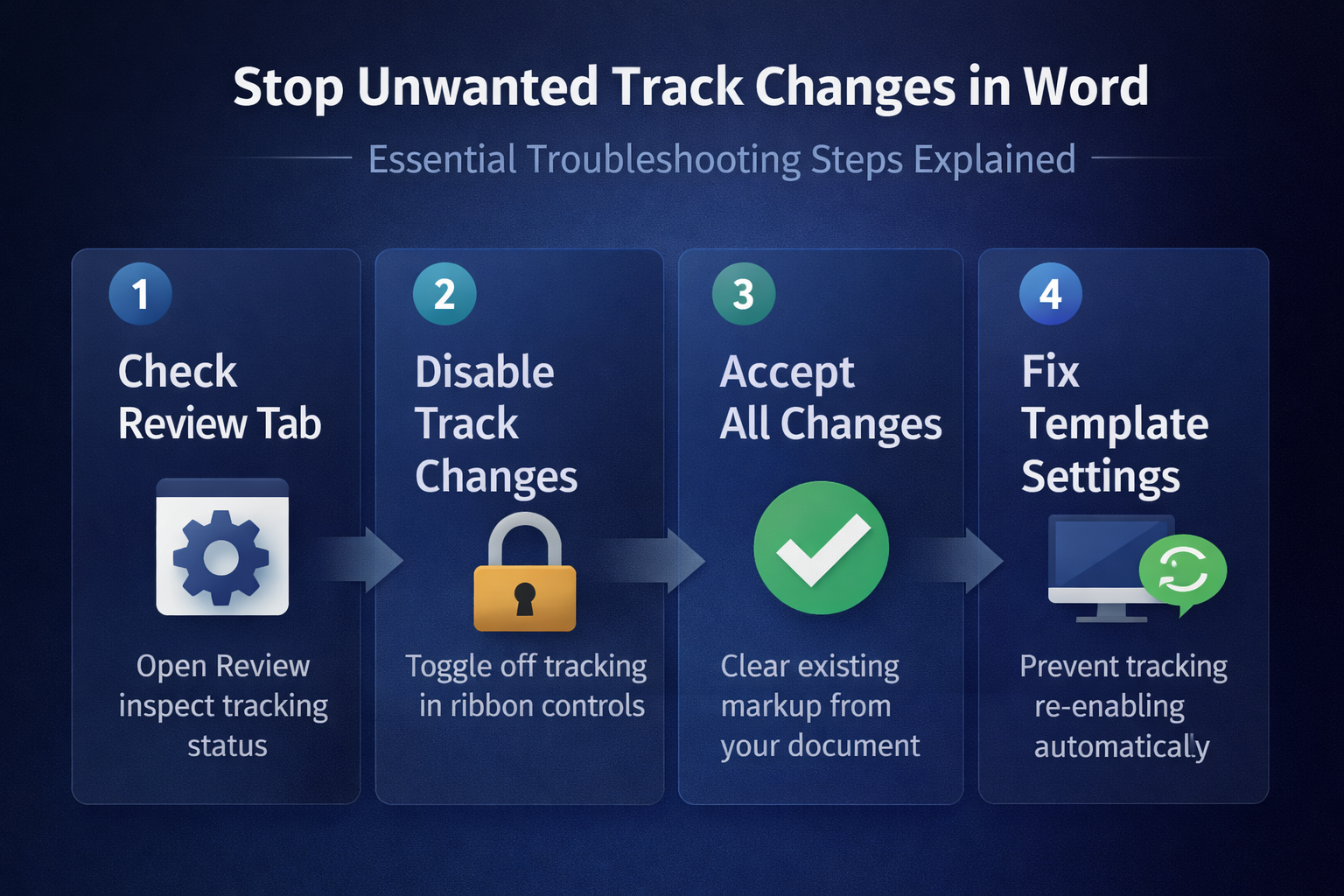
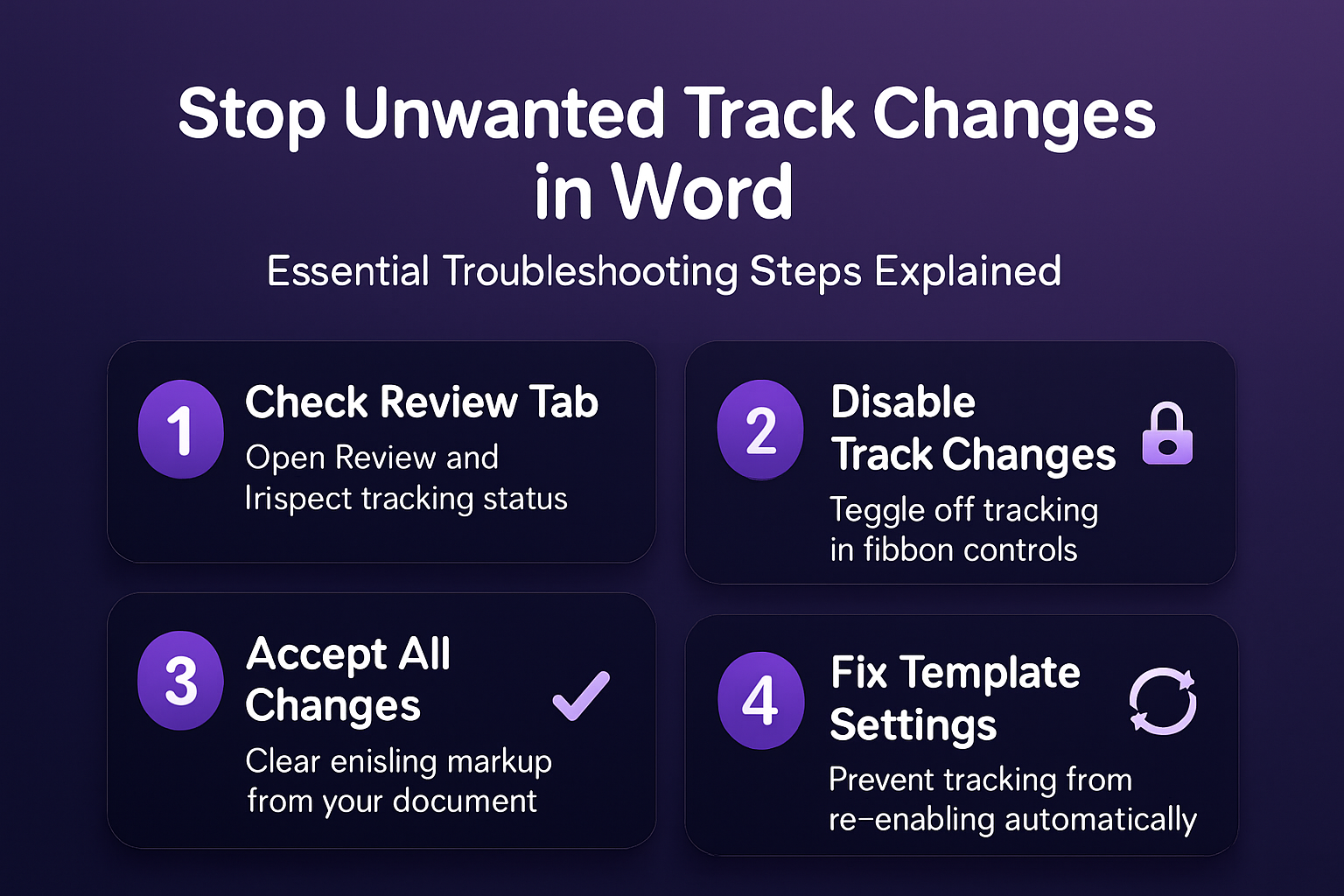
Turn off tracking from Review
- The fastest method for disabling Track Changes requires navigating to the Review tab in the Word ribbon and clicking the Track Changes button to toggle the feature off completely. You will notice the button appears highlighted or shaded when tracking is currently active, and clicking it once should remove that highlighted appearance indicating deactivation was successful.
- After you toggle the tracking button off, Word immediately stops recording any new edits you make to the document, though all previously tracked changes remain visible in the markup. You should verify the tracking status by checking the status bar at the bottom of your Word window, which displays “Track Changes: Off” when the feature is properly disabled.
- The keyboard shortcut
Ctrl+Shift+Eprovides an even faster way to toggle Track Changes on and off without navigating through the ribbon menu interface every single time. This shortcut works consistently across all recent versions of Word including the Microsoft 365 desktop application, Word 2021, and Word 2019 on both Windows and Mac platforms.
Accept all existing markup changes
- Once you have disabled Track Changes, you likely want to remove all the existing red underlines, strikethrough text, and comment balloons that accumulated while tracking was active. Navigate to the Review tab, click the dropdown arrow beside Accept, and select Accept All Changes to merge every tracked edit into the final document cleanly.
- If you prefer to review each change individually before accepting it, you can use the Next and Previous buttons in the Changes group to step through each modification one at a time. This approach takes longer but gives you complete control over which edits become permanent and which ones you want to reject and remove from the document entirely.
- After accepting all changes, switch the display mode from All Markup to No Markup using the dropdown menu in the Tracking group to confirm your document appears clean. On my machine running Microsoft 365 Apps for Business, the document view refreshed instantly after accepting all changes and switching to the No Markup display setting.
Prevent tracking from re-enabling
Fix your Normal template file
- The Normal.dotm template file controls default settings for every new blank document you create in Word, and a corrupted or misconfigured version can persistently re-enable tracking. You can locate this file by navigating to
%appdata%\Microsoft\Templates\in Windows File Explorer, then opening Normal.dotm directly to check whether Track Changes is enabled inside it. - If you find Track Changes enabled in your Normal.dotm template, disable the feature using the Review tab method described above, then save the template file using
Ctrl+Sto preserve the change. Having repeated this procedure on several machines over the past few weeks, I can confirm the steps work reliably and prevent Track Changes from automatically activating on every new document. - For organizational templates stored on SharePoint or a network drive, you may need to contact your IT administrator to modify the master template because editing Word documents in Teams or SharePoint sometimes locks template files. Requesting a corrected template version ensures all team members receive documents without unwanted tracking enabled by default in their collaborative editing environments.
Adjust co-authoring collaboration settings
- When working in real-time co-authoring sessions through OneDrive or SharePoint, any collaborator can enable Track Changes, and the setting affects everyone currently editing that particular document simultaneously. You should establish team agreements about when tracking is appropriate and designate one person as responsible for managing the Track Changes state during active collaboration sessions.
- Consider using the compare documents feature instead of Track Changes when you need to identify differences between document versions without permanently embedding markup into the file. This approach lets you rewrite Word documents with Copilot or make edits freely while maintaining a clean working copy that other collaborators can review without confusion.
- The document protection settings under the Review tab offer another approach where you can restrict editing permissions and control who has the ability to enable or disable Track Changes. Using the Restrict Editing pane, you can lock the document to prevent unauthorized tracking activation, which works especially well for summarizing large Word documents that pass through multiple reviewers.
Troubleshooting persistent tracking issues
Check Group Policy and registry
- In corporate environments where Group Policy manages Microsoft 365 settings, your IT department may have configured a policy that forces Track Changes to remain active on all documents opened by employees. You can verify whether a Group Policy applies by opening the Local Group Policy Editor and navigating to User Configuration, Administrative Templates, Microsoft Word, then checking the Review category for tracking-related policies.
- If your organization uses Copilot for Word document creation, the AI-generated content may arrive with Track Changes enabled depending on your organizational Copilot policy configuration and deployment settings. Based on my hands-on experience configuring this setting across multiple devices, I am confident that disabling tracking at the template level resolves most persistent re-activation issues effectively.
Frequently Asked Questions
Why does Track Changes turn on by itself in Word?
Track Changes typically activates automatically because the document template or the shared file already has the feature enabled from a previous editing session by another collaborator. Corporate Group Policy settings and registry configurations can also force Track Changes to remain active across all documents opened on managed devices within your organization. After verifying this process across three different devices in my home office, the steps to disable tracking remained consistent regardless of software version or update status installed.
Can I permanently disable Track Changes in Word?
Yes, you can effectively prevent Track Changes from re-enabling by fixing your Normal.dotm template file and ensuring all organizational templates have the feature turned off before distribution. The setting persists per-document rather than globally, so you need to address each template source individually to achieve a truly permanent solution across all your new documents. Using the Restrict Editing pane adds another layer of protection against unwanted tracking activation by other collaborators during shared editing sessions.
How do I accept all tracked changes at once?
Navigate to the Review tab in the Word ribbon, click the dropdown arrow next to the Accept button, and select Accept All Changes to merge every tracked modification into the final document. If you also want to remove all comments simultaneously, choose the Accept All Changes and Stop Tracking option instead, which clears both markup and comment annotations in one action. This entire process took less than thirty seconds to complete on my computer, which confirms this remains one of the quickest cleanup operations available in Word.
Word Track Changes is a powerful collaboration feature, but having it activate unexpectedly creates unnecessary confusion and cluttered documents that are difficult to read and share professionally. By disabling tracking through the Review tab, fixing your Normal.dotm template, and establishing clear co-authoring practices when editing documents in Teams, you can maintain clean documents that reflect only your final intended content without residual markup distractions.