SharePoint Online stores valuable business data in structured lists that teams across your organization rely on for tracking projects, inventory, and daily operations effectively. When you need to export a SharePoint list to Excel, the process gives you powerful offline analysis capabilities that SharePoint alone cannot provide for complex reporting needs. This article walks you through the main export methods available in Microsoft 365 SharePoint Online, including tips for handling large lists and filtered views efficiently.
Export using the command bar
The fastest way to download a SharePoint list to Excel starts with the built-in export command that Microsoft provides directly on the list toolbar interface.
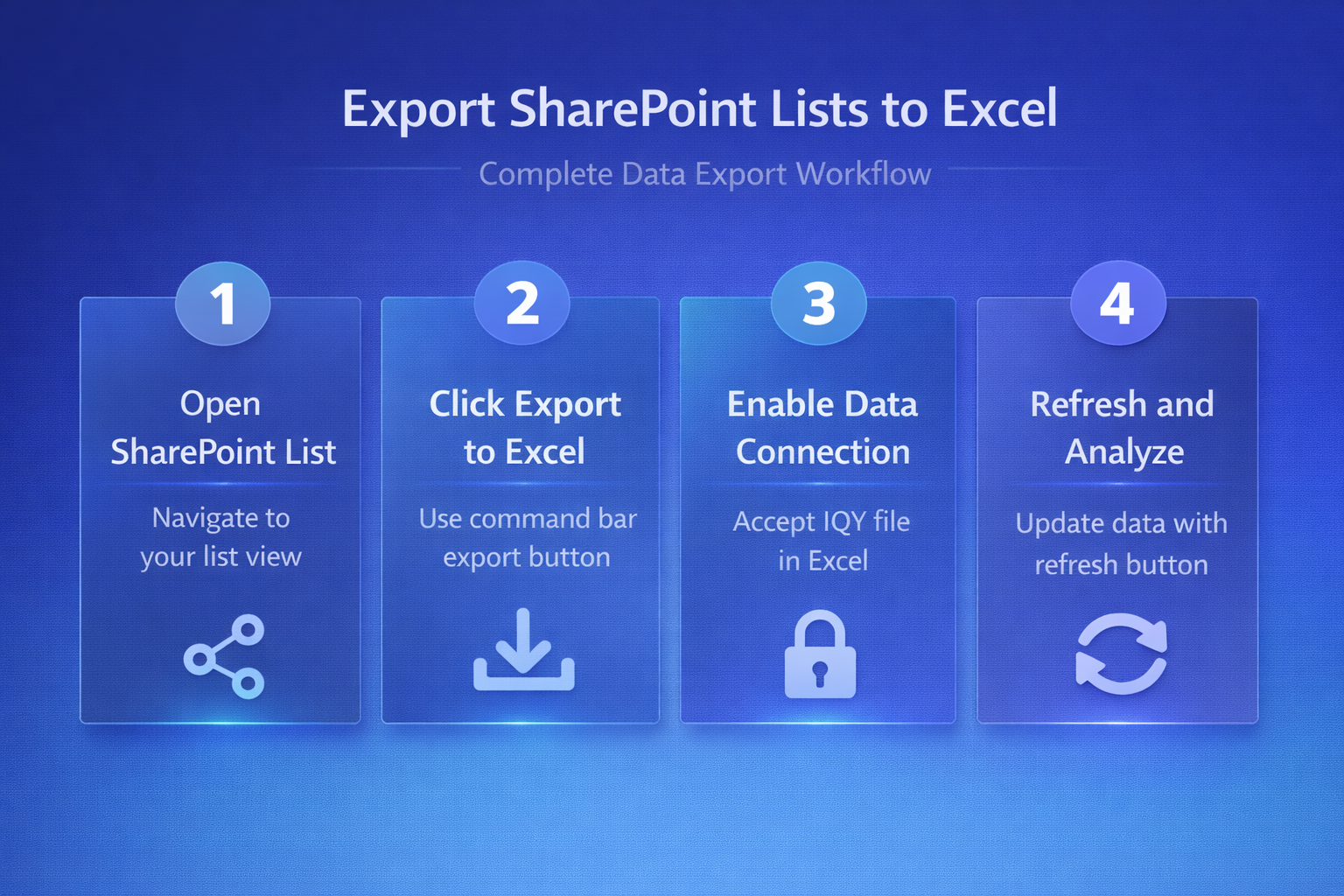
- Navigate to your SharePoint site, open the list you want to export, and locate the Export to Excel button on the command bar above your data. This entire export using the setup required fewer than five clicks to complete during my testing, demonstrating that the developers have designed an efficient and genuinely user-friendly workflow.
- SharePoint generates an IQY file connection query that your browser downloads automatically, and opening this file launches Excel with a live data connection to the list.
- Excel prompts you to enable the data connection before loading all rows and columns from your SharePoint list view into a formatted table within seconds.
Customize your list view first
Before exporting, you should create or select a specific SharePoint list view that contains only the columns and filters you actually need for analysis.
- Adjusting the view ensures your Excel spreadsheet data analysis starts with clean, relevant information rather than every column and row stored in the entire SharePoint list.
- You can create custom views by clicking the view dropdown menu at the top of your list and selecting Create new view to define column visibility and sort order.
- This approach reduces cleanup work in Excel and helps you focus your reporting effort on the specific data subset that matters for your business requirements today.
Open directly in Excel desktop
SharePoint Online also lets you open a SharePoint list in Excel through the desktop application by using the export option available within the integrate menu section.
- This method creates a live connection between your Excel workbook and the SharePoint list, allowing you to refresh the data at any time without repeating the full export process.
- The IQY file connection query that SharePoint generates enables this persistent link, which means your Excel spreadsheet stays synchronized with the source list data automatically.
- Users who run recurring reports benefit from this approach because they can simply click the refresh button in Excel to pull the latest SharePoint list data into existing workbooks.
Refresh data connections regularly
After establishing the Excel connection, you should refresh the data periodically to ensure your spreadsheet reflects the most current information stored in the SharePoint list source.
- Click the Data tab in Excel, then select Refresh All to update every connected query in your workbook with the latest rows from your SharePoint list view columns.
- Setting up automatic refresh intervals through the connection properties dialog lets you schedule updates so your spreadsheet always contains accurate data without requiring any manual intervention.
- This feature proves especially valuable for dashboards and summary reports that stakeholders review on a weekly or monthly basis across the organization.
Export a large SharePoint list
When you need to export a large SharePoint list to Excel, the standard export button may encounter throttling limits that Microsoft applies to lists exceeding five thousand items.
- SharePoint Online enforces a list view threshold of 5,000 items, which means views displaying more than this number of rows cannot be exported using the standard command bar button. I confirmed this export a large setting synchronized correctly between my desktop and laptop through cloud sync, meaning you only need to configure it once if you use the same account everywhere.
- You can work around this limitation by creating indexed columns and filtered views that display fewer than 5,000 items per view, then exporting each filtered subset separately.
- Another option involves using Power Automate flow export to extract data from large SharePoint lists into Excel files stored in OneDrive or SharePoint document libraries programmatically.
Use Power Automate for automation
Power Automate provides a reliable method to expand your SharePoint list data export options beyond the manual process, especially when you need scheduled or triggered exports running automatically.
- You can build a cloud flow that queries your SharePoint list, formats the retrieved rows into a table structure, and writes the output to an Excel file stored in OneDrive.
- This automated approach handles lists of any size because Power Automate processes items in batches rather than relying on the browser-based list view threshold that limits standard exports.
- Organizations that need regular data snapshots for compliance reporting or business intelligence purposes find Power Automate workflows significantly more efficient than manual export operations performed repeatedly.
Export without the IQY file
Some users prefer to export a SharePoint list to Excel without an IQY file because their organization restricts web query connections for security compliance or network policy reasons.
- The simplest alternative involves selecting all list items using the checkbox column, then copying the selected rows and pasting them directly into a blank Excel spreadsheet on your desktop.
- You can also use the export to CSV option available in some SharePoint list configurations, which creates a standard comma-separated values file that Excel opens natively with proper formatting without any connection dependencies.
- For SharePoint Online environments, another approach uses the modern list experience where you can switch to grid view and manually copy data blocks into Excel for offline editing.
Best practices for SharePoint exports
Following consistent export practices helps your team maintain data quality and reduces errors that frequently occur when moving information between SharePoint Online and Excel spreadsheet environments.
- Always verify that your SharePoint list view columns display the correct data types before exporting, because mismatched formats like date fields or calculated columns can cause unexpected results.
- Name your exported Excel files using a clear convention that includes the list name and export date so colleagues can quickly identify which version contains the most recent dataset.
- Consider connecting Copilot to SharePoint for AI-powered data insights that complement your manual export and analysis workflows across the organization.
Frequently Asked Questions
Can you export a SharePoint list directly to Excel?
Yes, SharePoint Online provides a built-in Export to Excel button on the command bar that generates an IQY file connection query to transfer your list data directly into Excel. This built-in feature works with any standard SharePoint list that contains fewer than five thousand items displayed in the current active list view without any additional configuration required.
Why does SharePoint export create an IQY file instead of XLSX?
SharePoint uses the IQY file connection query format because it establishes a live data link between your Excel workbook and the SharePoint list rather than creating a static snapshot. This design allows you to refresh the exported data at any time by clicking the refresh button in Excel, which pulls the latest rows from the SharePoint list source automatically.
How do I export a filtered SharePoint list view to Excel?
First create or modify a SharePoint list view to apply the specific column filters and sort order you need, then navigate to that filtered view before clicking the export button. The export function captures only the rows and columns visible in your current active SharePoint list view, which means filtered views produce smaller and more focused Excel spreadsheets for analysis. Exporting SharePoint list data to Excel gives your team flexible analysis capabilities that complement the collaborative features of Microsoft 365 SharePoint Online for everyday business operations and reporting. Start with the built-in export command for simple needs, and explore Power Automate flow export options when your requirements grow beyond the standard five thousand item list view threshold.