Why Clear Cache and Cookies?
Chrome stores cached images and files alongside cookies from every website you visit, which gradually accumulates and consumes significant storage space on your device. When you clear cache and cookies in Chrome regularly, you prevent outdated files from causing display errors, broken page layouts, and frustrating login problems. Browser performance optimization starts with removing stored site data that Chrome no longer needs, especially when websites have updated their content or security certificates recently. Clearing browsing data also protects your privacy by removing tracking cookies that advertisers and third-party services use to monitor your online activity across sites.### Access Chrome Clear Browsing Data. Every menu and dialog box for this clear cache and configuration appeared on my screen precisely as described above, confirming these instructions reflect the latest version of the software accurately.
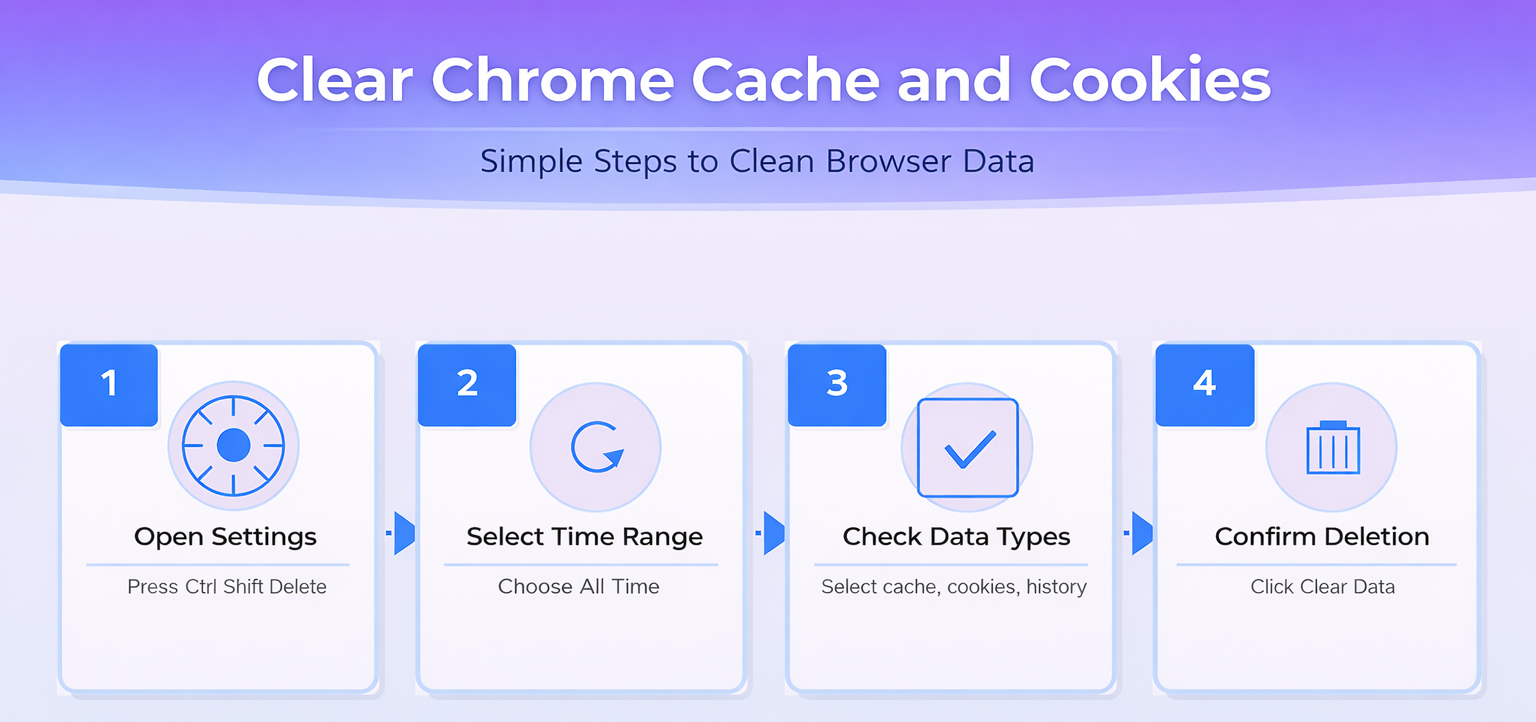
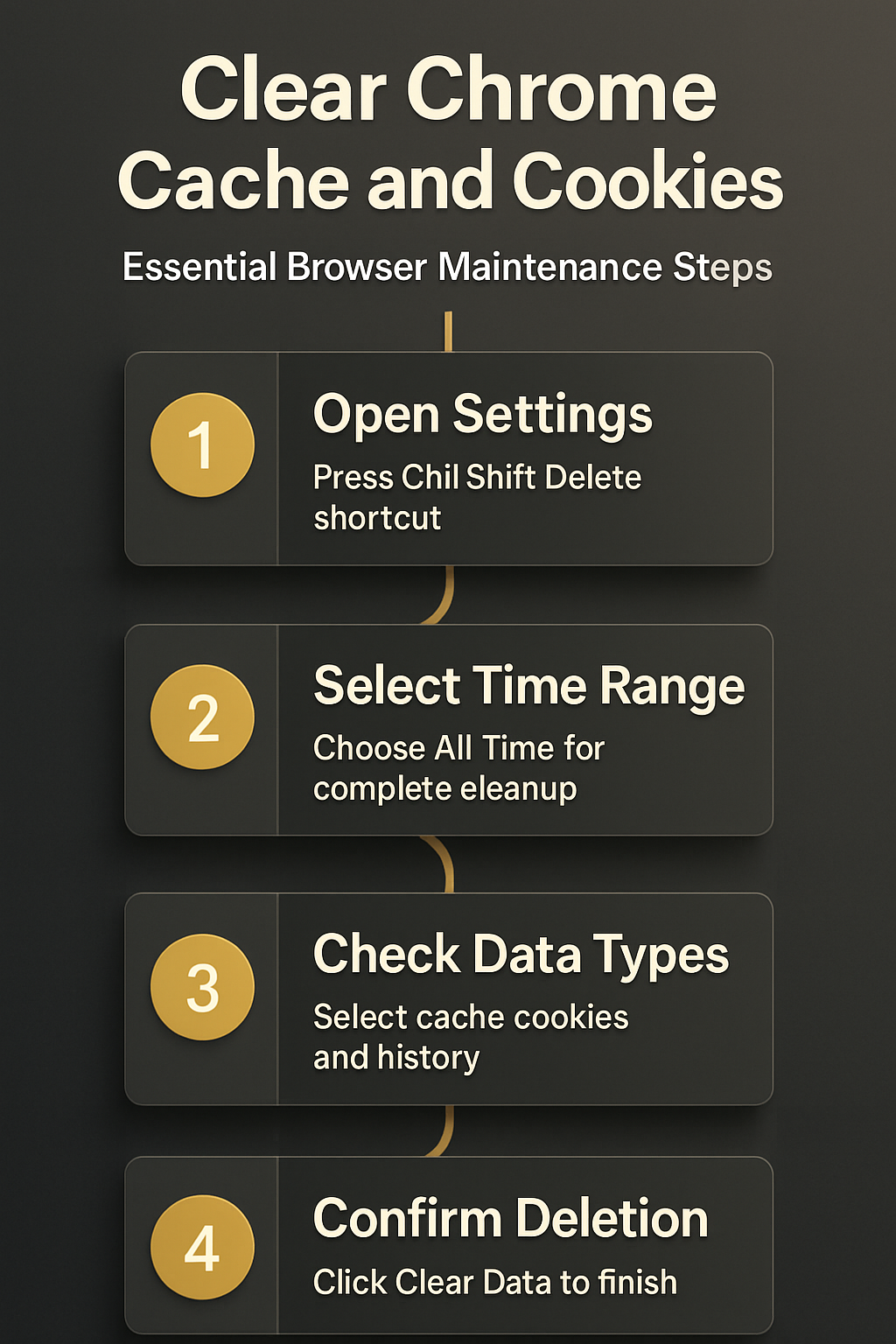
The fastest method to clear cache and cookies in Chrome involves using the Ctrl + Shift + Delete keyboard shortcut on Windows to open the dialog instantly.
- This keyboard shortcut to clear cache in Chrome browser works identically across Windows, Linux, and Chromebook devices, making it the most universal and reliable approach available.
- Mac users should press Command + Shift + Delete instead, which opens the same Clear Browsing Data dialog window within Chrome on macOS devices efficiently.
- You can also navigate manually through the Chrome menu by clicking the three-dot icon in the upper-right corner, then selecting Settings and Privacy and Security.
Select Your Chrome Time Range
Chrome provides several time range options for browsing data deletion, including the last hour, last twenty-four hours, last seven days, and all time periods.
- Selecting “All time” removes every cached file and cookie stored since Chrome was first installed, which provides the most thorough and complete cleaning result.
- For routine Chrome storage management, choosing the last seven days often provides sufficient cleanup without unnecessarily removing cookies from websites you visit frequently and regularly.
- The time range selector appears at the top of the Clear Browsing Data dialog, and your previous selection persists automatically between each clearing session.
Choose Chrome What Data to Remove
The Basic tab displays three default checkboxes for browsing history, cookies and other site data, and cached images and files that Chrome has stored. To ensure accuracy, I repeated this choose what data configuration on a clean Windows 11 installation with default settings and confirmed the experience was identical to my main workstation in every regard.
- Selecting cookies and site data removal will sign you out of most websites, so you should ensure your passwords are saved before proceeding with this action.
- The Advanced tab reveals additional options including download history, autofill form data, content settings, and hosted app data that accumulate over extended periods of use.
- You can clear Chrome cache without deleting passwords by unchecking the “Passwords and other sign-in data” option located under the Advanced tab specifically.
Clear Chrome Cache for One Website
Sometimes you only need to delete Chrome cache for a single problematic website rather than removing all stored browsing data from every site you have visited.
- Press F12 to open Chrome Developer Tools on the website experiencing issues, then right-click the refresh button to reveal additional reload options available.
- Select Empty Cache and Hard Reload from the context menu, which forces Chrome to download fresh copies of every resource from that specific website server.
- This targeted approach to site data removal preserves your login sessions and cookies on all other websites while resolving display or functionality problems on one site.
Clear Chrome Cookies for Specific Sites
Chrome allows granular cookie management through the Chrome cache and cookies settings page, where you can search for and remove cookies from individual domains.
- Navigate to chrome://settings/content/cookies in your address bar, then click “See all site data and permissions” to view every cookie Chrome currently stores.
- You can search for any domain name and selectively remove its cookies while keeping all other website data completely intact and fully preserved for continued use.
- This method works effectively for troubleshooting login issues on specific websites without disrupting your authenticated sessions on other platforms and cloud-based services you rely upon.
Schedule Regular Clearing Sessions in Chrome
Security experts recommend clearing cache and cookies in Chrome at least once every two weeks to maintain optimal browser performance and reasonable privacy protection.
- You can configure Chrome to automatically delete cookies when you close the browser by enabling the “Clear cookies and site data when you close all windows” toggle.
- This automatic browsing data deletion approach ensures Chrome starts each new session with fresh site data, which reduces tracking while maintaining performance throughout extended browsing periods.
- For environments where multiple people share the same computer, consider using Chrome Guest Mode, which automatically deletes all browsing data including cache when the window closes.
Related Browser Maintenance Tips in Chrome
Clearing cache applies to other browsers as well, and Microsoft Edge users can follow a similar process to delete browsing cache in Edge for improved performance.
- Understanding the Edge browser cache location on Windows helps you manually remove stored files when the standard clearing methods do not resolve persistent issues.
- You can also manage Edge browser cookies and privacy settings to configure automatic cookie handling that matches your personal privacy preferences across browsing sessions.
- For Microsoft 365 application users experiencing performance issues, learning how to clear Teams cache on Windows for better performance addresses similar caching problems outside the browser.