OneDrive delivers seamless cloud storage synchronization across all your devices, but sometimes it consumes excessive system resources that cripple your computer’s overall performance and responsiveness. When OneDrive starts hogging CPU cycles or memory, your entire Windows experience suffers with sluggish applications, delayed responses, and frustrating freezes throughout your workflow. This article walks you through proven methods to fix OneDrive high CPU or memory usage so your system runs smoothly and efficiently once again.
Why is OneDrive using so much CPU or memory?
Before diving into fixes, understanding the root causes helps you choose the most effective solution for your specific Microsoft OneDrive performance issue on Windows. OneDrive constantly monitors folders for file changes, and syncing thousands of files simultaneously can push CPU and memory consumption to unsustainable levels on your machine. Background processes related to indexing, thumbnail generation, and conflict resolution also contribute significantly to the problem of OneDrive slowing down your computer noticeably. Corrupted cache files or outdated OneDrive versions frequently trigger excessive resource usage that persists until you address the underlying configuration or software problem directly.
Check OneDrive resource usage in Task Manager
The first diagnostic step involves opening Task Manager to confirm that OneDrive is actually the process responsible for your high CPU or memory usage. Press Ctrl + Shift + Esc to launch Task Manager, then click the Processes tab to view all running applications sorted by their resource consumption levels. Look for Microsoft OneDrive in the list and note the percentages displayed under the CPU and Memory columns to establish your current baseline readings. If OneDrive consuming too much CPU is confirmed, you can proceed with the targeted fixes described in the following sections of this article.
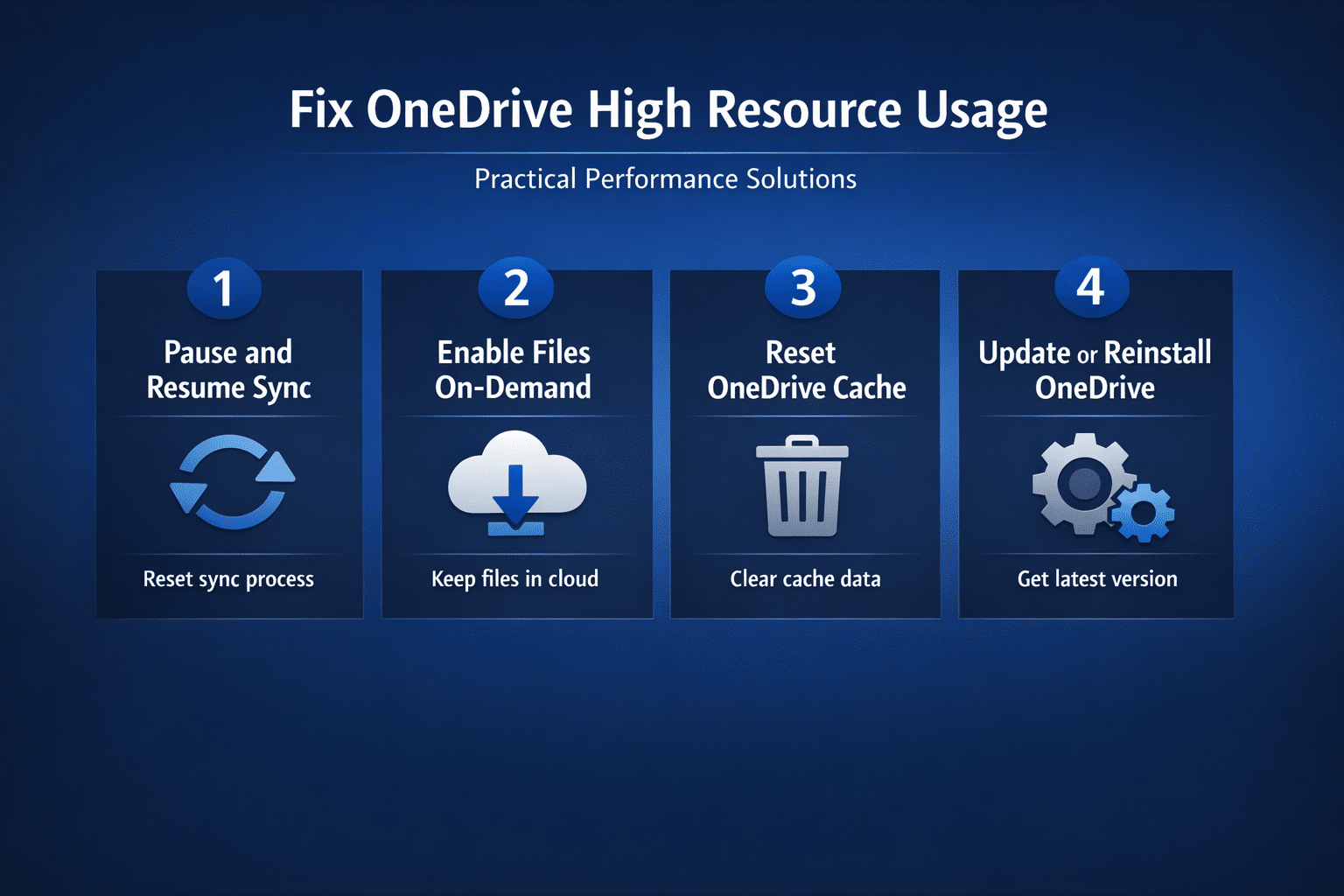
Pause and resume OneDrive sync
Sometimes the simplest fix for OneDrive high resource usage slowing your computer involves temporarily pausing synchronization and then resuming it to reset the process.
How to pause sync temporarily
Click the OneDrive cloud icon in your system tray, select the gear icon, then choose Pause syncing for two, eight, or twenty-four hours. After pausing, monitor Task Manager to confirm that CPU and memory usage from OneDrive drops significantly within a few seconds of stopping synchronization. Resume syncing after the pause period ends and observe whether OneDrive resource consumption returns to normal levels or spikes again immediately upon restarting.
Optimize OneDrive sync settings
Adjusting your sync configuration can dramatically reduce the strain that OneDrive places on your system resources during everyday file synchronization operations.
Enable Files On-Demand
Files On-Demand keeps files in the cloud until you actually open them, which significantly reduces the local storage footprint and ongoing synchronization overhead. Open OneDrive settings, navigate to the Sync and backup tab, and ensure that the Files On-Demand feature is enabled for your account. This single change can resolve OneDrive memory usage high problems because your system no longer downloads and indexes every single file stored in cloud.
Limit sync bandwidth
You can restrict how much network bandwidth OneDrive uses, which indirectly reduces CPU load from processing large volumes of data transfers simultaneously. In OneDrive settings, select the Sync and backup tab, then click Advanced settings to find upload and download rate limiting options available. Set reasonable limits such as 50 percent of your total bandwidth to prevent OneDrive from monopolizing both network and processing resources during active work.
Exclude unnecessary folders
Reducing the number of folders that OneDrive monitors directly decreases the processing overhead required for continuous file change detection and synchronization tasks. You can exclude specific files and folders from OneDrive to prevent unnecessary syncing of large directories that rarely change. Choose only essential folders for cloud backup and remove temporary directories, build outputs, and other high-churn locations from your OneDrive sync scope.
Reset OneDrive to fix corrupted cache
A corrupted local cache frequently causes persistent high CPU or memory usage that no amount of settings adjustment can resolve without a complete reset.
Run the OneDrive reset command
Press Windows + R to open the Run dialog, then type %localappdata%\Microsoft\OneDrive\onedrive.exe /reset and press Enter to execute it. OneDrive will disappear from your system tray temporarily while it clears all cached data and rebuilds its local database from scratch completely fresh. After a few minutes, OneDrive should restart automatically, but if it does not, search for OneDrive in the Start menu and launch it.
Verify the reset resolved the issue
Open Task Manager again after the reset completes and monitor OneDrive resource consumption over a fifteen-minute period while initial resynchronization takes place naturally. Initial sync after a reset will temporarily increase resource usage, but consumption should stabilize at much lower levels once the process finishes completely. If you still experience problems with high CPU usage on Windows 11, additional system-level optimization may help.
Update or reinstall OneDrive
Running an outdated version of OneDrive can cause memory leaks and inefficient CPU utilization that Microsoft has already patched in more recent software releases.
Update OneDrive to the latest version
Open OneDrive settings, navigate to the About tab, and check whether your installed version matches the latest release available from Microsoft’s official site. OneDrive typically updates automatically, but sometimes the update process stalls, leaving you running buggy older versions with known resource consumption problems unresolved. You can also learn how to manage OneDrive on Windows 11 for additional configuration tips that improve performance.
Reinstall OneDrive completely
If updating does not help, uninstall OneDrive completely through Windows Settings, restart your computer, then download and install the latest version from Microsoft. A clean installation removes all corrupted configuration files, damaged cache data, and problematic registry entries that accumulated over previous versions of the application. For systems where OneDrive remains unnecessary, you can remove OneDrive from Windows 11 entirely to eliminate resource consumption.
Reduce overall system resource pressure
Sometimes OneDrive high CPU or memory usage reflects broader system resource constraints that require attention beyond just the OneDrive application itself on your computer.
Disable unnecessary startup programs
Open Task Manager, click the Startup apps tab, and disable programs that you do not need running immediately when Windows boots up every time. Reducing startup programs frees CPU and memory headroom that allows OneDrive to operate efficiently without competing against dozens of other background processes simultaneously. You can find more techniques to lower CPU usage on Windows 11 that complement the OneDrive-specific fixes described above.
Address broader performance problems
If your computer remains sluggish after optimizing OneDrive, the issue likely extends beyond cloud storage synchronization into other areas of system performance degradation. Combining system-wide performance tuning with OneDrive-specific adjustments delivers the best results for eliminating resource consumption bottlenecks on your Windows machine entirely.
Frequently asked questions
Why is OneDrive using so much CPU?
OneDrive uses excessive CPU when syncing large numbers of files, rebuilding its cache index, or processing file conflicts across multiple devices simultaneously in background. Corrupted cache files and outdated software versions also cause OneDrive to consume abnormal CPU resources that persist until you reset or update the application. Enabling Files On-Demand and limiting sync folders are the two most effective solutions for reducing persistent high CPU usage from OneDrive processes.
How do I reduce OneDrive memory usage?
Enable Files On-Demand to keep files in the cloud rather than downloading everything locally, which dramatically reduces the memory footprint that OneDrive requires. Exclude large folders from synchronization and limit the total number of files that OneDrive actively monitors to keep memory consumption within reasonable boundaries consistently. Resetting OneDrive clears accumulated cache data that frequently causes memory usage to grow well beyond normal operating levels over extended periods of usage.
Can I limit OneDrive sync bandwidth?
Yes, OneDrive provides built-in bandwidth throttling controls accessible through the Advanced settings section under the Sync and backup tab in OneDrive settings. You can set specific upload and download rate limits measured in kilobytes per second, or choose to let OneDrive automatically adjust based on available bandwidth. Limiting bandwidth reduces the volume of data OneDrive processes simultaneously, which directly lowers both CPU utilization and memory consumption during active synchronization periods.