Microsoft Teams has become essential for workplace collaboration, but file synchronization problems can disrupt your workflow dramatically. When your Teams files fail to sync to your computer, you lose access to critical documents and can’t collaborate with team members effectively. This article provides comprehensive troubleshooting solutions to restore your Teams file synchronization and get back to productive work immediately.
Understanding Teams file synchronization and why it matters
Teams integrates deeply with OneDrive and Microsoft 365 to enable seamless file collaboration across your organization. The cloud synchronization process automatically transfers files to your computer so you can work offline without losing productivity when connectivity drops unexpectedly. Understanding how this Microsoft 365 file storage system works helps you identify and resolve synchronization issues more quickly and effectively.
When files won’t sync, it typically indicates a problem with your OneDrive integration, network connectivity, or Microsoft 365 authentication rather than Teams itself. Your Teams collaboration depends on reliable file access, so addressing sync issues promptly prevents project delays and maintains team productivity throughout your workday.
Common reasons Teams files aren’t syncing to your computer
Several factors can prevent your Teams files from syncing properly to your local machine or external storage devices. Understanding these root causes helps you apply the most effective solution to your specific situation and avoid similar problems in the future. The following issues account for most Teams file synchronization failures across different Windows environments and configurations.
- OneDrive not running or disabled — The OneDrive sync engine must be active and properly configured to synchronize Teams files to your computer automatically and consistently throughout each workday. If OneDrive has stopped or encounters errors, Teams files remain stuck in the cloud and cannot be accessed locally without manual intervention or restart procedures.
- Storage quota exceeded — Your OneDrive account has limited storage space, and exceeding this quota prevents new files from syncing until you delete older items and free up available capacity for continued synchronization of additional files and folders.
- Network or connectivity issues — Unstable internet connections, firewall restrictions, or VPN settings can block file synchronization attempts to your computer completely or intermittently depending on your network configuration and connection strength.
- Microsoft 365 authentication problems — Expired credentials, multiple account sign-ins, or permission issues prevent Teams from accessing your file storage and synchronizing content as expected in normal operation scenarios.
- Teams offline files setting disabled — By default, Teams caches files locally, but if this feature is disabled through settings, your Teams files won’t download or sync to your computer automatically for offline access and viewing.
- Corrupted cache or temporary files — Corrupted OneDrive or Teams cache files can prevent synchronization and require clearing temporary storage and restarting the sync process to restore normal functionality and file access.
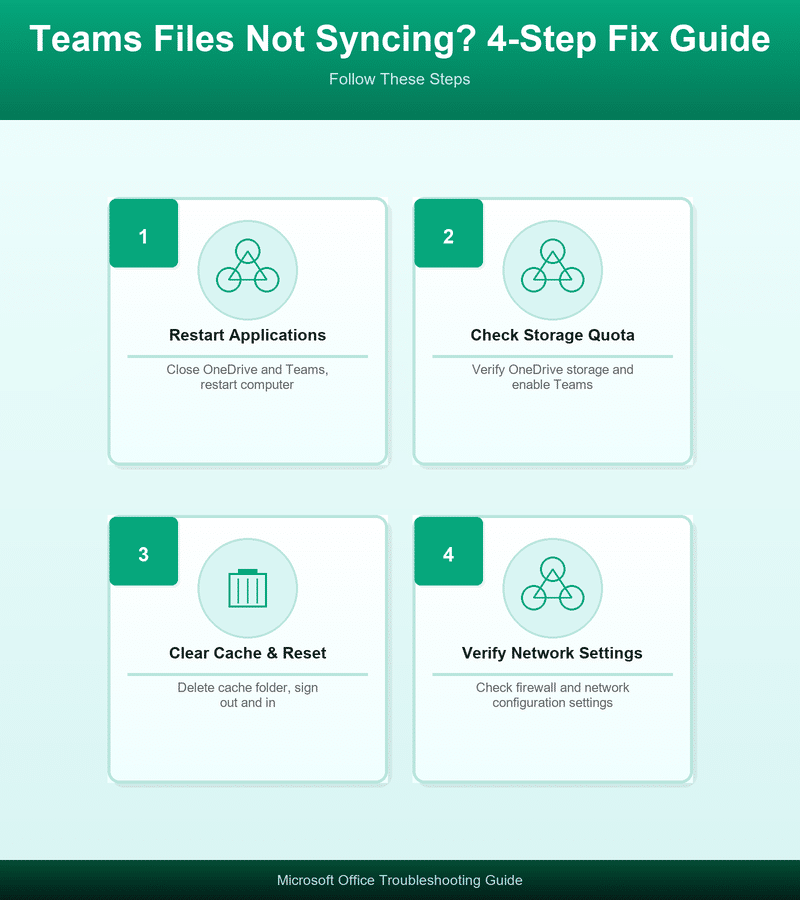
How to fix Teams files not syncing on Windows?
Follow these troubleshooting steps in order until your Teams files sync successfully and your team collaboration resumes without interruption or access delays. Each step addresses a specific synchronization issue and builds on previous steps to ensure comprehensive problem resolution.
Restart OneDrive and Teams applications
The simplest solution often resolves temporary synchronization glitches and connection errors affecting your Teams file access. Restarting both applications resets their cache and network connections, restoring normal synchronization behavior without requiring complex troubleshooting procedures or system-level changes.
- Sign out of OneDrive — Right-click the OneDrive icon in your system tray, select “Help & Settings,” then click “Sign out” to completely disconnect from your OneDrive account and stop all synchronization processes immediately on your computer.
- Close Teams completely — Quit the Teams application entirely using Task Manager to ensure all Teams processes end and stop attempting to access your file storage or sync data during the restart process.
- Restart your computer — Reboot your Windows system to clear memory, reset network connections, and restart both OneDrive and Teams with fresh authentication tokens and clean cache files for improved synchronization performance.
- Sign back in — Log into OneDrive with your Microsoft 365 credentials and allow the application to fully sync before opening Teams to verify that file synchronization now works properly and files appear on your desktop.
Check your OneDrive settings and storage quota
Your OneDrive configuration directly affects Teams file synchronization, so verifying your account settings and available storage space ensures proper file syncing without quota-related errors blocking your teams. Access your OneDrive account online to review your storage usage and adjust your settings for optimal cloud synchronization performance and reliable file access. Learn more about how to link Teams folders to OneDrive to streamline your file management.
- Review storage usage — Open OneDrive online and check your storage meter to confirm you haven’t exceeded your allocation and that significant space remains available for new Teams files and ongoing synchronization activities.
- Enable sync for Teams channel files — In OneDrive settings, ensure that Teams channel files are set to sync to your computer and that you haven’t restricted offline files from downloading to your local machine for access when internet connectivity fails.
- Upgrade storage if needed — Purchase additional Microsoft 365 storage if you’re consistently approaching your quota, which prevents new files from syncing and causes synchronization errors that disrupt your Teams collaboration and file access.
Clear OneDrive cache and reset synchronization
Corrupted cache files frequently prevent synchronization, and clearing OneDrive’s temporary storage often resolves stubborn sync errors that persist despite restarting your applications. This process removes problematic cached data while preserving your files in the cloud and on your computer.
- Stop OneDrive — Open Task Manager, find the OneDrive process, and click “End Task” to terminate all OneDrive processes and prepare your system for cache clearing and synchronization reset procedures.
- Delete OneDrive cache — Navigate to
C:\Users\[YourUsername]\AppData\Local\Microsoft\OneDriveand delete the CacheStorage folder to remove corrupted synchronization data and temporary files that block proper sync operations. - Restart OneDrive — Launch OneDrive again from your Start menu, and allow it to rebuild its cache and re-sync all files to your computer from scratch, which typically resolves persistent synchronization issues and restores normal file access.
- Re-add your account — If sync errors persist, remove your OneDrive account from your computer settings and add it again with your Microsoft 365 credentials, which resets your account connection and forces a fresh synchronization attempt.
Checking network and firewall settings
Network configuration issues frequently prevent Teams files from syncing, particularly in corporate environments with restrictive firewall policies or unusual VPN configurations. Verifying your network settings ensures Microsoft 365 servers can reach your computer and deliver files without interruption or connection timeouts. If you suspect network problems, consider running a diagnostic test to verify your Microsoft Teams connection performance before contacting your IT department.
Your firewall or corporate security software may block OneDrive and Teams communication ports, so consult your IT department if you work in a managed environment. Temporarily disabling your firewall can help identify whether network security settings are causing synchronization failures, though you should contact your IT support team for permanent solutions in corporate scenarios.
Advanced troubleshooting for persistent sync issues
If the previous solutions haven’t resolved your Teams file synchronization problems, these advanced techniques address deeper system issues and configuration problems. These steps require accessing system settings and registry locations, so proceed carefully if you’re unfamiliar with Windows system configuration changes.
- Rebuild OneDrive database — Open Settings, navigate to Apps > Apps & features, find Microsoft OneDrive, click it, then select “Repair” or “Reset” to rebuild your OneDrive database and synchronization configuration from scratch without losing your files.
- Check Teams storage location — In Teams settings under Files, verify your default storage location matches your OneDrive path and that Teams has permission to read and write files in that directory without restrictions or access errors.
- Update Windows and Microsoft 365 — Ensure your Windows version is current and that Microsoft 365 applications including Teams and OneDrive have the latest updates installed, as outdated software sometimes causes synchronization incompatibilities and connection failures.
- Reinstall OneDrive — Uninstall OneDrive completely through Windows Settings, restart your computer, then reinstall it from the Microsoft Store, which resolves deep system issues and corrupted OneDrive installations preventing synchronization.
Best practices to prevent future Teams file sync issues
Implementing these practices ensures your Teams files sync reliably and you maintain consistent access to shared documents without disruption. Regular maintenance prevents synchronization problems and keeps your Microsoft 365 collaboration environment running smoothly for you and your team members.
- Monitor storage usage regularly — Check your OneDrive storage quota monthly and keep your usage below 80 percent of your allocation to ensure adequate space for continuous file synchronization without quota-related errors or sync failures.
- Update Teams and OneDrive automatically — Enable automatic updates for Teams and OneDrive applications so you receive security patches and bug fixes immediately without manual intervention, which reduces synchronization issues caused by outdated software.
- Use Microsoft 365 file storage efficiently — Organize your Teams channel files into clear folder structures, archive old projects, and delete temporary files regularly to maintain your storage efficiency and prevent quota problems from accumulating over time.
- Verify internet connectivity — Maintain a stable network connection and minimize interference from other applications competing for bandwidth, as consistent network performance directly enables reliable file synchronization and prevents temporary sync disruptions.
- Back up critical files — Create backup copies of important Teams files outside of OneDrive to protect against data loss during extended synchronization outages or migration scenarios affecting your primary file storage.
Frequently asked questions about Teams file synchronization
Why are my Teams files not syncing to my computer?
The most common causes include OneDrive being disabled or offline, storage quota being exceeded, network connectivity issues preventing synchronization, or Microsoft 365 authentication problems blocking your account access to cloud storage resources.
How do I check if OneDrive is syncing properly?
Look for the OneDrive icon in your system tray near the clock. A green checkmark indicates successful synchronization, while a warning symbol or no icon suggests OneDrive isn’t running or has encountered a synchronization error requiring immediate attention.
Can I enable offline file sync in Teams?
Yes, Teams caches files locally by default for offline access, but you can control this behavior through Teams settings under Files to specify which channels and files you want available without internet connectivity for continuous work capability.
How long does Teams file synchronization typically take?
Small files usually sync within seconds, while larger files or many files at once may require minutes depending on your internet connection speed, local computer performance, and overall OneDrive server load at that moment.
What should I do if none of these solutions work?
Contact Microsoft 365 support for account-level issues, consult your IT department if your organization manages Teams and OneDrive, or contact your internet service provider if network connectivity remains problematic despite troubleshooting steps.