Have you ever joined an important Microsoft Teams meeting only to discover that your colleagues cannot hear you, or their voices sound distant and muffled? Audio problems can derail productive collaboration and create frustrating communication barriers that impact your team’s ability to work together effectively.
Troubleshooting Microsoft Teams audio problems
Audio issues in Microsoft Teams typically stem from incorrect device settings, driver conflicts, or application permissions that prevent proper sound transmission.
Today we’ll address common scenarios where users experience microphone problems, cannot hear other participants, encounter distant or echo-laden audio, or receive error messages about audio device failures. You will learn how to systematically diagnose and resolve these challenges using built-in Teams settings, Windows audio configurations, and device management tools. Before proceeding, ensure you have administrative access to your device settings and that your Microsoft Teams application is updated to the latest version available through your organization’s update channel.
Best audio settings for Microsoft Teams calls
Optimizing your audio configuration begins with verifying that Teams recognizes your preferred input and output devices correctly and ensuring system-level permissions allow microphone access across your applications.
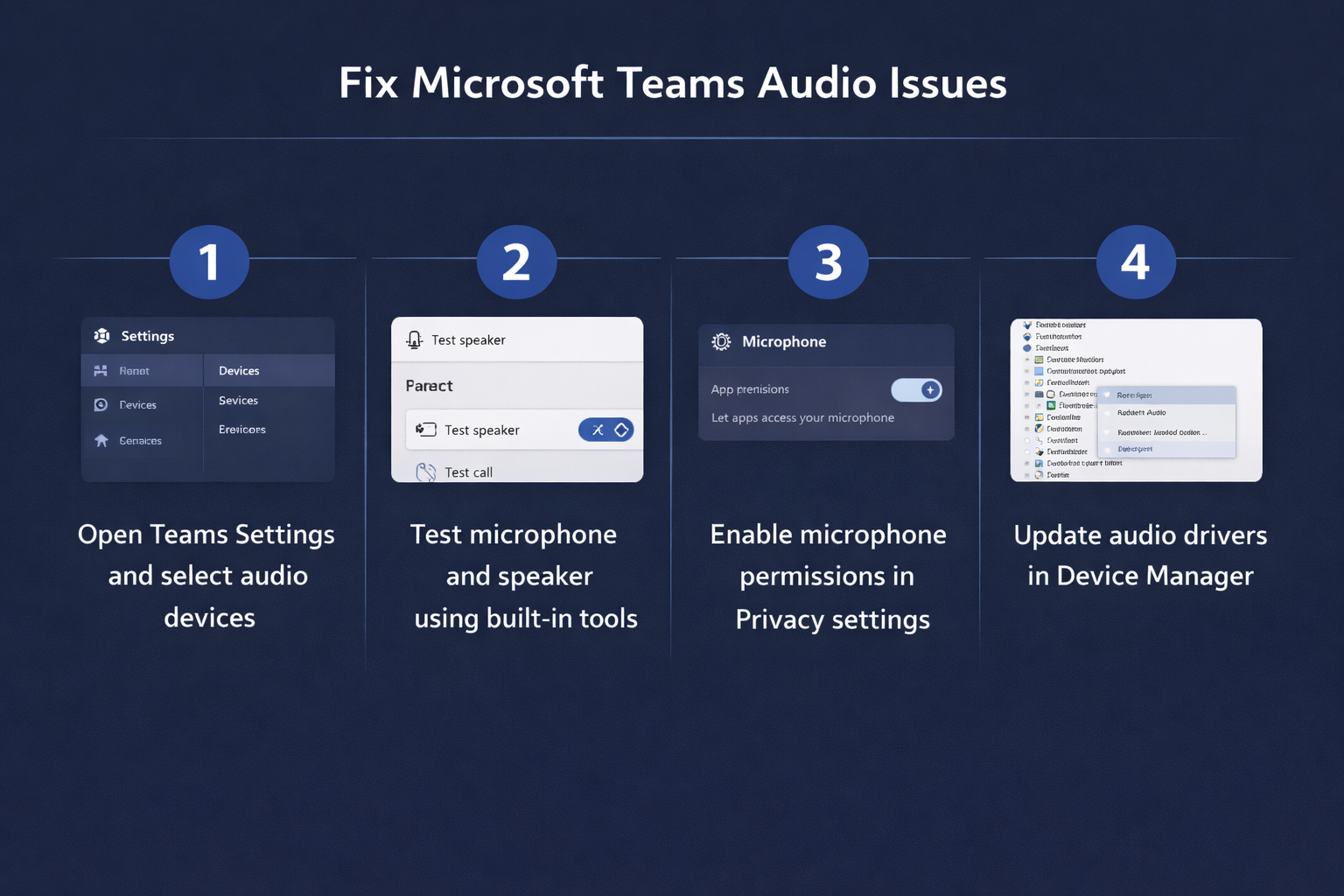
- Launch Microsoft Teams and click your profile picture in the top-right corner, then select Settings from the dropdown menu to access your configuration options.
- Navigate to Devices in the left sidebar and locate the Audio devices section where you can designate your preferred speaker, microphone, and secondary ringer for incoming calls.
- Click the dropdown menu under Speaker and select your preferred audio output device, then adjust the volume slider while clicking Make a test call to verify sound quality.
- Under Microphone, choose your input device from the dropdown and speak normally while observing the blue indicator bar that should respond to your voice in real time.
- Enable the Automatically adjust microphone settings option to allow Teams to optimize input levels, or disable it if you prefer manual control over your microphone sensitivity and volume.
- Scroll down to find the Secondary ringer option and select a different device if you want incoming call notifications to play through an additional speaker or headset.
Expert Tip: Always make a test call using the built-in Teams test call feature before joining important meetings to confirm your audio configuration works properly and avoid last-minute technical difficulties.
Configuring Windows audio permissions and device settings
Beyond the Teams application itself, Windows operating system settings control which applications can access your microphone and how audio devices interact with installed drivers and system resources.
- Press the Windows key and type Settings, then select the Settings app and navigate to Privacy & Security followed by Microphone to review application permissions.
- Ensure that the toggle switch for Microphone access is enabled system-wide, then scroll down to verify that Microsoft Teams appears in the list of apps with microphone permission granted.
- Return to Settings and select System, then navigate to Sound and click on your active output device to access advanced properties and spatial sound configurations.
- Under Input, select your microphone device and click Device properties to adjust volume levels, then select Additional device properties to access the driver-level configuration panel.
- In the Microphone Properties window, navigate to the Levels tab and ensure the microphone volume is set between 70-90 percent with boost disabled unless you have a particularly quiet microphone.
- Switch to the Advanced tab and verify the default format is set to 16 bit, 44100 Hz or 16 bit, 48000 Hz for optimal compatibility with Teams audio processing algorithms.
Note: if your microphone isn’t being detected at all by the application, check out our tutorial on enabling Microsoft Teams microphone settings which covers permission configurations and driver troubleshooting specific to input devices.
Common challenges when you cannot hear audio in Teams
Even with proper configuration, specific issues can prevent audio from functioning correctly during meetings, and understanding these common problems helps you respond quickly when communication breaks down.
- If participants cannot hear you but you hear them clearly, click the microphone icon in your meeting controls to verify it is not muted, then check whether a red slash appears indicating mute status that you need to disable by clicking the icon again.
- When audio sounds far away or distant, open Device Manager by right-clicking the Start button, expand Audio inputs and outputs, right-click your microphone device, select Update driver, and choose Search automatically for drivers to install the latest compatible version.
- If Teams displays a problem with audio device error message, close the application completely, disconnect and reconnect your audio device, wait ten seconds for Windows to recognize the hardware, then relaunch Teams to re-establish the device connection.
- For echo or feedback issues during calls, disable speaker playback in your microphone properties by opening Sound settings, selecting Recording devices, right-clicking your microphone, choosing Properties, navigating to Listen tab, and unchecking Listen to this device if it is enabled.
Important Tip: USB headsets sometimes require you to set them as the default communication device in Windows Sound settings separately from the default playback device to ensure Teams routes audio correctly during calls.