“Can I get Copilot to help me write and manage emails in Outlook, and if so, how do I actually turn it on and start using it?”
Enable Copilot in Outlook and get started
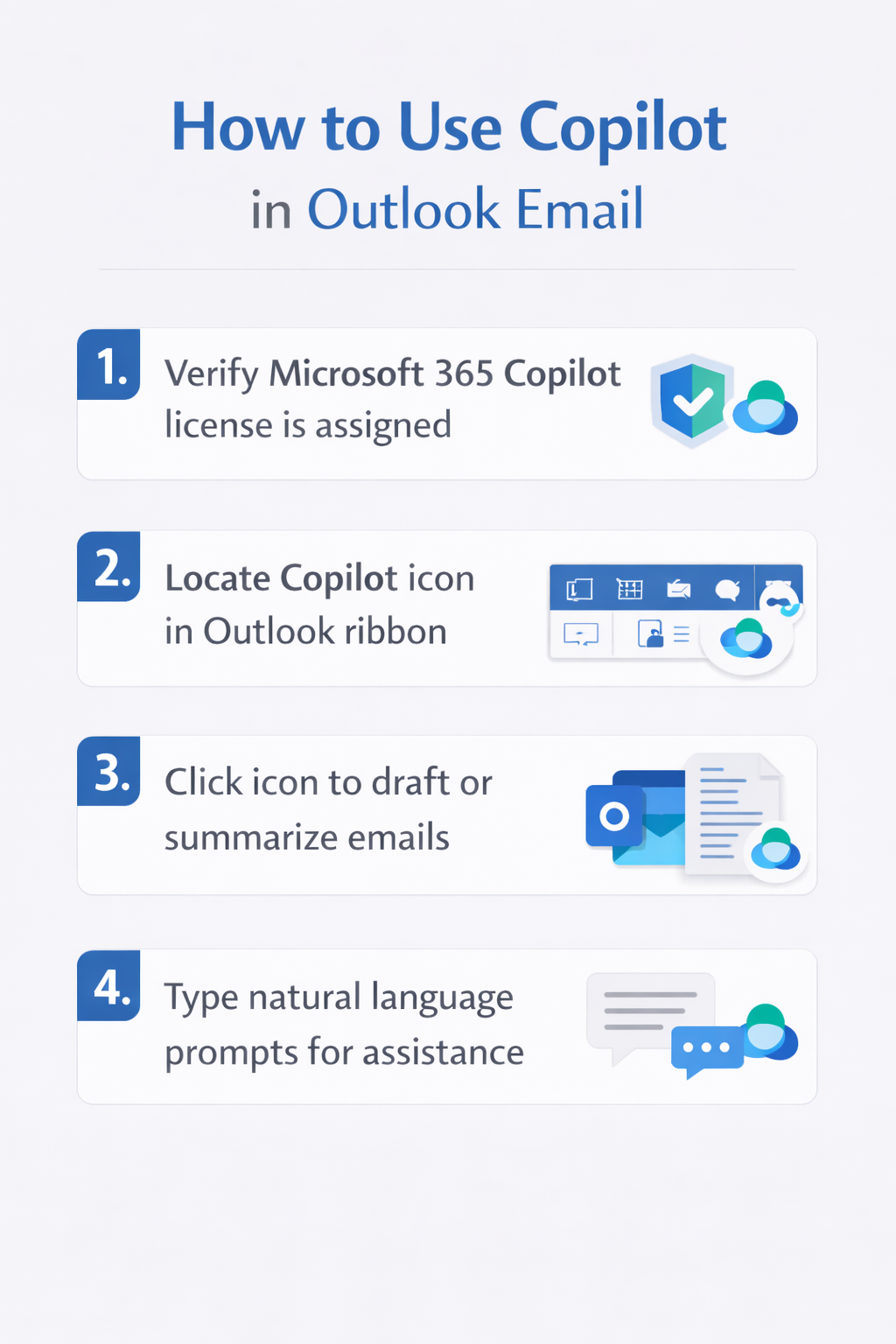
Before you can leverage Copilot chat in Outlook or use its email drafting capabilities, you need to understand what makes this feature available in your environment. Microsoft Copilot for Outlook is included with Microsoft 365 Copilot licenses, which means your organization must have purchased and assigned these licenses to your account. Once your admin provisions access, Copilot appears automatically in supported Outlook clients including Outlook for Windows, Outlook for Mac, Outlook on the web, and Outlook online environments. There is no separate copilot plug in for Outlook to install manually, as the functionality integrates natively into the application once licensing is active. You should verify with your IT department that your tenant has Copilot enabled and that your user account has the appropriate license assigned before proceeding.
Welcome to Copilot in Outlook: understanding the interface
When you open Outlook after Copilot has been enabled, you will notice the Copilot icon appearing in several strategic locations throughout the interface. In the Outlook ribbon at the top of your window, look for the Copilot button which launches the Copilot pane where you can interact with the assistant through natural language prompts. When composing a new email or replying to an existing message, you will see the Copilot icon directly within the email body editor, allowing you to draft, refine, or adjust your message tone without leaving the composition window. The Copilot pane on the right side of your Outlook window serves as your primary interaction point for asking questions about your emails, summarizing conversations, and getting help with inbox management tasks. Understanding these interface elements ensures you can quickly access Copilot features exactly when you need them, whether you are writing emails, reviewing threads, or organizing your mailbox.
Expert Tip: If you don’t see the Copilot icon after your admin confirms licensing, try signing out of Outlook completely and signing back in, or check for pending Microsoft 365 updates that might need to be installed first.
Using Copilot in Outlook web and desktop applications
Once you confirm that Copilot is active in your account, you can begin using it across different Outlook platforms with largely consistent functionality.
To use copilot in Outlook email composition, open a new message or reply and click the Copilot icon that appears in the message toolbar or directly in the text area. You can then type a prompt such as “Draft a professional email requesting a project status update from the marketing team” and Copilot will generate a complete draft that you can review, edit, and send.
For summarizing long email threads, open the conversation in your inbox and click the Copilot icon in the reading pane, then ask it to “Summarize this thread and highlight action items” to quickly understand the key points without reading every message.
The Copilot pane also allows you to ask broader questions like “What emails do I have from my manager this week” or “Show me unread messages about the budget proposal” to surface relevant information instantly. Whether you perform an Outlook log in copilot session on the web version or use the desktop client, the core features remain accessible, though some advanced options may roll out to different platforms at different times depending on Microsoft’s release schedule.
For additional ways to enhance your email communication, explore how to rewrite email copilot microsoft outlook for more professional messaging options.
Copilot chat in Outlook for productivity
Beyond drafting individual emails, Copilot chat in Outlook enables conversational interactions that help you manage your entire inbox more effectively.
You can open the Copilot pane and ask questions like “What meetings do I have tomorrow” or “Find emails from John about the quarterly report” and receive structured answers drawn from your mailbox data. This chat interface supports follow-up questions, so after receiving a summary you can ask “What was the final decision” or “Who needs to respond” to drill deeper into specific details.
You can also request coaching on email tone by asking Copilot to “Make this message sound more formal” or “Adjust this reply to be friendlier” which helps you match your communication style to the audience and context. The chat functionality learns from your interaction patterns over time, making its suggestions more relevant as you continue to use it, though it does not access data outside your Microsoft 365 tenant for privacy and security reasons.
Remember: Copilot processes your prompts and email content within your organization’s Microsoft 365 environment, so your data remains protected under your existing compliance and security policies.
Copilot in Outlook online: accessing features anywhere
When working remotely or from a device without the desktop Outlook app installed, copilot in Outlook online provides the same powerful assistance through your web browser. Simply navigate to outlook.office.com and sign in with your Microsoft 365 credentials that have Copilot licensing enabled, and you will see the familiar Copilot icons in the web interface. The online experience supports drafting emails with prompts, summarizing threads, and using the Copilot pane for inbox queries just as you would on the desktop version. One advantage of the web version is that it updates automatically without requiring manual installations, ensuring you always have access to the latest Copilot features as Microsoft releases them. You can also use Outlook on mobile devices, though Copilot availability on iOS and Android apps may vary depending on your organization’s mobile app management policies and Microsoft’s feature rollout timeline.
Common issues when accessing Copilot features
Understanding potential obstacles can save you significant troubleshooting time when Copilot does not appear or behave as expected in your Outlook environment.
- Copilot icons are missing even after your admin confirms licensing is assigned: Sign out of all Microsoft 365 applications completely and restart your computer, then sign back into Outlook to force a license refresh, which can take up to twenty-four hours to propagate across all services in some cases.
- Copilot generates incomplete or irrelevant email drafts that do not match your request: Refine your prompts to be more specific by including details like audience, purpose, and tone, such as “Write a concise email to the finance team requesting Q1 expense reports with a professional tone” instead of vague instructions.
- Error messages appear when trying to summarize email threads or ask questions in the Copilot pane: Verify that your mailbox is not exceeding storage limits and that you have a stable internet connection, as Copilot requires backend processing that depends on cloud connectivity and adequate mailbox resources.
- Copilot features work inconsistently between Outlook desktop and Outlook online versions: Check that both applications are fully updated to the latest versions, as feature parity improvements roll out gradually and older builds may lack certain capabilities that newer releases support.
Important Tip: If Copilot continues to malfunction after basic troubleshooting, ask your IT administrator to review your Copilot license assignment in the Microsoft 365 admin center and confirm that no conditional access policies are blocking the service.