“Why isn’t my computer playing the familiar Windows startup sound anymore when I boot up my system?” This question commonly surfaces when users notice their Windows machines have gone silent during the boot process, removing that distinctive audio cue that signals successful system initialization. The absence of startup sounds can indicate underlying audio configuration issues, disabled system settings, or driver conflicts that require systematic troubleshooting to resolve properly.
System sound configuration problems and solution overview
The missing Windows startup sound typically stems from disabled system sound schemes, incorrect audio device configurations, or registry modifications that have inadvertently silenced the boot process. Modern Windows installations often ship with startup sounds disabled by default to provide faster boot times and quieter user experiences in professional environments.
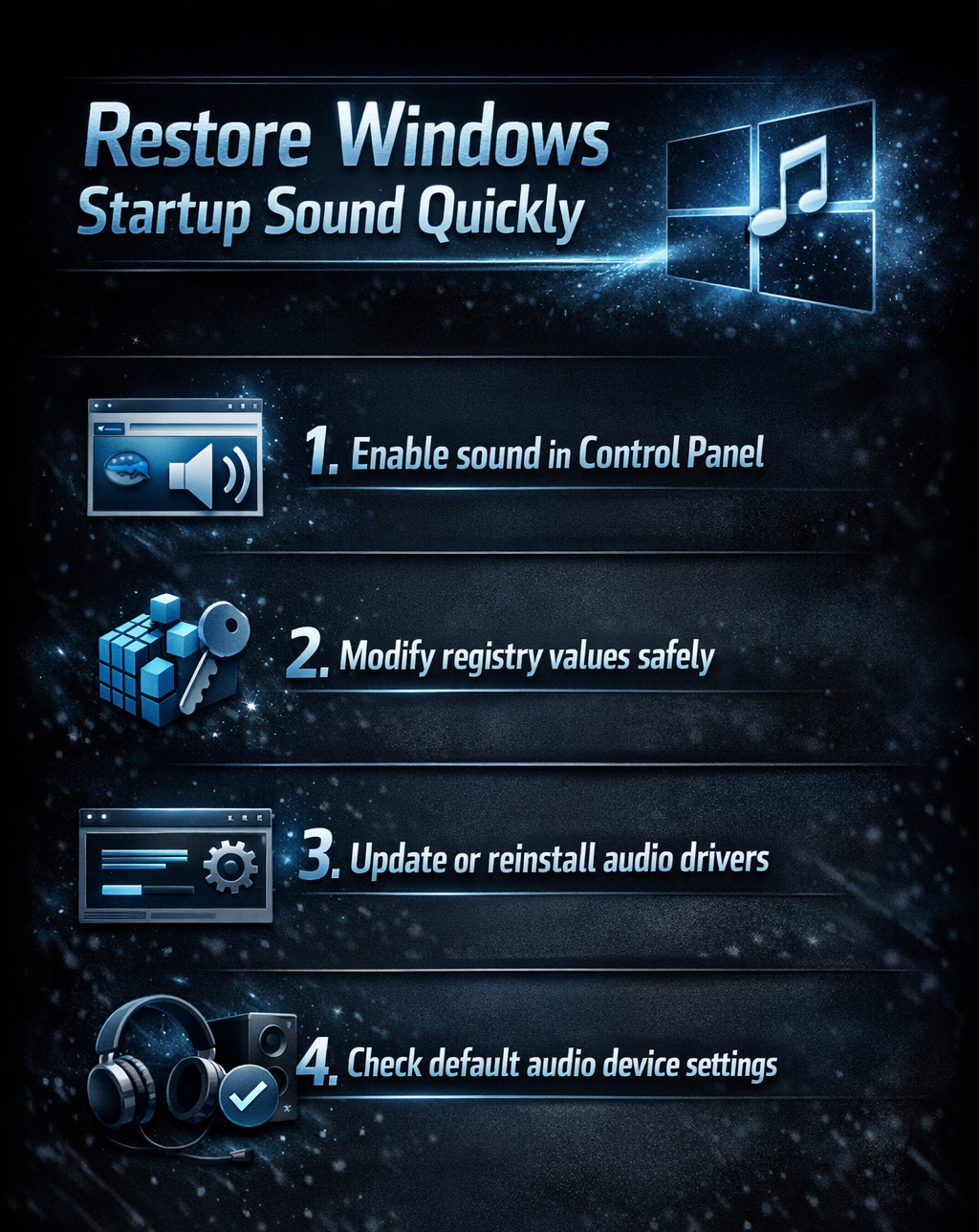
We will help you restore your Windows startup sound through multiple approaches including system sound settings configuration, and audio driver troubleshooting. You will learn to navigate Windows Sound Control Panel, modify registry entries safely, and verify audio device functionality to ensure your startup sound plays consistently.
Enabling startup sounds through system settings
The primary method for restoring Windows startup sounds involves accessing the classic Sound Control Panel interface where you can configure system sound schemes and enable specific audio events during the boot process.
- Right-click the volume icon in your system tray and select “Open Sound settings” to access the modern Windows audio configuration interface.
- Scroll down to find “More sound settings” or “Sound Control Panel” link which opens the traditional Windows Sound dialog box.
- Navigate to the “Sounds” tab where you will see a comprehensive list of Windows system events and their associated audio files.
- Locate the “Windows Logon” event in the Program Events list and verify that it shows a sound file assignment rather than “(None)” indication.
- If no sound appears assigned, click the dropdown menu below the events list and select “Windows Default” or browse for a specific WAV file you prefer.
- Check the “Play Windows Startup sound” checkbox at the bottom of the dialog box to ensure the system will trigger audio during boot sequences.
- Click “Apply” and then “OK” to save your sound scheme changes and enable the startup sound functionality for future system boots.
Expert Tip: Some systems require you to restart twice before the startup sound takes effect, particularly if Windows Fast Startup is enabled in your power settings.
Audio driver and device troubleshooting solutions
Sometimes startup sound issues stem from underlying audio driver problems or incorrect default device assignments that prevent Windows from properly routing system sounds during the boot process.
- Open Device Manager by right-clicking the Start button and selecting “Device Manager” from the context menu that appears.
- Expand the “Sound, video and game controllers” section to view all installed audio devices and their current operational status indicators.
- Right-click your primary audio device and select “Update driver” to ensure you have the latest compatible drivers installed for optimal sound functionality.
- If driver updates don’t resolve the issue, try right-clicking the audio device and selecting “Uninstall device” followed by a system restart to trigger automatic reinstallation.
- Access Windows Settings by pressing Windows key + I, navigate to System > Sound, and verify your correct audio output device appears selected as default.
- Click “Device properties” for your default audio device and ensure the volume level sits above zero and that the device isn’t disabled or muted.
- Test your audio configuration by clicking “Test” in the sound settings to confirm your speakers or headphones can produce audio output successfully.
Important Tip: Bluetooth audio devices often prevent startup sounds from playing because they aren’t connected during the early boot process when the sound would normally trigger.
Common startup sound restoration challenges
Several technical issues can prevent successful restoration of Windows startup sounds even after following standard troubleshooting procedures, requiring additional diagnostic steps and alternative solutions.
- Windows Fast Startup feature may interfere with startup sound playback because it doesn’t perform a complete system initialization during boot sequences, bypassing the normal sound trigger mechanisms entirely.
- Third-party audio enhancement software or custom sound drivers sometimes override Windows default sound behavior and prevent system sounds from playing during startup regardless of configuration settings.
- Corrupted system sound files in the Windows Media folder can cause startup sounds to fail silently even when properly configured through Sound Control Panel and registry settings.
- Group Policy restrictions in enterprise environments may disable startup sounds administratively, requiring IT administrator intervention to modify organizational audio policies and restore individual user sound preferences.