Why won’t Windows 11 update when invoked?
You’ve noticed that your Windows 11 systems aren’t receiving automatic updates as expected, leaving your organization potentially vulnerable to security risks and missing important feature improvements. This situation becomes particularly concerning when you’re managing multiple devices across your enterprise and need consistent update deployment. The automatic update mechanism should seamlessly handle driver installations, security patches, feature updates, and driver installations without requiring manual intervention from your IT team.
How to fix Windows 11 update issues and restore functionality?
Windows 11 automatic update failures typically stem from corrupted system files, insufficient storage space, network connectivity problems, or misconfigured Windows Update settings that prevent the system from properly downloading and installing updates. This comprehensive solution addresses the most common scenarios where Windows 11 won’t install updates or experiences errors during the update process.
Our approach will cover systematic troubleshooting methods including Windows Update service management, storage optimization, network configuration verification, and system file repair techniques. You’ll need administrator privileges on the affected systems and approximately 30-60 minutes depending on your specific update issues. We’ll primarily use built-in Windows tools like Windows Update Troubleshooter, Deployment Image Servicing and Management (DISM), and System File Checker (SFC) alongside PowerShell commands for advanced diagnostics.
Expert Tip: Before implementing these solutions, create a system restore point to ensure you can revert changes if needed during the troubleshooting process.
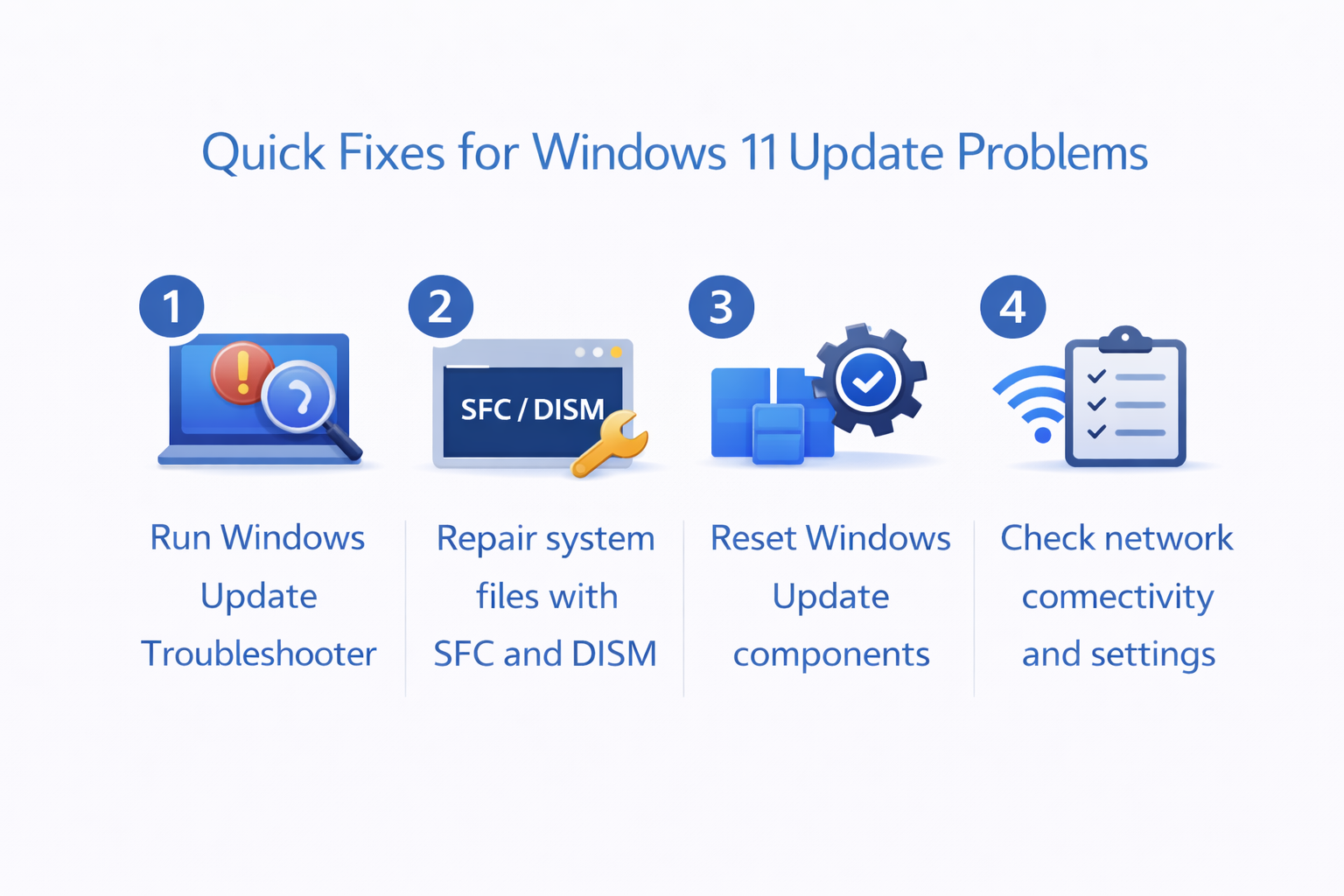
Trouble updating Windows 11: Initial diagnostics
Begin your troubleshooting process by examining the current state of Windows Update services and identifying any immediate blockers that prevent automatic updates from functioning correctly.
- Open Settings by pressing Windows key + I, then navigate to Windows Update to check the current update status and review any displayed error messages or pending downloads that might indicate specific problems.
- Launch Windows Update Troubleshooter by clicking “Get help” in the Windows Update section, allowing the automated diagnostic tool to detect and resolve common update service issues, corrupted temporary files, and configuration problems.
- Reset Windows Update components by opening Command Prompt as administrator and executing the following commands to stop update services, clear cached files, and restart the update mechanism with fresh configurations.
net stop wuauserv
net stop cryptSvc
net stop bits
net stop msiserver
ren C:\Windows\SoftwareDistribution SoftwareDistribution.old
ren C:\Windows\System32\catroot2 catroot2.old
net start wuauserv
net start cryptSvc
net start bits
net start msiserver- Verify sufficient storage space by checking your system drive capacity, as Windows 11 requires at least 10-15 GB of free space for major updates, and clear unnecessary files using Disk Cleanup or Storage Sense if needed.
Windows 11 error installing updates: Advanced system repair
- Run System File Checker to identify and repair corrupted system files that might interfere with the update process by opening Command Prompt as administrator and executing
sfc /scannow, waiting for the scan to complete and reviewing any reported issues. - Execute DISM commands to repair the Windows image and restore system health by running
DISM /Online /Cleanup-Image /RestoreHealthin an elevated Command Prompt, allowing the tool to download and replace corrupted system components from Windows Update servers. - Check Windows Update history by navigating to Settings > Windows Update > Update history to identify specific updates that failed installation and note any error codes for targeted troubleshooting approaches.
- Manually download and install problematic updates by visiting the Microsoft Update Catalog website, searching for specific KB numbers from failed updates, and downloading standalone installers for manual installation when automatic methods fail.
Windows 11 updates not downloading properly
Focus on network connectivity and download-specific issues that prevent Windows 11 from successfully retrieving update files from Microsoft servers.
- Test network connectivity by opening Command Prompt and running
ping update.microsoft.comandnslookup update.microsoft.comto verify that your system can reach Windows Update servers without DNS resolution problems or firewall restrictions. - Flush DNS cache and reset network settings by executing
ipconfig /flushdns,netsh winsock reset, andnetsh int ip resetin Command Prompt as administrator, then restarting your system to clear any cached network information that might interfere with update downloads. - Disable third-party antivirus temporarily during update installation, as security software can sometimes interfere with Windows Update processes by blocking legitimate system modifications or quarantining update components as potential threats.
- Check proxy settings by opening Internet Explorer, accessing Internet Options > Connections > LAN settings, and ensuring that proxy configurations don’t block access to Microsoft update servers or interfere with automatic update download processes.
Windows 11 won’t update fix: Complete system restoration
When standard troubleshooting methods fail to resolve persistent update issues, these comprehensive restoration techniques can restore proper Windows 11 automatic update functionality.
- Perform Windows Update reset using PowerShell by opening PowerShell as administrator and running the comprehensive reset script that reinitializes all update components and clears problematic cached data that standard methods might miss.
Get-Service -Name BITS, wuauserv, appidsvc, cryptsvc | Stop-Service -Force
Remove-Item -Path "C:\Windows\SoftwareDistribution" -Recurse -Force
Remove-Item -Path "C:\Windows\System32\catroot2" -Recurse -Force
Get-Service -Name BITS, wuauserv, appidsvc, cryptsvc | Start-Service- Execute Windows Update Assistant for feature updates by downloading the official tool from Microsoft’s website when automatic updates fail to deliver major Windows 11 feature updates that require specialized installation procedures.
- Consider in-place upgrade repair by downloading the Windows 11 installation media and running setup.exe while preserving your files and applications, effectively refreshing system components while maintaining your current configuration and installed software.
- Use System Restore as a last resort by accessing System Properties > System Protection and selecting a restore point from before update issues began, allowing you to return to a functional state while preserving your personal files and most applications.