When Windows 11 desktop icons disappear completely
You boot up your Windows 11 computer expecting to see your familiar desktop shortcuts and folders, but instead you’re greeted by a completely blank desktop with no visible icons whatsoever. This frustrating scenario affects both individual files and system shortcuts, leaving you unable to access frequently used applications and documents through your customized desktop layout that took time to organize perfectly.
Understanding the repair desktop icons Windows 11 workflow
Desktop icon visibility issues in Windows 11 typically stem from corrupted icon cache files, disabled desktop icon settings, or problems with Windows Explorer processes that manage desktop display functionality. The most effective approach involves systematically checking desktop settings, rebuilding the icon cache database, and ensuring Windows Explorer processes are running correctly to restore full desktop functionality.
We will go through comprehensive solutions for restoring missing desktop icons, repairing corrupted shortcut displays, and preventing future icon visibility problems in Windows 11. You’ll learn to diagnose whether icons are hidden through settings, corrupted at the cache level, or affected by system process issues that require targeted intervention approaches.
This is a bit more advanced tutorial, but everyone can follow it. Note that you will administrative access to your Windows 11 system and basic familiarity with Windows Settings app navigation, File Explorer operations, and Command Prompt usage for advanced troubleshooting scenarios when standard methods prove insufficient.
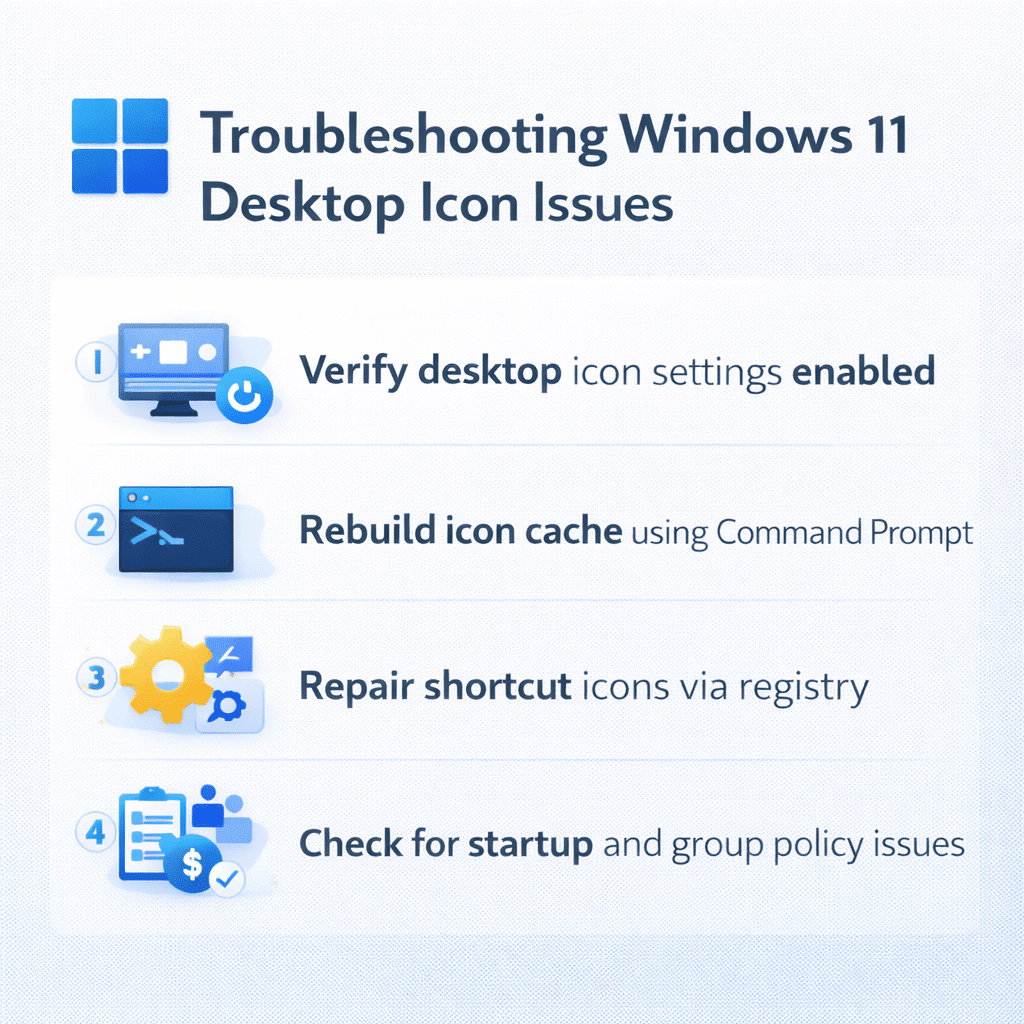
Fix corrupted icons Windows 11 through settings verification
Begin your troubleshooting process by verifying that desktop icons haven’t been accidentally disabled through Windows 11’s desktop customization settings, which can happen during system updates or user configuration changes.
- Right-click on any empty area of your desktop to open the context menu, then select “View” from the dropdown options to access desktop display configuration settings that control icon visibility and arrangement preferences.
- Ensure that “Show desktop icons” option displays a checkmark next to it, indicating that desktop icon display functionality is properly enabled for your current user account and desktop configuration.
- Navigate to Windows Settings by pressing Windows key + I, then select “Personalization” from the left sidebar menu to access comprehensive desktop appearance and behavior customization options.
- Click on “Themes” within the Personalization section, then scroll down and select “Desktop icon settings” to open the Desktop Icon Settings dialog box with system icon visibility controls.
- Verify that essential system icons like “Computer,” “User’s Files,” “Network,” “Recycle Bin,” and “Control Panel” are checked according to your preferences, then click “Apply” and “OK” to save changes.
Expert Tip: If you use multiple monitor setups, check desktop icon settings on each display separately as Windows 11 can maintain different icon configurations per monitor.
Windows 11 fix desktop icons using cache rebuild
When desktop icons appear corrupted, display incorrect images, or fail to load entirely, the icon cache database likely requires rebuilding to restore proper visual representation of your shortcuts and files.
- Press Windows key + R to open the Run dialog, type “cmd” and press Ctrl + Shift + Enter to launch Command Prompt with administrative privileges necessary for system file modifications.
- Execute the command
taskkill /f /im explorer.exeto completely terminate Windows Explorer processes that manage desktop display, taskbar functionality, and file system navigation throughout your Windows 11 system. - Navigate to the icon cache location by running
cd /d %userprofile%\AppData\Local\Microsoft\Windows\Explorerto access the folder containing corrupted icon database files that need removal. - Delete existing cache files using
del iconcache_*.db /acommand to remove all corrupted icon cache databases, followed bydel thumbcache_*.db /ato clear thumbnail cache files affecting folder and file previews. - Restart Windows Explorer by typing
start explorer.exein the Command Prompt window to reinitialize desktop processes and begin rebuilding fresh icon cache databases from scratch.
Solving corrupt desktop icons Windows 11 common issues
Several specific problems can prevent the icon repair methods from working effectively, requiring targeted solutions based on the underlying cause of your desktop icon visibility problems.
- Desktop icons reappear but display generic placeholder images instead of proper application or file type icons, indicating incomplete icon cache rebuilding that requires running System File Checker using
sfc /scannowcommand in elevated Command Prompt to repair corrupted system files affecting icon display mechanisms. - Icons remain invisible despite following all troubleshooting steps, suggesting Group Policy restrictions or third-party software interference that requires checking Local Group Policy Editor under Computer Configuration > Administrative Templates > Desktop settings for policies that might disable desktop icon functionality completely.
- System shortcuts work correctly but custom desktop shortcuts fail to display properly, pointing to corrupted shortcut files that need recreation by right-clicking applications in Start Menu and selecting “Create shortcut” option, then moving new shortcuts to desktop location manually.
- Desktop icons appear immediately after troubleshooting but disappear again after system restart, indicating startup program conflicts or Windows Update issues that require checking Task Manager startup tab for unnecessary programs and running Windows Update troubleshooter through Settings app.
Important Tip: Create a system restore point before making registry changes so you can easily revert modifications if they cause unexpected system behavior.