Why Microsoft Edge won’t sign in to websites automatically
Have you noticed that Microsoft Edge keeps asking you to enter your username and password for websites you visit regularly, even though you previously saved those credentials? This frustrating authentication issue affects many users who rely on Edge’s built-in password manager for seamless website access. When Edge fails to remember login credentials, it disrupts your workflow and forces you to manually enter authentication details repeatedly.
Microsoft Edge not saving website credentials problems
Modern web browsers serve as central hubs for managing digital identities across countless online services, making reliable credential storage essential for productivity. When Microsoft Edge stops remembering login information, the underlying causes typically involve password manager settings, synchronization conflicts, or corrupted browser data that prevents proper credential retrieval.
We address common scenarios where Edge fails to automatically fill saved passwords, including cases where the browser appears to save credentials but doesn’t recall them during subsequent visits. You will learn to diagnose authentication storage problems, configure password manager settings correctly, and restore proper credential synchronization across your Microsoft devices.
We will focus on Edge’s native password management features, Microsoft account sync functionality, and browser data management techniques.
Configure Microsoft Edge not logging in automatically settings
The primary solution involves systematically checking Edge’s password management configuration and resolving synchronization issues that prevent credential recall.
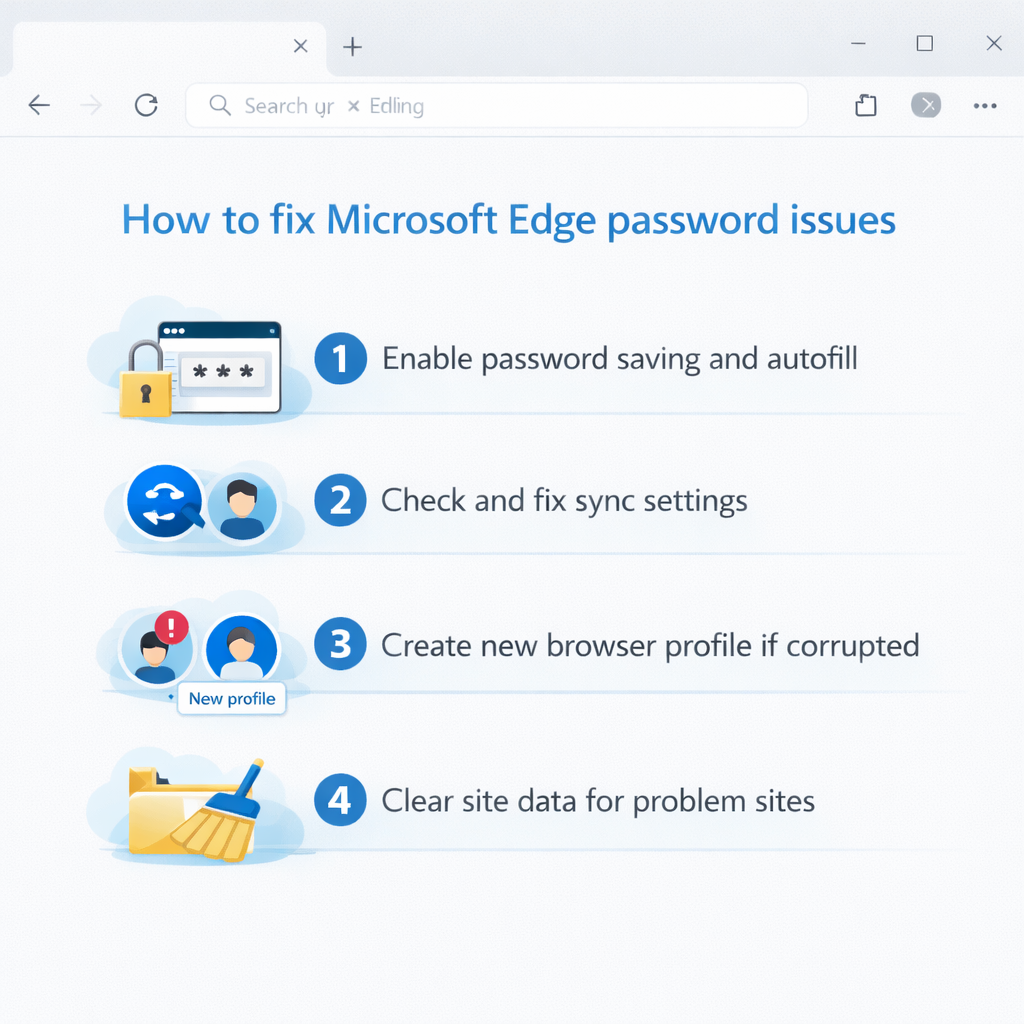
Enable password saving and autofill features
- Open Microsoft Edge and click the three-dot menu icon in the top-right corner to access browser settings and configuration options.
- Select Settings from the dropdown menu, then navigate to the Profiles section in the left sidebar to access password and autofill management features.
- Click on Passwords in the Profiles section to view your current password management configuration and saved credential database.
- Ensure the “Offer to save passwords” toggle is enabled, allowing Edge to prompt you when new login credentials are detected on websites.
- Verify that “Auto sign-in” is also enabled, which allows Edge to automatically fill saved credentials when you visit previously authenticated websites.
- Check the “Show password reveal button” option if you need to verify saved credentials or troubleshoot authentication issues with specific websites.
Resolve Microsoft Edge not recalling website authentication data
- Scroll down to the “Saved passwords” section within the Passwords settings page to review your stored credential database and identify missing entries.
- Look for websites where you expect saved credentials but don’t see entries, indicating potential storage or synchronization problems with those specific sites.
- Click on any saved password entry to view details, edit credentials if necessary, or remove corrupted entries that may be causing authentication conflicts.
- Use the search function at the top of the saved passwords list to quickly locate specific website credentials and verify their accuracy.
- Check for duplicate entries for the same website, as multiple credential sets can sometimes cause Edge to fail during automatic authentication attempts.
- Consider removing and re-saving problematic credentials by deleting the existing entry and allowing Edge to save fresh authentication data during your next login.
Fix Microsoft Edge sync issues affecting credential storage
- Navigate to Settings > Profiles > Sync to access Microsoft account synchronization settings that control credential sharing across your devices.
- Verify that you’re signed in to your Microsoft account by checking the account name and profile picture displayed at the top of the settings page.
- Ensure that “Passwords” is enabled in the sync settings list, allowing your saved credentials to synchronize across all Edge installations linked to your Microsoft account.
- Click “Reset sync” if you suspect synchronization conflicts are preventing proper credential storage or retrieval across your devices running Microsoft Edge.
- Consider signing out of your Microsoft account completely, then signing back in to refresh the synchronization connection and resolve authentication data conflicts.
- Check the sync status indicator to ensure Edge is successfully communicating with Microsoft’s cloud services and uploading your credential changes properly.
Solving login credentials and authentication failures
Common issues prevent Edge from properly storing and retrieving website credentials, requiring specific diagnostic and resolution approaches.
- Password manager disabled by organization policy: Enterprise environments often restrict password saving capabilities through group policy settings that override individual user preferences. Contact your IT administrator to verify whether organizational policies prevent Edge from saving credentials, and request appropriate exceptions for business-critical websites that require authentication storage.
- Corrupted browser profile data affecting credential storage: Browser profile corruption can prevent Edge from accessing saved passwords even when the password manager appears properly configured. Create a new browser profile by navigating to Settings > Profiles > Add profile, then test credential saving functionality with the fresh profile to determine whether corruption affects your primary profile data.
- Third-party password managers conflicting with Edge’s built-in features: External password management software can interfere with Edge’s native credential storage, causing authentication conflicts and preventing proper password recall functionality. Temporarily disable third-party password managers to test whether Edge’s built-in password manager functions correctly, then configure appropriate integration settings to prevent future conflicts between password management systems.
- Website-specific authentication issues preventing credential recognition: Some websites implement authentication systems that don’t properly integrate with browser password managers, causing Edge to fail when attempting automatic login procedures. Clear website data for problematic sites by pressing Ctrl+Shift+Delete, selecting “Cookies and other site data,” then manually re-entering credentials to allow Edge to create fresh authentication entries.
Expert Tip: Enable Edge’s password monitoring feature in Settings > Profiles > Passwords > Password Monitor to receive notifications about compromised credentials and maintain better security hygiene for your saved authentication data.