
Managing email distractions with personalized notifications
How can I stop getting overwhelmed by constant email notifications while still staying informed about important messages? Many professionals struggle with the default notification sounds in New Outlook that either become too intrusive during meetings or fail to grab attention when urgent emails arrive. Finding the right balance between staying connected and maintaining focus requires customizing your notification preferences to match your work style and priorities.
Problem to solve and enhanced email management approach
The default notification system in New Outlook often creates productivity challenges because it treats all emails equally, regardless of their importance or sender. This uniform approach can lead to notification fatigue where you start ignoring all alerts, potentially missing critical communications from key stakeholders or clients.
You’ll learn how to configure custom notification sounds in New Outlook to create a more intelligent alert system. Additionally, you will assign different sounds to various email categories, set up VIP notifications for important contacts, and establish quiet hours to minimize distractions during focused work sessions.
The process works across Windows and Mac versions of New Outlook, though some menu locations may vary slightly between platforms.
Setting up custom notification sounds for different email types
Begin by opening New Outlook and accessing the notification settings through the main application menu. Navigate to Settings by clicking the gear icon in the top-right corner, then select Mail from the left sidebar to reveal email-specific configuration options.
- Locate the Notifications section within the Mail settings and click on Email notifications to expand the available customization options for incoming messages.
- Enable the option for Desktop notifications if it is not already activated, as this serves as the foundation for all custom sound configurations you will implement.
- Click on Sound settings to access the dropdown menu containing all available notification tones, including both system defaults and any custom sounds you have previously added to your device.
- Select a distinct sound for general email notifications that is professional yet noticeable enough to capture your attention without being disruptive to colleagues in shared workspaces.
- Configure the notification duration and frequency by adjusting the settings for how long notifications remain visible on screen and whether repeated alerts occur for unread messages.
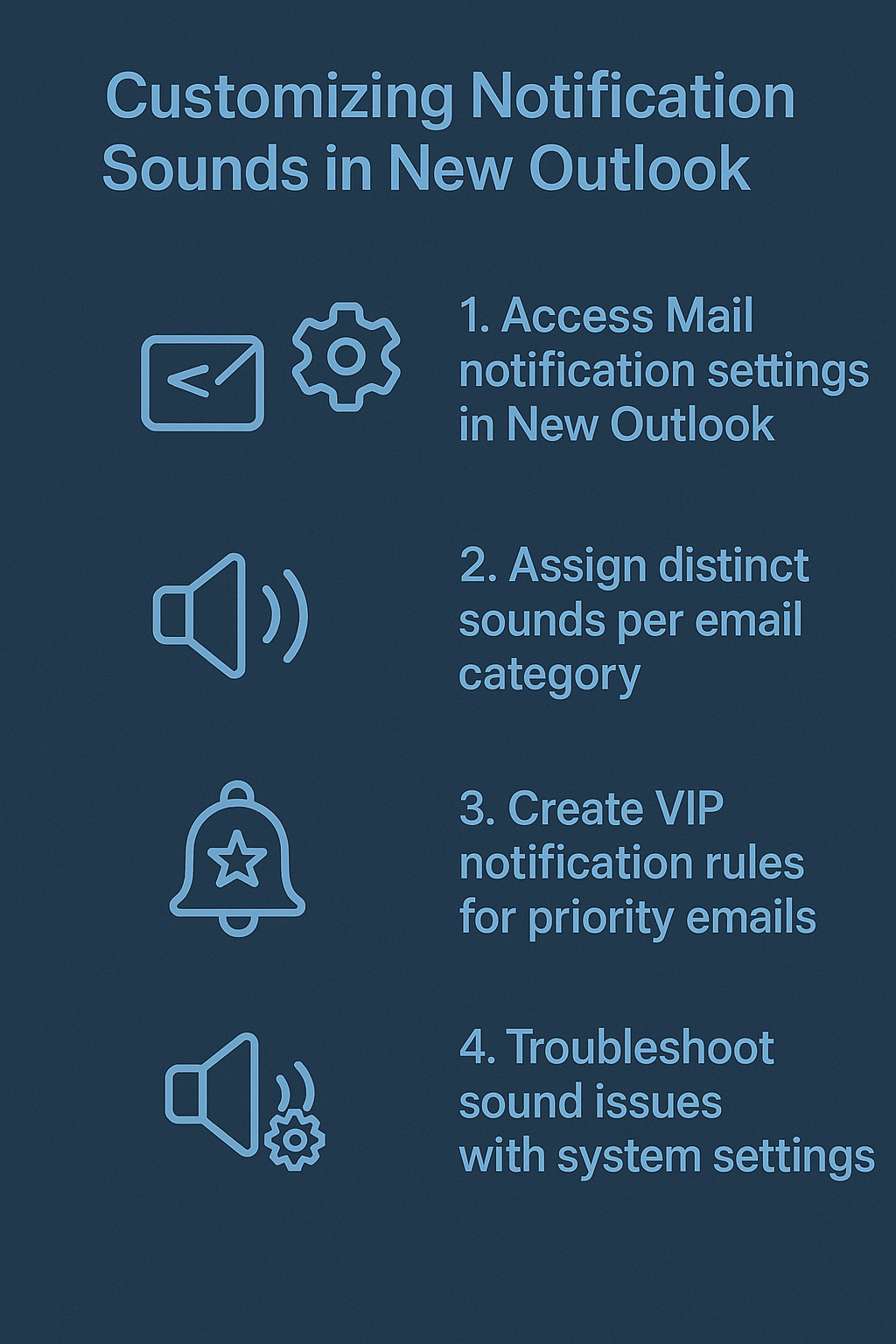
Configuring VIP and priority sender notifications
Create a more sophisticated notification system by establishing different alert tones for high-priority contacts and important email categories. Return to the Mail settings within New Outlook and locate the Focused Inbox or Priority settings depending on your version.
- Access the Rules section from the main settings menu to create custom notification rules based on sender, subject line keywords, or email importance levels that you define.
- Select Create new rule and choose the condition triggers such as emails from specific domains, messages marked as high importance, or communications from designated VIP contacts in your organization.
- Assign unique notification sounds to each rule by clicking the Actions dropdown and selecting the option to play a specific sound when the rule conditions are met.
- Test each rule by sending sample emails that match your configured criteria to ensure the correct notification sounds play and the rules function as intended in your work environment.
- Set up quiet hours or focus time periods by configuring Do Not Disturb schedules that temporarily disable certain notification types while allowing critical alerts to continue functioning normally.
Adding custom sound files and managing notification preferences
Enhance your notification system further by incorporating custom audio files that better reflect your personal preferences or organizational branding requirements. Access your computer’s sound settings through the system preferences or control panel to add new notification tones.
- Navigate to your operating system’s sound settings and locate the notification sounds folder where you can add compatible audio files in WAV or MP3 format for use across applications.
- Return to New Outlook settings and refresh the sound selection dropdown to display newly added custom audio files that you can now assign to different email notification rules.
- Configure notification timing by adjusting when sounds play relative to email arrival, whether immediately upon receipt or after a brief delay to batch multiple notifications together.
- Set volume levels specifically for email notifications that differ from your system default volume to ensure alerts are audible but not jarring during video calls or presentations.
- Enable or disable notification sounds for different email accounts if you manage multiple inboxes, allowing you to prioritize certain accounts over others based on their business importance.
Troubleshooting common notification sound configuration issues
Several technical challenges can prevent custom notification sounds from working properly in New Outlook, requiring specific troubleshooting approaches to resolve effectively. Checking system notification permissions can often fix notification problems.
- Notification sounds may not play if your Windows Focus Assist or Mac Do Not Disturb settings are overriding application-specific preferences, requiring you to check system-level notification permissions for New Outlook.
- Custom sound files might not appear in the New Outlook dropdown menu if they are not stored in the correct system folder or are in an incompatible audio format that the application cannot process.
- VIP notification rules could fail to trigger if the sender’s email address does not exactly match the criteria you specified in the rule configuration, particularly when dealing with alias addresses or distribution lists.
- Sound notifications may stop working entirely after New Outlook updates if the application resets to default settings, requiring you to reconfigure your custom preferences and verify that all rules remain active and properly configured.
Also, learn how to manage your inbox effectively for better focus alongside custom notifications.