“I can see my documents in File Explorer, but I can’t tell what type of files they are without opening them. How do I make Windows show the file extensions so I can quickly identify file types?”
Windows 11 file explorer extensions configuration
Windows 11 hides file extensions by default to create a cleaner interface, but this can create confusion when you need to identify specific file types or verify document formats before sharing them with colleagues.
Today’s post covers different ways to show file extensions in File Explorer, including the ribbon menu, folder options, and registry tweaks for system-wide changes. Specifically, you will learn how to toggle visibility on demand and set permanent preferences across all folders and user sessions, using Windows 11 with admin rights , File Explorer, Control Panel, and optionally the Registry Editor.
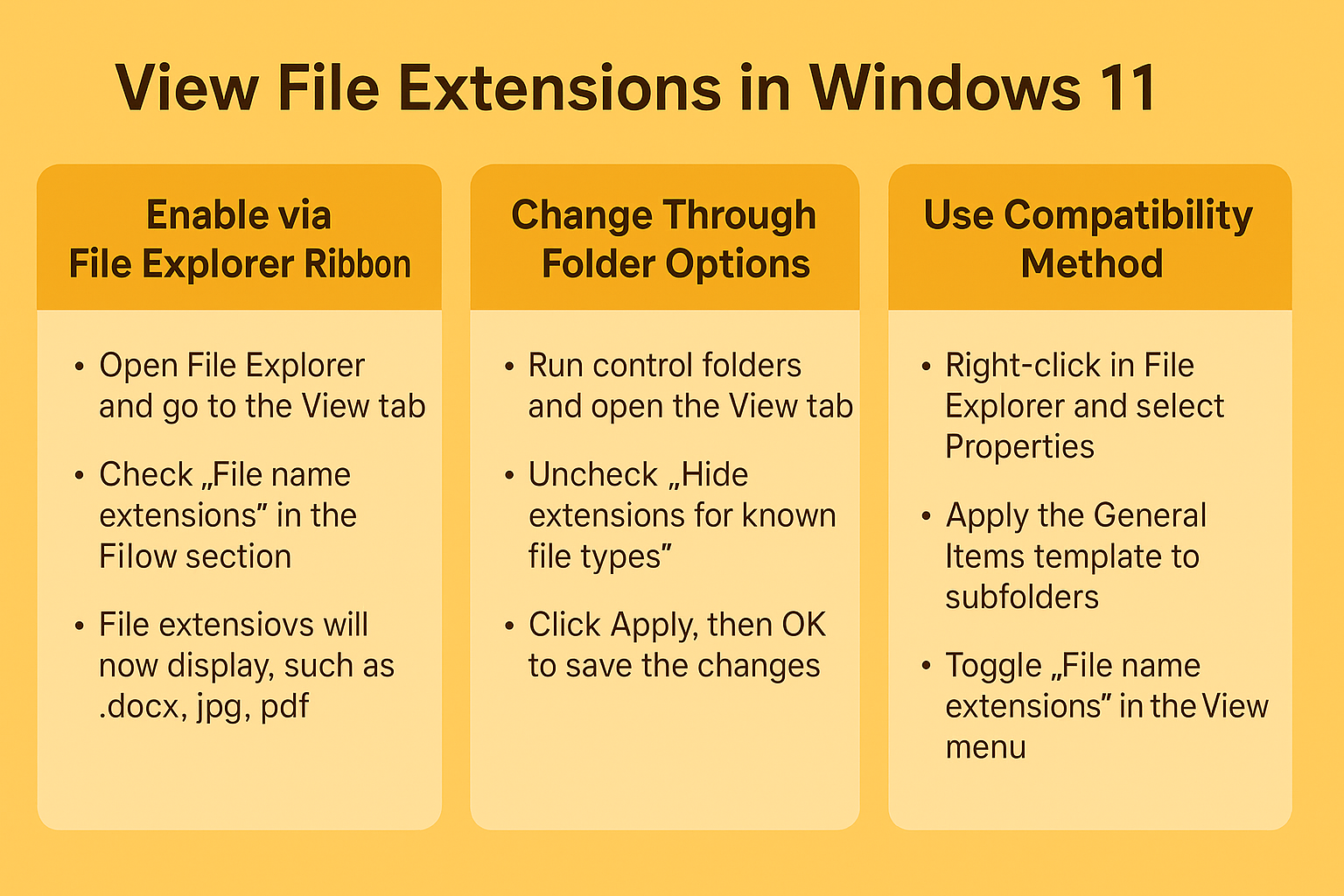
View file extensions in Windows 11 through multiple methods
Method 1: Using the File Explorer ribbon menu
- Open File Explorer by pressing Windows key + E or clicking the folder icon in your taskbar to access the main navigation interface.
- Navigate to any folder containing files where you want to view file name extensions for better file type identification.
- Click the “View” tab in the ribbon menu at the top of the File Explorer window to access display options and viewing preferences.
- Locate the “Show” section within the View ribbon and check the box next to “File name extensions” to enable extension display immediately.
- Verify that file extensions now appear after each filename, showing formats like .docx, .pdf, .jpg, and other common file type indicators.
Method 2: Open file extensions windows 11 through folder options
- Press Windows key + R to open the Run dialog box, then type “control folders” and press Enter to access advanced folder settings.
- In the Folder Options window, click the “View” tab to access advanced display settings and file visibility configuration options.
- Scroll down through the Advanced settings list until you locate “Hide extensions for known file types” checkbox option for system-wide configuration.
- Uncheck the “Hide extensions for known file types” option to display extensions in file explorer across all folders and locations permanently.
- Click “Apply” followed by “OK” to save your changes and implement the new extension visibility settings throughout your Windows system.
Method 3: Show file extensions windows 10 compatibility method
- Right-click on any empty space within File Explorer and select “Properties” from the context menu to access folder-specific settings.
- Click the “Customize” tab in the Properties dialog box to modify how this particular folder displays files and folders.
- Select “General Items” from the dropdown menu and check “Also apply this template to all subfolders” for consistent extension visibility.
- Navigate back to the main File Explorer window and use the View menu to toggle “File name extensions” as needed.
- This method provides compatibility with older Windows versions while maintaining the same functionality for viewing file type information.
Expert Tip: You can quickly toggle file extension visibility using the keyboard shortcut Alt + V, then checking or unchecking the File name extensions option in the View ribbon.
Windows 11 file explorer extensions common issues
- Extensions still hidden after enabling the setting: Clear the File Explorer cache by opening Task Manager, ending the “Windows Explorer” process, then restarting it through File > Run new task > explorer.exe to refresh the display settings completely.
- Setting doesn’t persist across folders or restarts: Verify that you’re modifying the global Folder Options rather than individual folder properties, and ensure you have sufficient administrative privileges to make system-wide changes that affect all user accounts.
- Some file types still don’t show extensions: Certain system files and Windows-protected file types remain hidden regardless of your settings for security purposes, and you may need to enable “Show hidden files” in Folder Options to view these protected system extensions.
- Registry changes don’t take effect immediately: After modifying registry values for extension display, you must restart the Windows Explorer process or sign out and back into your user account for the changes to propagate throughout the system interface properly.