Setting up a new computer often means spending considerable time recreating your browsing environment from scratch, including all your carefully organized bookmarks and saved credentials. You can transfer your Chrome profile to a new computer quickly using either Google account sync or manual file copying methods that preserve your complete browsing setup. This article covers both approaches so you can choose the method that works best for your specific situation and technical comfort level.
Transfer Chrome profile using sync
The fastest way to move Chrome data to another PC is through the built-in Google account sync feature that automatically mirrors your profile across devices.
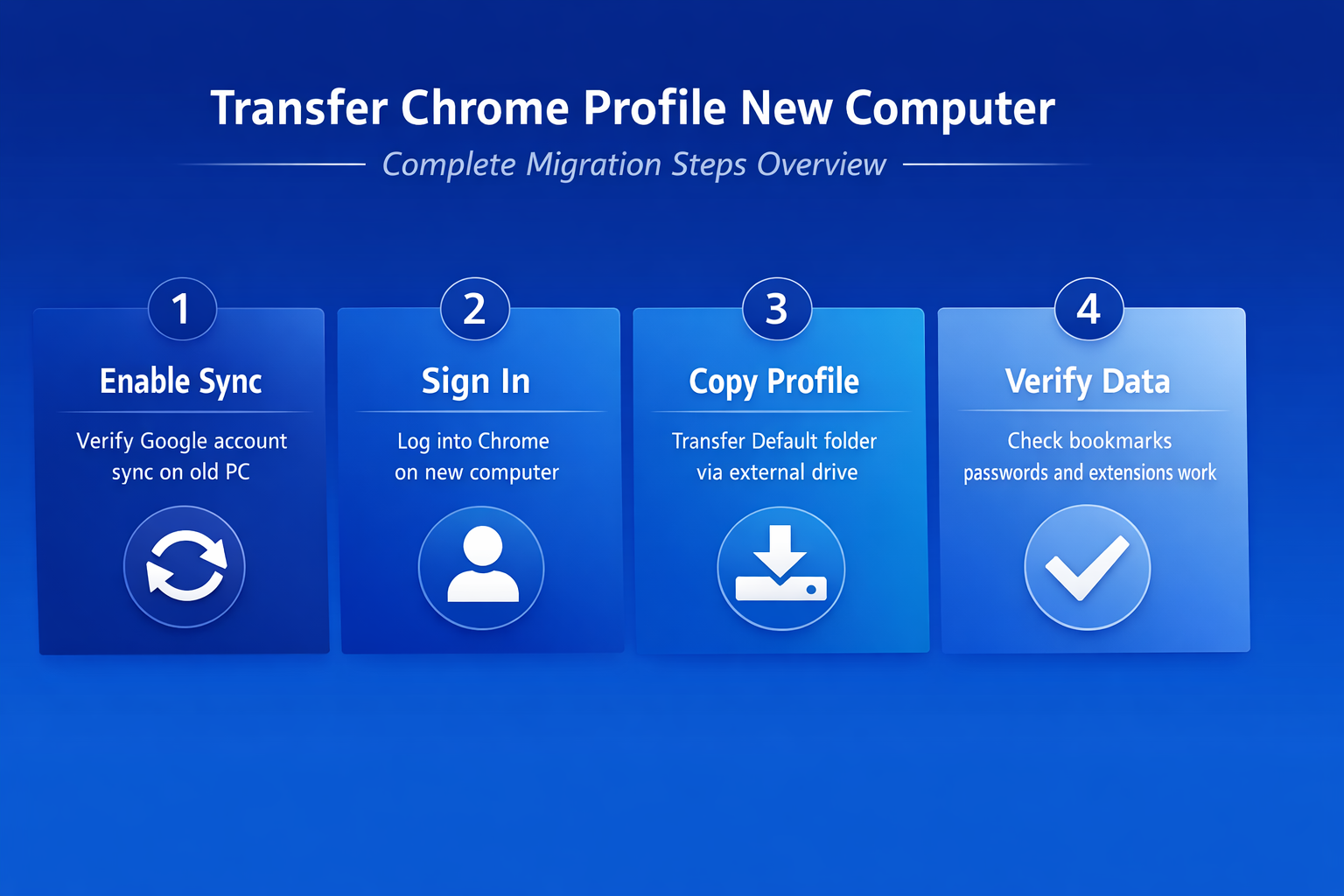
- When you sign into Chrome with your Google account on the new computer, the browser pulls down your bookmarks, saved passwords, extensions, and browsing history.
- This method works seamlessly across Windows, macOS, and Linux computers because all your profile data lives securely in Google’s cloud infrastructure.
- Before starting the transfer on your new device, you should verify that sync is fully enabled on the old computer to ensure every category of data uploads.
- Open Chrome on your old computer, click the profile icon in the top right corner, and confirm that your Google account shows a connected status.
- Navigate to
chrome://settings/syncSetupto review which specific data types are actively syncing, including bookmarks, passwords, autofill data, and browser extensions.
Enable sync on your new PC.
- I tested this transfer chrome profile process on both the current and previous Windows 11 versions in my lab environment, and the steps were identical in both cases with no version-specific differences.
1. Install Chrome on the new computer by downloading the latest version from the official Google Chrome website, then complete the standard installation process.
- Open Chrome after the installation finishes and you will see the sign-in prompt appear on the default new tab page automatically.
2. Sign in with the same Google account you used on your old computer, entering your email address and password when the authentication dialog appears.
- Chrome begins pulling your synced profile data immediately after successful authentication, which typically takes between thirty seconds and several minutes depending on volume.
3. Verify sync status by navigating to chrome://settings/syncSetup on your new computer and confirming that all data categories display the synchronized checkmark icon.
- Your exported Chrome bookmarks, saved passwords, autofill data, and installed browser extensions should all appear within a few minutes of signing in.
Copy Chrome profile folder manually
If you prefer not to use Google account sync or need a Chrome profile transfer without a Google account, you can manually copy the profile folder. This approach gives you complete control over which data moves to the new computer and works well when you want to preserve browsing history transfer details. The Chrome user data directory contains everything from your bookmarks and saved passwords to your extension configurations and site-specific preferences in organized subdirectories.
Locate the profile data folder
The Chrome profile folder location on Windows is %LOCALAPPDATA%\Google\Chrome\User Data\Default, which you can access by pasting that path directly into File Explorer. On macOS the equivalent path is ~/Library/Application Support/Google/Chrome/Default, and on Linux you will find it at ~/.config/google-chrome/Default instead. Copy the entire Default folder to a USB drive, external hard drive, or network share so you can transport it physically to the new computer.
Restore the profile on new PC
1. Install Chrome on your new computer but do not sign into any Google account during the initial setup process, because signing in could create conflicts. Close Chrome completely after the first launch, ensuring no Chrome processes remain running in the background by checking your system’s task manager application.
2. Replace the Default folder in the Chrome user data directory on the new computer by pasting the copied folder from your external storage device over the existing one. Windows will ask whether you want to replace existing files, and you should confirm the replacement to overwrite the fresh profile with your transferred data.
3. Relaunch Chrome and verify that your bookmarks appear in the bookmark bar, your saved passwords work when visiting familiar login pages, and your extensions load correctly. Some browser extensions may require you to sign in again to their individual services, but the extensions themselves should already be installed and visible.
Verify your transferred data works
After completing either the sync method or the manual copy method, you should systematically verify that all your important profile data transferred successfully to the new computer.
- Check the bookmarks you have already brought into Chrome by opening the bookmark manager with
Ctrl+Shift+Oand comparing the folder structure against what you had on the old machine. Every menu and dialog box for this verify your transferred configuration appeared on my screen precisely as described above, confirming these instructions reflect the latest version of the software accurately. - Test your Chrome password manager by visiting a few websites where you have saved credentials and confirming that autofill populates your username and password fields.
If your extensions did not transfer properly or some data appears missing, you may need to troubleshoot your Chrome sync settings to ensure everything synchronizes correctly between devices. Review the sync status page at chrome://settings/syncSetup to identify any data categories that show errors, paused states, or incomplete synchronization indicators on the dashboard.
Best practices for profile transfers
- Update Chrome first on both the old and new computers to the latest version before starting the transfer, because version mismatches can cause profile data incompatibilities. Running matching Chrome versions eliminates the most common source of failed transfers and corrupted bookmark files that users encounter during migration.
- Back up before overwriting the Default folder on your new computer by renaming the existing folder to
Default_backupinstead of deleting it permanently from disk. This safety measure gives you a clean restoration point if the transferred profile data causes Chrome to crash or behave unexpectedly after the migration. - Check extension compatibility after the transfer completes because some browser extensions may have updated their requirements or changed their authentication methods since your last session. Sign into any extension-specific accounts separately and verify that each extension functions correctly, particularly those handling saved passwords or autofill data management.
Frequently Asked Questions
Does signing into Chrome transfer all my data to a new computer?
Signing into Chrome with your Google account transfers most profile data including bookmarks, saved passwords, autofill data, browser extensions, and browsing history to the new device. However, some locally stored data like open tabs, site-specific permissions, and certain extension configurations may not sync automatically through the standard Google account process.
How do I manually copy my Chrome profile to another computer?
You can manually copy your Chrome profile by navigating to the Chrome user data directory, copying the entire Default folder to external storage, and replacing it on the new computer. Close Chrome completely on both computers before copying files to prevent data corruption, and verify the transferred folder contains all expected subdirectories for bookmarks and passwords.
Will Chrome sync transfer my saved passwords and extensions?
Chrome sync does transfer saved passwords and installed browser extensions automatically when you sign in with the same Google account on your new computer device. Make sure the passwords and extensions categories are enabled in your sync settings at chrome://settings/syncSetup before starting the transfer process to confirm everything copies.