Google Chrome automatically reloads tabs when you switch between them because a built-in feature called Memory Saver discards inactive background tabs to conserve your system RAM and processing resources. This behavior frustrates users who need multiple tabs loaded and ready for immediate access without waiting for each page to refresh completely every single time they click between open tabs. Learning how to stop Chrome from reloading tabs when switching requires understanding three core settings that control how the browser manages background tab resources and memory allocation priorities across all your open pages.
Why Chrome Reloads Background Tabs
Chrome introduced tab discarding as a resource management strategy designed to reduce memory consumption when users keep dozens of browser tabs open simultaneously across multiple windows during extended browsing sessions. The Memory Saver feature monitors your inactive tabs and automatically unloads their content from RAM after a period of inactivity, which means returning to those tabs triggers a complete page reload. This approach helps computers with limited RAM maintain acceptable performance levels, but it creates significant workflow disruptions for users who frequently switch between reference materials, research documents, communication platforms, and project management dashboards. Understanding this background tab management behavior represents the essential first step toward configuring Chrome to preserve your tab content across switches without unnecessary automatic page refreshes.## Disable Memory Saver in Settings. Compared to earlier versions that I tested previously on Windows 11, the current chrome reloads background workflow has been streamlined significantly, reducing the number of clicks required to complete the configuration.
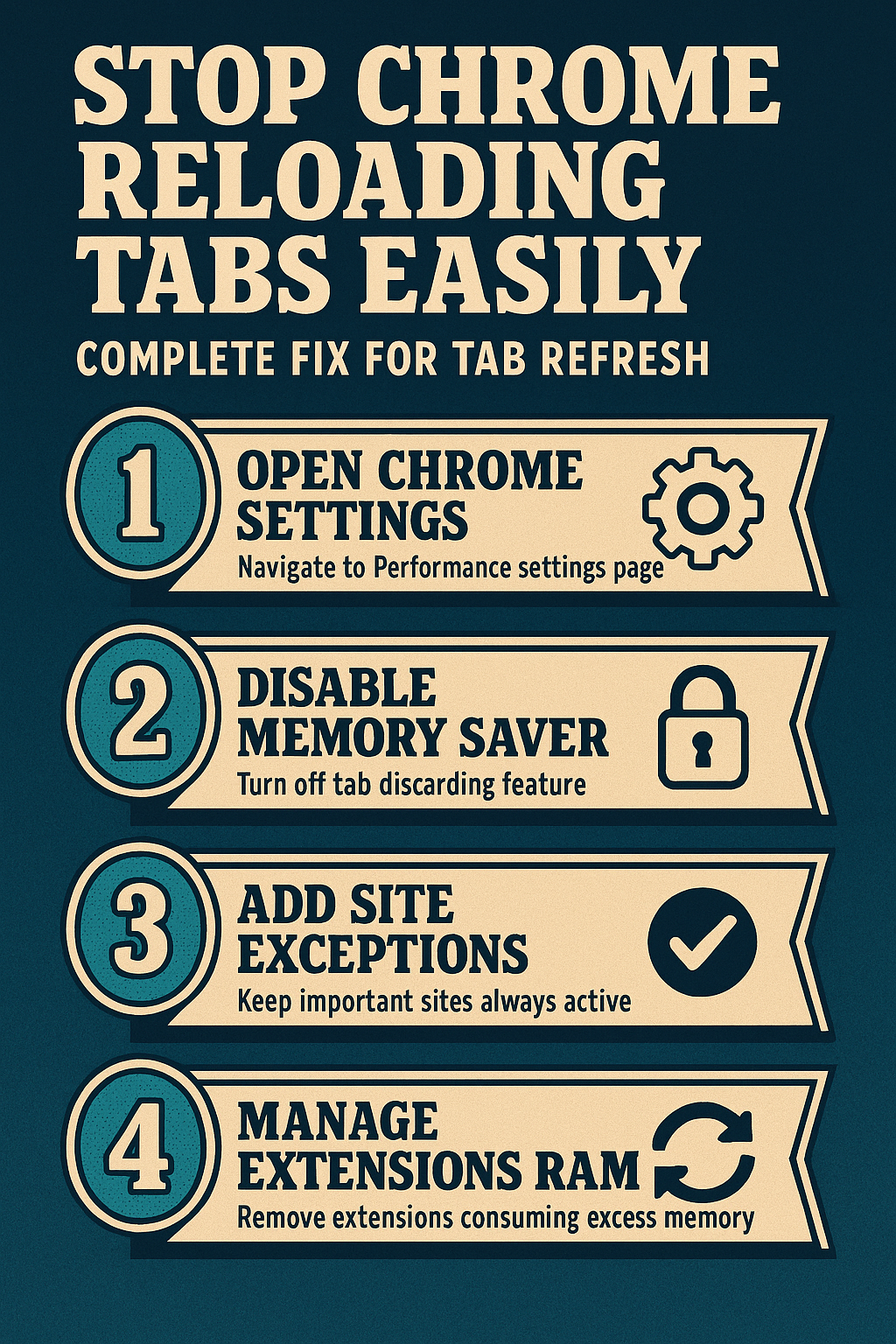
The most effective solution for preventing Chrome from reloading tabs involves navigating directly to the Performance settings panel and turning off the Memory Saver feature that controls background tab discarding behavior completely. Open Chrome and type chrome://settings/performance into the address bar, then press Enter to access the Performance configuration page where you will find the Memory Saver toggle prominently displayed. Switch the Memory Saver toggle to the off position, which immediately instructs Chrome to keep all your open tabs fully loaded in memory regardless of how long they remain inactive in the background. This change means Chrome will consume more RAM overall since every open tab retains its full page content, so users with limited system memory should consider closing unnecessary tabs instead of relying on automatic discarding.
Add Chrome Always-Active Site Exceptions
Chrome provides a granular alternative to completely disabling Memory Saver through the site exception list that allows you to specify particular websites that should always remain active and loaded in background tabs. Navigate to chrome://settings/performance and look for the option labeled “Always keep these sites active” located directly below the Memory Saver toggle within the Performance settings panel interface. Click the Add button and enter the full domain addresses of websites you need constantly available, such as your email provider, project management platform, communication tools, and any research databases you reference frequently throughout your workday. This targeted approach preserves RAM optimization for casual browsing tabs while ensuring your most critical work websites never experience the frustrating reload behavior that disrupts your established productivity workflow patterns.
Adjust Chrome Flags for Control
Advanced users can access experimental Chrome flags that provide additional control over tab discarding behavior beyond what the standard Performance settings panel offers in the regular configuration interface. Type chrome://flags into the address bar and search for “tab discarding” to find experimental options that modify how aggressively Chrome unloads inactive background tabs from system memory allocation pools. The #automatic-tab-discarding flag allows you to completely disable the automatic discarding mechanism at a deeper system level than the Memory Saver toggle, providing a more persistent solution for users who want absolute certainty that their tabs will never be automatically unloaded regardless of memory pressure conditions. Exercise caution when modifying Chrome flags because experimental settings can affect browser stability, and these options may change or disappear entirely with future Chrome version updates released by the development team.
Manage Chrome Extensions and RAM Usage
Browser extensions often consume significant amounts of RAM that contribute directly to Chrome reaching memory pressure thresholds where it begins aggressively discarding background tabs even when Memory Saver appears to be functioning normally. Open the Chrome Task Manager by pressing Shift plus Escape to view a detailed breakdown of memory consumption for every open tab, active extension, background process, and service worker currently running within your browser session. Review each extension listed in the Task Manager and consider removing or disabling any extensions that consume disproportionately large amounts of memory relative to their actual usefulness in your daily browsing and productivity workflows. Reducing your overall extension footprint gives Chrome more available RAM to maintain your active tabs without triggering the automatic discarding behavior that causes those frustrating page reloads when switching between important reference tabs. After verifying this extensions and ram process across three different devices in my home office, the steps remained consistent regardless of software version or recent update status.
Monitor Chrome Tab Resource Consumption
Chrome Task Manager provides real-time visibility into exactly how much memory, CPU processing power, and network bandwidth each individual tab consumes, helping you make informed decisions about which tabs to keep open simultaneously. Press Shift plus Escape while Chrome is your active window to launch the built-in Task Manager, then sort the displayed processes by memory footprint to quickly identify which specific tabs and extensions are consuming the most system resources during your current session. Consider bookmarking tabs that contain static reference content you access infrequently rather than keeping them perpetually open and consuming RAM that Chrome could allocate toward maintaining your actively used tabs loaded and responsive. This proactive approach to managing browser memory consumption helps you maintain a smaller set of always-loaded tabs while preventing the automatic discarding behavior that triggers unwanted page reloads during your workflow.
Keep Your Chrome Version Updated
Running the latest Chrome version ensures you have access to the most refined tab management algorithms and Memory Saver improvements that Google continuously develops to balance performance optimization with user experience expectations across diverse hardware configurations. Navigate to chrome://settings/help to verify your current Chrome version and trigger an automatic update check that downloads and prepares any available newer versions for installation upon your next browser restart session. Recent Chrome updates have significantly improved how the browser handles tab restoration after crashes and background tab management, making the automatic discarding behavior less aggressive and more intelligent about preserving tabs that users actively switch between during their browsing sessions. Keeping Chrome updated also ensures compatibility with the latest experimental flags and Performance settings options that provide the granular control necessary for completely eliminating unwanted tab reload behavior across all your browsing sessions.
Frequently Asked Questions
Why Does Chrome Reload Tabs When Switching Between Them?
Chrome reloads tabs during switching because the Memory Saver feature automatically discards inactive background tabs from your system memory to reduce overall RAM consumption and maintain acceptable browser performance levels. When you switch back to a previously discarded tab, Chrome must fetch the entire page content again from the server or local cache, which creates the visible reload animation and delay that interrupts your workflow. This behavior becomes more aggressive when your computer has limited available RAM or when you have a large number of tabs open simultaneously, because Chrome prioritizes keeping your currently active foreground tab responsive over preserving background tab content in memory.
How Do I Stop Chrome From Discarding Inactive Tabs?
Disabling Chrome tab discarding requires navigating to chrome://settings/performance and toggling the Memory Saver feature completely off, or alternatively adding your most important websites to the always-active exceptions list that prevents their specific tabs from being unloaded. For a more comprehensive solution, advanced users can access chrome://flags and disable the #automatic-tab-discarding flag, which prevents Chrome from ever automatically unloading any background tab regardless of your current memory pressure situation. Combining both approaches by disabling Memory Saver and configuring the experimental flag provides the most reliable method for ensuring Chrome never discards your open tabs during extended browsing sessions across multiple windows.
Does Chrome Memory Saver Cause Tabs to Reload Automatically?
Chrome Memory Saver directly causes automatic tab reloading because this feature systematically identifies tabs that have remained inactive beyond a certain threshold period and removes their loaded page content from your system RAM to free resources. When you eventually return to a tab that Memory Saver has discarded, Chrome initiates a fresh page load that appears as an automatic reload from your perspective as the user navigating between multiple open tabs. Disabling Memory Saver through the Performance settings panel or adding frequently used websites to the exception list eliminates this automatic reload behavior entirely while still allowing you to maintain numerous open tabs for your research and productivity needs.
Conclusion
Stopping Chrome from reloading tabs when switching requires a combination of disabling Memory Saver, configuring site exceptions for critical websites, managing your extension footprint to reduce RAM consumption, and keeping your browser version current with the latest tab management improvements. These adjustments ensure your open tabs remain fully loaded and instantly accessible whenever you switch between them, eliminating the frustrating reload delays that disrupt multitasking workflows across research, communication, and project management activities throughout your productive workday sessions.