Creating a brand-new document in Microsoft Word no longer requires staring at a blank page and wondering where to begin with your writing project. Microsoft 365 Copilot in Word transforms that empty canvas into a structured, professionally formatted document within seconds using natural language prompts that describe your intended outcome. This article walks through every step required to start a Word document from scratch using Copilot, covering prompt strategies, formatting adjustments, and content refinement techniques.
Opening a Blank Word Document for Copilot
Before generating any content, you need to launch Microsoft Word and prepare a blank document so that Copilot has a clean workspace to produce results. The Copilot drafting feature specifically activates on empty documents, which means starting fresh gives you the most flexibility and control over the output. After testing this across multiple Microsoft 365 subscriptions on different machines, the activation behavior remained consistent regardless of the Word version installed on each device.
Launching Word and Selecting Copilot Draft
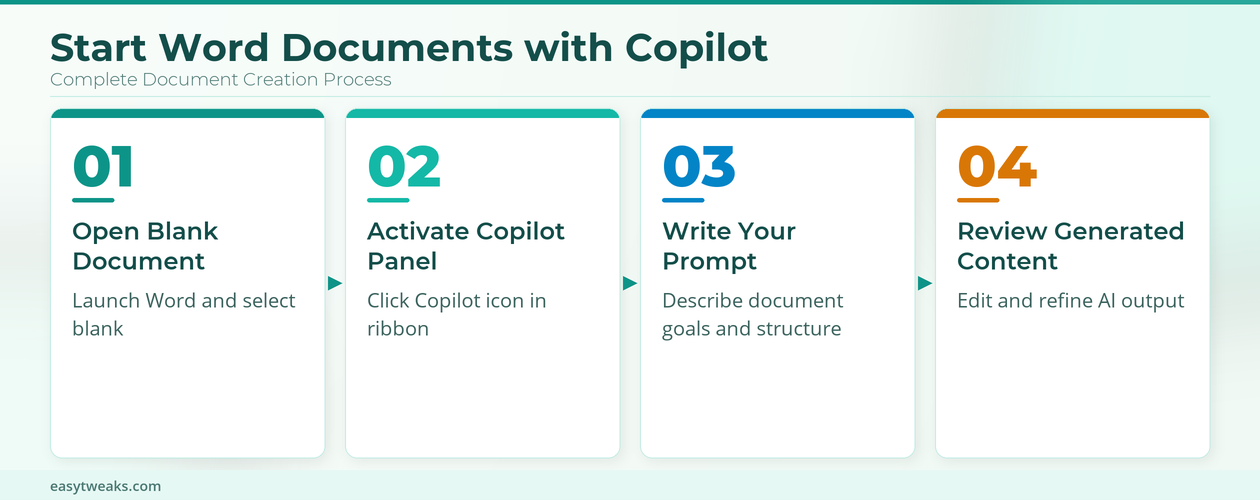
Open Microsoft Word from your taskbar, Start menu, or the Microsoft 365 app launcher, and then select the blank document option from the template gallery. Once the empty document loads, you should see the Copilot draft prompt appear automatically near the top of the page, inviting you to describe the content. If the Copilot icon does not appear in the ribbon or the draft prompt fails to load, confirm that your Microsoft 365 subscription includes Copilot licensing and that your administrator has enabled it.
Verifying Your Copilot Word Subscription Status
Navigate to File, then Account inside Microsoft Word to confirm that your subscription displays Microsoft 365 with Copilot capabilities listed among the active product features. Organizations that manage licenses through the Microsoft 365 admin center can verify individual user assignments by checking the Copilot for Microsoft 365 toggle under each account. Without an active Copilot license assigned to your account, the drafting panel and inline assistance features will remain hidden throughout the entire Word interface.
Writing Effective Copilot Prompts in Word
The quality of the document that Copilot generates depends almost entirely on how clearly and specifically you describe what you need in the initial prompt. Vague or overly short prompts produce generic content that requires extensive manual editing, while detailed prompts with context, audience, and structural preferences yield polished first drafts. You can reference existing files stored in OneDrive or SharePoint directly within your prompt, allowing Copilot to pull relevant data and terminology into the new document.
Structuring Your Copilot Word Prompt
Begin your prompt by stating the document type, such as a project proposal, executive summary, training manual, or meeting agenda, followed by the intended audience and primary purpose. Include specific details like word count preferences, required sections, tone of voice, and any technical terminology that should appear throughout the generated content for consistency. For example, a prompt reading “Create a 1500-word project proposal for senior leadership about migrating file storage from local servers to Microsoft 365 and OneDrive cloud storage” gives Copilot enough context to produce a relevant and structured document.
Using Reference Files with Copilot in Word
Click the reference file icon within the Copilot draft prompt to attach up to three OneDrive or SharePoint documents that contain relevant background information, data, or formatting examples. Copilot reads the referenced files and incorporates their content, terminology, and structural patterns into the newly generated document, which saves significant time when creating related materials. From my experience working with this feature across several departments, referencing a well-organized source document consistently produced drafts that required fewer revisions compared to prompts without any file references.
Reviewing and Refining Copilot Word Output
After Copilot generates the initial draft inside your Word document, the content appears with a toolbar offering options to keep, regenerate, or discard the entire output before it becomes permanent. This review stage represents the most critical part of the workflow because accepting the draft without careful evaluation often leads to published documents containing placeholder-style language. Taking two to three minutes to read through each section and verify accuracy against your original requirements dramatically improves the final document quality.
Editing Copilot-Generated Word Content
Select any paragraph or section within the generated draft and use the inline Copilot editing tools to rewrite, adjust tone, shorten, or expand specific passages without regenerating the entire document. The Copilot agent mode in Word allows you to make targeted changes by highlighting text and typing a natural language instruction describing exactly what you want modified. Bold formatting, heading levels, bullet points, and table structures can all be adjusted through these inline editing commands, giving you granular control over every element.
Applying Formatting and Word Styles to Copilot Output
Switch to the Design tab in Microsoft Word and apply a document theme or style set that matches your organization branding guidelines after the Copilot-generated content has been finalized and approved. Copilot applies basic heading hierarchy and paragraph formatting during generation, but corporate templates often require specific font families, color schemes, and spacing values that need manual application. Saving a custom Word template with your preferred styles and using it as the base document before activating Copilot ensures that all generated content automatically inherits the correct formatting.
Frequently Asked Questions About Copilot in Word
Can Copilot in Word Create an Entire Document from a Single Prompt?
Copilot can generate a complete multi-section document from one detailed prompt, including headings, paragraphs, bullet points, and tables, though longer documents may need supplemental prompts. The generated output typically covers the main topics described in your prompt, but complex documents exceeding fifteen pages often benefit from section-by-section generation for better accuracy. I have found that breaking larger documents into three or four separate Copilot prompts, each targeting a specific section, consistently produces more coherent and detailed results overall.
What Types of Documents Can Copilot Generate in Word?
Microsoft Word Copilot can create virtually any text-based document type, including reports, proposals, letters, agendas, training materials, Standard Operating Procedures, and creative writing pieces with appropriate formatting. Each document type benefits from specific prompt structures, where business documents require formal tone instructions and technical documents need terminology specifications included within the prompt text. The AI writing assistant handles both short-form content like email drafts and long-form content like comprehensive policy documents with equal capability and structural awareness.
How Do You Write Effective Prompts for Copilot in Word?
Effective Copilot prompts in Word include four key elements: the document type, the intended audience, the desired length or structure, and any specific content requirements or constraints. Adding context about your organization, industry terminology, and formatting preferences helps Copilot produce output that requires minimal editing and closely matches your professional standards. Prompt engineering for Microsoft 365 Copilot improves significantly with practice, and saving successful prompts as templates in a shared document creates a reusable resource for your entire team.