Have you noticed that previewing email attachments in Outlook takes an unusually long time to load, causing delays in your workflow? This common issue affects people who rely on quick attachment access for document reviews, image previews, and file verification. When attachment previews load slowly, it can significantly impact your ability to process emails efficiently and make quick decisions about file contents without fully downloading attachments.
Understanding attachment preview delays
Slow attachment previews in Outlook typically result from system resource limitations, preview handler conflicts, or inefficient caching mechanisms. The preview functionality relies on Windows preview handlers and system resources to generate thumbnail previews and quick views of various file types including PDFs, images, and Office documents.
We will optimize Outlook attachment preview performance through preview handler management and system configuration adjustments. You will learn to identify performance bottlenecks, disable resource-intensive preview features when necessary, and implement targeted solutions that maintain functionality while improving speed.
You will need access to your Windows system, Outlook 2016 or newer. We will focus on both immediate fixes and long-term performance optimization strategies.
Change Outlook preview settings for optimal performance
Begin by accessing Outlook attachment preview settings through the main application interface to identify current configuration issues.
- Open Outlook and navigate to File menu, then select Options from the left sidebar to access comprehensive application settings.
- Click on Trust Center in the left navigation panel, then select Trust Center Settings button to access security and preview configurations.
- Navigate to Attachment Handling section and review current preview settings that may be causing performance degradation in your email workflow.
- Uncheck “Turn off Attachment Preview” if currently enabled, as this setting can sometimes cause conflicts with preview handlers and slow loading times.
- Verify that “Do not allow attachments to be saved or opened that could potentially be a virus” is appropriately configured for your security needs.
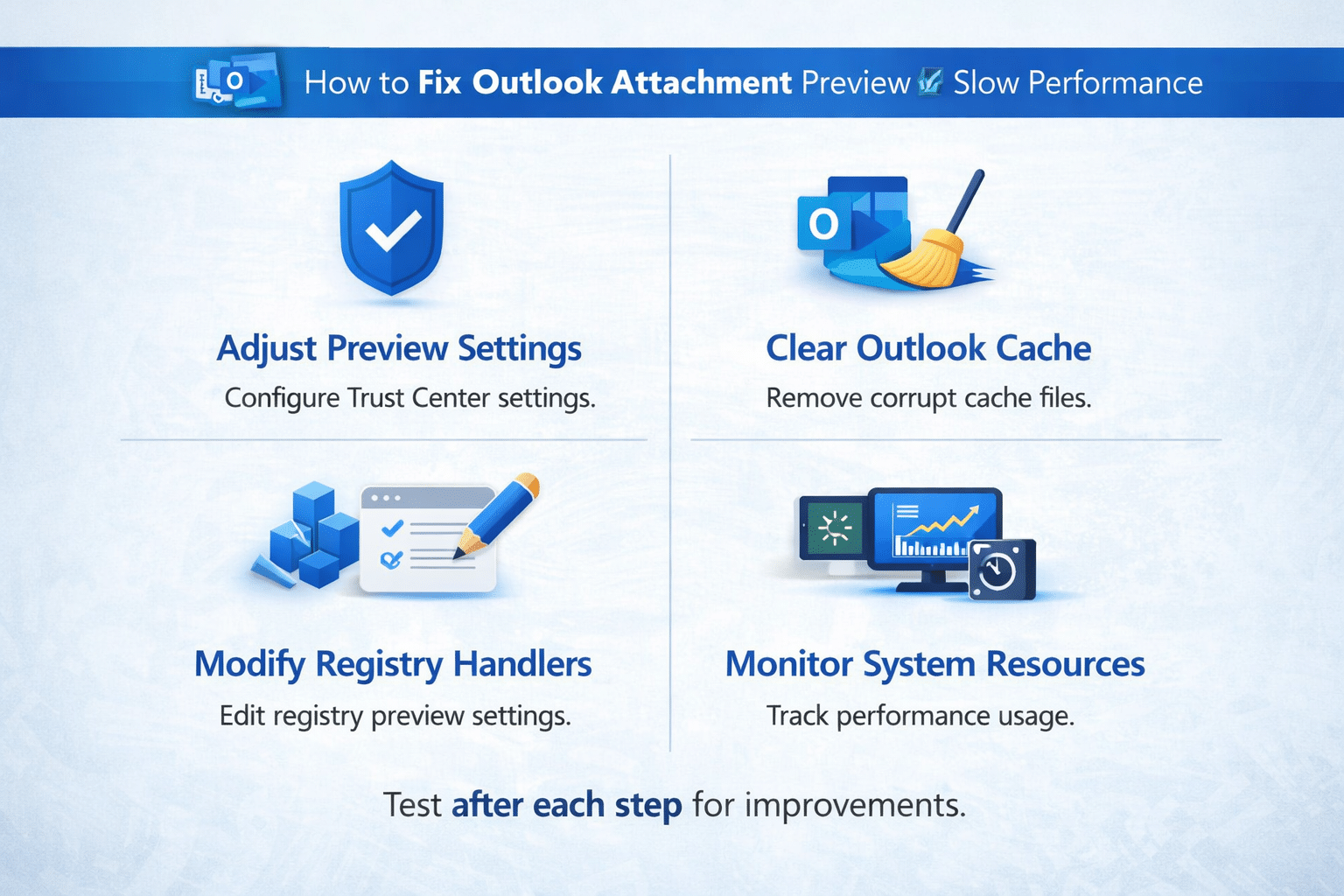
Managing system resources and cache optimization
Configure Outlook caching mechanisms to improve attachment preview loading speeds through targeted system adjustments.
- Close Outlook completely and navigate to your Windows user profile folder, typically located at C:\Users[YourUsername]\AppData\Local\Microsoft\Outlook to access cache directories.
- Locate the RoamCache folder within the Outlook directory and delete its contents to clear potentially corrupted preview cache files that may be slowing performance.
- Restart Outlook and test attachment preview functionality to determine if cache clearing resolved the slow loading issues you were experiencing.
- Access Windows Task Manager during normal Outlook usage to monitor memory and CPU consumption when previewing attachments to identify resource bottlenecks.
- Consider adjusting Windows virtual memory settings if your system consistently shows high memory usage during attachment preview operations through System Properties.
Important Tip: Monitor system performance for several days after implementing changes to ensure consistent improvement in preview speeds.
Resolving common attachment preview performance issues
Address frequent obstacles that prevent optimal attachment preview performance in Outlook through systematic troubleshooting approaches.
- Preview handlers crash or freeze during attachment loading: Access Event Viewer through Windows Administrative Tools and check Application logs for preview handler error messages that indicate specific problematic handlers requiring updates or removal.
- Extremely slow preview loading for specific file types: Navigate to Default Programs in Windows Settings and reset file associations for problematic file types, then restart Outlook to refresh preview handler registrations and improve loading speeds.
- High memory usage during attachment preview: Open Task Manager and end preview handler processes consuming excessive memory, then disable preview functionality for large file types through Outlook Trust Center settings to prevent resource exhaustion.
- Preview thumbnails display incorrectly or show corrupted content: Clear Windows thumbnail cache by running “disk cleanup” utility and selecting thumbnail cache cleanup option, then restart your computer to regenerate preview thumbnails with fresh system resources.