Microsoft 365 users often need to share calendars with colleagues to coordinate meetings, track availability, and manage schedules across departments without the back-and-forth of email conversations every day. Outlook calendar sharing provides built-in tools that let you grant specific permission levels to individuals, publish your schedule through shareable links, or delegate full calendar management to trusted coworkers easily. You can also link your Outlook calendar to Teams so that your availability stays synchronized across both applications automatically.
This article walks you through the complete process of sharing your Outlook calendar, including the different permission tiers, platform-specific steps, and troubleshooting tips for common sharing problems you encounter.
How to share your Outlook calendar with others?
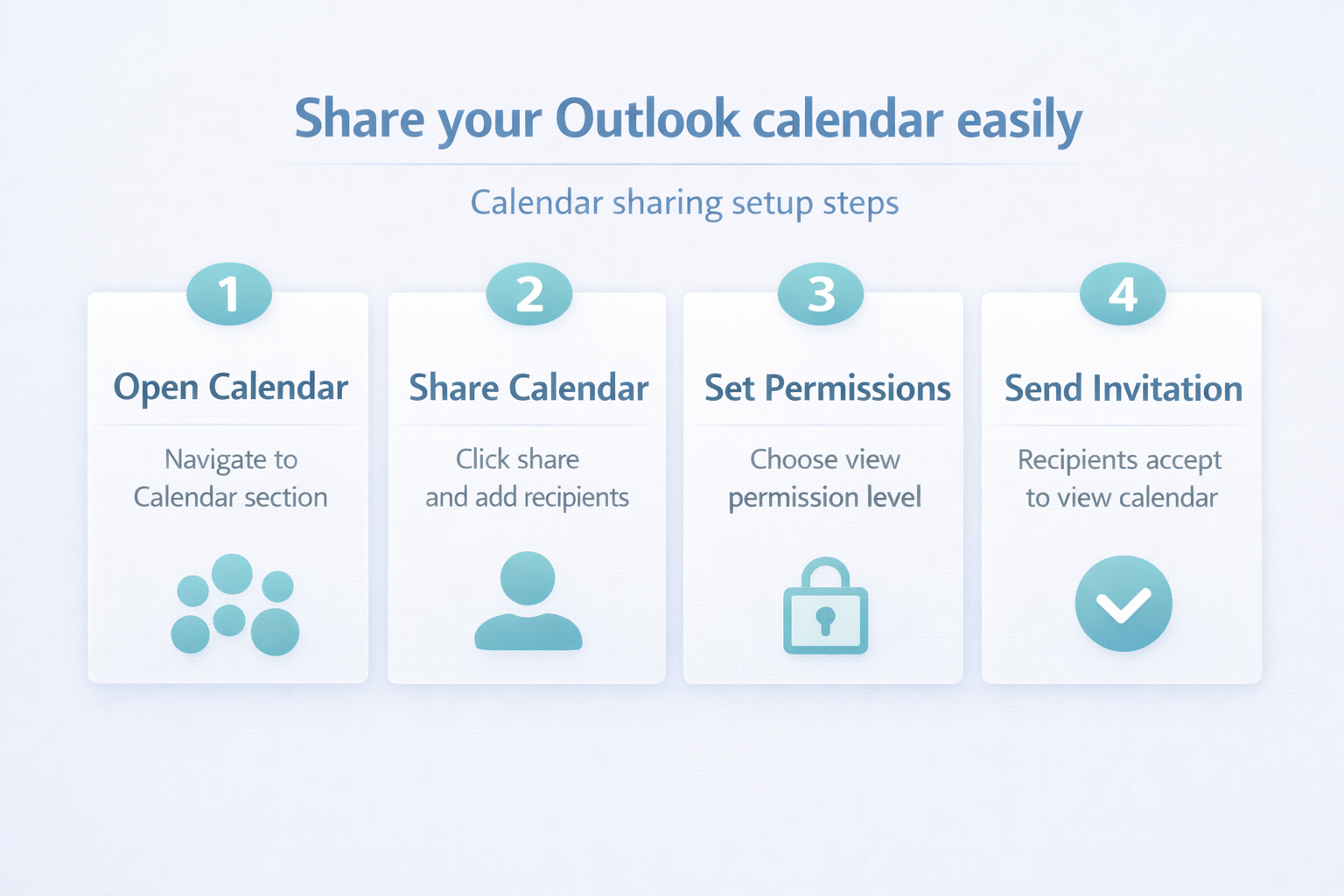
The fastest way to share your Outlook calendar is through the built-in sharing feature that sends an invitation email directly to your chosen recipients within your organization. You can access this feature by navigating to the Calendar section in Outlook, selecting the Share calendar button on the Home tab, and entering the recipient email address you want.
After you type the recipient name or email address, Outlook displays a dropdown menu where you can assign a specific permission level that controls exactly what the recipient sees. Click Share to send the invitation, and the recipient will receive an email notification prompting them to accept the shared calendar and add it to their own calendar list.
Outlook calendar permissions and what each level allows
Understanding Outlook calendar sharing permissions is essential because each permission level reveals a different amount of detail about your schedule, appointments, and meeting information to the recipient. Outlook offers three primary calendar view permissions that you can assign to any person who receives your sharing invitation through the calendar sharing dialog box.
- Can view when I’m busy allows the recipient to see only your free and busy time blocks without revealing any meeting titles, locations, or other appointment details whatsoever.
- Can view titles and locations shows the recipient your availability status along with meeting subject lines and locations, giving them enough context to understand your daily schedule fully.
- Can view all details grants the recipient complete visibility into every appointment on your calendar, including descriptions, attendees, and attachments, without any editing capabilities at all. If you need to view other people’s calendars in Teams, the process works similarly through the Teams calendar panel using the same Microsoft 365 permissions.
How to share Outlook calendar with external users
Sharing your Microsoft 365 calendar with people outside your organization requires a slightly different approach because external sharing depends on settings that your IT administrator configures. If external sharing is enabled, you can enter an external email address in the sharing dialog, but permission options may be limited to free and busy information. Calendar publishing offers another method for sharing with external users by generating an HTML link that anyone can view in their web browser without needing an Outlook account.
You can also create an ICS subscription link that external recipients import into Google Calendar, Apple Calendar, or any other calendar application that supports the standard ICS format. Navigate to calendar settings in Outlook on the web, select Publish a calendar, choose your desired permission level, and then copy the generated link to share with external collaborators directly.
Outlook shared calendar setup in Classic versus New Outlook
The steps for Outlook calendar sharing differ slightly between Classic Outlook and the New Outlook for Windows application, though both versions provide the same core sharing functionality overall. In Classic Outlook, you open the Calendar folder, click Share Calendar on the Home tab, and then configure permissions through the Calendar Properties dialog box that appears. In New Outlook for Windows, the process is streamlined into a single sharing panel where you enter recipients, select permissions, and click Share without opening separate dialog windows. If you manage several calendars simultaneously, you can set up multiple calendars in New Outlook and share each one independently with different permission levels.
Outlook on the web provides the same sharing experience as New Outlook, making it convenient for users who access their Microsoft 365 calendar from any web browser on any device.
Calendar delegation for edit and management access
When you need someone to create, modify, or respond to meeting requests on your behalf, calendar delegation provides the elevated permissions that go beyond standard view-only sharing. A delegate can accept or decline meeting invitations, create new appointments, and edit existing calendar entries, making this feature ideal for executive assistants and team coordinators who manage schedules.
To set up calendar delegation in Outlook, navigate to File, then Account Settings, select Delegate Access, and add the person you want to grant editing and management permissions to. The delegate receives a notification email confirming their new permissions, and they can then access your calendar directly from their own Outlook application through the shared calendars section.
Troubleshooting when Outlook calendar sharing is not working
If you encounter the error message stating this calendar cannot be shared, verify that the recipient email address is valid, does not belong to a Microsoft 365 Group, and is not blocked. Greyed-out sharing options typically indicate that your organization administrator has disabled calendar sharing through Exchange Online policies, which requires contacting your IT department for resolution.
Permission changes and sharing removals may take several minutes to synchronize across Microsoft 365 servers and all connected Outlook clients, so allow time before assuming the changes failed. Restarting your Outlook application or clearing the local cache can also resolve synchronization delays that prevent shared calendars from appearing correctly in the recipient calendar list panel. For persistent synchronization problems, follow our steps to troubleshoot syncing new items into Outlook which covers additional reset and repair methods for calendar data.
Frequently asked questions about Outlook calendar sharing
How do I share my Outlook calendar with someone?
Open your Calendar in Outlook, click the Share calendar button on the Home tab, enter the recipient email address, select a permission level from the dropdown, and click Share. The recipient receives an email invitation that they must accept before the shared calendar appears in their calendar list within the Outlook application interface automatically.
Why can’t I share my Outlook calendar?
The most common reason you cannot share your Outlook calendar is that your organization administrator has restricted calendar sharing through Exchange Online policies or group policy settings. Invalid recipient email addresses, attempting to share with Microsoft 365 Groups instead of individuals, and external sharing restrictions can also prevent the sharing invitation from completing.
What are the different Outlook calendar permission levels?
Outlook provides three main permission levels for shared calendars including free or busy only, titles and locations visibility, and full details access for complete appointment information. Calendar delegation offers an additional tier that grants editing capabilities, allowing delegates to create, modify, and respond to meeting requests on your behalf through their account.
Take control of your Outlook calendar sharing today
Setting up Outlook calendar sharing correctly ensures your team stays coordinated, avoids scheduling conflicts, and maintains appropriate visibility into each other’s availability across your entire organization. Whether you need simple free or busy sharing, detailed calendar visibility for project teams, or full delegation for executive assistants, Outlook provides flexible permission levels for every scenario. You can also configure your Outlook working hours and availability to ensure colleagues see accurate free and busy information when viewing your shared calendar.
Start by sharing your calendar with one colleague using the steps above, then expand your sharing settings as your team coordination needs grow and evolve over time.