Understanding how to activate Copilot in Excel for your team
How do I enable Microsoft Copilot in Excel when it doesn’t appear in my ribbon, and what subscription or settings do I need to make it work on my desktop version?
Why adding Copilot to desktop Excel matters for your productivity
Microsoft Copilot in Excel represents a significant advancement in how you interact with spreadsheet data, combining artificial intelligence with traditional formulas to analyze trends, generate insights, and automate repetitive tasks. Many users discover they have purchased the appropriate license but cannot locate the Copilot icon, or find that the feature appears grayed out despite having access to other Microsoft 365 Copilot tools across their tenant.
We will explain how to enable Copilot in Excel, verify your subscription prerequisites, configure the necessary settings in both web and desktop versions, and provide Copilot examples in Excel that showcase practical business applications. You will need an active Microsoft 365 Copilot license or Copilot Pro subscription, Excel for Microsoft 365 (version 2309 or later), and administrative permissions if you are enabling the feature across your organization.
Important Tip: Copilot in Excel currently works only with files stored in OneDrive or SharePoint, so ensure your workbook is saved to a cloud location before attempting to access Copilot features.
How to enable Copilot Pro in Excel and access the interface?
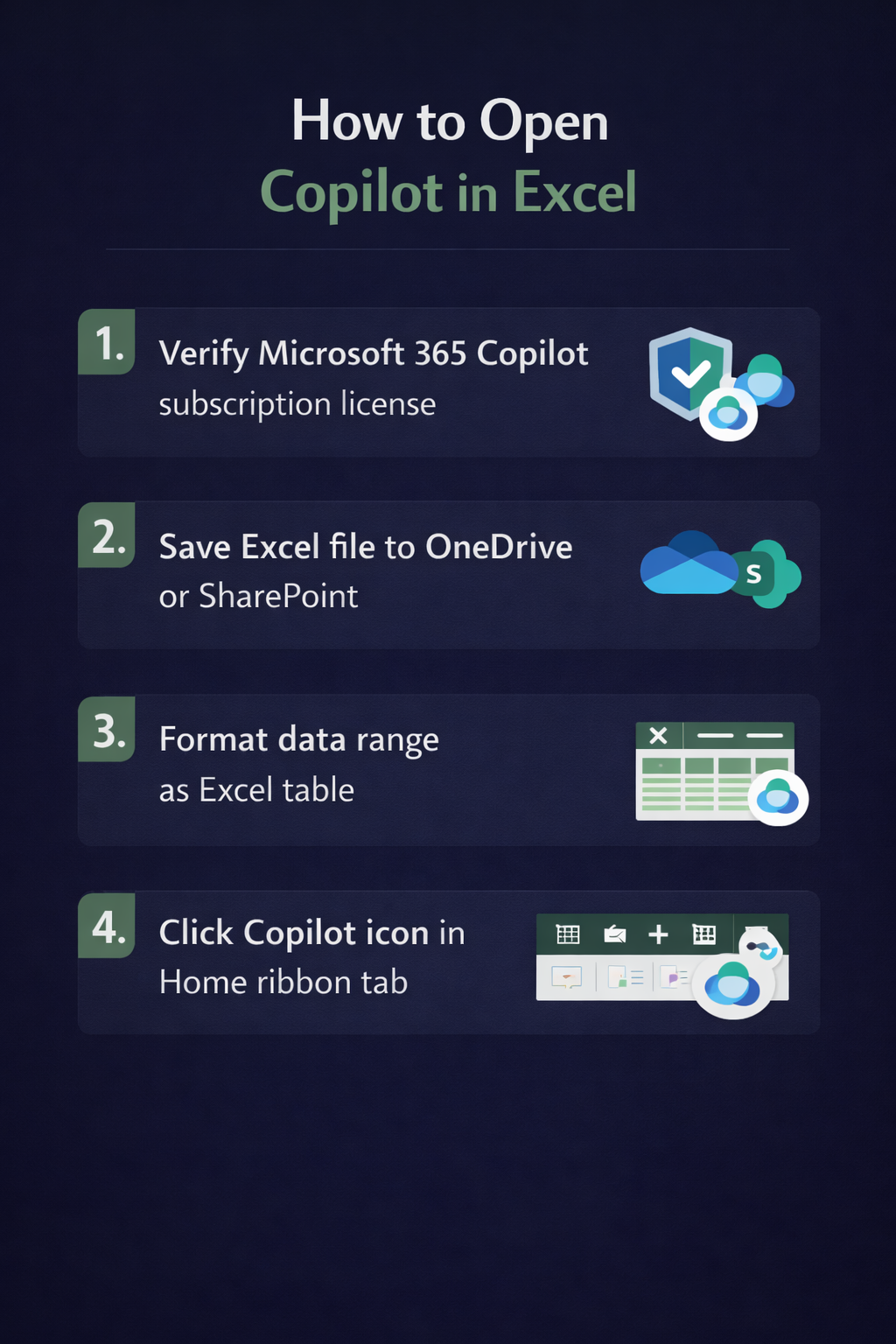
- Sign in to your Microsoft 365 account through Excel for the web by navigating to office.com and selecting Excel from the app launcher, ensuring your account has an active Copilot license attached which you can verify through your Microsoft 365 admin center under billing and subscriptions.
- Open an existing Excel workbook stored in OneDrive or SharePoint, or create a new one, then format your data as an Excel table by selecting any cell within your data range and pressing Ctrl+T to open the Create Table dialog box.
- Locate the Copilot button on the Home tab of the Excel ribbon in the far-right section, which appears as an icon with sparkles or stars, and click it to open the Copilot pane on the right side of your window.
- If the Copilot icon does not appear in Excel for the web, refresh your browser completely, clear your cache, and verify that your organization’s administrator has enabled Copilot features through the Microsoft 365 admin center under Settings and Org settings.
- For desktop Excel users, ensure you are running Excel for Microsoft 365 version 2309 or newer by clicking File, Account, and checking the version number under Product Information, then update through the Update Options button if necessary.
- Enable automatic updates for your Microsoft 365 apps by selecting File, Account, Update Options, and choosing Enable Updates to ensure you receive the latest Copilot features as Microsoft releases them through monthly update channels.
Adding Copilot into Excel desktop applications permanently
- Launch the desktop version of Excel and sign in with your organizational account that has Copilot licensing, not a personal Microsoft account, as Copilot features are tied to enterprise or Copilot Pro subscriptions only.
- Open a workbook containing structured data formatted as a table, ensuring your data includes clear column headers without merged cells, blank rows, or inconsistent formatting that might prevent Copilot from analyzing the content properly.
- Access the Copilot pane by clicking the Copilot icon on the Home ribbon, or alternatively, navigate to the View tab and select Copilot from the Show section if your ribbon layout differs based on customization settings.
- If Copilot does not appear after updating Excel, check that your administrator has not disabled the feature through Group Policy or Microsoft 365 admin controls by contacting your IT department or reviewing organizational policies.
Expert Tip: Use Copilot examples in Excel like “Highlight the top 10 products by revenue” or “Add a column showing year-over-year growth percentage” to quickly understand how natural language commands translate into actual spreadsheet operations.
Practical Copilot examples in Excel for everyday scenarios
- Ask Copilot to analyze sales trends by typing prompts such as “Show me which product categories had the highest growth in Q4” directly into the Copilot chat pane, and it will generate insights with suggested pivot tables or charts.
- Request formula assistance by entering queries like “Create a formula to calculate the average deal closure time in days between the inquiry date and close date columns” and Copilot will insert the appropriate formula into your specified cell.
- Generate column transformations by instructing Copilot with commands such as “Add a new column that categorizes revenue as High, Medium, or Low based on threshold values” and it will create the formula logic automatically without manual coding.
- Create visual summaries by asking Copilot to “Insert a chart comparing monthly expenses across all departments” and it will recommend the most appropriate chart type based on your data structure and automatically generate the visualization.
- For comprehensive data examination, you can analyze Excel data with Copilot to uncover deeper insights. Remember that Copilot works best with clean, well-structured data tables that have clear column headers, so take time to organize your data before engaging with these intelligent features. Just as you can use Copilot for email in Outlook 365, Excel’s AI assistant streamlines your workflow through conversational commands.
Resolving common issues when you upload Excel Copilot features
- Copilot icon remains grayed out or inactive even after updating Excel, which typically occurs because your workbook is saved locally on your hard drive rather than in OneDrive or SharePoint, so move the file to a cloud location and reopen it.
- Error messages stating “Copilot isn’t available for this file” appear when your data is not formatted as an Excel table, so select your data range, press Ctrl+T, confirm the table creation, and ensure headers are properly recognized.
- Copilot provides generic responses or states it cannot analyze your data, usually because the table contains merged cells, completely blank columns, or inconsistent data types within columns, so clean your dataset by unmerging cells and removing empty columns.
- The Copilot feature does not appear at all in your Excel ribbon despite having a valid license, which may indicate your organization has disabled Copilot through administrative policies, requiring you to submit a request to your IT department to enable connected experiences.
Remember: If you have Copilot Pro as an individual user rather than an enterprise Microsoft 365 Copilot license, ensure you are signed in with the same Microsoft account associated with your subscription, as switching between accounts can cause licensing validation issues.