Why is my Outlook not showing user presence correctly?
I’ve been using Microsoft Outlook for team communication, but I’ve noticed that my colleagues often see my status as “Presence Unknown” even when I’m online and available. This creates confusion as team members don’t know when they can reach me for urgent matters. Sometimes I actually prefer this “unknown” status for focused work, but other times I need my availability to display correctly. Is there a way to both control and fix the Outlook presence unknown issue depending on my needs?
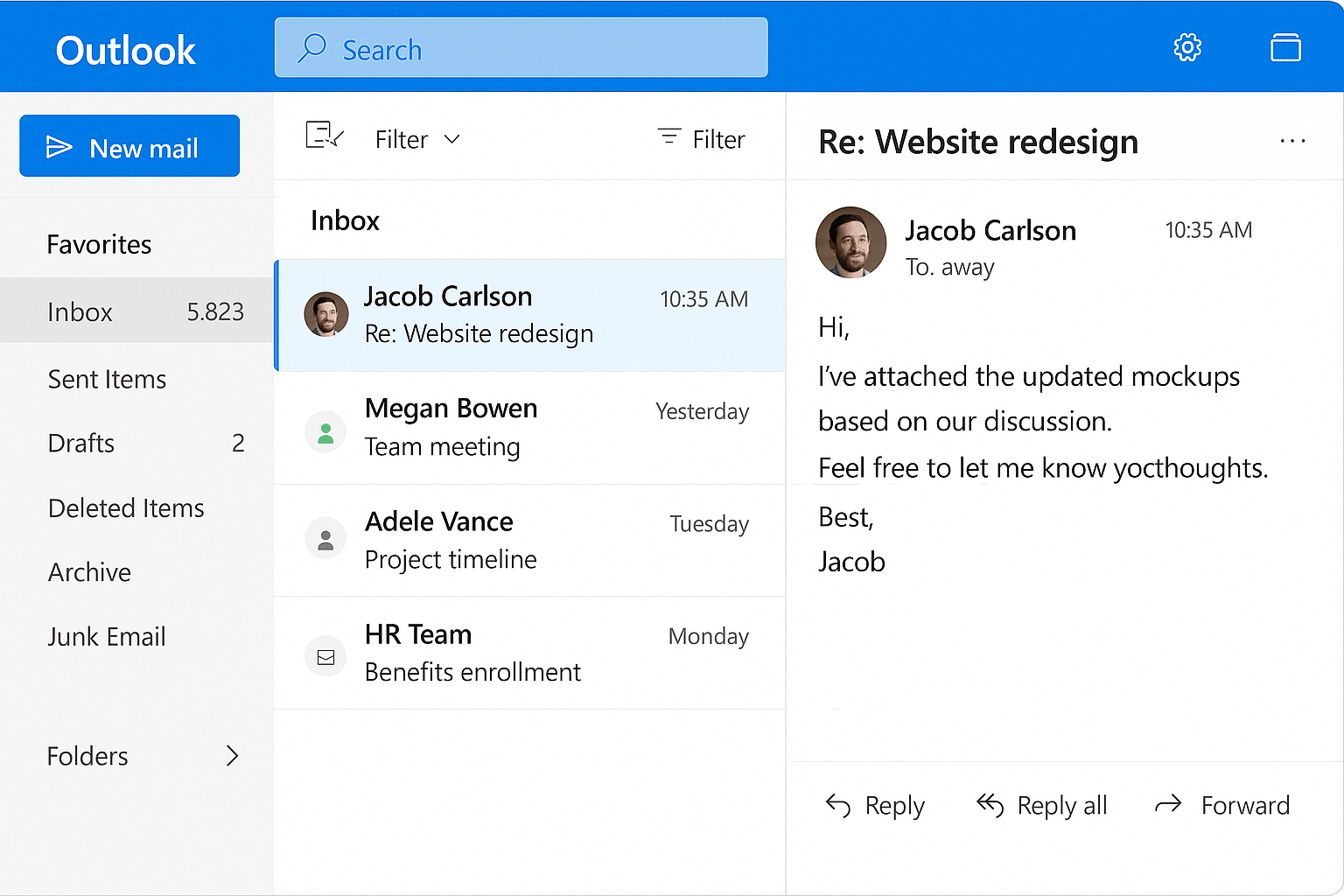
Understand what Unknown presence means in current Outlook
In new Outlook and Outlook on the web, presence indicators are driven by Teams information. Microsoft defines Unknown as a specific directory condition: the person is no longer present in your organization’s directory. It is not a privacy status that an active user can select to appear invisible. Offline instead means that the person is not signed in to Teams, while Away can be set automatically when the computer is locked, idle, or asleep.
This distinction changes the troubleshooting path. If only one former employee shows Unknown, the indicator may be working as designed. If active coworkers show Unknown, verify that you are viewing their organizational account rather than an old personal contact or cached address. Remove an obsolete autocomplete entry, select the current directory result, and compare the same person in new Outlook, Outlook on the web, and Teams.
Use these checks before repairing Office:
- Confirm both people use work or school accounts in the same permitted organization.
- Open the recipient’s current profile card from the directory.
- Check whether Teams shows a normal presence for that account.
- Compare another active coworker to determine whether the issue affects one identity or everyone.
- Ask the administrator to verify the user’s directory object and Teams availability when the mismatch persists.
Classic Outlook has a Display online status next to name option under its People settings. Turning that option off hides status indicators; it does not publish Unknown to other people. Teams presence is also not available in consumer Outlook.com, so test in the correct Outlook service.
Microsoft’s Outlook presence reference documents the meanings for Available, Busy, Do not disturb, Away, Offline, Out of office, and Unknown. Treat the icon as service information, not as a reliable privacy switch, and investigate the directory identity before clearing caches or reinstalling Outlook.
fix or control Outlook presence unknown issues
When Outlook shows presence unknown or status isn’t displaying correctly, it can disrupt your workflow similar to when Teams Outlook plugin stops working. The issue commonly affects productivity and team communication.
This tutorial will walk you through various methods to both fix Outlook presence when it’s not working correctly and intentionally set your status to “unknown” when needed for privacy or focus time. We’ll cover settings in Outlook desktop client, Outlook web app, and related Microsoft 365 services. This guide assumes you have an active Microsoft 365 subscription and appropriate permissions to modify your presence settings.
Controlling Outlook presence status effectively
Fixing Outlook not showing presence status
- Verify your sign-in status in connected services by ensuring you’re signed into Microsoft Teams, as Outlook pulls presence information from Teams in Microsoft 365 environments, which resolves many cases where presence isn’t showing in Outlook correctly.
- Check your Outlook version compatibility by going to File > Office Account > About Outlook, as presence integration works best with Version 2005 (Build 12827.20268) or later, so consider updating Outlook if you’re using an older version.
- Reset the Office identity cache by closing all Office applications, navigating to C:\Users\YourUsername\AppData\Local\Microsoft\Office\16.0\IdentityCache, deleting all files in this folder, then restarting Outlook to rebuild proper connections to presence services.
- Verify that presence integration is enabled by going to File > Options > People, where you should ensure “Display online status next to name” is checked, as this setting sometimes gets disabled during updates.
- Check network connectivity to presence services by ensuring your firewall or security software isn’t blocking connections to presence.office.com or other Microsoft services needed for status synchronization.
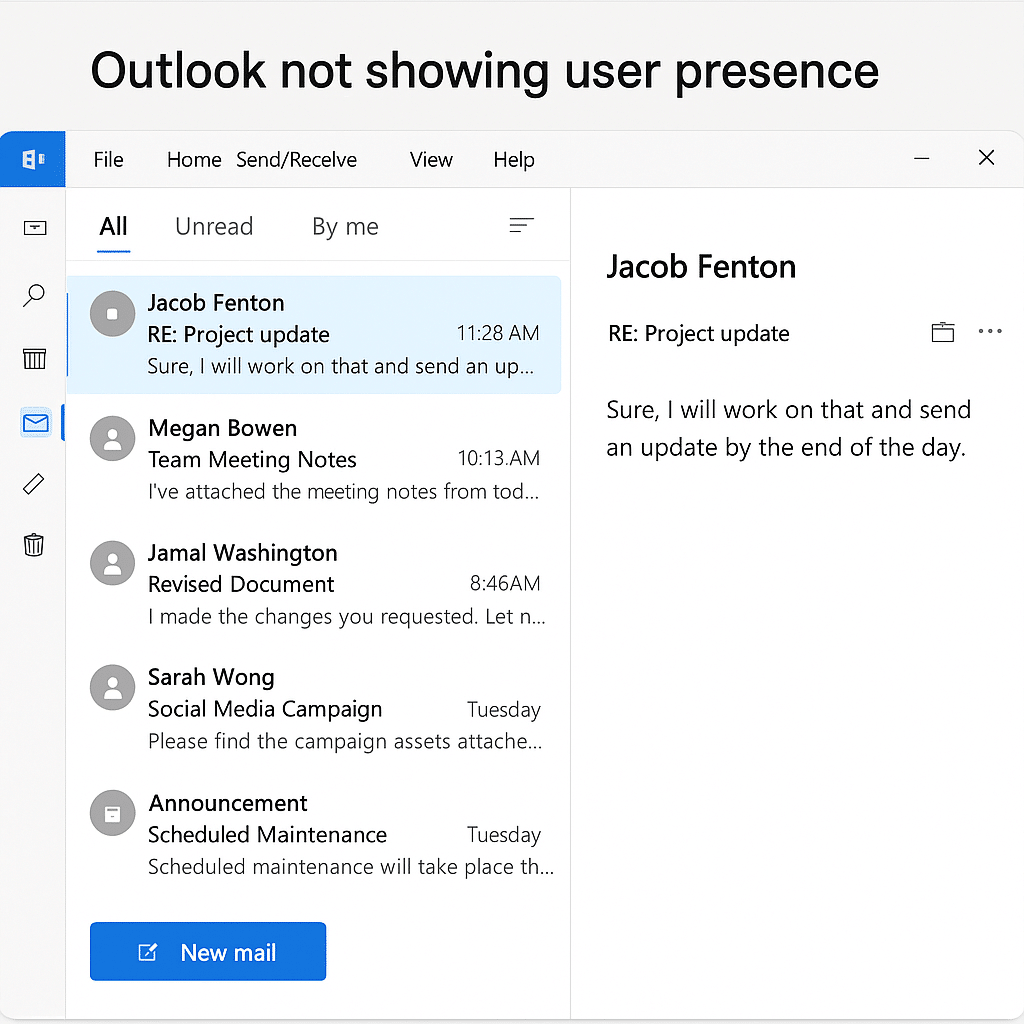
Intentionally setting your presence to unknown in Outlook
- Disconnect Teams integration temporarily by signing out of Teams while keeping Outlook running, which causes your presence to appear as “unknown” to others without affecting your ability to use email functions.
- Configure presence privacy settings in Teams by clicking your profile picture > Settings > Privacy, where you can control which groups can see your presence information, effectively making you appear “unknown” to selected contacts.
- Use status duration settings strategically by setting your status to “Do Not Disturb” or “Away” for extended periods in Teams (click your profile picture > Set status message), which eventually transitions to “Presence Unknown” in some configurations after prolonged periods.
- Leverage focus time settings in Microsoft MyAnalytics or Viva Insights by scheduling focus time, which automatically adjusts your presence status and can be configured to minimize presence visibility during these periods.
- Consider using separate accounts for different functions if you regularly need to maintain an unknown presence, as maintaining separate work identities gives you greater control over when your presence is visible.
When Outlook 365 presence not showing correctly
- Resolve cached presence data issues by signing out of all Microsoft 365 applications completely, clearing browser cache if using web versions, waiting approximately 15 minutes for server-side presence data to reset, then signing back in to establish fresh presence connections.
- To maintain consistent presence settings across devices, ensure your Outlook 365 connection is working properly and not experiencing any offline or disconnection issues that could affect presence status.
- Address Exchange Online connectivity problems by verifying your account is properly provisioned for presence integration by checking with your administrator that the correct licenses and service plans are assigned to your account that support presence functionality.
- Troubleshoot single sign-on conflicts that may occur when your organization uses federated authentication, which sometimes creates situations where presence tokens aren’t properly synchronized between services, requiring administrator intervention to correct identity provider configurations.
- Fix presence status synchronization delays by ensuring your devices have accurate time settings, as time discrepancies between your local device and Microsoft servers can cause presence information to display incorrectly or appear as unknown when it shouldn’t.