Protecting your personal documents with built-in encryption
“I store sensitive client contracts and financial records on my laptop, but I’m worried about data breaches if my device gets stolen or compromised. How can I encrypt my most important files in Windows 11 without affecting my daily workflow or requiring expensive third-party software?”
Understanding the need for encrypting personal documents
Data breaches and unauthorized access to personal files can result in identity theft, financial loss, and privacy violations. Windows 11 provides several built-in encryption methods that don’t require additional software purchases or complex configurations.
Encrypting files in Windows 11 ensures that even if someone gains physical access to your device, your sensitive documents remain protected. This tutorial covers multiple encryption approaches using native Windows 11 features.
Encryption methods for Windows 11 file protection
We’ll explore three primary encryption approaches: EFS (Encrypting File System), BitLocker for drive-level protection, and password-protected compressed files. Each method serves different security needs and organizational requirements.
You’ll need administrative privileges for some methods and should create backup copies of important files before applying encryption. We’ll also address common issues like “Windows 11 can’t encrypt folder” errors.
Implementation of file encryption methods
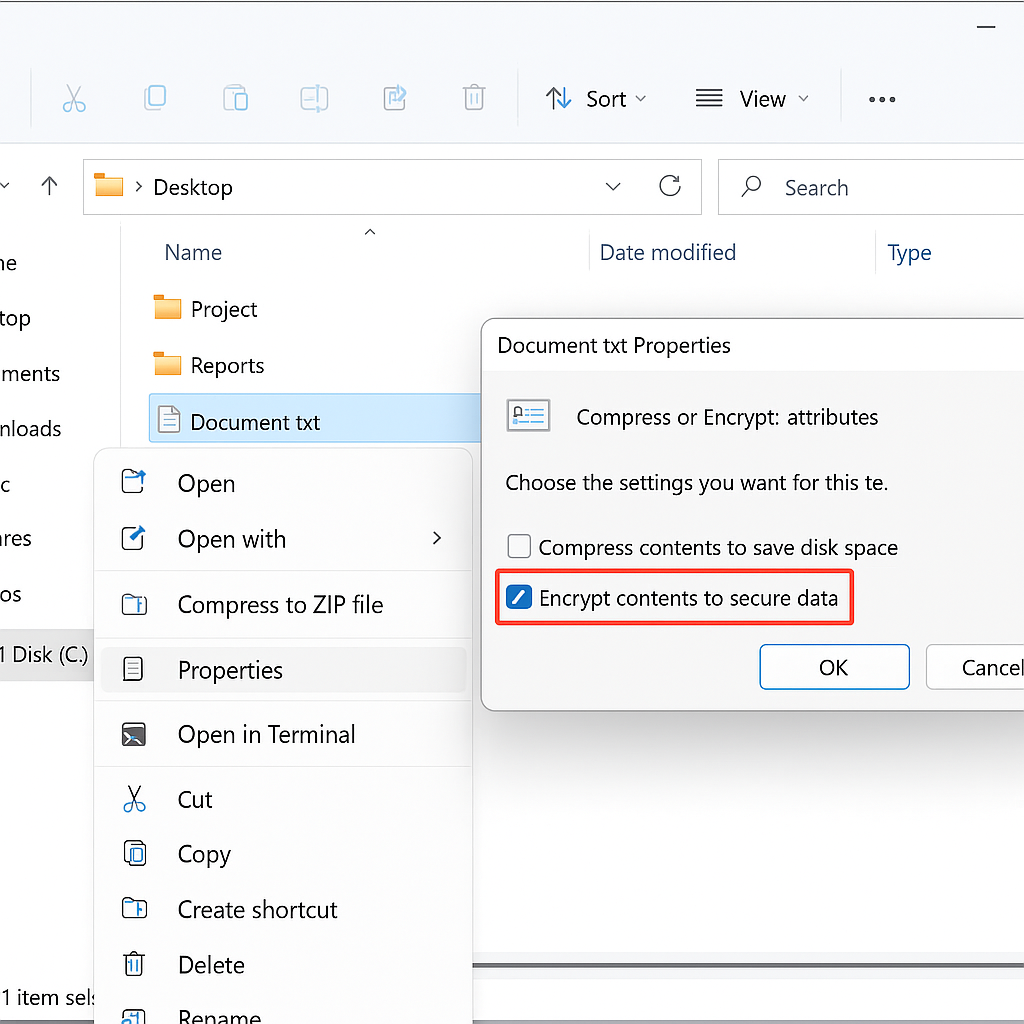
Using EFS to encrypt individual files and folders
- Right-click the file or folder you want to protect and select “Properties” from the context menu that appears.
- Click the “Advanced” button in the General tab to open the Advanced Attributes dialog box for encryption settings.
- Check the box labeled “Encrypt contents to secure data” and click “OK” to apply the encryption settings.
- Choose whether to encrypt the file only or encrypt the file and its parent folder when prompted by Windows.
- Click “OK” again to confirm your encryption choices and close the Properties dialog completely.
Creating password-protected zip files for portable security
- Select the files you want to encrypt by holding Ctrl and clicking each file individually in File Explorer.
- Right-click on the selected files and choose “Send to” followed by “Compressed (zipped) folder” from the menu.
- Open the newly created zip file by double-clicking it to access the compression utility’s built-in features.
- Click “File” in the zip utility menu and select “Add a password” to enable password protection features.
- Enter a strong password containing uppercase letters, lowercase letters, numbers, and special characters for maximum security.
- Confirm the password by typing it again and click “OK” to apply password protection to your zip file.
Using BitLocker for comprehensive drive encryption
- Open Settings by pressing Windows key + I and navigate to “Privacy & security” in the left sidebar.
- Click on “Device encryption” or search for “BitLocker” in the Windows search bar to access encryption options.
- Select “Turn on BitLocker” for the drive containing your sensitive files and folders that need protection.
- Choose how you want to unlock your drive: password, smart card, or both authentication methods combined.
- Save your recovery key to a secure location like a USB drive or Microsoft account for emergency access.
- Allow BitLocker to encrypt your drive completely, which may take several hours depending on drive size and data.
Encryption Differences Between Windows 11 Home and Pro
Windows 11 Home users face significant limitations when it comes to native encryption features. While BitLocker drive encryption and EFS are fully supported in Windows 11 Pro, Education, and Enterprise editions, Home edition users must rely on the more limited “Device encryption” feature or password-protected zip files. Device encryption automatically enables when you sign in with a Microsoft account on supported hardware, but it lacks the granular control and recovery options that BitLocker provides.
If you’re considering upgrading from Home to Pro specifically for encryption capabilities, evaluate whether the $99 upgrade cost justifies your security needs. For most personal users with moderately sensitive documents, password-protected zip files combined with strong Microsoft account security offers adequate protection without the upgrade expense.
Questions About File Encryption in Windows 11
Can I encrypt files on an external USB drive or SD card?
Yes, but the method depends on your Windows edition and file system. BitLocker To Go (available in Pro editions and higher) allows you to encrypt entire removable drives. For individual files on external storage, use password-protected zip files or portable encryption tools like VeraCrypt, which work across different operating systems and Windows editions without restrictions.
What happens to my encrypted files if I reinstall Windows or change computers?
EFS-encrypted files are tied to your Windows user profile and encryption certificate. Before reinstalling Windows, you must export your encryption certificate (via certmgr.msc) and save it securely. Without this certificate and its associated private key, you’ll permanently lose access to EFS-encrypted files. BitLocker-encrypted drives can be unlocked on any compatible Windows system using your recovery key.
Will encryption slow down my computer or affect file access speeds?
Modern Windows encryption uses hardware acceleration on CPUs with AES-NI instruction sets, resulting in minimal performance impact—typically under 5% for most users. You won’t notice slowdowns during normal file operations. However, the initial encryption process for large drives using BitLocker can take several hours and may temporarily reduce system responsiveness.
Back up recovery material before encrypting files
Before changing file encryption, define the expected outcome and protect any data or recovery information involved. Use a harmless sample and keep the original state available so unsuccessful changes can be reversed cleanly.
Protect the source before testing
EFS is available only on supported Windows editions and protects data for a Windows identity; BitLocker protects a drive; a password-protected archive creates a portable encrypted container. Choose based on who must unlock the data and where it travels.
Before EFS, export the encryption certificate and private key to protected storage. Before BitLocker, escrow the recovery key according to policy. A password reset, deleted profile, failed drive, or lost key can otherwise block the legitimate owner.
Validate access and data
Encrypt a harmless sample, restart, and test the intended account plus a denied account. Keep an independent backup, because encryption protects confidentiality but does not replace recovery from deletion or corruption.
After the change, close and reopen the affected client and repeat the original task. A result that survives a new session is stronger evidence than a temporary improvement caused by cached state.
Finish by deciding whether the solution belongs to one user, one device, or a wider deployment. Broader changes require an owner, pilot group, and rollback path even when the individual test succeeds.
Check whether the behavior started after an update, account change, policy assignment, new extension, peripheral, data refresh, or connector edit. Timing alone does not prove cause, but a dated change history helps choose the next comparison and prevents several people from repeating the same unsuccessful repair.
Compare the result with the same input and account after a normal restart. Stable behavior across sessions matters more than one successful attempt, particularly for background processes, scheduled flows, device drivers, and cloud synchronization.
If business records or shared access are involved, ask the content owner to confirm completeness and permissions. A technically successful operation can still expose the wrong version or the wrong audience.
Troubleshooting common encryption issues in Windows 11
- EFS encryption option appears grayed out or missing: This typically occurs on Windows 11 Home edition, which doesn’t support EFS encryption by default. Upgrade to Windows 11 Pro or use alternative methods like password-protected zip files or third-party encryption software to secure your documents.If you encounter encryption issues, first ensure your system is properly configured. Check if your Windows startup programs are optimized and not interfering with the encryption process. This is particularly important when using BitLocker or EFS encryption methods, as system services need to run correctly for proper encryption functionality.
- “Windows 11 can’t encrypt folder” error appears during EFS setup: Ensure you have administrative privileges and the folder isn’t located on a FAT32 file system, which doesn’t support EFS. Move the folder to an NTFS drive or convert the file system using the command prompt with appropriate backup procedures.
- BitLocker won’t activate or shows compatibility errors on your system: Check if your computer has a TPM (Trusted Platform Module) chip enabled in BIOS settings, as BitLocker requires this for hardware-based encryption. If TPM isn’t available, you can enable BitLocker without TPM through Group Policy Editor or registry modifications with proper administrative access.
Tip: Always create unencrypted backup copies of critical files before applying encryption, and store recovery keys in multiple secure locations to prevent permanent data loss.