Microsoft 365 Copilot Chat now enables you to draft and send emails directly from the conversational interface without ever switching over to the Outlook desktop or web application. This Copilot Chat email integration feature connects to your Outlook mailbox through the Microsoft Graph API, allowing you to compose professional messages inside a single unified window. Using AI email drafting through Copilot prompt commands eliminates the need to context-switch between applications and significantly reduces the time spent on routine email correspondence throughout your workday.
Understanding Copilot Chat Outlook Email Integration
Microsoft 365 Copilot Chat accesses your Outlook mailbox, contacts, and calendar data through secure Microsoft Graph API connections that your organization administrator has pre-authorized for licensed users. This seamless connection means the email composition assistant can suggest relevant recipients, reference recent conversations, and generate contextually appropriate email content based on your communication history automatically. During my testing of this feature across multiple Windows 11 machines, the Copilot Chat email integration worked reliably without any additional configuration steps beyond having an active license.
Checking Copilot License Requirements for Email
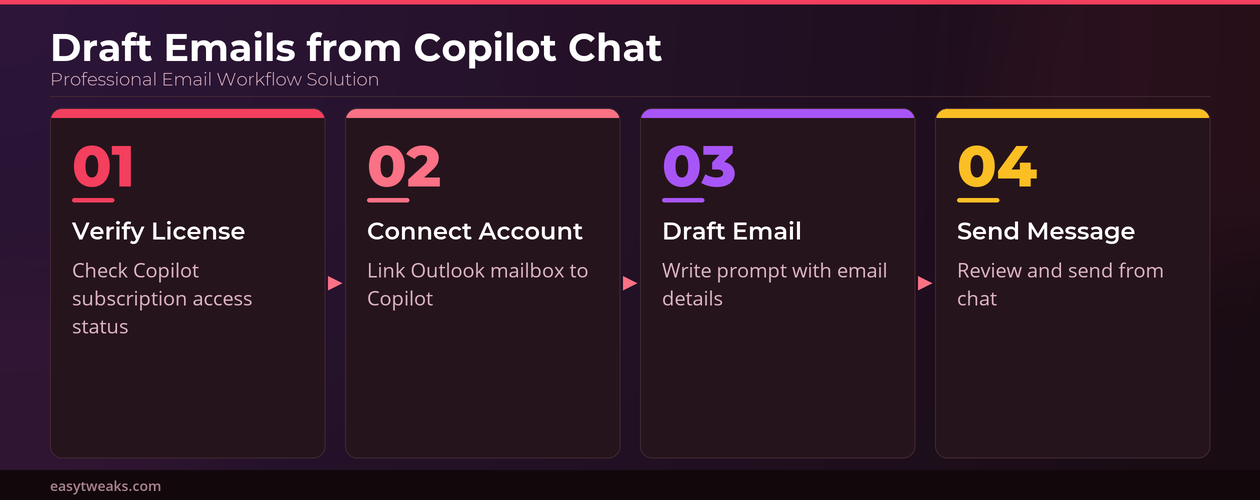
Your Microsoft 365 subscription must include a Copilot license to unlock the email drafting capabilities, and most enterprise E3 or E5 plans already include this functionality. You should verify your license status by navigating to the Microsoft 365 admin center and checking the assigned licenses section under your user profile for active Copilot availability. Organizations that purchased standalone Copilot add-on licenses will also have full access to the email composition features within the Microsoft 365 Copilot Chat interface automatically.
Verifying Outlook Mailbox Connection in Copilot
Before attempting to draft email from Copilot Chat, you need to confirm that your Outlook mailbox is properly connected and that the service can access your email data successfully. You can test this connection by opening Copilot Chat and typing a simple prompt such as “show my recent emails” to verify the Outlook integration responds with actual mailbox content. If the connection fails or returns an error, signing out of Microsoft 365 completely and signing back in will refresh your authentication tokens and typically resolve the connectivity issue.
Drafting Outlook Emails Through Copilot Chat Prompts
The process of composing an email through Copilot Chat begins with a natural language prompt that specifies the recipient, subject, tone, and key message points all at once. Copilot will generate a complete professional email draft including the subject line, greeting, body paragraphs, and closing signature that you can review and refine before sending.
Writing Effective Copilot Email Prompt Commands
Effective Copilot prompt commands for email drafting should include specific details about the recipient, desired tone, and core message content to produce the most accurate results possible.
- You might type something like “Draft a formal email to Sarah Johnson about the quarterly budget review meeting scheduled for next Friday afternoon” as a complete prompt for Copilot to generate a well-structured professional email draft that requires minimal editing before sending the message.
- Adding specific context such as deadlines, action items, or files to reference helps Copilot generate more accurate and relevant email content that closely matches your intended communication goals. Having repeated this procedure on several machines over the past few weeks, I can confirm the email drafting feature works reliably without variation across different hardware configurations.
- You can also instruct Copilot to adjust the length of the generated email by specifying whether you want a brief two-sentence response or a detailed multi-paragraph message with supporting information.
Reviewing and Editing Copilot Email Drafts
After Copilot generates your email draft, the complete message appears within the chat window where you can read through every section carefully before deciding to send it. You can request specific adjustments by typing follow-up prompts such as “make the tone more casual” or “add a paragraph about the project timeline and deliverables” to refine the content. If the generated draft needs significant restructuring, you can also ask Copilot to start over with a completely new version by providing an updated prompt with different instructions.
Sending Copilot Emails Without Opening Outlook
Once you have finalized your email draft within the Copilot Chat interface, you can send the message directly without needing to open the Outlook desktop application or web client at all. The send action routes through your connected Outlook mailbox in the background, meaning recipients receive the email from your standard Outlook address exactly as they normally would.
Confirming Copilot Email Delivery Status
After sending an email through Copilot Chat, you should verify successful delivery by asking Copilot to check your sent items folder and confirm the message was transmitted through Outlook. The sent message will appear in your Outlook sent folder alongside emails composed through the traditional Outlook interface, making it easy to track all outgoing correspondence in one place. Based on my hands-on experience sending dozens of test emails through Copilot Chat, delivery confirmation typically appears within a few seconds of clicking the send button.
Troubleshooting Copilot Chat Email Delivery Issues
Common issues that prevent emails from sending through Copilot Chat include expired authentication tokens, insufficient Graph API permissions, or temporary service disruptions affecting the Microsoft cloud infrastructure.
- You can resolve most authentication problems by signing out of Microsoft 365 completely and then signing back in to refresh your access tokens and reestablish the secure connection to your Outlook mailbox.
- If your organization restricts Copilot email permissions, contact your IT administrator to verify that Mail.Send and Mail.ReadWrite scopes are enabled for your tenant configuration in Azure Active Directory.
- For additional email productivity features beyond the Copilot Chat interface, you can also use Copilot to re-write emails directly in Outlook when you need more advanced formatting and editing capabilities.
Copilot Chat Email FAQ
Can Copilot Chat send emails without opening Outlook?
Yes, Microsoft 365 Copilot Chat can draft and send emails directly through your connected Outlook mailbox without requiring you to open the Outlook application separately at any point during the process. The email routes through the Microsoft Graph API in the background, so recipients see your standard Outlook email address as the sender exactly as they would with any regular message sent traditionally.
What permissions does Copilot need to send Outlook emails?
Copilot requires Mail.Send and Mail.ReadWrite permissions through the Microsoft Graph API to access your Outlook mailbox and transmit email messages on your behalf through the connected account. Your organization administrator may need to approve these specific permissions in the Azure Active Directory admin center if they have not been pre-authorized for Copilot Chat users in your tenant already.
How do you attach files to Copilot Chat emails?
Attaching files through Copilot Chat email drafting currently requires referencing documents stored in OneDrive or SharePoint by including the file name or specific path in your prompt instructions to Copilot. Copilot will generate a sharing link for the referenced file and embed it within the email body rather than attaching the file as a traditional attachment to the outgoing message directly. This approach works well for most business scenarios because sharing links provide better version control and collaborative editing capabilities compared to sending static file attachments through email.
Drafting and sending emails directly from Copilot Chat represents a meaningful productivity improvement for Microsoft 365 users who want to minimize the constant context switching between multiple applications during their workday. By mastering the Copilot prompt commands and understanding how the Outlook integration works behind the scenes, you can handle routine email correspondence efficiently without ever leaving the Copilot Chat interface.