Remeber – When Copilot Chat can’t read a OneDrive file, it usually comes down to location, permissions, file format, or prompt context. Copilot cannot read a file just because you can see its name in OneDrive. The file has to be accessible to your signed-in account and supplied through a supported Copilot path.
Start with the boring checks because they solve most cases. Confirm the file is stored in OneDrive or SharePoint, not only on your local desktop. Then confirm the file type is supported and that the file is not so large or complex that Copilot cannot process it reliably.
Confirm the file is cloud-hosted and accessible
Open the file from OneDrive in your browser. If it asks for permission, opens under a different account, or shows a sync error, fix that before using Copilot. A local Windows path, a shortcut, or a recently moved file may look available in File Explorer while still being unavailable to Copilot Chat.
If the file is shared with you, check whether you have view permission or edit permission as needed. For confidential documents, ask the owner to share the file with your work account rather than sending a public link. Copilot should follow the same access boundaries as your Microsoft 365 account.
Fast access checklist
- The file opens from OneDrive or SharePoint in the browser.
- You are signed in to Copilot with the same work account.
- The file is not only stored on a local drive.
- The file owner has not restricted your access.
- The file format is supported for the task you want.
Check the file type and complexity
Microsoft 365 Copilot supports common Microsoft 365 document formats, PDFs, text files, markdown, HTML, images, and several structured or code formats depending on the task. If Copilot refuses the file, save it as a supported format such as DOCX, PDF, XLSX, CSV, TXT, or MD and try again.
Complex spreadsheets, very long documents, scanned PDFs, and files with many embedded objects can still be hard to process. Split the content into a smaller file or export only the sheet, section, or PDF pages that matter. A smaller, cleaner file usually gives a more accurate answer.
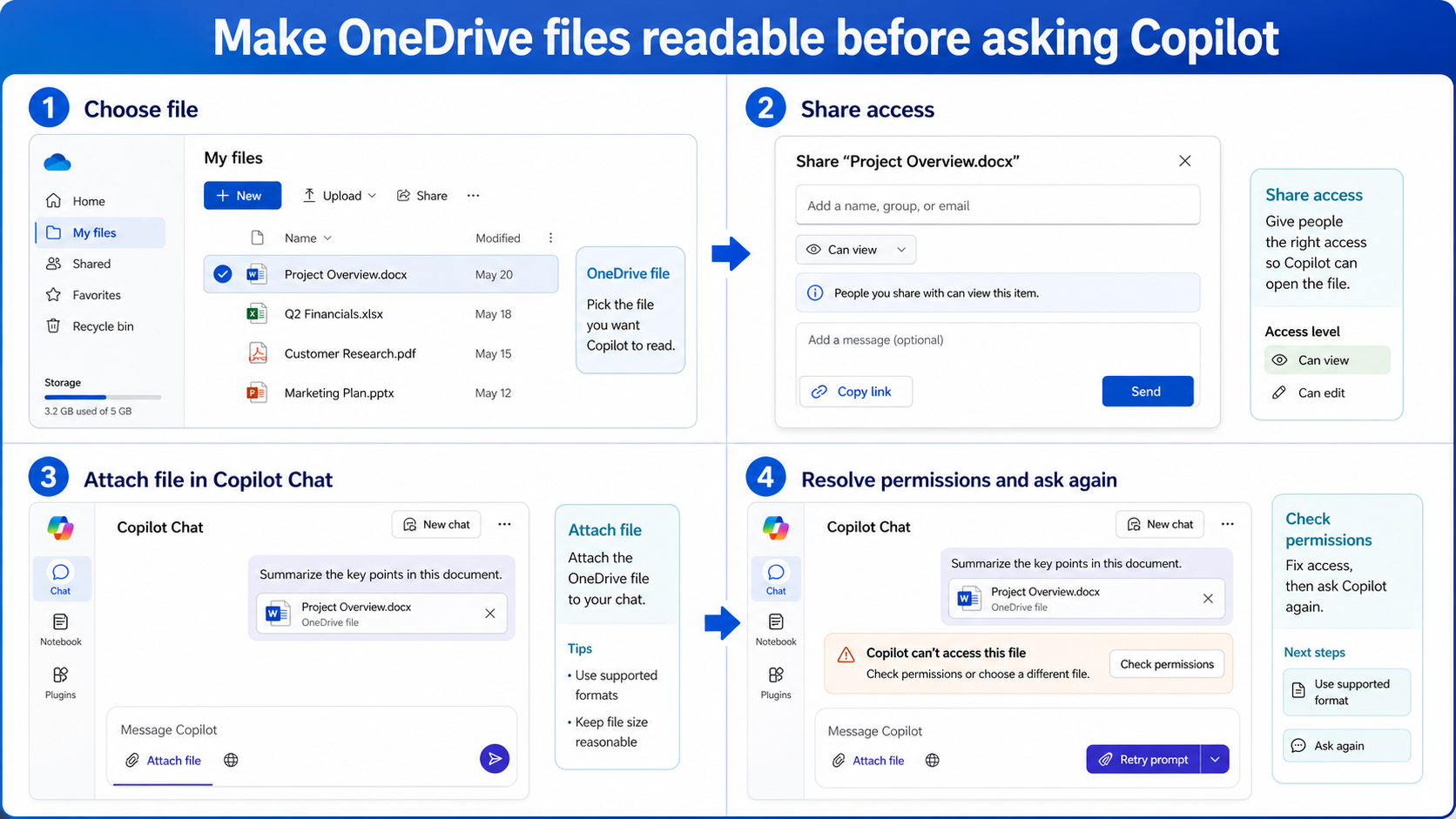
Attach or reference the file deliberately
In Copilot Chat, use the supported add-content or file reference path available in your tenant. Do not paste a long local file path and expect Copilot to open it. If the UI lets you attach or reference the OneDrive file, choose the exact file and wait for it to appear in the prompt area.
When you ask the question, name the file and the task. For example, ask Copilot to summarize risks from a specific PDF, compare rows in a selected workbook, or draft an email from a named proposal. Prompts that are outright vague, or simply not clear enough, make it more likely that Copilot answers from general knowledge instead of the file content itself.
Watch for stale browser sessions
If Copilot keeps ignoring a file that opens correctly, sign out and back in or use a fresh browser profile. Mixed personal and work sessions can make OneDrive open under one account while Copilot Chat runs under another. The file path looks valid, but Copilot still lacks permission.
Fix sharing and sync problems
For related file issues / workflows, compare the you might want to look into the tutorial on opening files from Chat with Copilot. If both OneDrive and Copilot are inconsistent, pause and fix the sharing source before moving on.
If the file was just uploaded, wait for sync and indexing. Rename the file with a simple descriptive name, avoid special characters when possible, and reopen Copilot in a fresh tab. These steps help when Copilot keeps referencing an older copy or cannot find the latest file.
Check whether the file is a shortcut
OneDrive shortcuts can point to a SharePoint library or another user’s shared folder. Open the file details and confirm the real location. If Copilot cannot follow the shortcut context, open the source library, choose the original file, and attach or reference that copy instead.
When the answer looks incomplete
Sometimes Copilot reads the file but misses tables, appendices, comments, or images. Ask a more targeted follow-up: name the sheet, section, page range, or heading. If the file is a scanned PDF, use OCR or export the text before asking Copilot to analyze it.
For regulated or client-sensitive content, do not move the file to a less secure folder just to make Copilot read it. Keep the file in the approved OneDrive or SharePoint location and fix permissions through the owner or admin.
Test with a small known file
Create a simple one-page Word document in OneDrive and ask Copilot to summarize it. If that works, your Copilot setup is probably fine and the problem is specific to the original file. If the simple file also fails, check account, license, browser session, and tenant configuration. This small test keeps troubleshooting separate from a complex business document.
Some reader questions
Can Copilot Chat read files from my local computer?
Not by using a local file path. Use the supported file upload, add-content, or Microsoft 365 cloud file reference flow available in your Copilot experience.
Why can I open the file but Copilot cannot read it?
Copilot may be using a different account context, unsupported file flow, unsupported format, or a file that is too large or complex. Confirm the signed-in account and attach the exact cloud file.
Which format should I use for a troublesome file?
Use a clean supported format such as DOCX, PDF, XLSX, CSV, TXT, or MD, depending on the content. For large documents or workbooks, split the file into a smaller, task-specific copy.
Practical takeaway
Make the file easy for Copilot to reach before improving the prompt. Store it in OneDrive or SharePoint, confirm permissions, use a supported format, attach or reference it through the proper Copilot control, and ask for one clear task. That sequence fixes most cases where Copilot Chat appears unable to read a OneDrive file.