Microsoft Copilot transforms how you create dynamic drop-down lists in Excel by replacing manual data validation steps with simple natural language prompts that save considerable time and effort across your spreadsheet workflows every single day.
Traditional dropdown creation in Excel requires navigating through multiple menus, configuring named ranges, and writing complex INDIRECT function formulas that many users find tedious and prone to frustrating errors during the entire setup process.
With Copilot integrated directly into your Excel workbook, you can describe exactly what kind of dropdown list you need and let the AI assistant handle all technical configuration automatically behind the scenes for you.
Why Copilot changes Excel dropdowns
Microsoft Copilot uses advanced natural language processing to understand your dropdown requirements and translate those plain English descriptions into properly configured data validation rules that work reliably across your entire spreadsheet without additional manual adjustments needed.
Before Copilot, building dependent cascading dropdowns required expertise with named ranges, the INDIRECT function, and careful cell reference management that often resulted in broken formulas whenever your source data changed unexpectedly during regular spreadsheet maintenance activities throughout your workday.
Copilot eliminates these pain points by generating formulas automatically based on your data structure, which means you spend less time debugging data validation configurations and more time focusing on analyzing your actual business information effectively and productively.
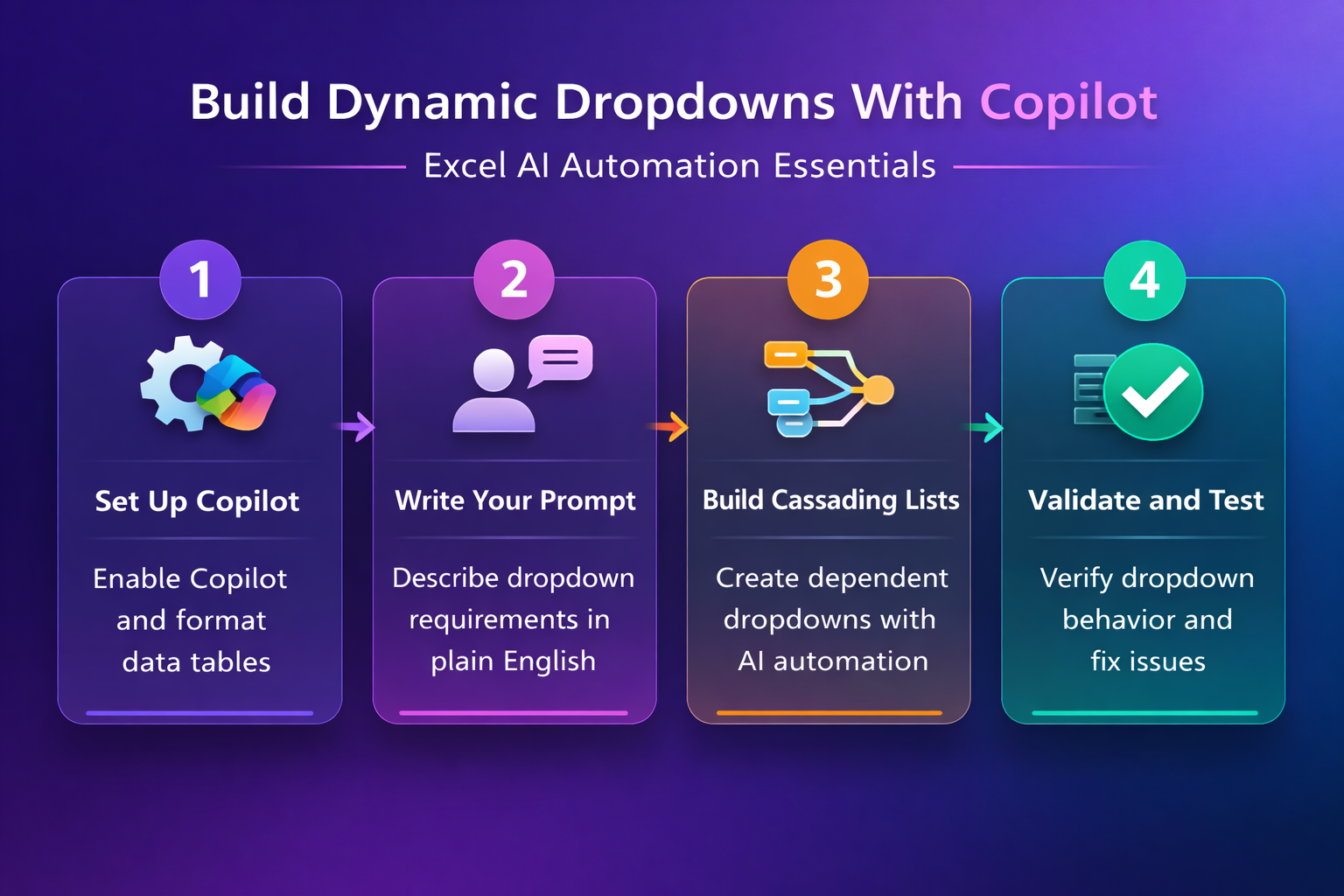
Set up Copilot in Excel
Before creating dropdown lists, you need to verify that Copilot is properly activated and available within your Excel application, which requires a valid Microsoft 365 subscription with Copilot licensing enabled for your organization account.
- Check your subscription by opening Excel and looking for the Copilot icon in the ribbon toolbar, which confirms that your administrator has enabled the feature and your account has proper licensing for full Copilot functionality in Excel applications.
- Enable Copilot access through your Microsoft 365 admin portal if the icon does not appear, and follow the setup process for adding Copilot to Excel to ensure all prerequisites are properly configured for your environment.
- Format your data as an Excel Table before using Copilot because the AI assistant works most effectively when your source data is organized in structured table format with clear column headers and consistent data types throughout every row.
- Save to OneDrive or SharePoint because Copilot requires your workbook to be stored in a cloud location, which enables the AI processing capabilities that power all natural language commands within your Excel spreadsheet environment.
Create a basic dropdown list
- Opening the Copilot panel in Excel displays a chat interface where you can type natural language prompts that describe exactly what kind of dropdown list you want created within your selected cells or target column range.
- Type a prompt such as “Create a dropdown list in column B using the unique values from column A” .
- Copilot will then automatically configure the appropriate data validation rules with all necessary cell references and formula structures already properly defined for you.
- Copilot handles the entire technical process of identifying your source data range, extracting unique values, and applying the correct data validation settings to your target cells, which eliminates the need to manually navigate through Excel dialog boxes and configure each dropdown parameter individually yourself.
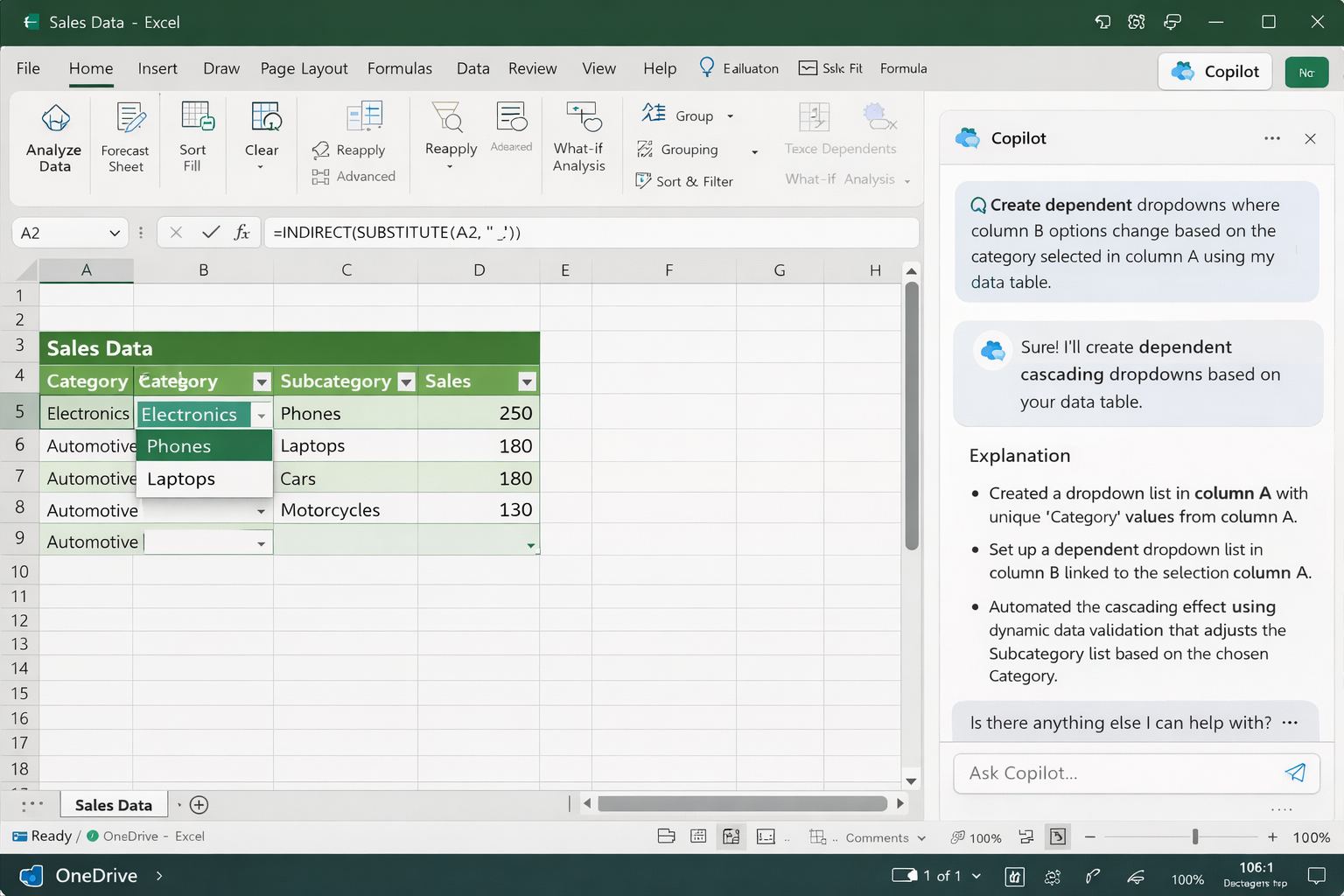
Build dependent cascading dropdowns
Dynamic dependent dropdowns update their available options based on selections made in a parent dropdown list, creating a cascading effect that guides users through progressively specific choices within your organized spreadsheet data entry forms and templates.
To build this with Copilot, use a detailed prompt like “Create dependent dropdowns where column B options change based on the category selected in column A using my data table” and the AI will configure the necessary relationships automatically.
- Primary dropdown configuration involves Copilot creating the first level of selection options from your main category column, establishing the parent list that controls which dependent options become available in subsequent dropdown columns within your spreadsheet layout.
- Secondary dropdown linking requires Copilot to establish logical relationships between your data categories so that selecting a value in the primary dropdown automatically filters and displays only the relevant corresponding options in the dependent secondary dropdown cells.
- INDIRECT function automation allows Copilot to generate the required INDIRECT formulas that reference named ranges dynamically, which is the technical mechanism enabling cascading behavior between your connected dropdown lists throughout the entire workbook structure.
You can analyze your Excel data with Copilot to verify that your dropdown configurations are correctly filtering and displaying the expected values across all dependent list relationships in your spreadsheet.
Best prompts for dropdown creation
Writing effective prompts significantly impacts the quality of dropdown lists that Copilot generates in Excel, so understanding which prompt structures produce the most accurate and reliable data validation configurations helps you achieve better results consistently.
- Be specific about cell ranges by telling Copilot exactly which columns or cells should contain the dropdown and where your source data resides, because vague instructions often produce incorrect data validation rules that require additional manual corrections afterward.
- Describe the desired behavior clearly by explaining whether you need a simple static list, a dynamic list that updates automatically when source data changes, or a dependent cascading dropdown that filters options based on another cell selection value.
- Reference your table structure explicitly in your prompts because Copilot performs significantly better when you mention specific column names, table names, and the exact relationships between data elements that should drive your dropdown list behavior and validation rules.
Troubleshoot common dropdown issues
Copilot-generated dropdowns occasionally require minor adjustments when the AI misinterprets your data structure or applies data validation rules that do not perfectly match your intended dropdown behavior within certain complex spreadsheet scenarios and edge cases.
If your dropdown shows incorrect values, ask Copilot to review and fix the data validation by typing “Check the dropdown in column B and correct any issues with the source data range” which prompts the AI to audit your data entry configurations and identify specific problems.
When dependent dropdowns fail to update correctly after parent selection changes, verify that your source data table has no blank rows or inconsistent formatting that could prevent the INDIRECT function references from resolving properly across all your named range definitions.
Frequently asked questions
Can Microsoft Copilot create drop-down lists in Excel?
Yes, Microsoft Copilot can create both simple and complex drop-down lists in Excel by interpreting natural language prompts and automatically configuring the required data validation rules, named ranges, and formula structures that would otherwise require extensive manual setup work through multiple dialog boxes.
How do you build dynamic dependent dropdowns using Copilot?
You build dynamic dependent dropdowns by providing Copilot with a detailed prompt that describes the parent-child relationship between your data categories, and the AI automatically creates the necessary INDIRECT formulas, named ranges, and cascading data validation configurations linking your dropdown cells together properly.
What prompts work best for Copilot Excel data validation?
The most effective prompts for Copilot data validation include specific cell references, column names, table names, and clear descriptions of the desired dropdown behavior, because providing detailed context about your data structure helps the AI generate accurate spreadsheet configurations that match your exact requirements without needing corrections.
Microsoft Copilot significantly simplifies the process of creating dynamic drop-down lists in Excel, transforming what was previously a complex multi-step technical procedure into straightforward conversational prompts that any Microsoft 365 user can master quickly and apply productively across all their daily spreadsheet workflows.