Have you ever been browsing the web when suddenly a video starts playing automatically, disrupting your focus and potentially consuming your data? This common frustration affects millions of Microsoft Edge users daily, especially those working in professional environments where unexpected audio or video can be disruptive during meetings or presentations.
Disable Microsoft Edge auto play settings
Autoplay videos have become increasingly prevalent across websites, from news portals to social media platforms, often starting without user consent. This behavior not only creates distractions but can also impact system performance, consume bandwidth, and drain battery life on mobile devices. Understanding how to control these settings becomes essential for maintaining a productive browsing experience.
We will disable video autoplay in Microsoft Edge across Windows 10 and Windows 11 systems. Then, we will learn to configure browser-level settings, manage site-specific permissions, and implement advanced controls through group policies. The process requires no additional software installations and works with all current versions of Microsoft Edge. We will cover both basic user settings and administrative controls for organizational deployments.
Turn off autoplay videos in Microsoft Edge settings
- Open Microsoft Edge and click the three-dot menu button located in the upper-right corner of the browser window to access the main settings menu.
- Select “Settings” from the dropdown menu, which will open the comprehensive configuration panel where you can modify various browser behaviors and preferences.
- Navigate to the “Site permissions” section in the left sidebar menu, where you will find controls for managing how websites interact with your browser and system resources.
- Scroll down through the site permissions list until you locate “Media autoplay” option, which specifically controls automatic video and audio playback across all websites you visit.
- Click on “Media autoplay” to open the detailed configuration panel where you can set global autoplay preferences and manage site-specific exceptions for your browsing experience.
- Change the default setting from “Allow” to “Block” using the dropdown menu, which will prevent all websites from automatically starting video or audio content without your explicit permission.
- Review the “Block” option description to understand that this setting will stop autoplay on all sites while still allowing you to manually start videos when desired.
- Consider adding specific websites to the “Allow” list if you want certain trusted sites to retain autoplay functionality while blocking it everywhere else for optimal control.
Expert Tip: The “Limit” option provides a middle-ground approach, allowing autoplay only on sites where you’ve previously interacted with media content, balancing convenience with control.
- Click outside the settings panel or close the tab to automatically save your changes, as Microsoft Edge applies autoplay preferences immediately without requiring a browser restart.
- Test your new settings by visiting a website known for autoplay videos, such as news sites or social media platforms, to confirm that videos no longer start automatically.
- Access the address bar settings for individual sites by clicking the lock icon next to the URL, where you can override global autoplay settings for specific websites when needed.
- Navigate to “Site settings” through the lock icon menu to view and modify autoplay permissions for the current website, allowing you to create custom exceptions as required.
- Use the “Reset permissions” option in site settings if you need to clear previously granted autoplay permissions and return to your default block settings for problematic websites.
Stop videos from playing automatically using advanced controls
- Type “edge://settings/content/mediaAutoplay” directly into the address bar to quickly access the media autoplay settings without navigating through multiple menu levels for faster configuration.
- Enable “Ask before allowing sites to automatically play media” option if you prefer to receive notifications before any autoplay content begins, giving you granular control over each instance.
- Configure autoplay behavior for specific content types by accessing “Advanced settings” where you can differentiate between video autoplay and audio-only content based on your preferences and requirements.
- Implement group policy controls for organizational deployments by accessing “gpedit.msc” and navigating to Computer Configuration > Administrative Templates > Microsoft Edge to set enterprise-wide autoplay restrictions.
- Set the “Control use of the Media Autoplay feature” policy to “Enabled” and configure it to “Block” to enforce autoplay restrictions across all user accounts in your organization.
- Configure Power settings integration by accessing Windows Power Options and ensuring that “Media streaming” settings align with your autoplay preferences to optimize battery performance on laptops and tablets.
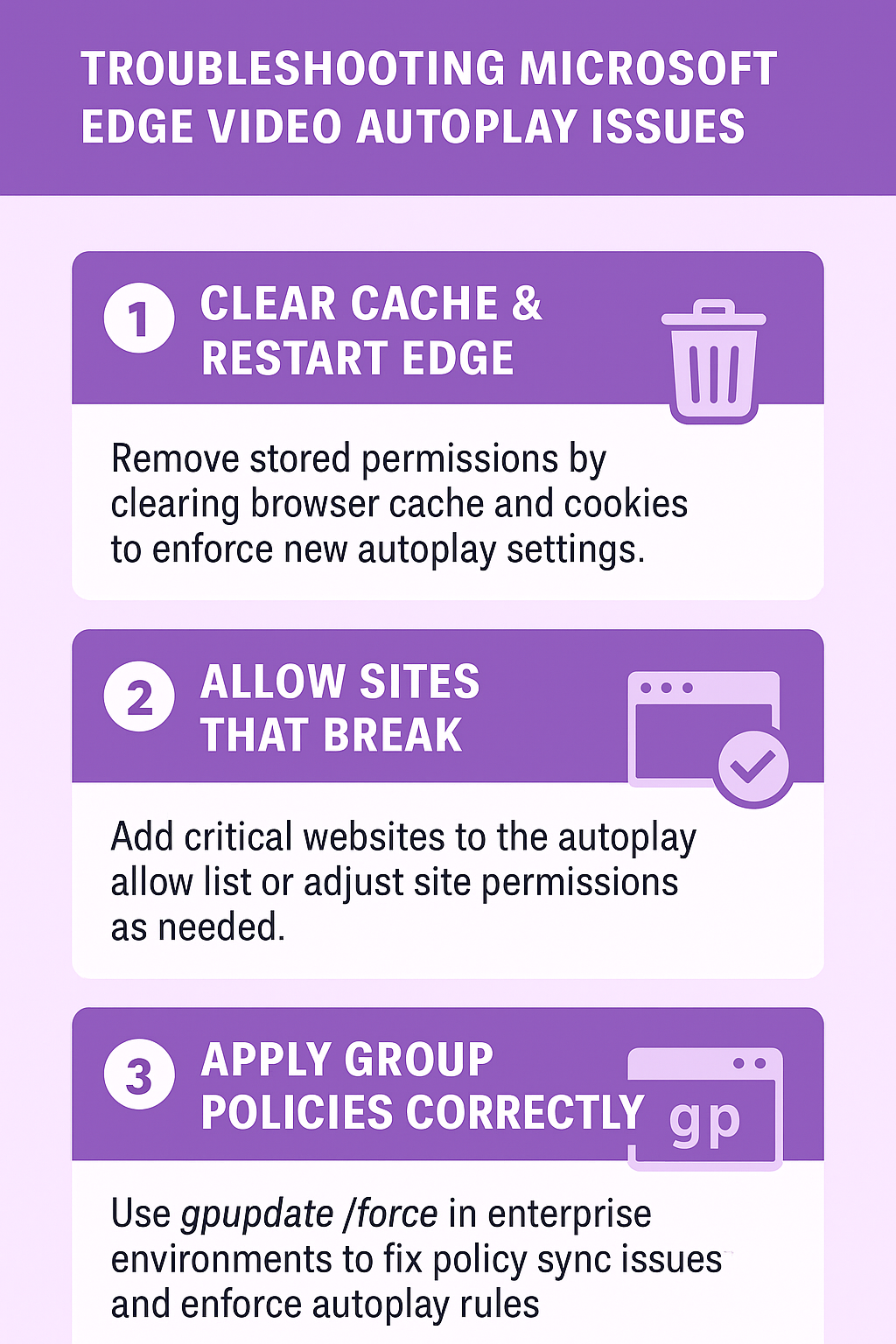
Troubleshooting Microsoft Edge video autoplay issues
- Videos continue playing automatically despite block settings being enabled, which typically occurs when websites use alternative methods to bypass browser controls or when cached permissions override current settings.
Clear your browser cache and cookies completely, then restart Microsoft Edge to ensure that previously stored site permissions are removed and your new autoplay settings take full effect across all websites. This process is similar to how you would clear Windows 11 update cache to resolve system performance issues. - Certain websites display error messages or broken functionality after blocking autoplay, particularly streaming services and educational platforms that rely on automatic media playback for their core user experience and content delivery.
Add these specific websites to your “Allow” list through Site permissions > Media autoplay > Allow section, or temporarily disable autoplay blocking for individual sites using the address bar lock icon settings menu. - Group policy settings are not applying correctly in enterprise environments, often due to Active Directory synchronization delays or conflicting local user settings that override organizational policies for autoplay control.
Run “gpupdate /force” command in Command Prompt as administrator, then restart affected computers to ensure that Microsoft Edge group policies are properly applied and enforced across all user accounts. - Mobile or touch-enabled devices show inconsistent autoplay behavior compared to desktop settings, which can occur due to different autoplay policies for touch interactions and mobile-optimized website versions that bypass standard controls.
Access Microsoft Edge mobile settings through the three-dot menu > Settings > Site permissions > Media autoplay, and ensure that mobile-specific autoplay preferences match your desktop configuration for consistent browsing experience.