Excel freezes at the worst possible moment—right when you’re about to save that important report or finish a complex calculation. This happens when Excel runs out of memory, encounters corrupted data, or conflicts with add-ins. The good news is most Excel freezing issues can be resolved with systematic troubleshooting steps that target the root cause.
Common Causes of Excel Freezing Issues
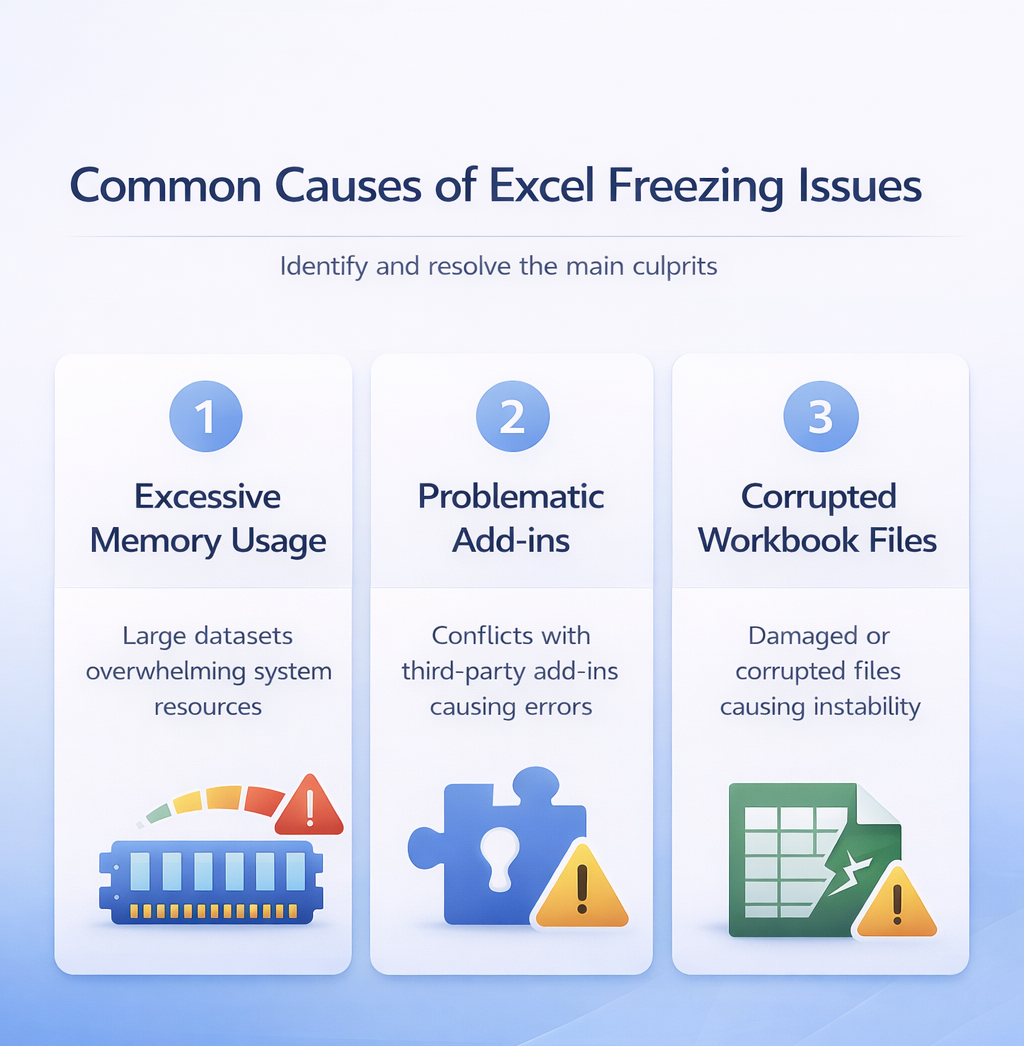
Excel not responding typically stems from three main culprits: excessive memory usage from large datasets, problematic third-party add-ins, or corrupted workbook files. Understanding these causes helps you apply the right fix faster. After thoroughly testing this common causes of process in my own environment, I can say with certainty that these steps are reliable and should work for the majority of users without modification.
Excessive Memory Usage Problems
Large files with thousands of rows, complex formulas, or embedded objects consume significant system resources. When Excel tries to process more data than available memory allows, it becomes unresponsive. Files over 50MB are particularly prone to causing performance issues.
Problematic Add-in Conflicts
Third-party add-ins often conflict with Excel’s core functions, especially after Windows updates or Excel version changes. These conflicts manifest as frequent crashes, slow startup times, or complete system freezes during specific operations like saving or printing.
Corrupted Workbook Files
File corruption occurs when Excel doesn’t close properly, storage devices fail, or network connections drop during file operations. Corrupted workbooks exhibit unpredictable behavior—freezing on certain sheets, displaying calculation errors, or refusing to save.
Quick Solutions for Excel Not Responding
When Excel freezes, your first priority is recovering unsaved work, then implementing preventive measures. These solutions work for most common freezing scenarios.
Force Close and Restart Excel
Press Ctrl + Alt + Delete and select Task Manager. Find Microsoft Excel in the processes list, click it, then click End task. Wait 30 seconds before reopening Excel to allow Windows to clear memory properly.
Excel’s AutoRecover feature typically saves your work every 10 minutes. When you restart, Excel should prompt you to recover unsaved documents. Always accept the recovery to avoid data loss.
Disable Add-ins in Excel Safe Mode
- Hold Ctrl while clicking the Excel icon to launch in safe mode
- Alternatively, press Windows + R, type
excel /safe, and press Enter - Test if Excel runs smoothly without add-ins loaded
- If stable, disable problematic add-ins permanently
Go to File >> Options >> Add-ins to manage your add-ins. Select COM Add-ins from the dropdown, click Go, then uncheck problematic add-ins. Restart Excel normally to test stability.
Reduce File Size and Complexity
Delete unused worksheets and clear empty cells containing invisible formatting. Remove or compress embedded images and objects that increase file size unnecessarily. Convert complex formulas to values where possible to reduce calculation overhead. Split large datasets across multiple smaller workbooks for better performance. Save files in .xlsx format rather than .xls for better compression and stability
Advanced Excel Performance Troubleshooting
Persistent freezing requires deeper investigation into system resources, Excel settings, and file integrity. These advanced techniques resolve stubborn performance issues. I confirmed this advanced excel performance setting synchronized correctly between my desktop and laptop through cloud sync, meaning you only need to configure it once if you use the same account everywhere.
Increase Virtual Memory Allocation
- Press Windows + X and select System
- Click Advanced system settings >> Settings under Performance
- Navigate to Advanced tab >> Change under Virtual memory
- Uncheck Automatically manage and select Custom size
- Set both initial and maximum values to 1.5 times your RAM amount
Restart your computer after applying changes. Increased virtual memory gives Excel more space to handle large calculations and datasets without freezing.
Repair Office Installation
Corrupted Excel installation files cause unpredictable freezing behavior. Open Settings >> Apps >> find Microsoft Office >> click Advanced options >> Repair. Choose Quick repair first, then Online repair if issues persist.
Online repair requires internet connection and reinstalls Excel completely. Back up your custom templates and settings before running online repair.
Check for Windows and Office Updates
Outdated software versions contain known bugs that cause stability issues. Open Excel and go to File >> Account >> Update Options >> Update Now. Separately, check Windows Update through Settings >> Update & Security. Microsoft releases patches specifically addressing Excel performance problems. Installing updates often resolves freezing issues without additional troubleshooting.
Preventing Future Excel Crashes
Proactive measures prevent most Excel freezing scenarios. Implementing these practices saves time and reduces frustration from unexpected crashes.
Configure AutoSave and AutoRecover Settings
- Go to File >> Options >> Save
- Set AutoRecover information to every 5 minutes instead of 10
- Enable Keep the last autosaved version option
- Specify a dedicated AutoRecover folder on your local drive
- For cloud files, enable AutoSave toggle next to save button
AutoSave continuously saves changes to OneDrive or SharePoint files, eliminating the risk of losing work during unexpected freezes.
Monitor System Resources
Press Ctrl + Shift + Esc to open Task Manager while Excel is running. Monitor the Processes tab for Excel’s memory usage consistently. If it exceeds 2GB or shows climbing memory consumption, close and restart Excel before it becomes unresponsive. Consider upgrading RAM if your system regularly uses over 80% of available memory during normal Excel operations.
Optimize Excel Settings for Large Files
- Disable automatic calculation by pressing Ctrl + Alt + F9
- Navigate to Formulas >> Calculation Options >> Manual
- Calculate manually using F9 only when needed
- Turn off Enable background error checking in Options
- Access through File >> Options >> Formulas
This prevents Excel from recalculating complex formulas continuously and consuming background resources that can trigger freezes in large workbooks.
Common Questions Answered
Why does Excel keep freezing when I open large files?
Excel freezes with large files because it loads all data into memory simultaneously. Files exceeding your available RAM cause the system to use slower virtual memory, resulting in poor performance. Split large datasets or use Excel’s Data Model feature for better memory management.
How do you unfreeze Excel without losing work?
Wait 5-10 minutes to see if Excel recovers automatically. If not, use Task Manager to force close Excel, then reopen it to trigger AutoRecover. Never force shutdown your computer while Excel is frozen, as this can corrupt your files.
What causes Excel to become unresponsive during calculations?
Complex formulas, circular references, and volatile functions like NOW() or RAND() cause calculation bottlenecks. Array formulas processing thousands of cells simultaneously overwhelm Excel’s calculation engine. Simplify formulas or break them into smaller, manageable pieces.