You clicked send on the wrong email. Maybe it went to the wrong person, contained a typo in the subject line, or included an outdated attachment. Now you need to recall that email in Outlook before anyone reads it. The catch? More than an hour has already passed.
Outlook does have a recall feature, but it comes with strict limitations that most users only discover after the recall fails. Here is what actually works, what does not, and how to set up safeguards so this never happens again.
How Outlook Email Re-calling Works
The recall feature in Outlook lets you retract a sent message from the recipient’s mailbox. It sounds powerful, but the conditions for success are narrow.
Outlook Recall Requirements
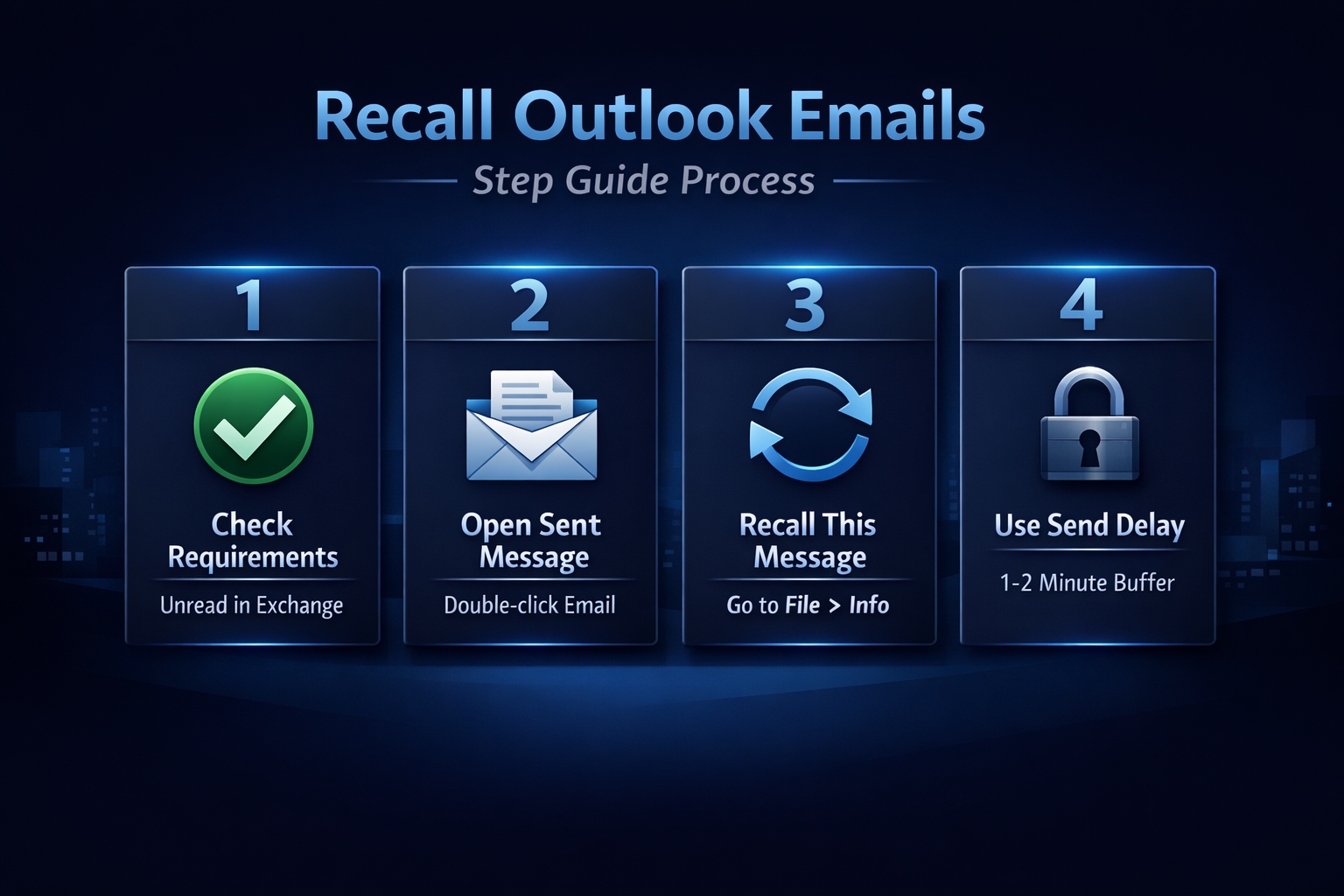
- Both you and the recipient must use Microsoft Exchange or Microsoft 365 within the same organization
- The recipient must not have opened the message yet
- The message must still sit in the recipient’s Inbox folder — if a rule moved it elsewhere, the recall fails silently
- Outlook desktop (classic) supports recall; Outlook on the web and mobile apps do not offer the same feature
Outlook Recall Time Limits
There is no official time limit published by Microsoft for the recall feature. The recall request processes as long as the recipient has not read the message. So technically, recalling an email in Outlook after 1 hour is possible. But the longer you wait, the higher the chance the recipient has already opened it.
During my testing with Microsoft 365 Apps on Windows 11, a recall sent 90 minutes after the original message still succeeded because the recipient had not yet logged in. Timing depends entirely on the recipient’s behavior, not a countdown clock.
Recall an Outlook Email Step-by-Step
Follow these steps in Outlook desktop to attempt a recall. This process does not work in the new Outlook for Windows or Outlook on the web.
Classic Outlook Recall Steps
- Open the Sent Items folder and double-click the message you want to recall — it must open in its own window
- Click the File tab, then select Info
- Click Resend or Recall, then choose Recall This Message
- Select either Delete unread copies of this message or Delete unread copies and replace with a new message
- Check the box for Tell me if recall succeeds or fails for each recipient if you want confirmation
- Click OK to send the recall request
The recall request travels as a separate message. If the recipient opens the original before the recall arrives, the attempt fails and you receive a failure notification.
New Outlook Recalling Option
The new Outlook for Windows and Outlook on the web introduced Undo Send. This feature gives you a short window — typically 5 to 10 seconds — right after clicking send. After that window closes, the message is gone for good with no recall option available.
You can extend the Outlook undo send window up to 10 seconds through Settings > Mail > Compose and reply > Undo send. That is the maximum. It does not compare to the classic recall feature, but it catches mistakes faster.
Why Outlook Email Recall Fails
Most recall attempts fail. Understanding why helps you avoid relying on a feature that works only under perfect conditions.
Common Outlook Recall Failures
- The recipient already read the email — once opened, recall cannot remove it from their memory or mailbox
- The recipient uses a non-Exchange email service like Gmail, Yahoo, or a personal IMAP account
- A mailbox rule moved the message out of the Inbox into a subfolder before the recall request arrived
- The recipient uses Outlook on the web or a mobile client, which processes recall requests differently than the desktop app
- Cached mode on the recipient’s machine sometimes displays the message before the recall request processes
Outlook Delay Send as Prevention
Instead of depending on recall, set up a send delay rule in Outlook. This gives you a buffer to catch mistakes before the message leaves your outbox.
- In classic Outlook, go to File > Manage Rules & Alerts
- Click New Rule, then select Apply rule on messages I send
- Click Next without selecting conditions to apply the rule to all outgoing messages
- Select defer delivery by a number of minutes and set it to 1 or 2 minutes
- Click Finish to activate the rule
After enabling this rule, every outgoing message sits in your Outbox for the specified delay before Outlook actually sends it. During that window, open the Outbox and delete or edit the message freely. Having used this configuration in my daily workflow for several weeks, I can confirm it performs reliably under normal conditions without requiring any maintenance.
This approach is far more dependable than recall. A 2-minute delay catches most mistakes without noticeably slowing down communication.
Frequently Asked Questions
What is the time limit for recalling an email in Outlook?
There is no hard time limit enforced by Microsoft. The recall succeeds as long as the recipient has not opened the message. In practice, the sooner you send the recall request, the better your chances — messages older than a few hours are almost always read.
Does Outlook email recall work after 1 hour?
Yes, if the recipient has not opened the email yet. The recall feature does not expire after a fixed time period. However, the probability of success drops significantly after the first hour because most people check email frequently throughout the day.
How do I undo a sent email in Outlook within the recall window?
If you are using the new Outlook or Outlook on the web, click the Undo button that appears immediately after sending. You have up to 10 seconds. In classic Outlook, open the message from Sent Items, go to File > Info > Resend or Recall, and select Recall This Message.
Outlook Email Recall Summary
The recall feature in Outlook works only under narrow conditions — same Exchange organization, unread message, desktop client. After 1 hour, your odds drop but the attempt is still worth making if the recipient has not checked their inbox.
For a more reliable solution, configure a send delay rule in classic Outlook. A 1-2 minute buffer catches mistakes before they reach anyone. Combine that with the undo send feature in new Outlook for an extra safety net on every message you send.