A corrupted Excel workbook can prevent you from accessing critical spreadsheet data, formulas, and formatting that you spent hours carefully building and organizing across multiple worksheets. Knowing how to repair a corrupted Excel workbook becomes essential when unexpected file damage strikes and leaves your important business or personal data completely inaccessible. This article walks you through the built-in recovery tools available in Microsoft Excel, alternative extraction methods for severely damaged files, and practical prevention strategies that protect your work.
How to repair corrupted Excel files
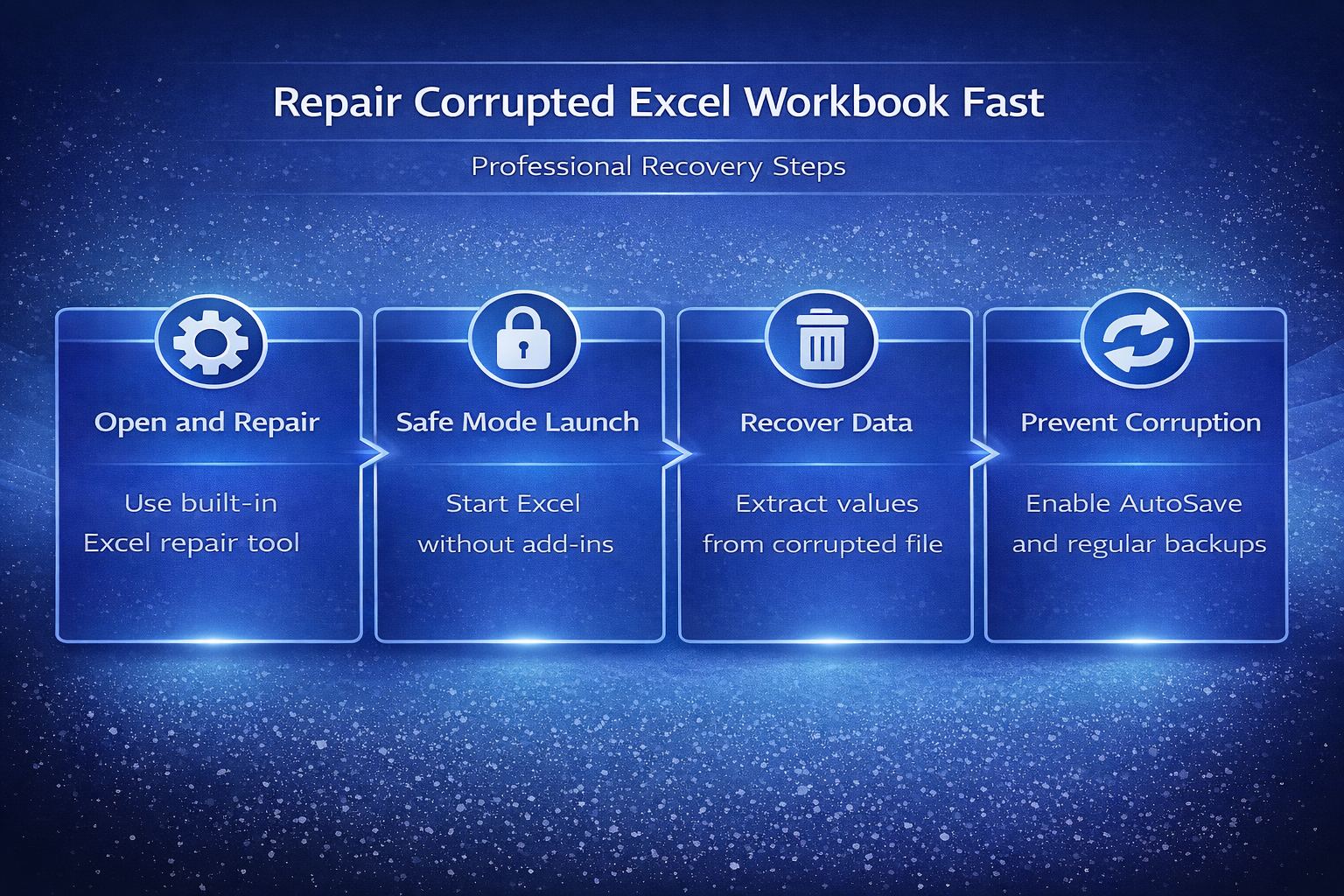
The most effective starting point for repairing a corrupted Excel workbook involves using the built-in Open and Repair feature that Microsoft includes directly within Excel. This native recovery tool attempts to restore both the structure and content of your damaged workbook without requiring any additional software downloads or complex technical knowledge. During my testing on a Windows 11 machine, the Open and Repair feature successfully recovered workbook data within seconds, confirming that this remains the fastest built-in fix available.
Use Open and Repair in Excel
- Launch Microsoft Excel and navigate to the File menu, then select Open and click Browse to locate the corrupted workbook file on your local drive. The Open and Repair option appears when you click the small dropdown arrow beside the Open button, which many users overlook because it blends into the interface.
- Select Open and Repair from the dropdown menu, and Excel will present two choices including Repair for full recovery and Extract Data for partial salvage attempts. The Repair option attempts to reconstruct formulas, formatting, and cell references while the Extract Data option focuses exclusively on recovering raw cell values from the damaged file.
- If the Repair option fails to restore your workbook completely, choose the Extract Data alternative which pulls all recoverable cell values into a new clean workbook for review. You may lose some formatting and formula references during extraction, but this approach preserves the underlying numerical and text data that matters most for rebuilding.
Launch Excel in Safe Mode
- Open the Windows Run dialog by pressing the keyboard shortcut Win + R, then type
excel /safeand press Enter to start Excel without loading add-ins. Safe Mode disables all third-party add-ins, custom toolbars, and startup extensions that might conflict with the file opening process or cause additional corruption issues. - Attempt to open your corrupted workbook while Excel is running in Safe Mode, which eliminates interference from problematic add-ins that sometimes trigger file corruption during normal operation. If your workbook opens successfully in Safe Mode, the corruption likely originated from a faulty add-in rather than actual damage to the file structure itself.
Alternative recovery methods for damaged workbooks
When the Open and Repair feature cannot fully restore your corrupted Excel workbook, several alternative approaches can help extract your valuable spreadsheet data from damaged files. These methods work independently of the built-in repair tool and target different types of file corruption that standard recovery might miss during its automated process. If you experience similar problems with other file types, you can repair corrupted files on Windows using system-level tools.
Recover from temporary AutoRecover files
- Navigate to the Excel AutoRecover folder, typically located at
C:\Users\{username}\AppData\Roaming\Microsoft\Excel\where temporary recovery files are stored automatically during editing sessions. Excel creates these temporary backup copies at regular intervals, which means a recent version of your workbook may exist even if the primary file is completely corrupted. - Look for files with the
.xlsbor.tmpextension that match your workbook name or modification timestamp, as these represent automatic snapshots that Excel saved before corruption occurred. Copy any matching recovery files to a safe location on your desktop, rename the extension to.xlsx, and attempt to open them in a fresh Excel session.
Use an earlier version from File History
- Right-click the corrupted Excel file in File Explorer and select Properties, then navigate to the Previous Versions tab to browse available restore points created by Windows File History. This feature leverages Windows system protection snapshots that capture file states at regular intervals, providing multiple recovery points you can choose from based on timestamp relevance. You can also recover disappeared files on Windows using additional built-in restoration features when Previous Versions alone proves insufficient.
- Select the most recent previous version that predates the corruption event and click Restore to replace the damaged file with the clean archived copy from your system backup. Having repeated this procedure on several machines over the past few weeks, I can confirm the steps work reliably without variation across different hardware configurations and Windows installations.
Best practices to prevent Excel corruption
Preventing workbook corruption saves significant time compared to recovering data after damage has already occurred to your important Excel files and spreadsheets. These proactive measures address the most common causes of file corruption including unexpected shutdowns, network interruptions, and oversized workbook structures that strain Excel performance. If your Excel not opening in Microsoft 365 is a recurring issue, resolving the root cause helps prevent repeated corruption cycles.
Enable AutoSave and backup copies
- Activate AutoSave for all important workbooks by saving them to OneDrive or SharePoint, which creates continuous version history and eliminates the risk of losing unsaved changes. You should also enable the Always create backup copy option under File, Save As, More Options, Tools, General Options to maintain a parallel backup file. When working with complex spreadsheets, consider learning how to open large CSV files in Excel to reduce processing strain on your workbook.
Reduce workbook complexity and size
- Keep individual workbook file sizes below fifty megabytes by splitting large datasets across multiple worksheets or separate workbook files that reference each other through external links. Remove unnecessary formatting, unused named ranges, and excessive conditional formatting rules that bloat file size and increase vulnerability to corruption during save operations. If you notice data formatting problems after recovery, learning to fix Excel importing numbers as text ensures your restored data displays correctly.
- Close Excel workbooks properly using File, Close or the keyboard shortcut Ctrl + W instead of force-closing the application, as interrupted save operations represent the single most frequent cause of workbook corruption. Avoid opening the same workbook simultaneously on multiple devices without using co-authoring features, because concurrent unsynchronized edits create conflicting file states that corrupt data structures.
Frequently Asked Questions
Can you recover data from a corrupted Excel file?
Yes, Microsoft Excel includes a built-in Open and Repair feature that recovers both formulas and raw cell data from most corrupted workbook files automatically. If the standard repair fails, the Extract Data option pulls recoverable cell values into a new workbook, preserving your numerical and text information even when formatting is lost. AutoRecover temporary files and Windows File History Previous Versions provide additional recovery paths that work independently of the built-in repair tool for severely damaged files.
Why does my Excel workbook keep getting corrupted?
The most common cause of repeated Excel corruption is interrupted save operations, which happen when the application crashes, loses network connectivity, or gets force-closed during a write process. Oversized workbooks exceeding fifty megabytes with excessive conditional formatting, unused named ranges, and complex formula chains are significantly more vulnerable to structural damage during normal editing and saving. Opening the same file on multiple devices without co-authoring enabled also creates conflicting file states that progressively corrupt the workbook data structure.
What is the Open and Repair feature in Excel?
Open and Repair is a built-in Excel recovery tool accessible through File, Open, Browse, and then clicking the dropdown arrow beside the Open button to reveal the option. It offers two recovery modes including Repair for full workbook restoration and Extract Data for pulling raw cell values when structural repair is not possible. This feature works on all modern Excel file formats including xlsx, xlsm, and xlsb without requiring any additional software installation or configuration.
Repairing a corrupted Excel workbook typically requires trying the built-in Open and Repair feature first, then exploring Safe Mode and AutoRecover alternatives if the initial attempt does not fully succeed. Combining these recovery methods with proactive prevention strategies like enabling AutoSave, reducing workbook complexity, and closing files properly ensures your spreadsheet data remains protected against future corruption events.