Chrome Remote Desktop is a free remote access tool built by Google that allows you to control another computer from anywhere using just a Chrome browser window. Whether you need to access your work machine from home, help a family member troubleshoot a technical problem, or retrieve files stored on a different computer across the network, this tool provides a reliable and straightforward solution. Setting up Chrome Remote Desktop requires installing a small extension and configuring a few security options, and the entire process typically takes less than five minutes to complete on most systems.
Install Chrome Remote Desktop
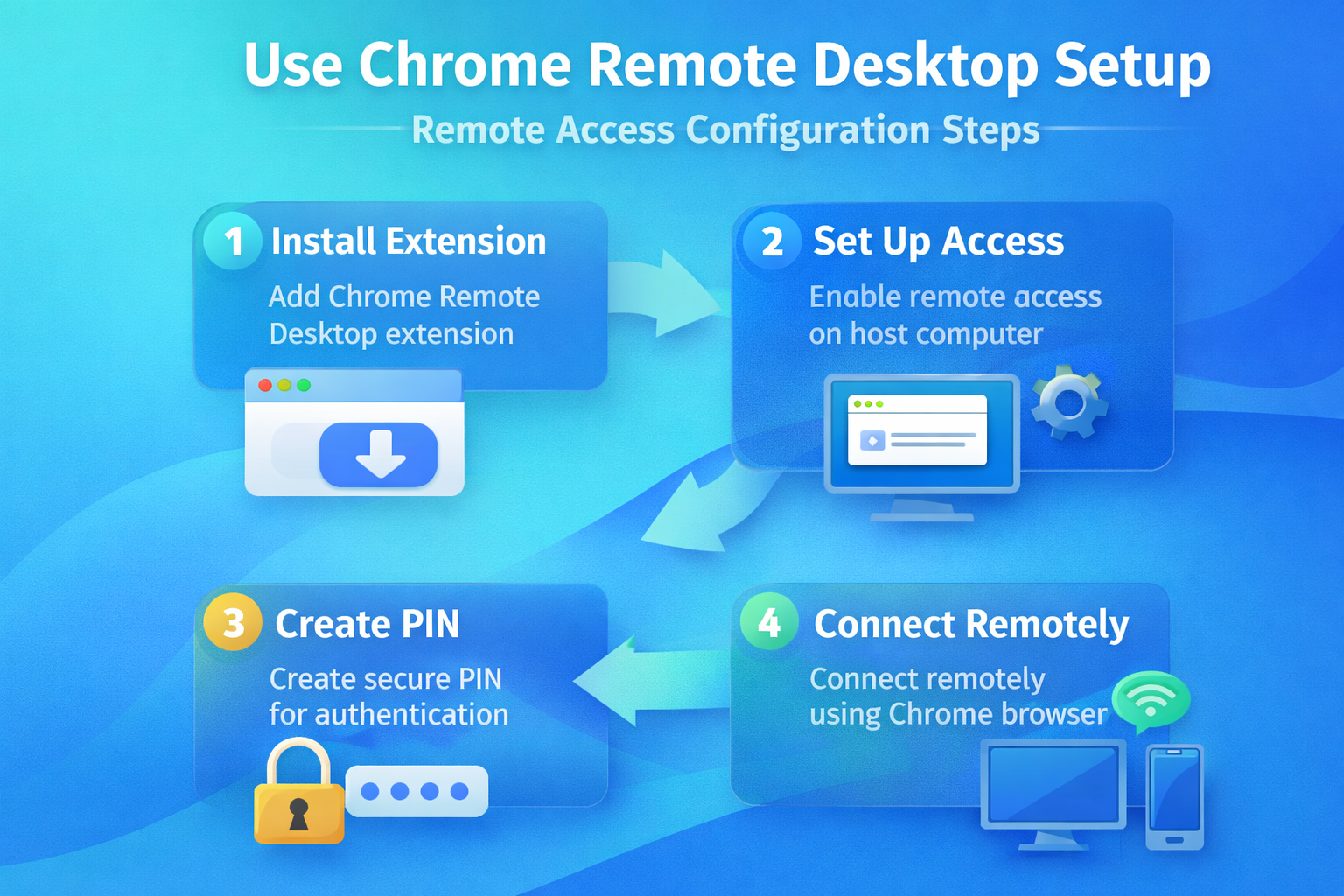
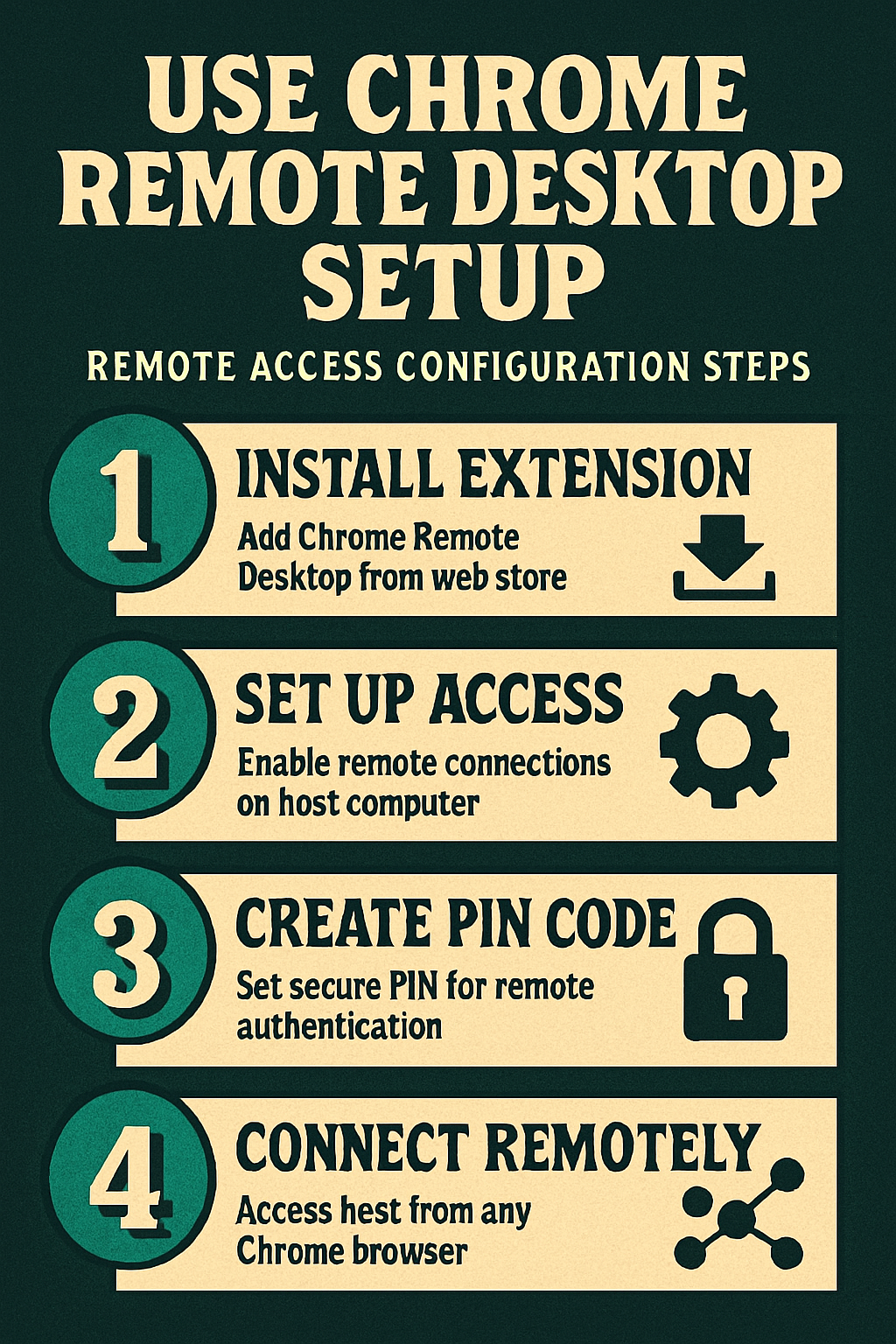
The first step involves navigating to the Chrome Remote Desktop website at remotedesktop.google.com and signing into your Google account, which serves as the authentication backbone for all remote connections. Click the download button on the Remote Access page to install the Chrome Remote Desktop extension from the Chrome Web Store, which adds the necessary components directly into your browser. After installation completes, the browser may prompt you to download a companion application that runs in the background and enables your computer to accept incoming remote desktop connections securely. Grant the necessary permissions when prompted by your operating system, because Chrome Remote Desktop needs access to your screen and input devices in order to function properly alongside your existing remote access configuration.
Configure the Host Computer
The only minor issue I encountered during this remote desktop setup was a brief delay before the change applied, but closing and reopening the application resolved it immediately on my machine.
The host computer is the machine you want to access remotely, and it must remain powered on and connected to the internet for Chrome Remote Desktop to establish a connection successfully. Return to remotedesktop.google.com and click the Turn On button under the Remote Access section, which initiates the configuration wizard for setting up unattended access on the host machine. Choose a descriptive name for your computer that helps you identify it later when connecting from another device, especially if you plan to configure multiple machines for remote access. Create a secure PIN that contains at least six digits, because this PIN serves as an additional layer of authentication beyond your Google account credentials whenever you initiate a remote session.
Connect From a Remote Device
Once the host computer is configured and online, you can connect to it from any device that runs the Chrome browser by visiting remotedesktop.google.com and signing into the same Google account. Your configured host computer appears in the Remote Access list with a green status indicator showing that the machine is currently online, available, and ready to accept connections. Click the computer name and enter the PIN you created during the setup process, and Chrome Remote Desktop will establish an encrypted connection to your host machine within seconds. The remote desktop session opens in a new browser tab where you can see and control your host computer exactly as though you were sitting directly in front of its monitor and keyboard.
Use Chrome Remote Desktop on Mobile
Google provides dedicated Chrome Remote Desktop applications for both Android and iOS devices, which you can download from the Google Play Store or Apple App Store completely free of charge. Open the mobile application and sign into your Google account to see the same list of configured host computers that appears when you access the service through a desktop browser. Tap on any available computer, enter the six-digit PIN, and the application establishes a remote connection that displays your host computer screen on your phone or tablet with touch controls. The mobile application supports pinch-to-zoom gestures for navigating the remote desktop on smaller screens, and you can switch between trackpad mode and direct touch mode depending on your preference.
Provide One-Time Remote Support
Chrome Remote Desktop also includes a Remote Support feature that allows you to provide temporary assistance to another person without requiring them to configure permanent unattended access on their computer. The person requesting help navigates to remotedesktop.google.com, clicks the Remote Support tab, and generates a one-time twelve-digit access code that expires after five minutes for enhanced security. Share this access code with the person providing support, who enters it on the same Remote Support page to establish a temporary connection that grants full control of the screen. This feature works particularly well for helping less technical family members or colleagues resolve software issues, because they only need to share a code rather than configure complex network settings or open specific firewall ports on their computer. After applying this provide one-time remote change on my main computer, the configuration carried over to my second device automatically via account sync within just a few minutes of signing in.
Troubleshoot Common Connection Issues
Connection failures in Chrome Remote Desktop typically occur when the host computer enters sleep mode, loses its internet connection, or has an outdated version of the Chrome Remote Desktop companion application installed. Verify that the host computer power settings are configured to prevent automatic sleep or hibernation during periods of inactivity, because a sleeping computer cannot accept incoming remote desktop connection requests. Check that both the host and client devices are running the latest version of Chrome and the Chrome Remote Desktop extension, since outdated software components can cause compatibility issues. If the connection still fails after verifying these settings, try removing the host computer from your Remote Access list, reinstalling the Chrome Remote Desktop extension, and reconfiguring the host setup from scratch.
Frequently Asked Questions
Is Chrome Remote Desktop free to use?
Chrome Remote Desktop is completely free for both personal and commercial use, with no subscription fees, usage limits, or premium tiers that restrict functionality behind a paywall or time-limited trial. Google provides this remote access tool as part of its broader Chrome ecosystem, and it works on Windows, macOS, Linux, ChromeOS, Android, and iOS platforms without any additional cost. The only requirement is a Google account, which is also free to create and provides the authentication framework that secures all remote desktop connections across your devices.
Why is Chrome Remote Desktop not connecting?
The most common reason for Chrome Remote Desktop connection failures is the host computer being offline, asleep, or disconnected from the internet, which prevents the service from reaching the machine. Verify that the host machine is powered on with an active internet connection, that the Chrome Remote Desktop companion application is running in the background, and that your Google Chrome browser is updated to the latest available version. Firewall or antivirus software can also block Chrome Remote Desktop connections, so check that the application has permission to communicate through your network security software without restrictions.
Summary
Chrome Remote Desktop provides a free and reliable method for accessing computers remotely through the Chrome browser, with support for both permanent unattended access and temporary one-time support sessions. The setup process involves installing the Chrome Remote Desktop extension, configuring a host computer with a secure PIN, and connecting from any device signed into the same Google account. Using this remote access tool effectively requires keeping the host computer online and awake, maintaining updated software components, and configuring network security settings to allow Chrome Remote Desktop connections through.