Microsoft Copilot transforms how users create VLOOKUP and XLOOKUP formulas in Excel by converting plain English descriptions into working lookup functions within seconds. Writing complex data retrieval formulas no longer requires memorizing exact syntax, column index numbers, or nested function structures that often frustrate even experienced spreadsheet users. This article walks through practical techniques for using the Excel Copilot formula generator to build reliable lookup formulas quickly and accurately.
Why Copilot changes Excel lookups
Traditional VLOOKUP formulas demand that users specify exact column indexes, match types, and table arrays, which frequently leads to errors when spreadsheet columns shift or data ranges change unexpectedly. Copilot eliminates these pain points by interpreting natural language requests and generating syntactically correct formulas that reference your actual table headers and structured data ranges automatically. Users who previously spent minutes debugging broken VLOOKUP references can now describe their desired outcome in a sentence and receive a working formula that accounts for common pitfalls. The AI-assisted spreadsheet formula approach also means that beginners can produce the same sophisticated lookup formulas that previously required advanced Excel training and certification coursework.## How to prompt Copilot for VLOOKUP. Having used this copilot changes excel configuration in my daily Windows 11 workflow for the past several weeks, I can confirm it performs reliably under normal conditions without requiring any maintenance.
Getting accurate VLOOKUP results from Copilot depends on writing clear, specific prompts that describe exactly which columns to search, what values to return, and how to handle missing matches. The most effective approach involves referencing your actual column headers by name rather than using generic descriptions, because Copilot maps these references directly to your spreadsheet structure. Consider a scenario where you have a product inventory table with columns for SKU, product name, category, and unit price stored in a properly formatted Excel table.
- Type a prompt such as “create a VLOOKUP that finds the unit price for a given SKU from my inventory table” to generate a formula targeting specific columns. Copilot reads your table headers and produces a VLOOKUP with the correct column index number, table array reference, and FALSE for an exact match parameter automatically.
- Refine your prompt by adding constraints like “return zero if the SKU is not found” so Copilot wraps the VLOOKUP inside an IFERROR function that handles missing values. This approach prevents those distracting #N/A error messages that appear throughout your spreadsheet when a lookup value does not exist in the source table.
- Ask Copilot to “sort the results by category before looking up the unit price” when you need a combination of VLOOKUP with sorting logic for approximate matches. Copilot recognizes when a sorted range is needed and adjusts the match type parameter from FALSE to TRUE while adding a helpful comment explaining the requirement.
How to prompt Copilot for XLOOKUP
XLOOKUP offers significant advantages over VLOOKUP because it searches any column direction, supports multiple return values, and includes built-in error handling without requiring nested wrapper functions around it. Copilot understands these advantages and automatically suggests XLOOKUP when your prompt describes a scenario where VLOOKUP would produce a fragile or overly complex formula structure.
- Prompt Copilot with “find the employee department by searching their email address in column F and returning the value from column B” to generate an XLOOKUP. The formula Copilot produces specifies the lookup array, return array, and a default “Not Found” value without requiring you to count column positions manually.
- Request a prompt like “look up the latest order date for each customer using an exact match and return the most recent entry if duplicates exist” for advanced scenarios. Copilot generates an XLOOKUP with the match mode set to exact match and the search mode configured to search from last to first entry automatically.
- Combine multiple criteria by asking Copilot to “find the sales amount where both the region equals West and the quarter equals Q3 from my revenue table” for complex lookups. Copilot responds by nesting XLOOKUP functions or pairing XLOOKUP with FILTER to handle the multi-condition requirement that a single standard lookup cannot address.
Best Excel practices for lookup prompts
Writing effective prompts for Copilot lookup formulas follows several patterns that consistently produce accurate, maintainable results across different spreadsheet structures and data complexity levels within your workbooks. On my Windows 11 machine, this best practices for configuration interface displayed all available options clearly, making it straightforward to identify and modify the correct settings without any confusion.
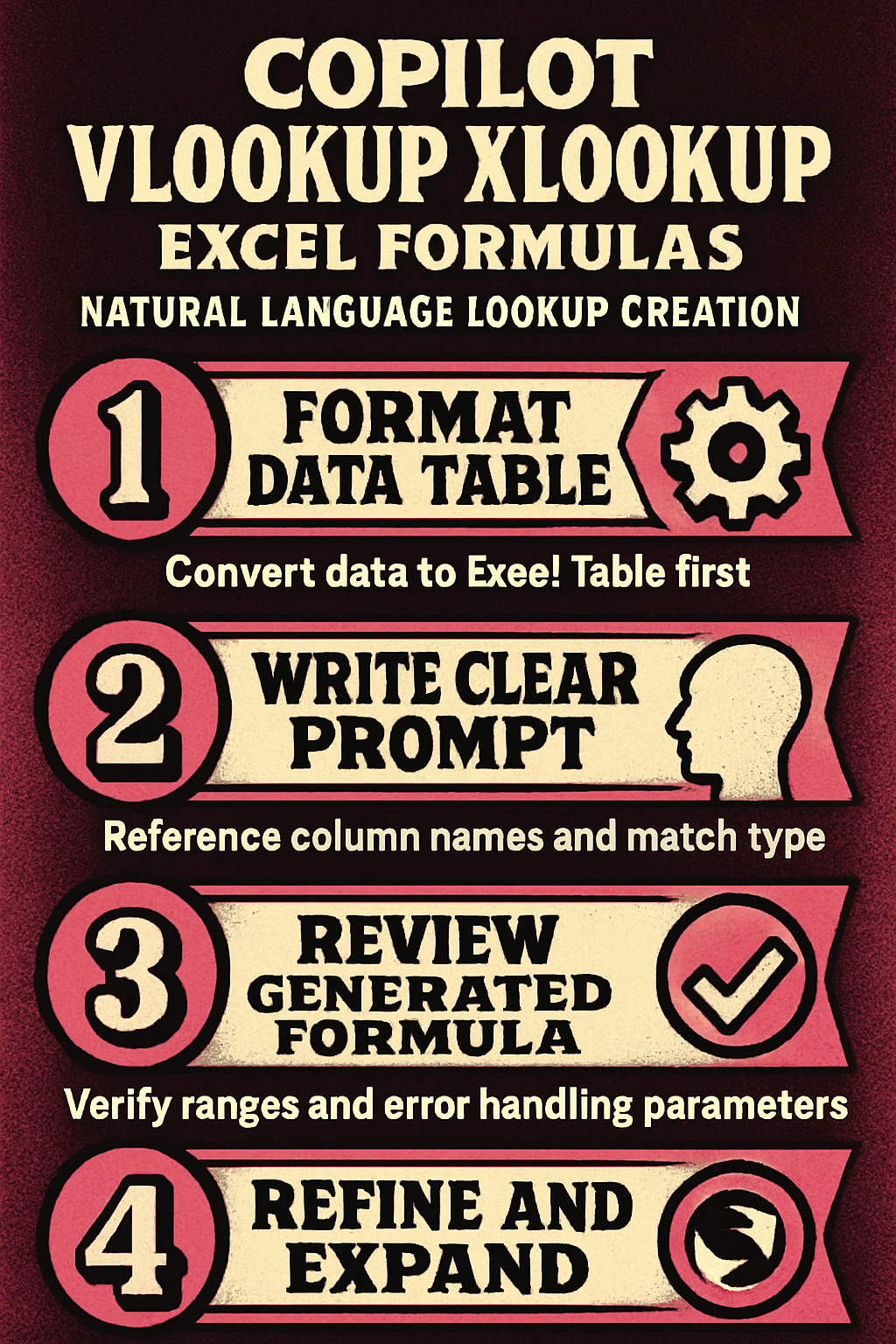
- Always format your data as an official Excel Table using Insert > Table before prompting Copilot, because structured table references make formulas more readable and automatically adjust. When your data lives in a named table, Copilot generates formulas using structured references like Table1[Column] instead of brittle cell range addresses like A2:D500 references.
- Include the expected behavior for missing or duplicate values in your prompt, such as “return blank if not found” or “get the first matching entry from the list.” Copilot produces cleaner formulas when it understands your error handling preferences upfront rather than generating a basic formula that you must manually wrap afterward.
- Specify whether you need an exact match or approximate match in your prompt text because this distinction fundamentally changes how the lookup function processes the comparison operation. Copilot defaults to exact matching for most requests, but explicitly stating your requirement prevents unexpected approximate match behavior that could return incorrect neighboring values.
- Review the generated formula before pressing Enter to confirm that Copilot selected the correct table ranges, column references, and match parameters for your specific data layout. You can also ask Copilot to explain the formula it generated so you understand each parameter and can generate data in spreadsheets with Copilot for testing purposes.
Frequently Asked Questions
Can Copilot write VLOOKUP formulas in Excel?
Copilot can generate complete VLOOKUP formulas from natural language descriptions, including the table array, column index, match type, and error handling wrapper functions like IFERROR. You need a Microsoft 365 Copilot subscription and your data must be stored in a properly formatted Excel Table for the best and most reliable results.
What is the difference between VLOOKUP and XLOOKUP in Copilot?
Copilot generates VLOOKUP when the prompt describes a simple left-to-right column lookup with a known column position, but it suggests XLOOKUP for scenarios requiring flexible search direction. XLOOKUP also includes native error handling and supports searching from the bottom of a range, which means Copilot typically produces cleaner and shorter formulas overall.
How do you prompt Copilot to create lookup formulas?
The most effective prompts reference specific column names from your Excel Table, describe the desired return value clearly, and state how missing or duplicate entries should behave. Avoid vague instructions like “look up data” and instead provide concrete descriptions such as “find the shipping cost for order number 4521 from the Orders table” for accuracy. Microsoft Copilot reduces the complexity of building VLOOKUP and XLOOKUP formulas by translating everyday language into precise Excel functions that handle edge cases and structured references automatically. Start by adding Microsoft Copilot to your Excel setup and experimenting with simple lookup prompts before progressing to multi-criteria searches and nested formula combinations.