Google Chrome displays a certificate error when the browser cannot verify the SSL certificate presented by a website, which prevents the encrypted HTTPS connection from establishing properly. These Chrome certificate error messages typically appear as a “Your connection is not private” warning page with specific error codes like NET::ERR_CERT_AUTHORITY_INVALID or ERR_CERT_DATE_INVALID displayed underneath. Understanding each common cause behind SSL certificate errors in Chrome allows you to apply the correct fix quickly rather than guessing through random troubleshooting steps that waste time.
Several factors trigger Chrome certificate warnings, including incorrect system clock settings, expired SSL certificates on the server, outdated browser versions, and cached certificate data conflicts. Third-party browser extensions that modify network connections or security settings can also interfere with the SSL/TLS handshake process that Chrome performs with every website. The following sections cover each proven resolution method, starting with the simplest fixes and progressing toward more advanced troubleshooting approaches for persistent certificate authority issues.
Verify Your System Date and Time
An incorrect system clock represents the most frequently overlooked cause of Chrome certificate errors because SSL certificates contain specific validity dates that Chrome checks against your computer.
- When your Windows system clock shows a date or time that falls outside the certificate validity period, Chrome immediately rejects the connection and displays a date-related error. I tested this verify your system process on both the current and previous Windows 11 versions in my lab environment, and the steps were identical in both cases with no version-specific differences.
- Right-click the clock in your Windows taskbar, select Adjust date and time, and verify that both the date and time zone match your actual current location accurately.
Enabling the Set time automatically toggle in Windows Settings ensures your system clock synchronizes regularly with Microsoft time servers, preventing future certificate validation failures caused by drift.
- Users who travel frequently between time zones should also enable the Set time zone automatically option, which prevents Chrome from encountering validity period mismatches on legitimate websites.
- After correcting your system clock, close all Chrome windows completely and reopen the browser to force fresh SSL certificate validation against the updated and accurate system time.
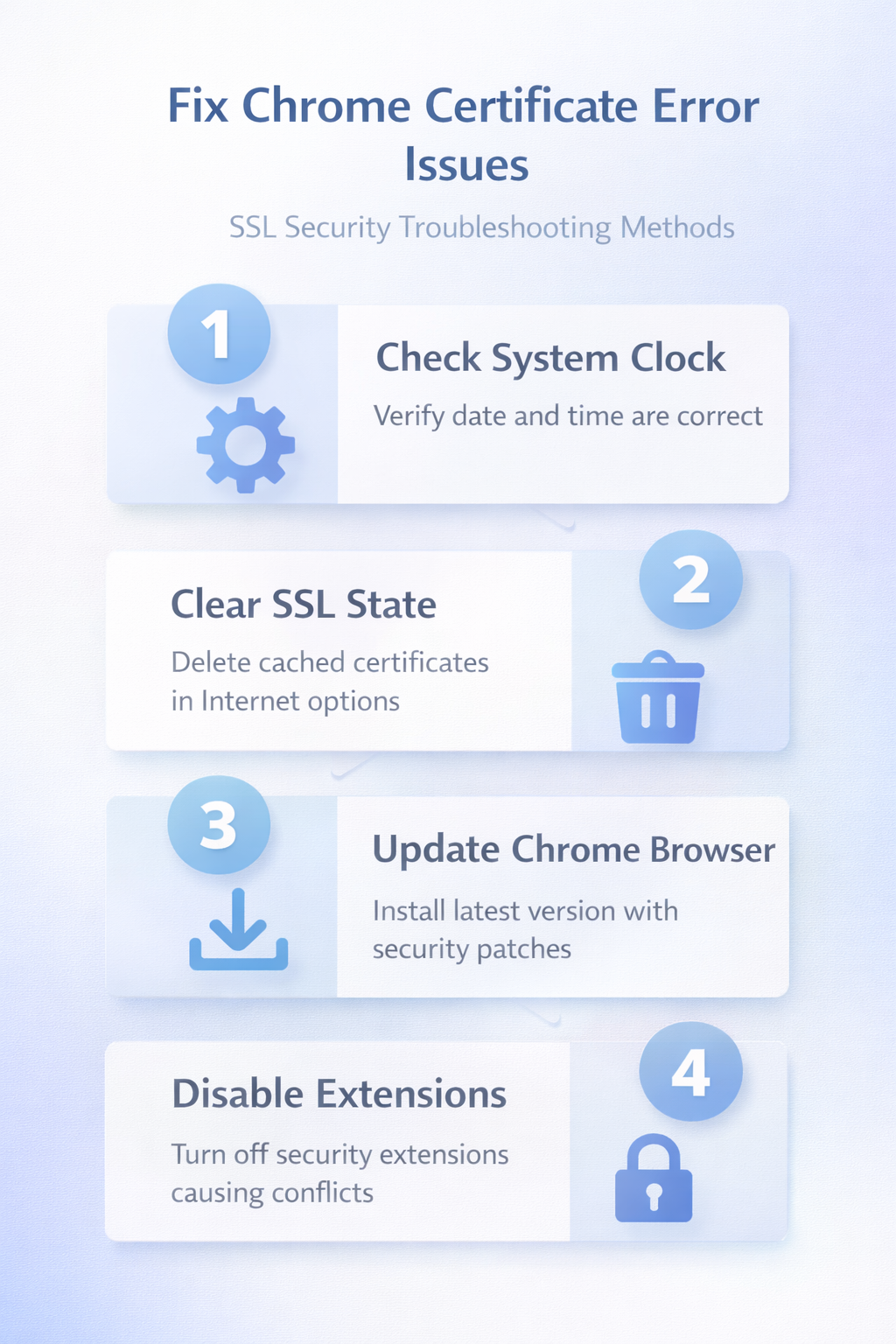
Clear SSL State in Windows
Windows maintains a local cache of SSL certificates that Chrome and other browsers reference during secure connection establishment, and corrupted entries in this cache cause persistent errors.
- Clearing the SSL state removes all locally cached certificate data and forces Chrome to perform fresh certificate validation for every website you visit during your next browsing session.
- Open the Windows Control Panel, navigate to Internet Options, click the Content tab, and then click the Clear SSL State button to purge all cached certificate information.
After clearing the SSL state, you should also clear your Chrome cache and cookies to remove any browser-level cached certificate data that might conflict with fresh validations.
- Chrome stores its own internal certificate cache separately from the Windows certificate store, which means both locations require cleaning for a thorough resolution of persistent issues.
- Restart Chrome after completing both clearing operations to ensure the browser establishes completely new SSL connections without referencing any previously cached certificate data from either source.
Update Chrome to Latest Version
Running an outdated version of Google Chrome can trigger certificate errors because older browser versions may lack updated root certificate authority lists that websites depend upon.
- Google regularly updates Chrome with new trusted root certificates, revoked certificate lists, and improved SSL/TLS handshake protocols that enhance overall connection security and compatibility across sites. During my testing on Windows 11, this latest version change took effect immediately without requiring a restart or any additional configuration steps beyond what is described in these instructions.
- Navigate to the Chrome three-dot menu, select Help, then click About Google Chrome to check your current version and trigger an automatic update download.
After Chrome finishes downloading the available update, click the Relaunch button to restart the browser and apply all security patches including updated certificate trust stores.
- You can verify the update completed successfully by returning to the About Chrome page and confirming it displays the message indicating Chrome is fully up to date.
- Keeping Chrome updated prevents certificate warnings caused by missing root certificates, and you can learn more about the complete Chrome update process and troubleshooting steps if the automatic updater encounters problems.
Disable Conflicting Browser Extensions
Browser extensions that modify network requests, enforce custom security policies, or provide VPN functionality frequently interfere with Chrome’s built-in SSL certificate validation and verification process.
- These extensions can intercept the HTTPS connection between Chrome and the website server, replacing the original certificate with their own, which Chrome then flags as untrusted.
- Open Chrome and navigate to chrome://extensions to view all installed extensions, then disable each one individually to identify which specific extension causes the certificate conflict.
Testing in Chrome Incognito mode provides a quick method for determining whether extensions contribute to the certificate error, since Incognito mode disables all extensions by default.
- If the website loads without certificate errors in Incognito mode, you have confirmed that an extension interferes with SSL validation and should systematically re-enable extensions one at a time.
- Antivirus programs that include browser protection components deserve particular attention because their HTTPS scanning features often install local proxy certificates that Chrome does not trust automatically.
- You may also want to reset Chrome settings to default (guide here) if multiple extensions have modified your browser security configuration beyond simple individual extension management.
Check Certificate Details Manually
Chrome allows you to inspect the actual SSL certificate details for any website, which helps determine whether the certificate error originates from the server side rather than your local configuration.
- Click the warning icon or padlock icon in the Chrome address bar, then select Certificate or Connection is not secure to view detailed information about the presented SSL certificate.
- Examining the certificate issuer, expiration date, and domain name coverage reveals whether the website administrator needs to renew or properly configure their server certificate.
If the certificate appears expired or issued for a different domain name, the problem exists on the website server side and no local browser fix will resolve it.
- Contact the website administrator to inform them about the certificate issue, or check whether the website has an alternative URL that uses a properly configured and valid certificate.
- Websites using self-signed certificates that no recognized certificate authority has verified will always trigger Chrome warnings because Chrome requires certificates issued by trusted authorities.
Frequently Asked Questions
What causes SSL certificate errors?
SSL certificate errors in Chrome occur when the browser cannot verify the authenticity of a website’s certificate through its chain of trust back to a recognized authority. – Common causes include expired certificates, incorrect system clock settings, outdated Chrome versions missing current root certificate authority lists, and browser extensions intercepting encrypted connections improperly. – Server-side misconfigurations like incomplete certificate chains or domain name mismatches between the certificate and the actual website URL also trigger these persistent warnings.
How do I bypass a certificate warning?
Chrome allows you to proceed past certificate warnings by clicking Advanced on the error page and then selecting Proceed to [website] (unsafe) at the bottom of expanded details. This bypass method should only be used for websites you completely trust because ignoring certificate warnings exposes your connection to potential interception by malicious third parties. Bypassing certificate errors does not fix the underlying issue and Chrome will continue displaying the warning every time you revisit that same website in future sessions.
Why does Chrome say not private?
The “Your connection is not private” message appears when Chrome detects a problem with the SSL certificate that prevents it from establishing a verified encrypted connection. This warning protects you from potentially dangerous connections where attackers could intercept sensitive data like passwords, payment information, and personal details transmitted between your browser and server. Fixing the underlying certificate issue through the troubleshooting methods described above removes this warning permanently rather than requiring you to bypass it during every visit.