Losing irreplaceable phone photos to a cracked screen or stolen device remains one of the most common and devastating digital disasters that people experience every single year worldwide. Backing up phone photos to OneDrive provides a reliable cloud storage solution that automatically protects your entire camera roll across both iPhone and Android mobile devices without effort. This article walks you through enabling OneDrive camera upload, configuring your preferred automatic sync settings, and managing your available storage space to keep every captured photo safely preserved.
OneDrive photo backup overview
OneDrive offers a built-in camera upload feature that automatically copies every new photo and screenshot from your camera roll directly to your Microsoft cloud storage account safely and reliably, similar to how you can sync files between computers using OneDrive. The OneDrive mobile app works seamlessly on both iPhone and Android devices, which means you can protect all of your important photos regardless of which phone platform you currently prefer. Microsoft provides 5 GB of free cloud storage with every account, and Microsoft 365 subscribers receive a full terabyte of OneDrive storage space included with their subscription plan.
Install the OneDrive mobile app
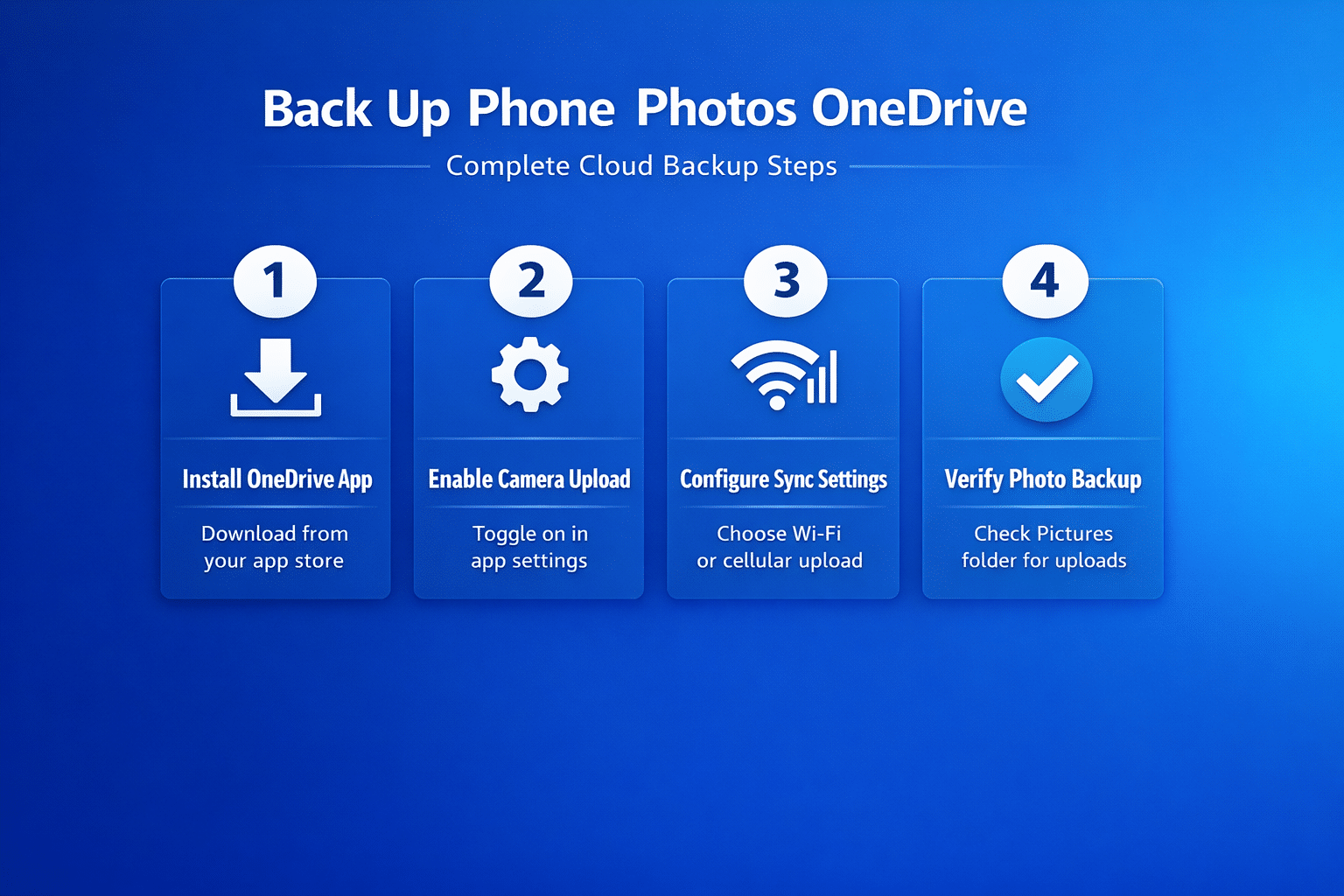
Before you can back up phone photos to OneDrive, you need to download and install the official OneDrive mobile app from your phone or tablet primary app store today. Open the App Store on iPhone or the Google Play Store on Android, search for Microsoft OneDrive, and tap the install button to begin the download process quickly. After the installation completes, sign in with your Microsoft account credentials to connect the OneDrive mobile app to your personal cloud storage space and begin the setup process.
Enable OneDrive camera upload
The camera upload feature serves as the primary mechanism that automatically transfers new photos from your camera roll directly into your OneDrive cloud storage account on a continuous basis. Open the OneDrive mobile app on your phone, tap the profile icon in the upper left corner, select Settings, and then tap the Camera Upload toggle switch to activate the feature. You can then choose whether to upload photos only or include both photos and videos, depending on how much of your total available cloud storage space you want allocated.
Configure upload preferences
OneDrive lets you control whether the automatic sync happens over both Wi-Fi and cellular data networks or restricts all photo uploads exclusively to Wi-Fi connections only for savings. Selecting the Wi-Fi only option prevents unexpected mobile data overage charges, which is particularly useful for users who have limited cellular data plans on their phone service contracts. You can also toggle the Include Videos option separately if you prefer to save phone photos to OneDrive without consuming additional storage space on larger video files, and you can also exclude specific folders from OneDrive sync to save even more space.
Choose your upload quality
Microsoft OneDrive gives you the option to upload your photos at their full original camera resolution or use a smaller compressed format that saves significant storage space overall. Original quality preserves every pixel of detail from your camera roll without modification, which matters most for photographers or anyone who regularly prints large format photos from their phone. The compressed option reduces file sizes while maintaining visually acceptable image quality, which helps users with limited storage space back up substantially more photos within their available cloud allocation.
Verify your OneDrive photo backup
After enabling camera upload, you should verify that your photos are syncing correctly by opening the OneDrive app on your device and navigating directly to the designated Pictures folder. Look for the most recent photos from your camera roll and confirm they appear with the correct timestamps, proper orientation, and original file names shown beneath each image thumbnail displayed. If photos appear missing or the upload seems stalled, check that your phone has an active internet connection and that OneDrive retains permission to access your photo library on the device.
Manage OneDrive storage space
Monitoring your cloud storage capacity on a regular basis prevents frustrating backup interruptions that occur when your OneDrive account reaches its maximum storage limit during an automatic photo sync. Open the OneDrive mobile app on your device, navigate to Settings, and review the storage usage bar that displays your current consumption relative to your total available plan allowance clearly. Consider upgrading to a Microsoft 365 subscription if you frequently run out of space, since subscribers receive one terabyte of OneDrive cloud storage included with their plan automatically.
- Delete duplicate photos from OneDrive periodically to reclaim valuable storage space that accumulated duplicate files consume unnecessarily across your synced camera roll backup folders over extended time periods.
- Use on-demand files on your desktop computer so that cloud-only photos do not consume any local disk space while remaining fully accessible through your Windows File Explorer application, and you can find shared files in OneDrive folders across your organization.
- Review the Recycle Bin inside OneDrive regularly because deleted files continue occupying your storage allocation for a full thirty days before the system permanently removes them from your cloud account.
Troubleshoot common backup issues
Camera upload occasionally stops working due to permission changes, battery optimization settings, or restrictive network configurations that prevent the OneDrive mobile app from running its essential background sync processes. On Android devices, navigate to your battery settings and disable any optimization feature that restricts OneDrive from operating freely in the background during automatic photo sync operations continuously. For iPhone users, verify that OneDrive has the Photos access permission and Background App Refresh enabled through the iOS Settings app under the dedicated OneDrive application section directly.
Frequently asked questions
How do I enable camera upload in OneDrive?
Open the OneDrive mobile app on your phone, tap your profile icon, select Settings from the menu, and toggle the Camera Upload switch to enabled to begin the automatic backup process. The OneDrive app will then begin uploading all existing photos from your camera roll first before proceeding to automatically sync every new photo you capture going forward from that point.
Does OneDrive compress photos during backup?
OneDrive provides both an original quality setting and a smaller compressed upload option, and you can select your preferred quality setting within the Camera Upload configuration screen in the app. Original quality preserves your high resolution files exactly as your phone camera captured them, while the compressed option reduces file sizes to help conserve your available storage space effectively.
Can I back up photos from both iPhone and Android to OneDrive?
OneDrive works fully on both iPhone and Android mobile platforms, so you can install the OneDrive mobile app on multiple different devices and sync phone photos from each one into your single account. All photos uploaded from every connected device appear together and organized in the same OneDrive Pictures folder, making it very convenient to access your entire photo collection from any location worldwide.
Protect your photos today
Setting up OneDrive photo backup takes fewer than five minutes of your time and provides ongoing automatic protection for every single photo you capture on your mobile device going forward. Enable the camera upload feature now so that your most important memories remain safely stored in Microsoft cloud storage regardless of what eventually happens to your physical phone hardware. Visit the OneDrive settings in your mobile app today and activate automatic sync to ensure your entire camera roll stays continuously backed up and well protected from data loss.