Windows 11 occasionally freezes without warning, leaving you staring at an unresponsive screen while unsaved work hangs in limbo and productivity grinds to a halt. Random freezing on Windows 11 stems from outdated drivers, corrupted system files, hardware conflicts, or resource-hungry background processes that overwhelm your computer’s ability to respond normally. This article covers the most effective troubleshooting steps to fix Windows 11 freezing randomly so you can restore system stability and prevent future lockups on your machine.
Update Windows and device drivers to prevent freezing
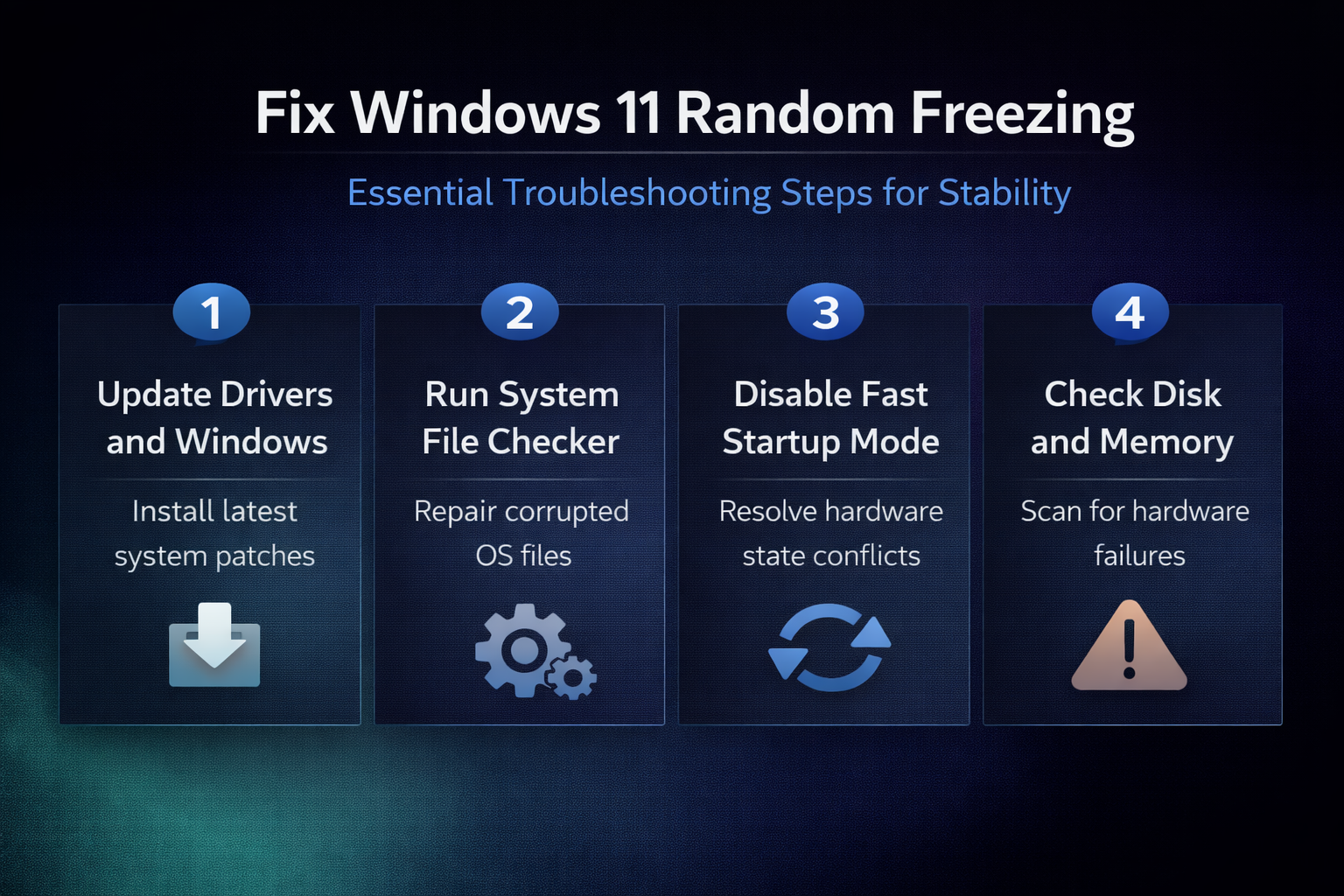
Outdated or incompatible drivers rank among the most common causes of Windows 11 freezing randomly because they create communication failures between hardware components and the operating system. Open Settings, navigate to Windows Update, and click Check for updates to download and install all available system patches including optional driver updates from Microsoft. Pay special attention to graphics card drivers since GPU driver conflicts cause the majority of screen freezes, and visit your manufacturer’s website to download the latest version directly.
You should also check Device Manager for any devices displaying yellow warning icons, which indicate driver problems that could trigger random system freezes during normal use. Right-click the problematic device, select Update driver, and choose to search automatically for updated driver software that resolves the underlying compatibility issue with Windows 11. Keeping all drivers current eliminates one of the primary causes of system instability and ensures that hardware components communicate properly with the operating system kernel.
Run System File Checker and DISM to repair corruption
Corrupted Windows system files frequently cause random freezing because the operating system cannot access critical components it needs to maintain stable and responsive performance. Open Command Prompt as administrator, type sfc /scannow, and press Enter to initiate a comprehensive scan that detects and automatically repairs damaged system files on your machine. The System File Checker process typically takes between five and fifteen minutes to complete, and you should restart your computer afterward to apply all repairs.
If SFC reports files it could not repair, run the Deployment Image Servicing and Management tool by typing DISM /Online /Cleanup-Image /RestoreHealth in the administrator Command Prompt. This command downloads fresh copies of damaged system components directly from Microsoft servers, which resolves deeper corruption issues that SFC alone cannot fix effectively. Running both tools in sequence addresses the full spectrum of file corruption problems that cause Windows 11 to freeze randomly during everyday computing tasks.
Disable Fast Startup to resolve hardware state conflicts
Fast Startup is a Windows 11 feature that saves a partial hibernation image at shutdown, which can cause freezing when hardware components fail to reinitialize properly at boot. Navigate to Control Panel, open Power Options, click Choose what the power buttons do, then select Change settings that are currently unavailable at the top. Uncheck the Turn on fast startup option under Shutdown settings and click Save changes to disable this feature, which forces a complete fresh boot every time.
Disabling Fast Startup forces Windows 11 to perform a full shutdown and clean restart, which eliminates stale hardware states that accumulate over multiple hybrid boot cycles. Many users report that this single change resolves persistent random freezing that occurred for weeks because cached driver states were conflicting with active hardware configurations. You can verify whether disabling Fast Startup helped by monitoring system stability over several days and checking Event Viewer for any remaining critical errors.
Check disk health and memory for hardware failures
Failing storage drives and faulty RAM modules cause random freezing that no software fix can resolve because the underlying hardware can no longer reliably store or process data correctly. Open Command Prompt as administrator and run chkdsk C: /f /r to schedule a comprehensive disk scan that detects bad sectors and attempts to recover readable data. The scan runs during the next restart and can take thirty minutes to several hours depending on your drive size and the severity of detected issues.
To test your RAM, type mdsched.exe in the Windows search bar and select Restart now and check for problems to launch the Windows Memory Diagnostic tool immediately. The diagnostic performs multiple pass patterns across all installed memory modules and reports any errors detected after your computer restarts back into the Windows 11 desktop. If either test reveals hardware failures, replacing the defective drive or memory module is the only permanent solution to stop Windows 11 from freezing randomly.
Reduce background processes consuming excessive resources
Too many background applications competing for CPU and memory resources can cause Windows 11 to freeze randomly when system capacity reaches its maximum threshold during peak usage. Open Task Manager by pressing Ctrl + Shift + Esc, click the Processes tab, and sort by CPU or Memory to identify which applications consume the most resources consistently. If you notice programs consuming abnormally high resources, you can find detailed steps to stop Windows 11 high CPU and disk usage that restore normal performance levels.
Disabling unnecessary startup programs prevents resource-hungry applications from loading automatically and competing with essential Windows services for limited system resources at boot time. Navigate to Task Manager’s Startup apps tab and disable applications you do not need running immediately when Windows starts, which frees significant CPU and memory headroom. You can also turn off background apps that run silently behind the scenes consuming resources even when you are not actively using them.
Adjust power settings and virtual memory allocation
Aggressive power saving settings can cause Windows 11 to freeze randomly by throttling CPU performance below the minimum threshold needed for stable system operation during demanding tasks. Open Settings, navigate to System then Power & battery, and set the Power mode to Best performance to ensure your processor receives adequate power at all times. This adjustment prevents the CPU from downclocking too aggressively during brief idle moments, which eliminates freezing caused by insufficient processing power when activity suddenly resumes.
Virtual memory supplements your physical RAM when applications demand more memory than your installed modules can provide, and insufficient allocation causes system freezes. Open System Properties, click Advanced system settings, select the Advanced tab, click Settings under Performance, then navigate to the Advanced tab and click Change. Uncheck Automatically manage paging file size, select your system drive, choose Custom size, and set the initial size to 1.5 times your total RAM amount in megabytes.
Keep Windows 11 updated automatically for ongoing stability
Maintaining current Windows updates delivers continuous security patches, driver improvements, and bug fixes that address newly discovered causes of system freezing and instability. You can enable automatic Windows 11 updates to ensure your system always receives the latest stability improvements without requiring manual intervention from you. Automatic updates combined with regular driver maintenance create a proactive defense against the software conflicts and vulnerabilities that trigger random freezing events on Windows 11.
If your computer continues running slowly after applying all freezing fixes, the issue may involve broader system performance degradation requiring additional optimization beyond freeze prevention. Review our comprehensive article on solving Windows 11 performance and slow running issues for strategies that address all performance bottlenecks holistically.
Frequently asked questions about Windows 11 freezing
Why does Windows 11 freeze randomly without any warning?
Windows 11 freezes randomly due to outdated device drivers, corrupted system files, insufficient memory, overheating hardware, or conflicting background processes that exceed available system resources simultaneously. Graphics driver conflicts are the single most common cause because GPU communication failures freeze the display output while the system continues running processes internally. Running System File Checker, updating all drivers, and monitoring Task Manager for resource bottlenecks addresses the majority of random freezing causes on Windows 11.
How do I check if hardware is causing Windows 11 to freeze?
Run Windows Memory Diagnostic by typing mdsched.exe in the search bar to test your RAM modules for errors that cause random freezing and system instability. Use chkdsk C: /f /r in an administrator Command Prompt to scan your storage drive for bad sectors and file system corruption that triggers freeze events. Monitor CPU and GPU temperatures using Task Manager’s Performance tab, because overheating components throttle aggressively or freeze the system to prevent physical damage.
Does disabling Fast Startup actually help with Windows 11 freezing?
Disabling Fast Startup forces Windows 11 to perform a complete shutdown and fresh boot rather than loading a cached hibernation image that may contain stale configurations. This resolves freezing caused by hardware state conflicts where drivers and devices fail to reinitialize properly from the saved hibernation snapshot during startup. Many users confirm that disabling Fast Startup alone eliminated persistent random freezing that had been occurring for weeks without any other identifiable cause.
Conclusion
Fixing Windows 11 freezing randomly requires a systematic approach starting with driver updates and system file repairs, then progressing to hardware diagnostics and resource optimization adjustments. Apply each solution methodically and monitor system stability through Event Viewer after every change to identify exactly which fix resolved your specific freezing issue effectively. Share your results in the comments below and let us know which troubleshooting step eliminated random freezing on your Windows 11 computer for good.