Microsoft Copilot brings artificial intelligence features directly into Outlook, but not every user finds these AI-powered suggestions helpful for their daily email workflow and productivity. When Copilot appears in your Outlook ribbon or sidebar without invitation, it can feel intrusive and distracting rather than beneficial for managing your inbox effectively. This article shows you exactly how to turn off Copilot in Outlook using multiple methods that work across desktop, web, and the new Outlook for Windows application.
Why you might want to disable Copilot in Outlook?
Several legitimate reasons exist for wanting to remove Copilot from Outlook, ranging from personal preference and workflow disruptions to organizational privacy policies that restrict AI assistant usage. The AI suggestions that Copilot provides can interrupt your natural email composition process, and some users find the drafting recommendations change their intended tone significantly. Organizations handling sensitive data may also require employees to disable Copilot in Outlook to prevent confidential information from being processed through AI systems entirely.
Turn off Copilot through Outlook add-in settings
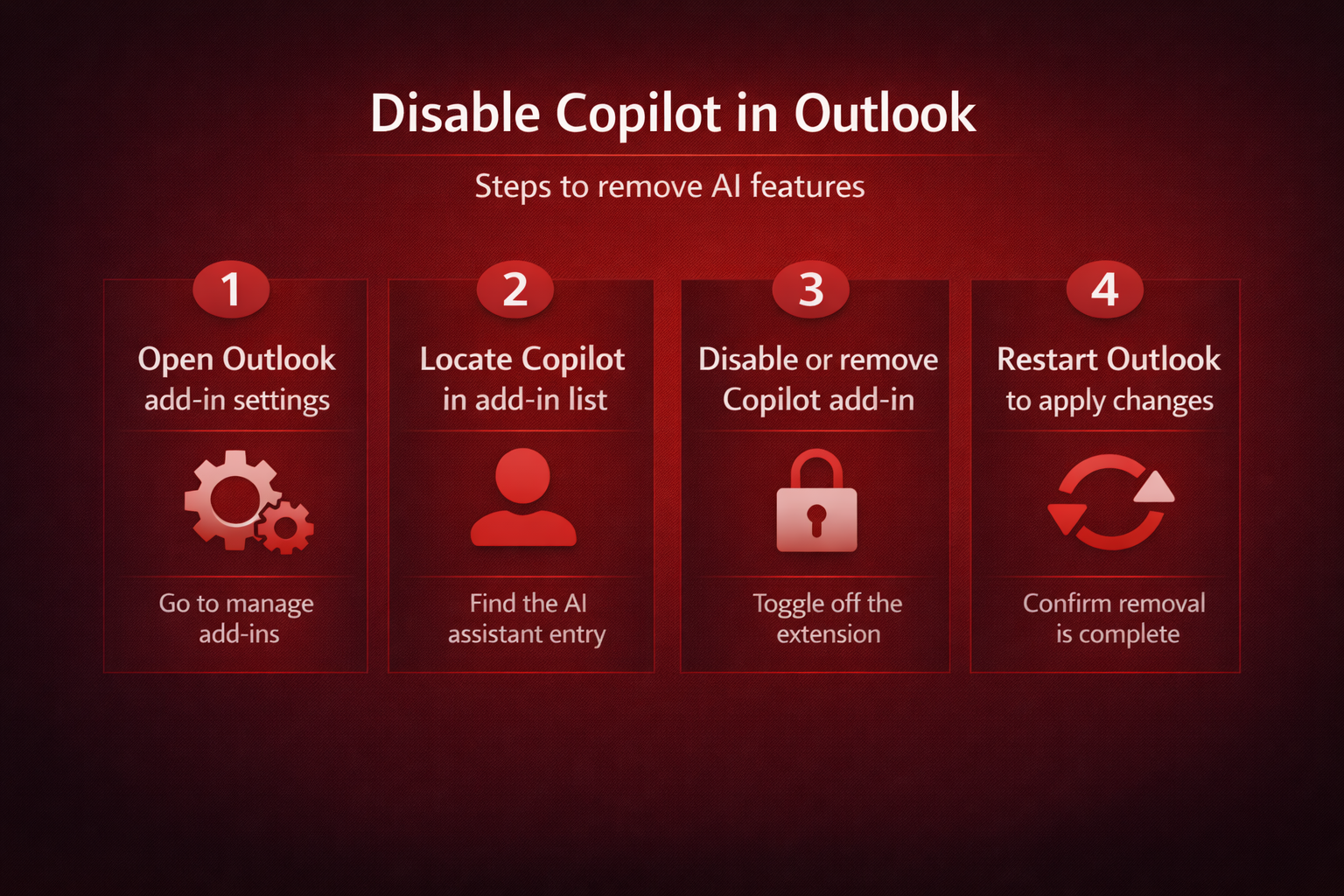
The most straightforward method to disable Copilot in Outlook involves managing it as an add-in, since Microsoft deploys the AI assistant as an integrated extension. This approach works for individual users who want to remove Copilot from their own Outlook experience without requiring administrator privileges or organizational policy changes.
- File menu method — Open Outlook desktop, click File, then Options, select Add-ins from the left panel, and manage COM add-ins to find Copilot. Uncheck the Copilot entry in the add-in list and click OK to disable the AI assistant from appearing in your Outlook ribbon and email composition windows.
- Get Add-ins button — Click the Get Add-ins button in the Outlook ribbon, navigate to My Add-ins, locate the Copilot extension, and select the three-dot menu to remove it. This method works particularly well in the new Outlook for Windows where the traditional File menu options differ slightly from the classic desktop application layout.
Remove Copilot from Outlook in Microsoft 365
Organization administrators who need to turn off Microsoft Copilot across multiple user accounts should use the Microsoft 365 admin center for centralized management. Navigate to Settings, then Integrated apps, locate the Copilot for Microsoft 365 entry, and modify the user assignments to exclude specific groups or individuals. This admin center approach ensures consistent Copilot Outlook disable policies across your entire organization while allowing selective enablement for users who benefit from AI features.
Administrators can also create group-based policies that automatically remove Copilot access when employees join specific departments or security groups within your directory. This granular control through the admin center prevents individual users from needing to manage their own Outlook add-in settings and ensures compliance with data handling requirements.
Disable Copilot in Outlook on the web
The browser-based version of Outlook requires a slightly different approach because the web application manages extensions through its own dedicated settings interface separately. Click the gear icon in the top right corner of Outlook on the web, select View all Outlook settings, navigate to Mail, then Customize actions to find AI features. Remove Copilot-related options from your toolbar and compose window by unchecking the relevant boxes in the customization panel within your Outlook web settings.
Users who regularly draft emails using AI Copilot in the new Outlook and want to stop should also check the compose settings to ensure all AI drafting features are fully disabled. The web version sometimes re-enables features after Microsoft 365 service updates, so verify your Outlook copilot settings periodically to confirm they remain correctly configured.
Turn off Copilot in the new Outlook for Windows
The new Outlook for Windows uses a different architecture than the classic desktop version, which means the process to remove Copilot from Outlook follows a unique path. Open the new Outlook application, click the gear icon to access settings, navigate to General, then Add-ins, and locate the Copilot entry in your list. Toggle the Copilot add-in off or select remove to completely eliminate the AI assistant from your new Outlook for Windows email experience going forward.
Finally – restart the new Outlook application after making these changes to ensure the removal takes effect completely across all mail folders and composition windows.
Prevent Copilot from reappearing after updates
Microsoft 365 updates occasionally reset user preferences and re-enable productivity features including the Copilot AI assistant in Outlook without explicit user consent. To prevent this recurring activation, check your Outlook copilot settings after every major Microsoft 365 update cycle that your organization or device receives automatically through Windows.
Setting up a group policy or registry modification provides a more permanent solution that survives Microsoft 365 update cycles for enterprise environments managing multiple workstations. Consult your IT administrator about deploying organization-wide policies through Intune or Group Policy Objects that enforce the Copilot disabled state across all Microsoft 365 applications.
Frequently asked questions
How do I turn off Copilot in Outlook?
You can turn off Copilot in Outlook by navigating to the add-in settings through the File menu, selecting Options, clicking Add-ins, and unchecking the Copilot entry. Alternatively, use the Get Add-ins button in the Outlook ribbon to locate and remove the Copilot extension directly from your installed add-ins list. Both methods immediately remove the AI assistant features from your Outlook interface without affecting other Microsoft 365 applications or services on your device.
Can I disable Copilot without affecting other Microsoft 365 apps?
Yes, disabling Copilot in Outlook only affects the email application and does not change Copilot availability in Word, Excel, PowerPoint, or Teams automatically. Each Microsoft 365 application manages its Copilot integration independently through separate add-in settings, so removing it from Outlook leaves other applications completely unaffected by default. If you want to disable Copilot across all Microsoft 365 apps simultaneously, your administrator needs to modify the license assignment through the admin center.