Microsoft 365 Copilot promises to capture every important detail from your Microsoft Teams meetings, but the reality often falls short of expectations. When your Copilot meeting summary is missing key points, you lose track of critical decisions, action items, and follow-up responsibilities discussed during the call.
This problem affects thousands of Microsoft Teams users who rely on AI-generated notes to stay organized after meetings and collaborative sessions. The good news is that several proven adjustments to your meeting setup, speaking habits, and Copilot configuration can dramatically improve summary accuracy and completeness. If you are new to this feature, start with our overview of how to summarize Teams meetings with Copilot.
Why Copilot meeting summaries miss important details?
Microsoft Copilot generates meeting summaries by processing the meeting transcription that Microsoft Teams creates during your call in real time. When the transcription contains errors, gaps, or misattributed statements, the resulting summary will inevitably miss key points that were actually discussed.
Poor audio quality is the most common reason that Copilot is not summarizing meetings accurately and producing incomplete or inaccurate recaps. Background noise, echo, low microphone volume, and multiple people speaking simultaneously all degrade the transcription quality that Copilot depends on entirely.
Another frequent cause is that meeting recording settings and transcription were not enabled before the meeting started or joined properly. Copilot cannot summarize content that was never captured, so any portion of the meeting without active transcription will be completely absent.
Enable transcription and recording before the meeting starts
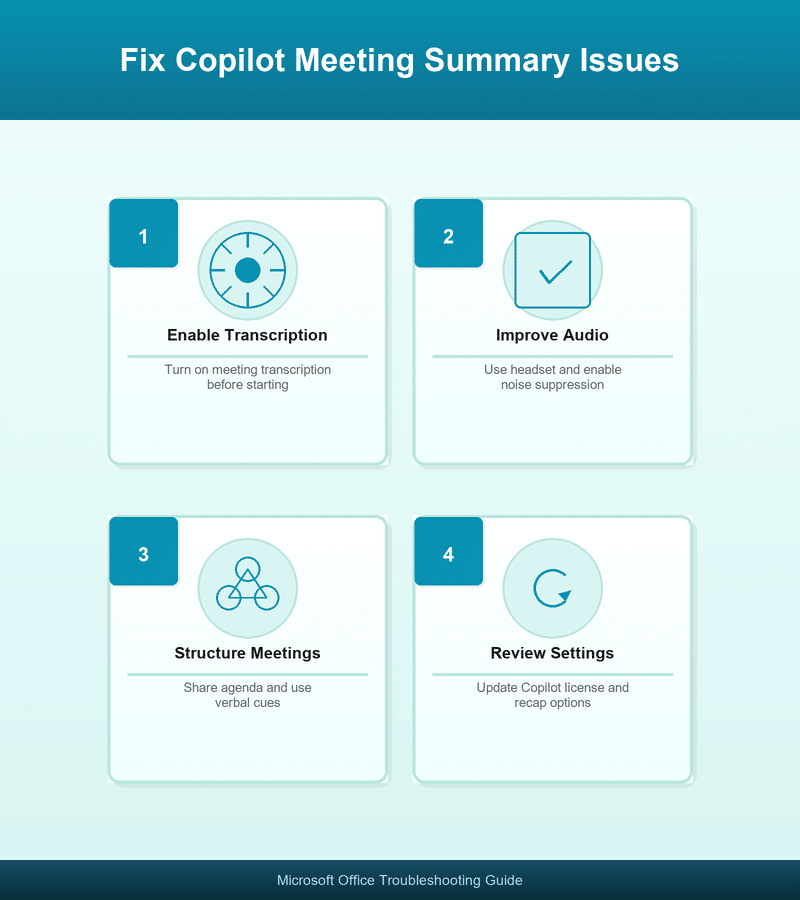
The first step to fix Copilot meeting summary problems is ensuring that transcription is active from the very beginning of the call. Open your Microsoft Teams admin center and verify that the transcription policy is enabled for all meeting participants in your organization. See our detailed walk through for more info.
Check your Microsoft Teams transcription policy
Navigate to the Microsoft Teams admin center, select Meetings, then Meeting policies, and confirm that transcription is toggled on for users. If your organization uses custom policies, verify that the specific policy assigned to meeting organizers includes transcription permissions for all attendees.
Start transcription manually when needed
In some configurations, transcription does not start automatically and the meeting organizer must activate it manually during the active session. Click the three-dot menu in your Teams meeting toolbar, select Record and transcribe, then choose Start transcription before any important discussion begins.
Improve audio quality to capture every key point
Since Copilot relies entirely on the meeting transcription to generate its Teams meeting recap, improving audio quality directly improves summary completeness. Use a dedicated headset or high-quality microphone instead of relying on your laptop built-in speakers and microphone for meetings.
Reduce background noise and echo
Enable noise suppression in Microsoft Teams by navigating to Settings, then Devices, and selecting High under the Noise suppression dropdown menu option. Encourage all meeting participants to mute their microphones when they are not actively speaking to prevent audio overlap and crosstalk.
Speak clearly and avoid crosstalk
Copilot struggles when multiple participants talk over each other because the transcription engine cannot distinguish between overlapping voices and separate speakers. Establish a meeting protocol where participants raise their hand in Teams or use the chat to signal before speaking.
Structure your meetings for better Copilot summaries
The way you organize and run your meetings has a significant impact on whether Copilot captures all the important details accurately. A structured meeting with clear agenda items, defined speakers, and explicit action items produces substantially better AI-generated notes than freeform discussions.
Use verbal cues for action items and decisions
Copilot identifies action items and decisions by recognizing specific language patterns and contextual signals within the meeting transcription stream. Explicitly state phrases like “the action item is” or “we have decided to” so that Copilot can reliably flag these moments.
Share a meeting agenda beforehand
When participants follow a structured agenda, the conversation flows through distinct topics that Copilot can more easily separate and categorize accurately. Share the agenda in the Microsoft Teams meeting chat before the call begins so everyone can reference the planned discussion topics.
Review and refine Copilot meeting recap settings
Microsoft regularly updates the Copilot meeting recap features, and your current configuration may not include the latest improvements and accuracy enhancements. Check your Microsoft 365 Copilot settings to ensure you are using the most current version with all available summary features enabled. You can also explore additional options for generating meeting recaps and summaries with Copilot in Teams.
Verify your Copilot license and feature access
Some Copilot meeting summary features require a Microsoft 365 Copilot license rather than the basic Microsoft Teams license that comes with standard plans. Confirm with your IT administrator that your account has the correct license tier to access the full Copilot meeting summary capabilities.
Adjust summary detail preferences
Within your Copilot settings, you can adjust the level of detail included in meeting summaries to match your specific needs and preferences. Navigate to the Copilot panel in Microsoft Teams, select the settings gear icon, and review the available options for summary length.
Troubleshoot when Copilot is still not summarizing meetings
If you have followed all the steps above and your teams Copilot summary is still incomplete, there may be additional technical issues affecting performance. First, confirm that Copilot is visible in your meeting by reviewing how to fix Copilot not appearing in Teams meetings. Check the Microsoft 365 service health dashboard to verify there are no active incidents affecting Copilot or Teams transcription services.
Clear your Microsoft Teams cache
Corrupted cache files can cause unexpected behavior in Microsoft Teams, including problems with Copilot meeting summaries and transcription features not working properly. Close Microsoft Teams completely, navigate to the Teams cache folder, delete all cached files, and then restart the Teams application fresh. Follow the detailed steps in our article on clearing Microsoft Teams cache on Windows.
Contact your IT administrator
Organizational policies, conditional access rules, and data loss prevention settings can all interfere with how Copilot processes and stores meeting data. If the Copilot meeting recap is missing points consistently, your IT administrator can review the tenant-level settings and policies affecting functionality.
Frequently asked questions
Why does Microsoft Copilot miss important meeting points?
Microsoft Copilot relies on accurate meeting transcription to generate summaries, so poor audio quality and overlapping speakers are the most common causes. Ensuring clear audio, enabling noise suppression, and using explicit verbal cues for decisions will significantly improve the completeness of your summaries.
How do I enable transcription for Copilot meeting summaries?
Your Microsoft Teams administrator must enable the transcription policy in the Teams admin center under Meetings and then Meeting policies settings. Once enabled at the organization level, meeting organizers can start transcription manually from the meeting toolbar or configure it to begin automatically.
Can I edit Copilot meeting summaries after they are generated?
Microsoft Teams allows you to view and copy Copilot meeting summaries from the meeting recap tab, but direct editing within Copilot is limited. You can export the summary to Microsoft Word or OneNote where you can add missing details, correct inaccuracies, and customize the final document.