Have you ever wished you had a smart assistant available while browsing the web, one that could summarize pages, answer questions, or help you draft content without switching tabs? Microsoft Edge now includes Copilot built directly into the browser, making it easier than ever to get AI assistance right where you need it.
The challenge of finding and enabling Copilot in Edge
Many users open Microsoft Edge and simply do not know where to look for Copilot, or they find the sidebar icon missing after a recent update or policy change. This tutorial covers how to turn on Copilot in Microsoft Edge on a Windows desktop, verify that it is properly enabled, and configure the sidebar so Copilot is always accessible when you need it. This is similar to how you can turn on Copilot in Windows 11 for system-wide AI assistance, enabling Copilot in Edge brings AI capabilities directly to your browsing experience.
You will be working entirely within Microsoft Edge settings and the Windows taskbar environment, with no additional software required. By the end, you will have a fully functional Copilot experience embedded in your browser, ready to assist with summarization, content drafting, and web-based Q&A.
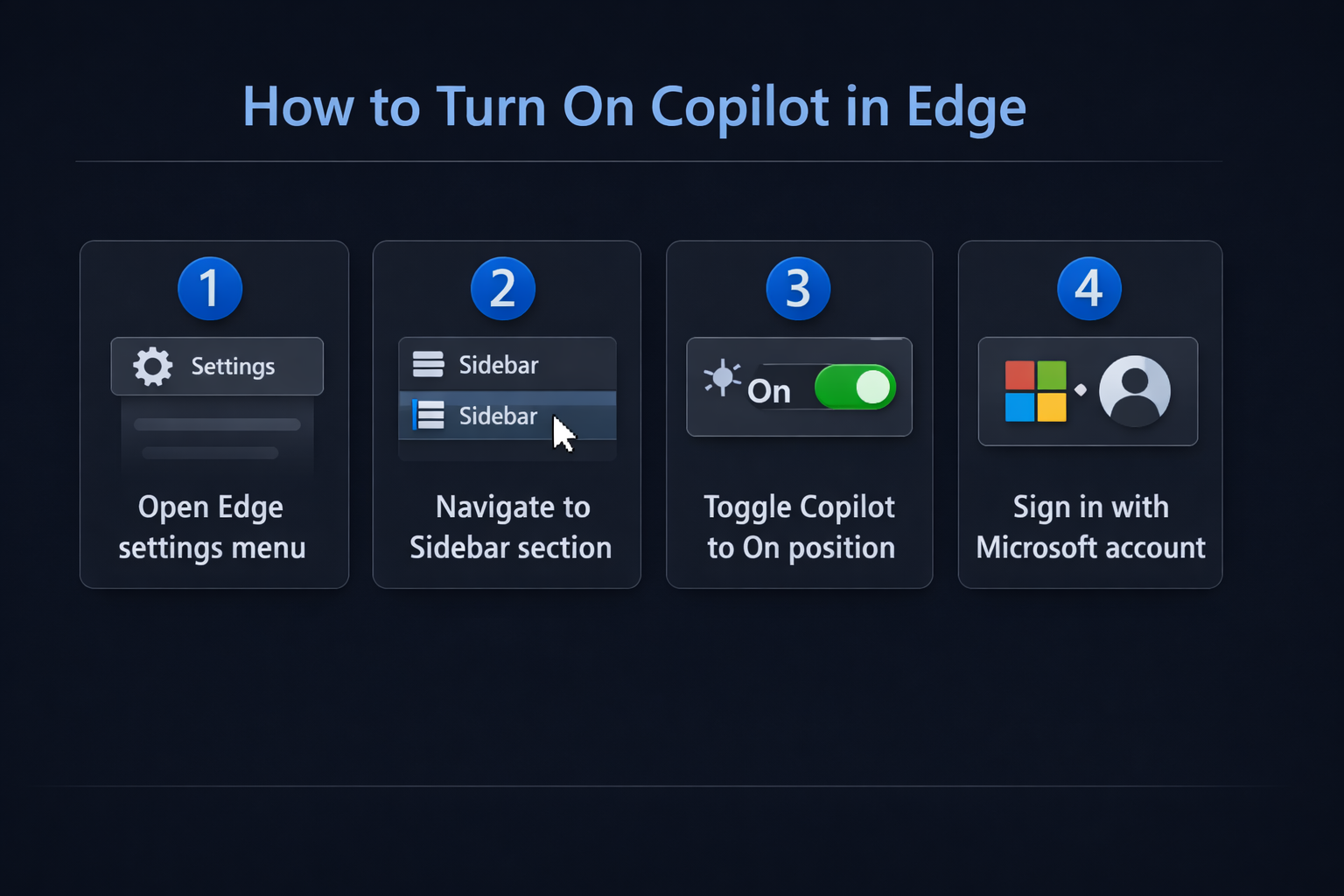
How to turn on Copilot in Edge sidebar?
Enabling the Copilot icon in your Edge browser
- Open Microsoft Edge on your Windows device and click the three-dot menu (…) in the top-right corner of the browser window to access the main settings menu.
- Select Settings from the dropdown list, then navigate to the Sidebar section listed in the left-hand panel of the Settings page.
- Under Sidebar, locate the toggle labeled Copilot and make sure it is switched to the On position to enable the Copilot icon in your browser toolbar.
- Once enabled, you will see the Copilot icon appear on the right side of your Edge toolbar — it looks like a small blue and purple swirl or the Microsoft Copilot logo depending on your Edge version.
- Click the Copilot icon to open the sidebar panel, which will slide in from the right side of your browser window without interrupting your current tab.
Expert Tip: If you do not see the Copilot icon after enabling it in Settings, try restarting Microsoft Edge completely. Sometimes the icon requires a fresh browser session to appear in the toolbar.
Signing in and setting up Copilot in Edge for the first time
- When the Copilot sidebar opens for the first time, you may be prompted to sign in with a Microsoft account or a work or school account connected to Microsoft 365.
- Sign in with your preferred account to unlock the full Copilot experience, including the ability to reference your Microsoft 365 content such as emails and documents when using a work account.
- After signing in, you will be presented with three conversation modes: Chat, Compose, and Insights — each serving a different purpose depending on your current task.
- Use Chat to ask questions about the page you are currently viewing, use Compose to draft emails, blog posts, or messages, and use Insights to get a quick summary of the active webpage.
- To keep the Copilot sidebar open by default every time you launch Edge, go back to Settings > Sidebar and enable the option Always show sidebar so Copilot is immediately available on browser startup.
Copilot in Edge not showing or working correctly
- Copilot icon is missing from the toolbar even after enabling it in Settings: This can happen if your organization’s IT administrator has applied a policy that restricts the Edge sidebar, so check with your IT department to confirm whether Copilot is allowed in your tenant environment. If you’re experiencing issues with Copilot not appearing as expected, you might also want to check our guide on fixing Copilot missing in Windows 11 for additional troubleshooting steps.
- The Copilot sidebar opens but shows a blank white screen or fails to load: This is typically a network or cache issue, so try clearing your Edge browser cache by going to Settings > Privacy, search, and services > Clear browsing data and selecting Cached images and files.
- Copilot is asking you to sign in repeatedly or is not retaining your session: This often occurs when Edge is configured to clear cookies on exit, so navigate to Settings > Privacy, search, and services > Cookies and ensure that Microsoft domains are added to the list of sites allowed to save cookies.
- Copilot features appear limited compared to what you expected: The full Copilot experience in Edge requires a Microsoft account or a Microsoft 365 subscription, so users on a basic free Microsoft account may see fewer features than those signed in with a Microsoft 365 work or school account.