Why does my printer show offline when it’s clearly connected?
You’ve just finished preparing an important document and need to print it immediately, but Windows 11 displays the frustrating “printer offline” message even though your printer is powered on and connected. This common issue affects both network and USB-connected printers, leaving users unable to complete essential printing tasks. The offline status typically occurs due to communication disruptions between Windows 11 and your printer, despite the physical connection appearing intact.
Printer connectivity issues and resolution in Windows 11
The printer offline error in Windows 11 stems from various communication breakdowns between your operating system and printing device. These issues range from simple connectivity glitches to more complex driver conflicts and Windows service problems. Your printer may appear offline due to network configuration changes, outdated drivers, corrupted print spooler services, or incorrect printer settings within Windows 11.
WE will see how to easily restore printer connectivity in Windows 11 environments. You will learn systematic troubleshooting approaches that resolve both temporary communication issues and persistent offline status problems. The solutions cover network printers, USB-connected devices, and wireless printing setups commonly found in home offices and business environments.
Checking basic printer connections and settings
Before proceeding, ensure your printer has power and displays ready status on its control panel. Verify that network printers remain connected to your WiFi network or ethernet connection, and confirm USB cables are securely attached for direct connections.
Start your troubleshooting process by examining the fundamental connection elements that enable communication between Windows 11 and your printing device.
- Navigate to Windows Settings by pressing Windows key + I, then select Bluetooth & devices from the left sidebar to access your connected hardware list.
- Click on Printers & scanners to view all installed printing devices and verify your printer appears in the available devices list with current status information.
- Locate your offline printer in the list and click on it to access detailed printer properties, connection status, and available management options for your specific device.
- Select “Open print queue” to examine any pending print jobs that might be preventing your printer from establishing proper communication with Windows 11 system services.
- Clear all pending documents in the print queue by selecting each job and clicking “Cancel” to eliminate potential conflicts that could maintain the offline status.
- Return to the printer properties page and click “Use printer offline” if this option appears checked, as this setting forces Windows to maintain offline status regardless of actual connectivity.
Expert Tip: Windows 11 sometimes maintains offline status even after connectivity is restored. Manually unchecking “Use printer offline” immediately resolves this persistent issue in most cases.
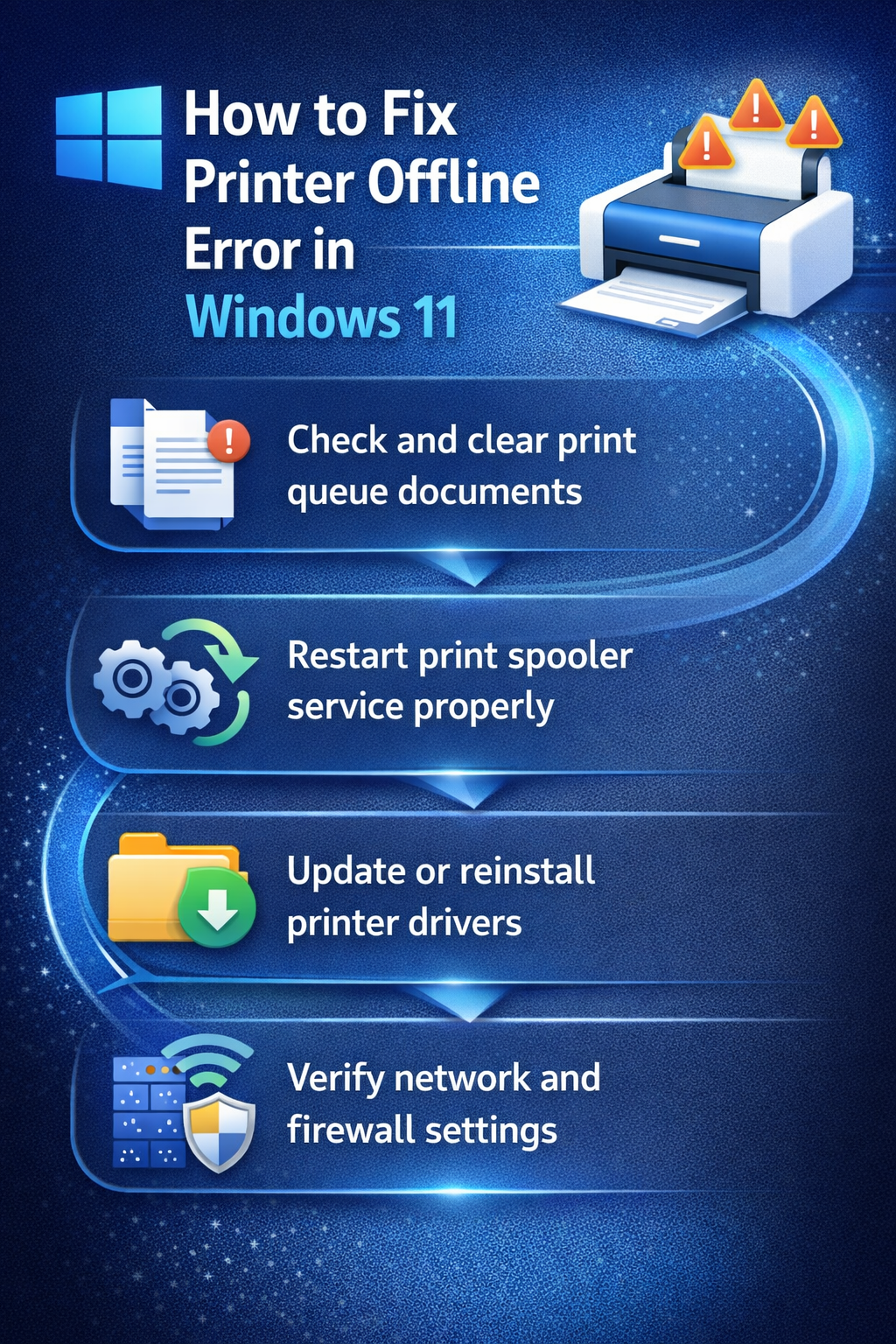
Restarting Windows print spooler service
The print spooler service manages all printing operations in Windows 11, and restarting this service often resolves offline printer issues caused by corrupted temporary files or service conflicts.
- Press Windows key + R to open the Run dialog, type “services.msc” and press Enter to launch the Windows Services management console with administrator privileges.
- Scroll through the services list to locate “Print Spooler” service, which handles all print job processing and printer communication functions within your Windows 11 system.
- Right-click on Print Spooler service and select “Stop” from the context menu to halt all current printing operations and clear any corrupted temporary processing files.
- Wait approximately 30 seconds for the service to completely stop, then right-click on Print Spooler again and select “Start” to reinitialize the printing subsystem with fresh configuration.
- Navigate to File Explorer and access the C:\Windows\System32\spool\PRINTERS folder to manually delete any remaining temporary print files that could cause ongoing communication issues.
- Return to the Services console and verify the Print Spooler service shows “Running” status, then test your printer connection by attempting to print a test page from your application.
Updating and reinstalling printer drivers
Outdated or corrupted printer drivers frequently cause offline status issues in Windows 11, particularly after system updates that modify hardware communication protocols and device compatibility requirements.
- Open Device Manager by right-clicking the Start button and selecting “Device Manager” from the power user menu to access hardware configuration and driver management tools.
- Expand the “Printers” or “Print queues” section to locate your offline printer device, which may display warning icons indicating driver problems or communication failures.
- Right-click on your printer device and select “Update driver” to search for newer driver versions that provide improved Windows 11 compatibility and enhanced communication protocols.
- Choose “Search automatically for drivers” to allow Windows 11 to locate and install the most current driver version from Microsoft’s driver database or Windows Update servers.
- If automatic driver updates fail to resolve the offline issue, return to Device Manager, right-click your printer, and select “Uninstall device” to completely remove existing driver configurations.
- Restart your computer to allow Windows 11 to detect and reinstall your printer with fresh driver files and default communication settings during the next system startup.
- Visit your printer manufacturer’s website to download the latest Windows 11-specific driver package if Windows fails to automatically install appropriate drivers during the reinstallation process.
Troubleshooting common printer offline problems
Several specific issues can prevent successful resolution of printer offline errors, requiring targeted solutions based on your particular hardware configuration and network environment.
- Network connectivity problems often manifest when your printer loses WiFi connection or receives a different IP address from your router’s DHCP service, breaking the established communication pathway with Windows 11 systems.
- Windows Firewall blocking printer communication can occur after security updates that modify network access permissions, preventing your computer from establishing proper connections with network-attached printing devices through standard printing protocols.
- Printer power management settings may cause devices to enter deep sleep modes that Windows 11 interprets as offline status, particularly with energy-efficient models that aggressively manage power consumption during idle periods.
- Multiple printer driver conflicts arise when previous installations leave registry entries or system files that interfere with new driver installations, creating communication errors that maintain persistent offline status regardless of actual connectivity.