Managing your Outlook calendar with holiday updates
“How can I automatically add holidays to my Outlook calendar without manually entering each date?” This question frequently arises when organizations transition to new calendar years or when employees need to coordinate time off with national holidays. Many professionals struggle to maintain accurate holiday calendars across their teams, especially when working with international colleagues who observe different national holidays.
How to add holidays to Outlook 365 calendar effectively?
Managing holiday calendars becomes essential as organizations plan quarterly objectives, project deadlines, and team availability throughout the year. Without proper holiday integration, scheduling conflicts arise when meetings are booked during national holidays, vacation requests overlap with statutory holidays, or project timelines fail to account for regional observances.
This tutorial covers adding built-in country holidays, importing external holiday calendars, creating custom vacation entries, and managing annual leave requests within your Outlook calendar system. You’ll learn to configure holiday settings for Office 365, customize regional preferences, and establish automated holiday updates for 2026 and 2027 planning cycles.
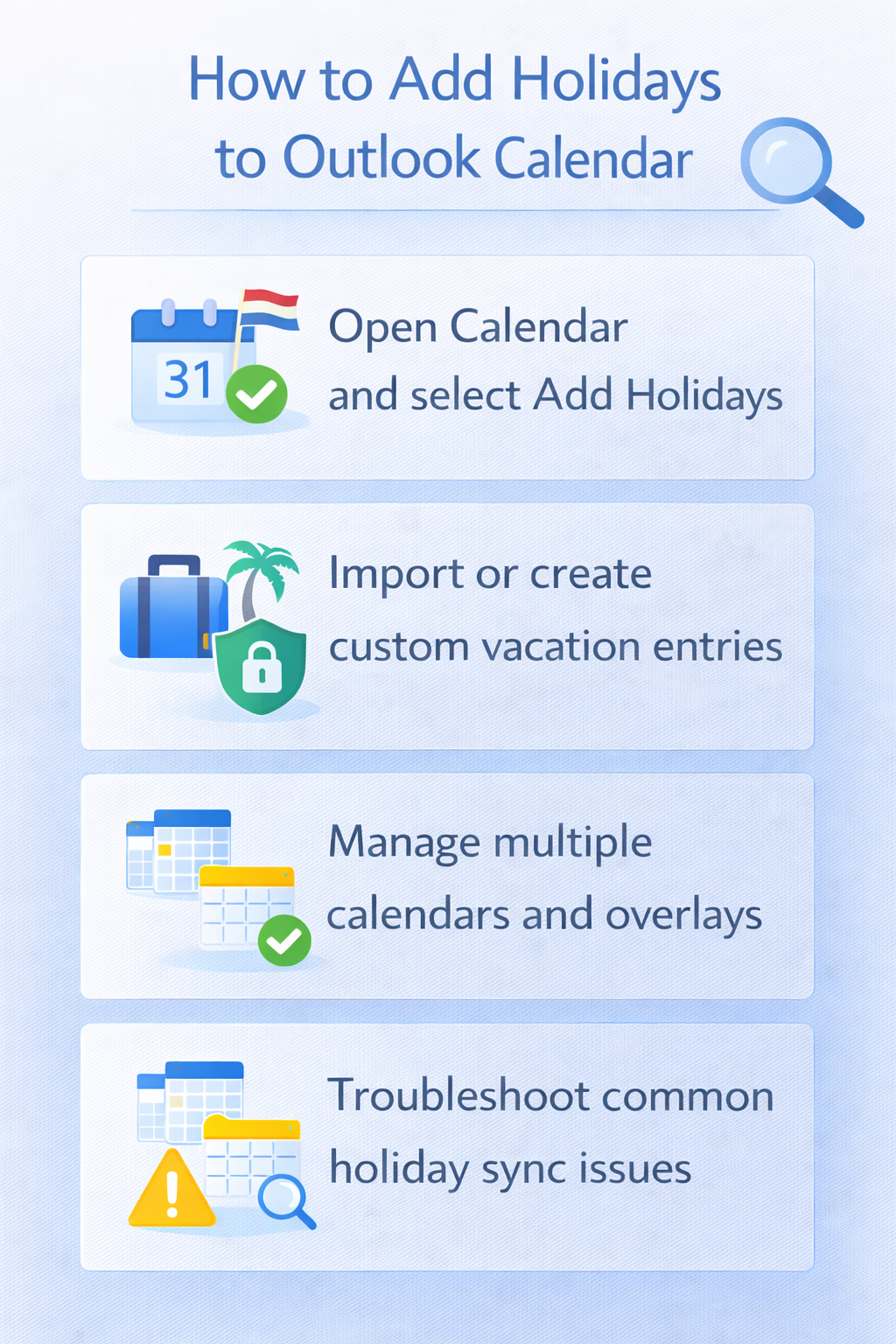
How to add vacation to Outlook calendar step by step?
Begin by accessing your Outlook calendar through the desktop application or web interface at outlook.office.com and navigate to the calendar view where you’ll manage all holiday-related entries.
- Open Outlook and click on the Calendar icon in the navigation pane to access your primary calendar workspace where holiday management occurs.
- Navigate to File menu in the ribbon interface, then select Options from the left sidebar to access comprehensive calendar configuration settings.
- Click on Calendar in the Options dialog box to reveal holiday import settings, regional preferences, and automated calendar update configurations.
- Locate the “Add Holidays” button within the calendar options section and click it to open the holiday selection dialog box containing various country options.
- Select your country or region from the comprehensive list to import standard national holidays, statutory holidays, and widely observed cultural celebrations into your calendar.
- Check the box next to your desired country and click OK to automatically import all standard holidays for the current and following calendar years.
Expert Tip: Import holidays early in the year to ensure proper planning and avoid scheduling conflicts during peak holiday seasons.
How to add annual leave to Outlook calendar with custom entries
Create personalized vacation entries by establishing new calendar appointments that reflect your specific time-off requirements and organizational leave policies.
- Click “New Event” or “New Appointment” in your calendar view to begin creating custom vacation entries that integrate with your existing holiday calendar.
- Enter your vacation title such as “Annual Leave” or “Personal Vacation” in the subject field to clearly identify personal time-off periods for colleagues and stakeholders.
- Set the event as “All Day” by checking the all-day event checkbox, ensuring vacation entries don’t conflict with specific meeting times or appointments.
- Configure the start and end dates for your vacation period, ensuring accurate duration representation and proper calendar blocking for the entire leave period.
- Set the “Show As” status to “Out of Office” or “Busy” to automatically inform others about your unavailability during scheduled vacation periods.
- Add detailed notes in the description field including emergency contacts, coverage arrangements, or project handoff information for team reference during your absence.
- Configure recurrence patterns for annual leave if you take vacation during the same period each year by clicking the “Recurrence” button.
How to add stat holidays Outlook calendar through external sources
Supplement built-in holidays by importing specialized calendar feeds that provide comprehensive holiday coverage including regional observances and industry-specific holidays.
- Navigate to the “Add Calendar” option in Outlook Web App or click “Open Calendar” in desktop Outlook to access external calendar import functions.
- Select “From Internet” option to import ICS calendar files from reliable holiday calendar providers such as government websites or professional calendar services.
- Enter the calendar feed URL for your specific region’s holiday calendar, ensuring the source provides accurate and regularly updated holiday information.
- Name your imported calendar appropriately such as “Regional Holidays 2025” or “Government Statutory Holidays” to distinguish from personal vacation entries and built-in holidays.
- Configure calendar sharing permissions and visibility settings to determine whether imported holidays appear in meeting availability calculations and team calendar views.
- Set calendar colors and display preferences to visually distinguish different holiday types including national holidays, regional observances, and personal vacation time.
How to remove holidays from Outlook calendar when needed
Remove outdated or incorrect holiday entries through systematic calendar management processes that maintain accuracy while preserving important scheduling information.
- Access your calendar view and locate the holiday calendar or specific holiday entries that require removal or modification from your calendar system.
- Right-click on individual holiday entries to access the context menu containing delete, edit, and modification options for specific holiday appointments.
- Select “Delete” for individual entries or choose “Delete Series” for recurring holiday patterns that no longer apply to your calendar requirements.
- Navigate to calendar management settings to remove entire holiday calendars by locating the calendar in your folder list and selecting removal options.
Important Tip: Before removing holidays, verify with your organization’s HR department about required statutory holidays that must remain visible for compliance purposes.
Outlook country holidays calendar and 2026 planning
Establish long-term holiday management by configuring automatic updates and planning for future calendar years including 2026 and 2027 holiday schedules and organizational calendar requirements.
- Access advanced calendar settings through File > Options > Calendar to configure automatic holiday updates that maintain current holiday information across calendar years.
- Enable automatic holiday refresh settings that periodically update your holiday calendar with new government announcements, date changes, or additional observances.
- Configure multiple country holiday calendars if your organization operates internationally by adding holiday calendars for each operational region or country location.
For seamless calendar management across regions, refer to setting up multiple calendars in Outlook.
- Set up calendar overlay options that allow simultaneous viewing of multiple holiday calendars without creating scheduling conflicts or visual calendar clutter.
- Plan 2026 holiday integration by reviewing upcoming holiday dates, noting potential calendar conflicts, and establishing early vacation request procedures for popular holiday periods.
Common challenges with Outlook holiday management
Resolve frequent holiday calendar issues through systematic troubleshooting approaches that address synchronization problems, display issues, and calendar conflicts.
- Holiday duplicates appearing across multiple calendars occur when users import holidays from multiple sources without proper calendar management, creating confusion and scheduling conflicts that require systematic duplicate removal and calendar consolidation processes.
* Missing holidays in shared calendar views happen when calendar sharing permissions don’t include holiday visibility settings, requiring administrators to verify sharing configurations and ensure holiday calendars propagate correctly across team calendar views and meeting scheduling interfaces.
* Incorrect holiday dates or outdated information results from using unreliable calendar sources or failing to update holiday feeds regularly, necessitating verification of holiday sources against official government websites and establishing automatic calendar update procedures.
* Holiday conflicts with recurring meetings emerge when existing meeting series overlap with newly added holidays, requiring meeting organizers to review recurring appointments, reschedule conflicting meetings, and communicate holiday-related schedule changes to all attendees effectively.
For detailed solutions on synchronization and display problems, visit calendar sync troubleshooting.