Users searching for Microsoft Copilot in their applications?
“Where is Microsoft Copilot in my Office apps? I have a Microsoft 365 subscription, but I can’t see Copilot anywhere in Word, Excel, or Teams. My colleagues mentioned they’re using it, but it’s completely missing from my interface. How do I get Copilot to appear in my Microsoft 365 applications?”
Copilot availability and deployment requirements
Microsoft Copilot visibility issues typically stem from licensing mismatches, incomplete tenant configurations, or delayed rollout schedules across different Microsoft 365 environments. Organizations often encounter situations where some users can access Copilot features while others cannot, creating inconsistent experiences across teams.
We’ll explain most common scenarios where Copilot appears missing from Microsoft 365 applications. You will learn to verify licensing requirements, check administrative settings, and resolve deployment issues that prevent Copilot from appearing in Word, Excel, PowerPoint, Outlook, and Teams. The solutions cover both individual user troubleshooting and organization-wide administrative fixes.
Prerequisites include administrative access to Microsoft 365 admin center for organization-wide fixes, though individual users can perform several verification steps independently. If you are an IT admin you will work primarily within the Microsoft 365 admin center, individual Office applications, and Azure Active Directory settings to restore Copilot functionality.
Read this first: How to troubleshoot as an End user?
If you are sure that you have an Microsoft365 copilot license:
- Clear the Office cache by pressing Windows + R, typing %localappdata%\Microsoft\Office\16.0, and deleting the OfficeFileCache folder to resolve corrupted application data that might hide Copilot features.
- Reset Office applications by navigating to Windows Settings, selecting Apps, finding your Microsoft 365 installation, and clicking Advanced options followed by Reset to restore default application configurations.
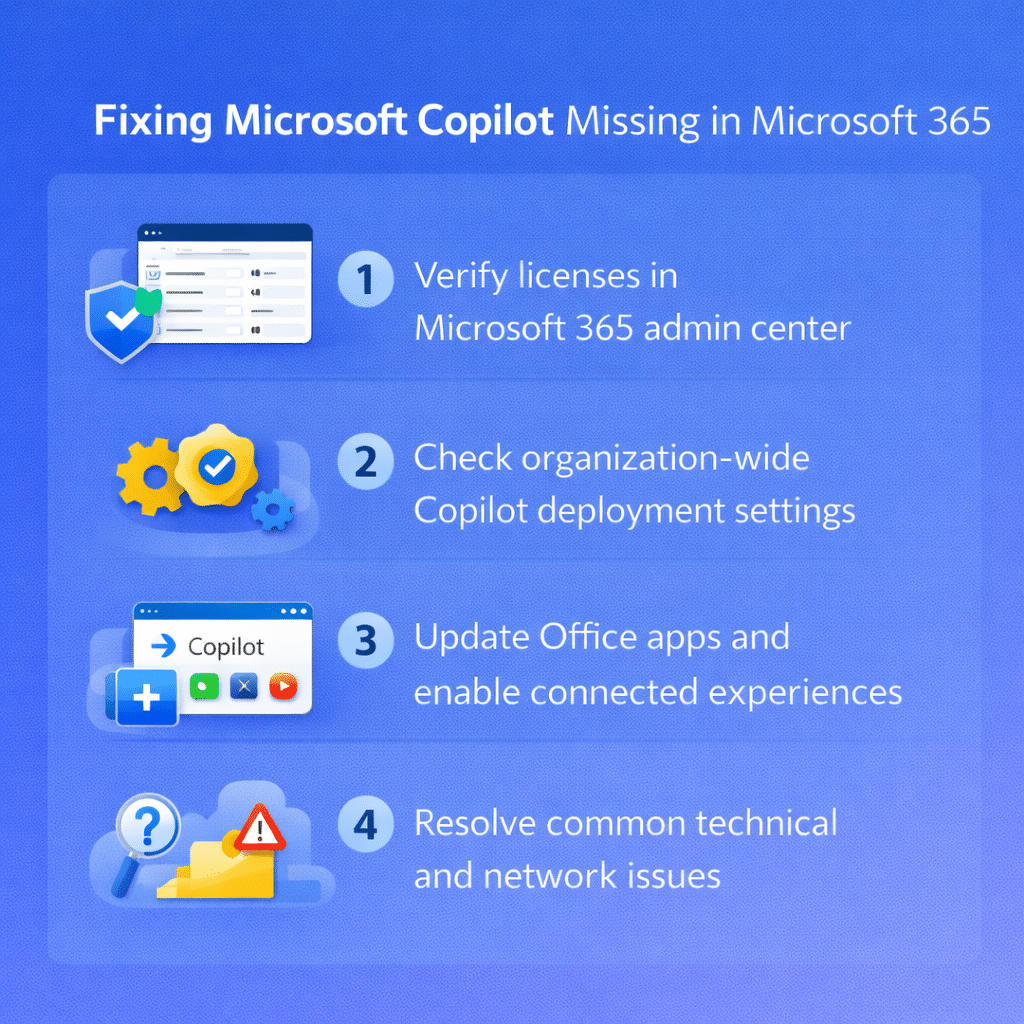
Verifying licensing and subscription requirements
Begin your troubleshooting process by confirming that your Microsoft 365 subscription includes Copilot licensing, as this represents the most common cause of missing Copilot functionality across organizations.
- Navigate to the Microsoft 365 admin center by visiting admin.microsoft.com and signing in with your administrative credentials to access tenant-wide licensing information.
- Select Users from the left navigation menu, then click Active users to view the complete list of users within your organization and their assigned licenses.
- Locate the affected user account and click on their name to open the detailed user profile page containing licensing and subscription information.
- Click on the Licenses and apps tab to view all assigned licenses and verify whether Microsoft 365 Copilot or Copilot for Microsoft 365 appears in the active licenses list.
- Scroll through the available licenses section to confirm that your organization has purchased sufficient Copilot licenses for the affected users who are experiencing missing functionality.
Important Tip: Microsoft Copilot requires specific license types beyond standard Microsoft 365 subscriptions, so verify your organization has purchased the appropriate Copilot add-on licenses.
- If Copilot licenses are missing, click Assign licenses and select the appropriate Copilot license from the available options to enable access for the user.
- Review the Apps section within the same licensing panel to ensure that Copilot-enabled applications like Word, Excel, and PowerPoint are not disabled for the specific user account.
- Save any licensing changes and allow up to 24 hours for the licensing updates to propagate through Microsoft’s systems before testing Copilot availability again.
Checking organizational Copilot deployment settings
- Access the Microsoft 365 admin center and navigate to Settings, then select Org settings to review organization-wide Copilot configuration options that might affect user access.
- Click on Microsoft Copilot under the Services tab to view the current deployment settings and policies configured for your organization’s Copilot implementation.
- Verify that the “Allow users in your organization to use Microsoft Copilot” toggle is enabled, as disabling this setting prevents all users from accessing Copilot features.
- Review the user group assignments to confirm that affected users belong to groups that have been granted Copilot access through your organization’s deployment strategy.
- Check the Data residency and compliance settings to ensure that your organization’s data governance requirements are not blocking Copilot functionality for specific user groups or regions.
- Navigate to the Azure Active Directory admin center to review conditional access policies that might be preventing Copilot from loading within Microsoft 365 applications.
Updating Office applications and enabling preview features
- Open any Microsoft Office application where Copilot should appear, then click File followed by Account to access application-specific settings and update options.
- Under Product Information, click Update Options and select Update Now to ensure you have the latest version of Office that includes Copilot functionality and recent bug fixes.
- Navigate to File, then Options, and select Trust Center to access advanced security and feature settings that might affect Copilot availability within the application.
- Click Trust Center Settings, then select Privacy Options to review settings related to connected experiences and intelligent services that Copilot requires to function properly.
- Ensure that “Enable optional connected experiences” is checked, as Copilot relies on cloud-based AI services that require this setting to be enabled for proper functionality.
- If your organization uses Microsoft 365 Apps for enterprise, verify that you are enrolled in the Current Channel or Monthly Enterprise Channel to receive Copilot updates promptly.
- Close and restart all Office applications after making these changes to ensure that the updated settings take effect and Copilot features become available.
Resolving common Copilot deployment issues
Several technical issues can prevent Copilot from appearing correctly in Microsoft 365 applications, even when licensing and basic settings are properly configured across your organization.
Verify that your network firewall allows connections to *.copilot.microsoft.com and *.openai.azure.com, as Copilot requires access to these cloud services to function within Microsoft 365 applications.
- Check Windows Update to ensure your operating system meets the minimum requirements for Copilot functionality, as older Windows versions may not support certain Copilot features properly.
- If Copilot appears intermittently, sign out of all Microsoft accounts in Office applications, then sign back in using the account that has the appropriate Copilot licensing assigned.
- For Teams-specific Copilot issues, verify that Teams is updated to the latest version and that the Copilot app in Teams is not disabled in your organization’s Teams app management policies.
- Contact your IT administrator to confirm that tenant-wide policies are not blocking AI-powered features or preventing connections to Microsoft’s cloud AI services required for Copilot functionality.