When Teams says “Waiting for another message action to complete,” the compose box is usually waiting for an unfinished send, upload, edit, or client refresh. The safest response is to preserve anything unsent, determine whether the problem follows your account, and then refresh only the affected layer. This guide fixes the exact teams waiting for another message action to complete symptom without treating every delay as a reason to erase local app data.
Protect the message before changing anything
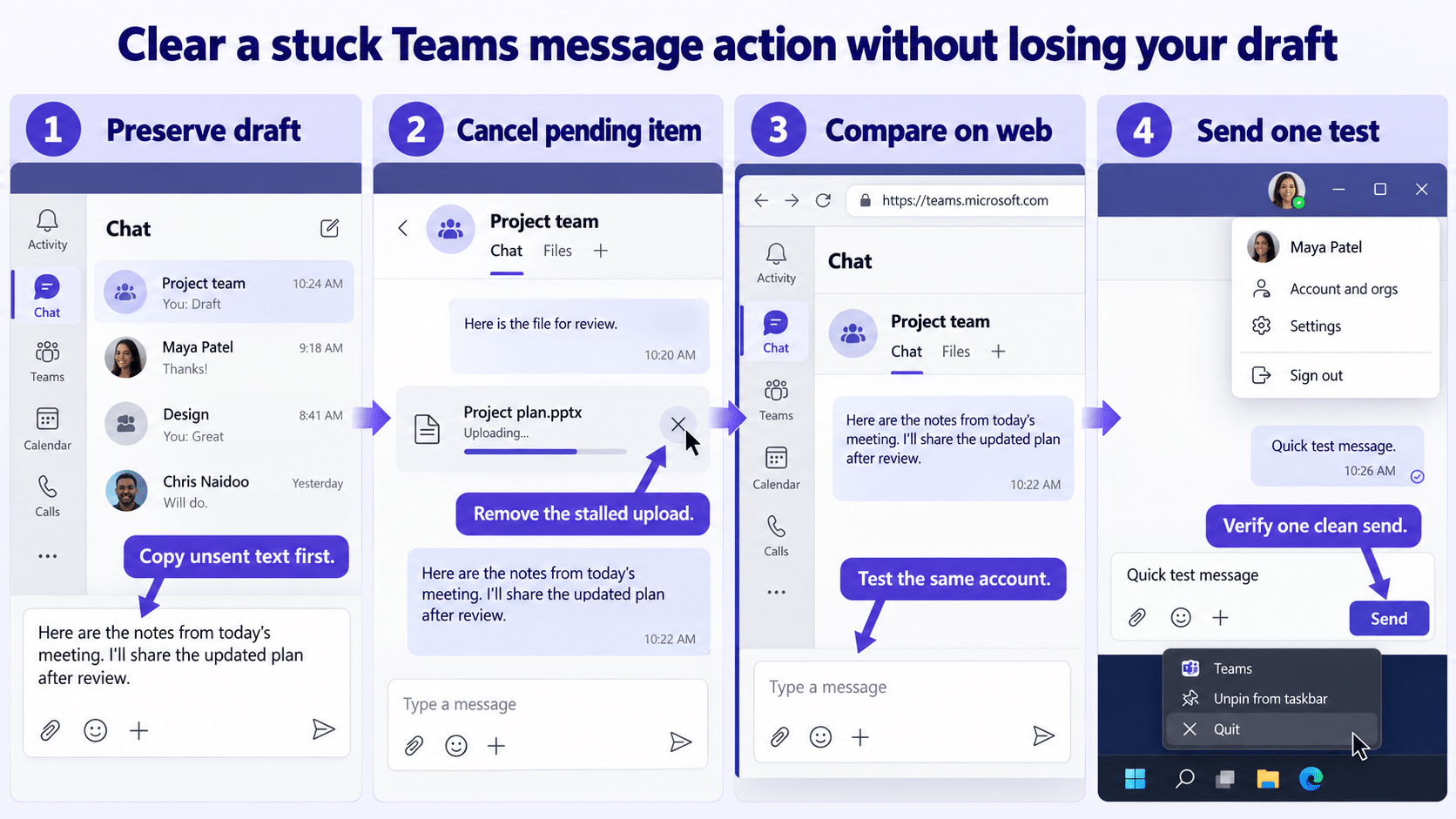
Copy the text from the compose box into Notepad or another local editor. If the message includes an attachment, note its filename and whether the upload circle is still moving. Do not repeatedly select Send: several queued clicks can create duplicate messages when the connection recovers.
Open another chat and type a short test such as “test.” Do not send confidential information during diagnosis. The result separates three useful cases:
- If the second chat works, the original thread or its pending attachment is the likely problem.
- If every chat is blocked, the Teams session or network path is more likely.
- If Teams on the web works while desktop Teams remains stuck, focus on the desktop client.
Microsoft recommends restarting Teams, checking the connection, trying the web app, and signing out when chat messages do not load. Those same comparisons are useful here because they reveal whether the service can accept a fresh action from the same account.
Cancel the action that never finished
Look immediately above the compose box for an attachment that still shows progress, an edit that has not been saved, or a reply draft tied to a message that changed. Remove the unfinished attachment, cancel the edit, or copy the draft and close that chat. Reopen the conversation from Chat rather than from a notification.
If you were attaching a file, confirm that it opens locally and has finished saving. Then send the text alone. Add the file in a separate message only after the text appears in the conversation. This simple split identifies whether the queue is blocked by the file operation or by message delivery.
Refresh the client without losing the diagnosis
On Windows, right-click the Teams icon in the taskbar notification area and choose Quit. Merely closing the window may leave Teams running. Reopen Teams, return to the conversation, and send a new one-line message rather than reusing the old draft.
If the issue remains, open Teams on the web in a supported browser and sign in with the same work or school account. A successful web send is strong evidence that the account and conversation are available. It also lets you keep working while the desktop client is repaired. Readers who see broader loading symptoms can use the client recovery checks to compare startup and session behavior before reinstalling anything.
Re-establish the account session
Select your profile picture, choose Sign out, let Teams close, and sign in again. Microsoft notes that signing out removes account-associated information from that Teams app until you sign in again; it does not sign you out on other devices. Test a brand-new message after the account finishes loading.
Check for Update and restart Teams in the update notice at the top of the window or under the update control when it is offered. Teams normally updates automatically while idle, but completing a pending restart can replace client code that is holding an action open.
Decide whether deeper repair is justified
Do not clear the cache as the first response to a chat-only problem. Microsoft’s current Teams guidance specifically warns that cache clearing is not recommended for missing messages, chat history that will not load, missing teams or channels, or incorrect notification counts because it removes diagnostic logs. A waiting action can be caused by a local client fault, but first prove that quit, web comparison, sign-out, and update did not help.
Repair before you reset
In Windows 11, go to Settings > Apps > Installed apps, find Microsoft Teams, select the three-dot menu, and open Advanced options. Choose Repair if it is available. Repair is the lower-impact choice because Reset can delete local app data and personalization.
Use Reset only when the desktop client alone still reproduces the problem and your organization’s support process permits it. Reopen Teams, sign in, and retest before considering a reinstall. If the web app also fails, resetting Windows app data is unlikely to solve a service, policy, or network issue.
When the message itself is visible but remains stuck in delivery, the send-failure checklist provides useful network and conversation-level checks. Use it after the fresh-chat comparison, not as a reason to repeat the same send attempt.
Prove that the queue is clear
Send a unique test message in the affected chat, wait until it appears in the thread, and confirm from Teams on the web or another device that the same message is visible. Then send the preserved original text once. Add any attachment separately and wait for its upload indicator to finish.
If the banner returns in both desktop and web Teams, record the time, conversation type, whether plain text works, whether attachments fail, and whether colleagues are affected. That evidence helps an administrator distinguish a tenant incident or messaging policy issue from a single-client problem.
Questions about a stuck Teams message action
Will quitting Teams delete my unsent draft?
It can remove a draft that exists only in the local compose box, so copy the text before quitting. Files are not deleted from their original location, but an unfinished upload may need to be attached again. Preserve the content first, then refresh the client.
Why does text send but the attachment keeps the action waiting?
That result points to the file operation rather than the chat service. Confirm that the file is fully saved, close any app that is still writing it, and try a small file with an ordinary filename. If only one file fails, investigate that file instead of resetting Teams.
Should I clear the Teams cache for this message error?
Only after lower-impact tests show that the desktop client is uniquely affected and your support policy calls for it. Microsoft cautions against using cache deletion as a general chat fix because useful diagnostic logs can be lost. Repair or a clean sign-in is usually a better next step.
What should an administrator check if everyone is affected?
The administrator should review Microsoft 365 service health, messaging policies, network filtering, and any recent tenant changes. Provide the exact time and scope of the failure. A reproducible web failure across several users is more useful than a vague report that Teams feels slow.
The practical finish
The problem is resolved only when a new message reaches the affected conversation and is visible from a second client. Preserve the draft, cancel the unfinished action, compare desktop with web, and refresh the account before using destructive repair steps. If both clients fail, stop changing the local PC and escalate with the test results; that keeps a tenant-side incident from being mistaken for damaged app data.