Teams meeting notes should save automatically, so a missing note usually means you are looking in the wrong place, the meeting type does not support the notes experience, or the Loop file behind the note is not available to you. The fix is to confirm where the notes were created before you recreate anything.
Collaborative meeting notes are not just plain text inside the meeting invite. In current Teams, notes can be edited from the meeting details, used during the call, and reopened after the meeting. They may also be available as a Loop document, which means permissions and file access matter.
Reopen the notes from the meeting details
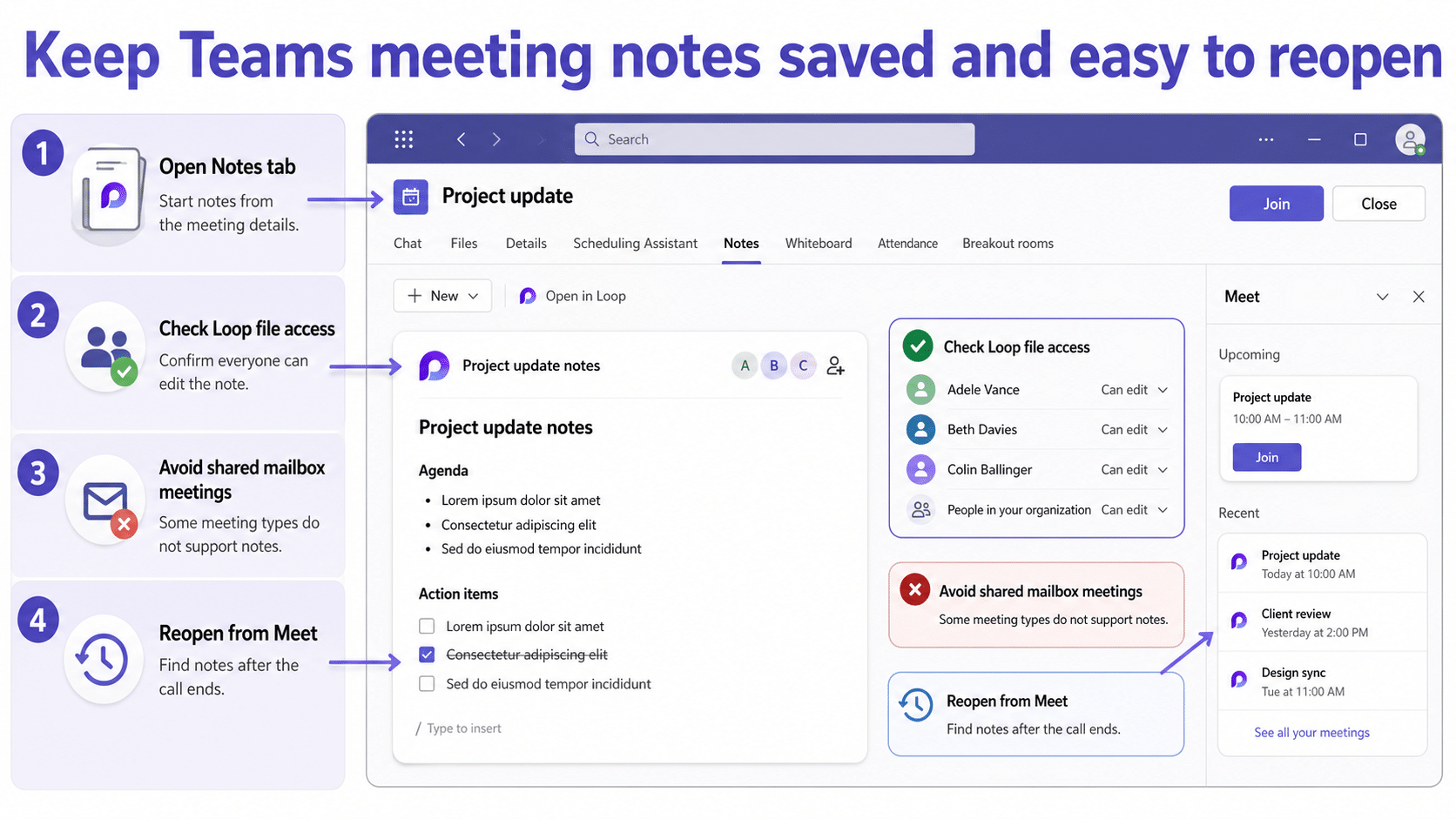
Start in Teams Calendar, not in the chat list. Open the meeting, expand the details, and look for the Notes area. For a past meeting, also check the meeting recap or the Meet app if your tenant uses it. If the note was created correctly, changes should appear automatically to invited participants.
If the meeting is part of a series, confirm whether the notes were added to the whole series or only to one occurrence. It is easy to open last week’s occurrence and assume the notes disappeared when they were created on the series or on a different instance.
Compare desktop, web, and mobile
Teams mobile can read and add notes during and after meetings, but some scheduling actions are desktop-focused. If notes are missing in the desktop client, test Teams on the web. If the web version shows the notes, the local client is the problem. If neither version shows them, focus on meeting support, permissions, or where the note was stored.
Check whether the meeting supports collaborative notes
Not every meeting scenario behaves the same way. Microsoft notes that collaborative agenda notes are not supported in meetings created from a shared mailbox. External attendees also cannot access or edit meeting notes. People who were not directly invited may have limited access.
That matters when a team assistant schedules from a shared mailbox, a delegate calendar, or a room resource. The meeting itself may work, while the notes feature does not save as expected for participants. In that case, create the meeting from the organizer’s own mailbox or capture notes in a separate Loop component or Word document.
Confirm Loop file access
When Teams creates collaborative notes, those notes can be shared and edited in Office.com with a Loop document. If the note appears for the organizer but not for attendees, check file permissions. Ask the organizer to open the note, use Open in Loop if available, and confirm that the intended attendees can edit or at least view the file.
Use this checklist:
- The attendee was directly invited to the meeting.
- The attendee is not an external guest who lacks note access.
- The meeting was not created from a shared mailbox.
- The notes were created on the correct occurrence or series.
- The Loop file opens for the organizer outside Teams.
- The user can access the same note in Teams on the web.
If the Loop file opens but changes do not appear in Teams, wait a few minutes and refresh the meeting details. Avoid creating multiple replacement notes until you know which copy is the source of truth.
Save a clean fallback when notes are at risk
If the meeting is over and the notes still are not visible, do not rely on memory. Ask the organizer or another attendee who can see the notes to copy the agenda, decisions, and tasks into a new Teams message or Word document. Then share that file with the attendees who need it.
For related meeting artifacts, it helps to compare the missing notes issue with recording and invite problems. We have separate fixes for a Teams meeting not showing a phone number that you might want to check out. Those checks are useful when notes, recap, recording, and dial-in details fail together.
Admin checks for repeated save failures
If meeting notes fail across many meetings, involve the Teams or Microsoft 365 admin. Ask them to confirm whether Loop experiences are enabled, whether external sharing is restricted, and whether the organizer mailbox type supports collaborative notes. Also check whether the tenant is using classic Teams, new Teams, or mixed client versions.
Give the admin the organizer, meeting date, meeting type, affected users, and whether the note appears in Office.com. That evidence is more useful than saying “notes did not save” because it separates a Teams client display issue from a file permission or unsupported meeting scenario.
Are Teams meeting notes saved automatically?
Yes, meeting notes are designed to save automatically after they are created. If you cannot see them, the most likely causes are the wrong meeting occurrence, unsupported meeting type, missing invitation access, external attendee limits, or Loop file permissions.
Why can the organizer see notes but attendees cannot?
The organizer may have access to the Loop-backed note while attendees do not. Confirm that attendees were directly invited and that the note’s file permissions allow them to view or edit. External attendees may not be able to access meeting notes.
Do meeting notes work from shared mailbox meetings?
Collaborative agenda notes are not supported in meetings created from a shared mailbox. If that is your workflow, schedule from the actual organizer account or use a separate shared document for notes.
Where should I look after the call ends?
Open the meeting from Teams Calendar, check the meeting recap or Meet app, and search for the meeting title. If the note was Loop-backed, also ask the organizer to open it from Office.com or Loop and verify file access.
Practical takeaway
When Teams meeting notes are not saving, do not recreate the notes first. Reopen the exact meeting occurrence, check whether the meeting type supports collaborative notes, and confirm Loop permissions. If the note is genuinely unavailable, capture the decisions in a new shared file and use the admin checks before the next important meeting.